Last updated: 2026-05-12
We’re introducing an upgraded contact and company experience in Freshdesk (and the ticketing module of Freshdesk Omnichannel) powered by the Neo platform, designed to improve data consistency and streamline customer interactions. This upgrade to contact and company management in your account is relevant if you use Freshdesk or Omnichannel and signed up before August 2022. Your account will be automatically upgraded to the new experience in phases starting October 2025. Further intimation will be shared on the exact date.
``` Note: This change will be rolled out in phases starting October 2025. You’ll receive an email when your account is scheduled for the upgrade. Update: Most customers are now using the new experience, as of March 2026. The rollout for the remaining customers is expected to be completed by April. ```
As part of this upgrade, accounts are automatically migrated to the new contact and company experience powered by the Neo platform. Once your account is upgraded, you will begin seeing the new interface and contact data validation rules.
If any existing contacts contain invalid values (for example, incorrectly formatted phone numbers), they will be moved to a separate view called Contacts that need action. These records will need to be corrected before they can be included in contact-related workflows.
This change ensures that only valid and standardized customer data is stored in your account moving forward.
What you need to do first
If you use integrations that sync contact or company data (especially Work Phone or Mobile Phone), review and fix them before October 2025 to avoid disruptions.
- Only numbers and ‘+’ is allowed - No letters or special characters - Length must be 6 –30 characters
Note: Phone numbers for contacts can be left blank, but if they are filled, they should be in the valid format mentioned above.
- Email - Work Phone - Mobile Phone - Contact’s X (formerly Twitter) handle - Unique external ID
Ensure that the integrations you use fill at least one of the fields mentioned above while creating contacts.
Learn more about managing contacts.
``` Note: In some scenarios, email and X (formerly Twitter) fields may also be invalid, so such contacts will appear in the invalid contacts view or segment. ```
Why this matters:
If your integrations send invalid data after the upgrade, any attempt to create or update contacts through them will fail or be rejected.
Key Timeline and Actions
Update integrations
Early identification of invalid contacts (rolled out in phases)
We’ll begin rolling this out in phases and notify you by email when your account is included. A banner will appear, and clicking it will take you to a filtered list of contacts with invalid records. During this period, you can still create contacts with invalid values, since hard validation will not yet be enforced, but we strongly recommend correcting them in advance.
Three weeks later – Hard validation begins
Once hard validation is enabled for your account, invalid contacts will move to a separate view, and you will no longer be able to create new contacts with invalid values. This ensures only valid data is stored moving forward.
What you can do after the rollout – Update contacts with invalid phone numbers
How to remove Invalid Contacts
1. You can view the number of contacts that require changes from a banner inside the product.
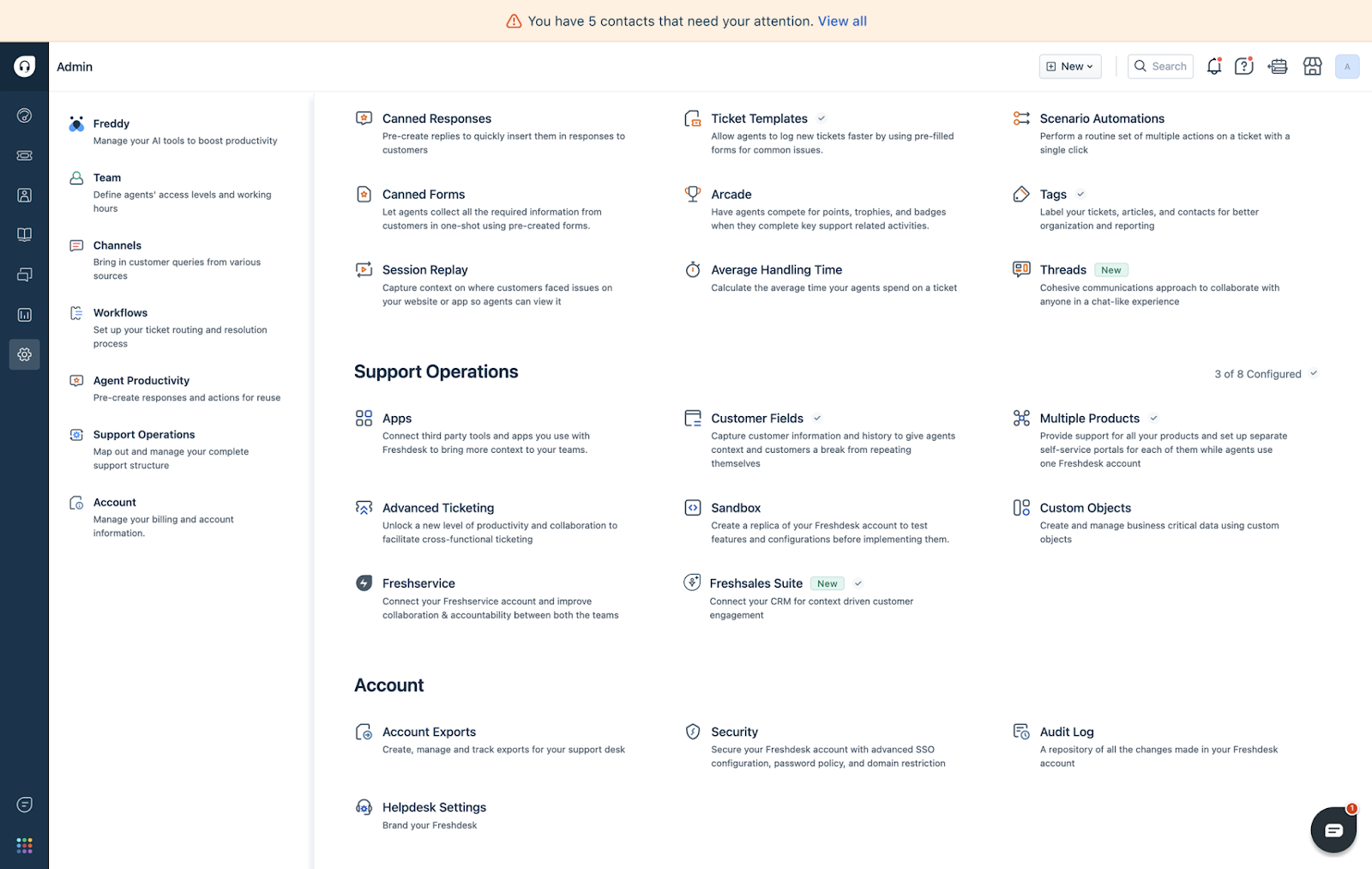
Note: You need to be an Administrator to see the banner.
Fixing individual records
Follow the steps mentioned below if there is lower volume of records and you want to fix each record individually:
1. Click View all in the banner to view the list of invalid contacts 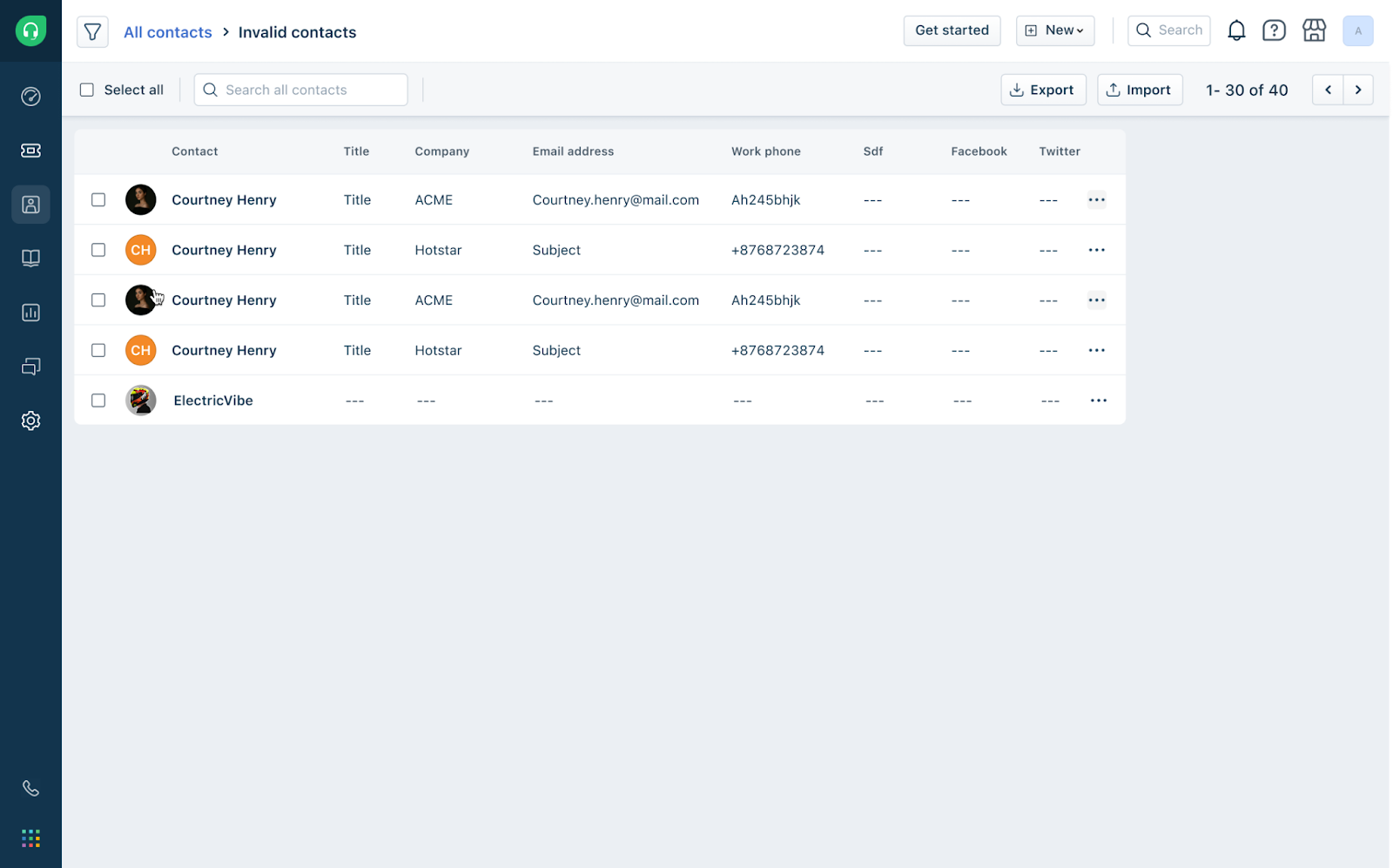
2. Click on a contact from the list of invalid contacts and change the information required using the Edit Contact slider and click Update contact.
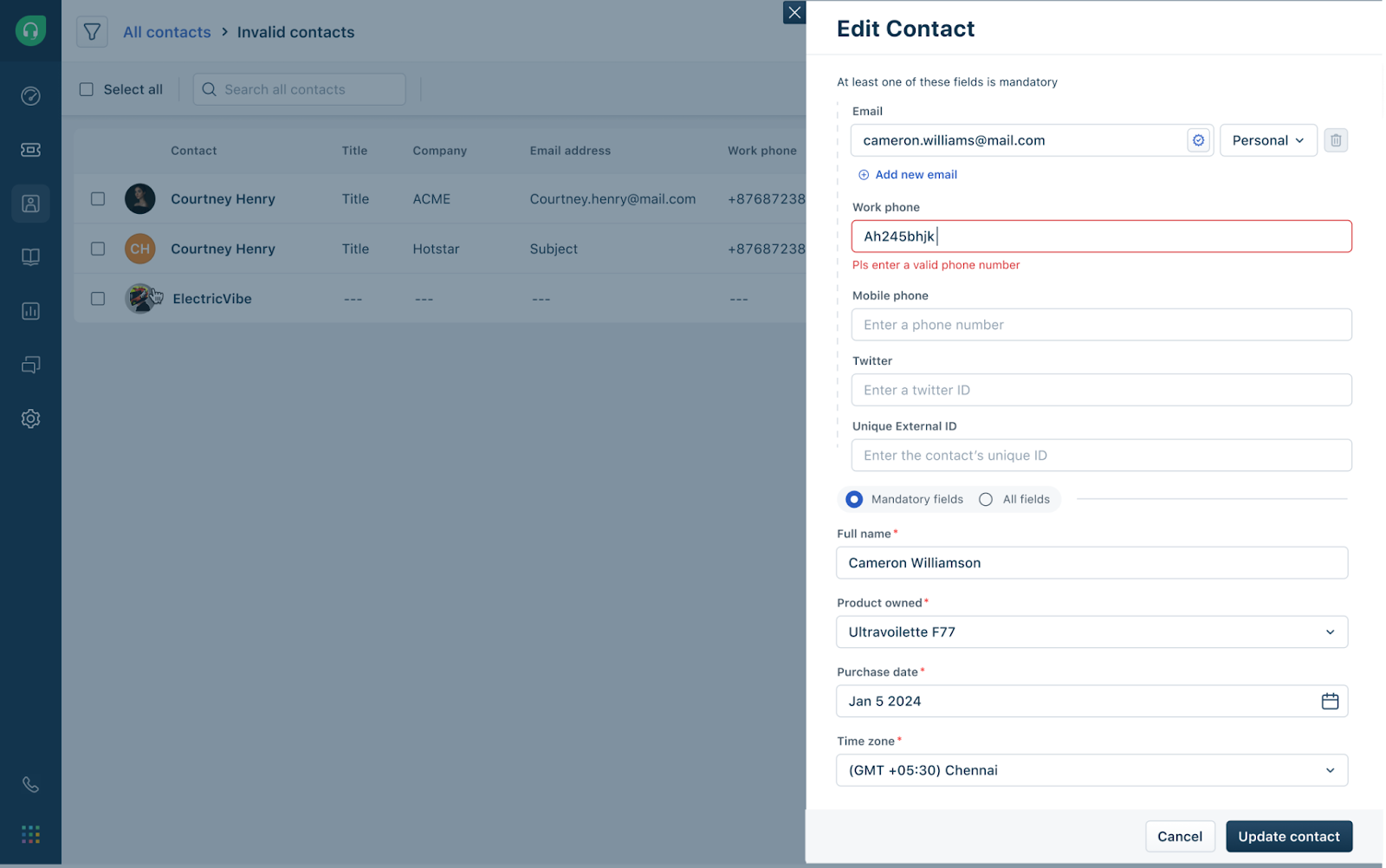
Bulk update all invalid records
You can export multiple contacts as a .xls or .csv file, make changes and import them back into Freshdesk. Say you have added extension numbers to the Work Phone field. You can follow the steps mentioned below to create a custom field and store the extension numbers separately:
1. Go to Admin Settings > Contact Fields > Drag and drop a Number field from the left pane to the middle. 2. In the pop-up that appears, give your custom field a name (example: Extension number). 3. In the Contacts list view, where you see the list of invalid contacts, click Export at the top. Ensure the newly added custom field is enabled for export and click Export. Optionally, go to Admin > Account Exports to check if all invalid contacts are exported. 4. In the exported .csv file, create a column called 'Extension number' and move the extension numbers to this column. 5. Once you have made changes to the contacts in the exported file, click Import in the Contacts list view page to start import the updated contacts. 6. You can now see the extension numbers added separately in a different column while the work Phone field has only the phone numbers without extension numbers.
``` Info: If you’re using Microsoft Excel to edit the CSV file, the ID column (which contains the contact’s unique number) may be auto-formatted. To fix this, select the column, choose Number from the format dropdown, set Decimal places to 0, and click OK to reset the formatting. ```
You can watch the video below that showcases how you can move external number to a custom field.
Contact flow
Invalid contacts after validation enforcement
Once hard validation is enabled for your account, contacts will be separated based on whether their data is valid or invalid:
While most contact-level features remain accessible, some actions will be restricted for invalid contacts until the errors are corrected.
Actions that will not work for invalid contacts
The following actions will be blocked until the contact record is fixed:
If an agent attempts any of these actions, they will see a message prompting them to resolve the errors in the contact record before continuing.
Once the required corrections are made, the contact will automatically return to the main contact list, and all functionality will be available again.
What’s changing in the product
Once your account is upgraded, here’s what you’ll see:
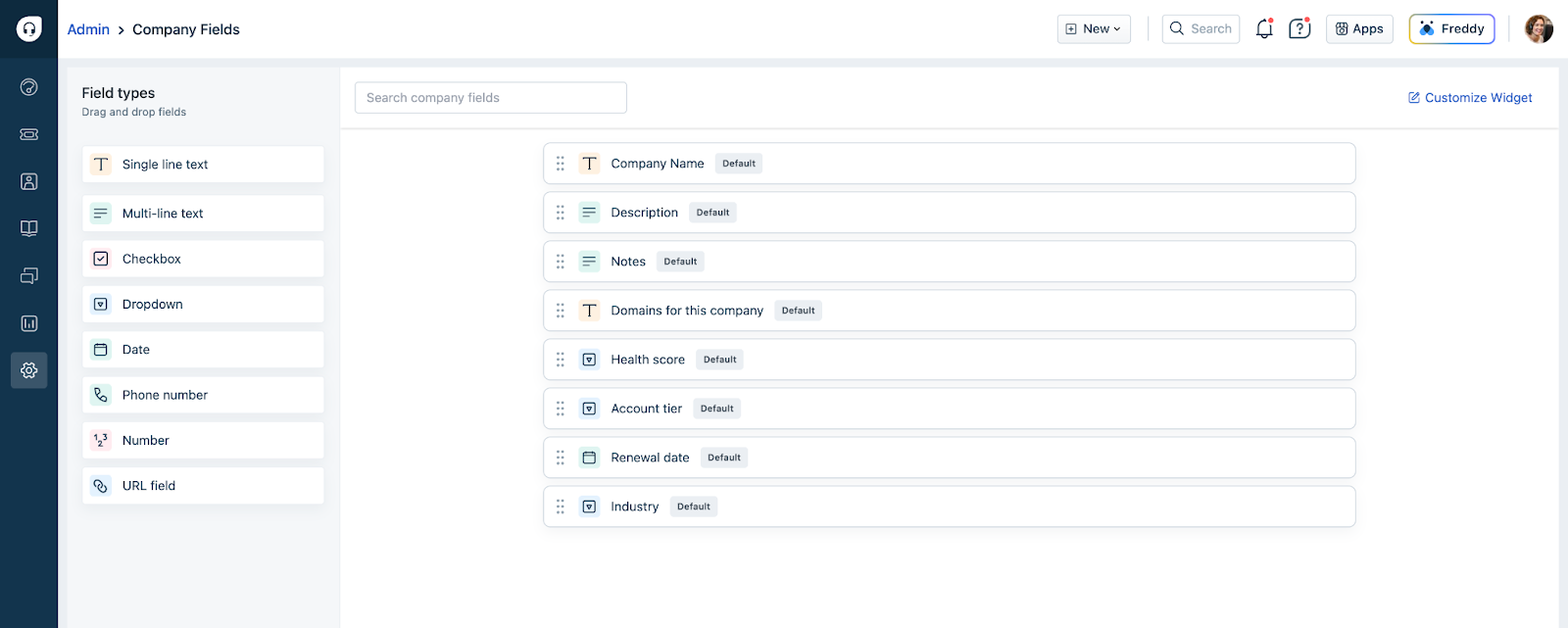
With the new form or slider for contacts or companies, you can fill in mandatory fields or all the fields related to the contact or company. Learn more about creating contacts and companies. Learn more about managing customer data.
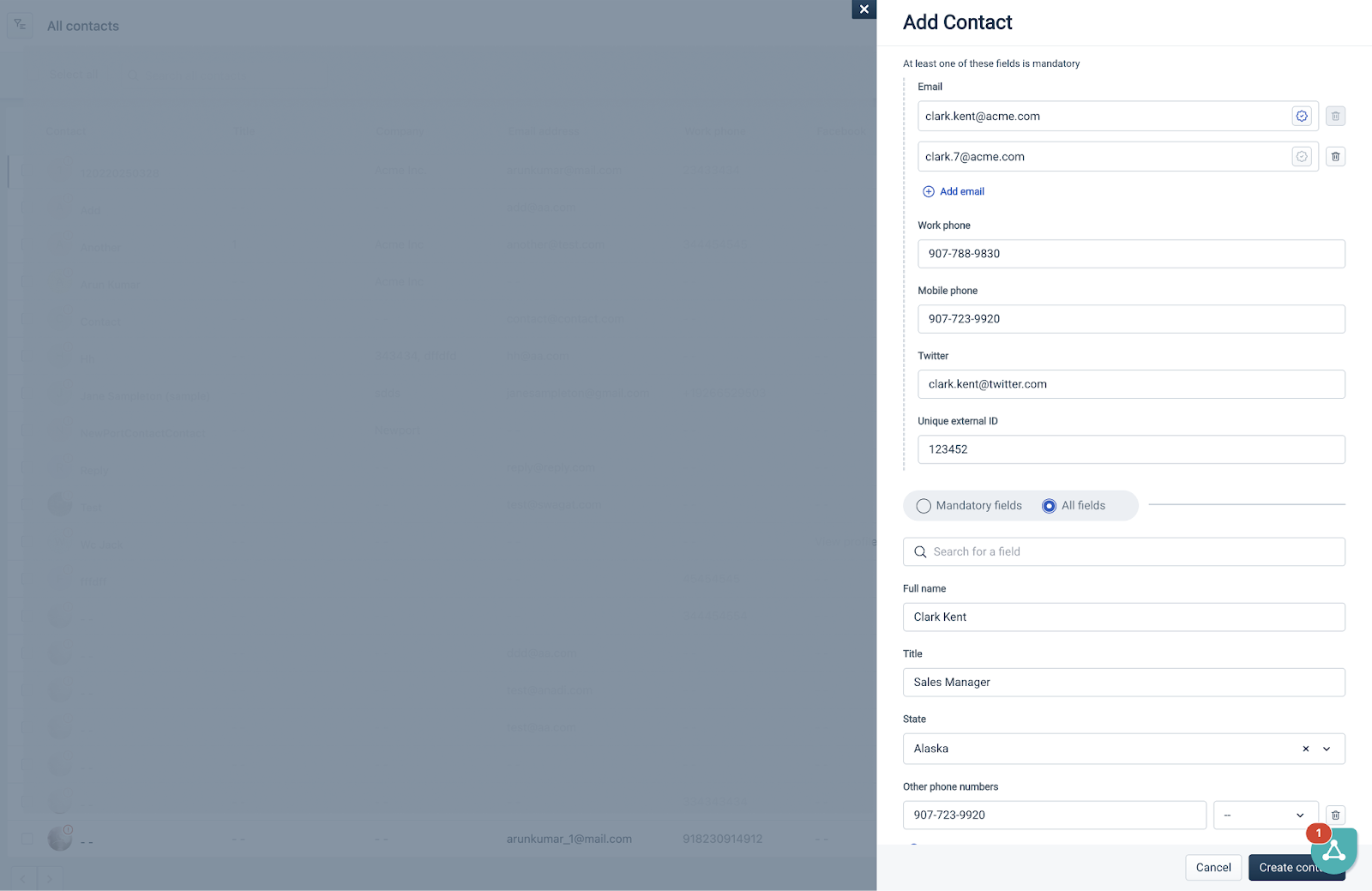
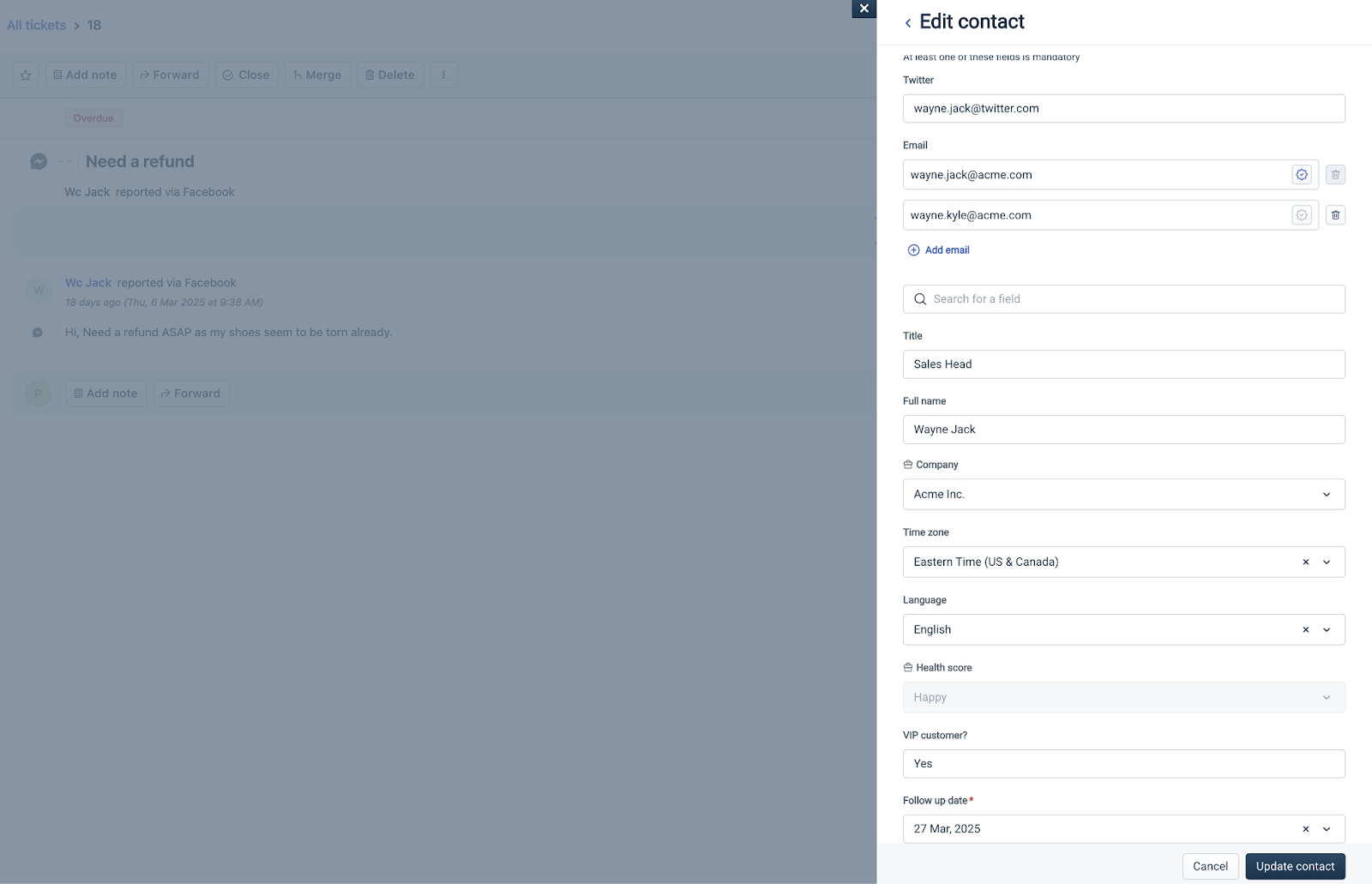
- Only digits and ‘+’ allowed
- Length must be 6 - 30 characters
- Letters, special characters (except ‘+’), and dashes/spaces will be removed or rejected
- You can no longer create new custom phone-type fields
- Existing ones will remain as string fields
Why is this update important?
This upgrade standardizes contact and company data across Freshworks products, improves accuracy, and enables faster, more personalized support experiences. It also unlocks compatibility with new channels like web chat and improves scalability for growing teams.
Need help?
If you have questions or want to review your account’s readiness, contact your Customer Success Manager or write to support@freshdesk.com.