Last updated: 2025-12-17
Create and Manage Contacts and Companies
Signup Date: After June 2022
Signup Date: Before June 2022
Select the tab based on your signup date. Not sure of your signup date? Learn how to find it here.
Signup Date: After June 2022
After you review your contact and company fields, you are ready to create, edit, and delete contacts and companies.
Before you begin
If you haven’t set up Contact and Company fields, read the Manage Contact and Company fields article to understand Contacts, Companies, and their respective fields.
About creating Contacts and Companies
Contacts or Companies can be created in Freshdesk Omni in the following ways:
1. Customers submitting tickets are automatically added as Contacts. 2. Users who chat on Web chat get created as Visitor Contacts. They can be converted to Contacts by adding their email address or phone number. 3. Agents can click the New button from the top bar and select New contact or New company. 4. Admins can bulk import contacts and companies. See Import and Export Data in Freshdesk.
Create a new contact or company
To create a contact,
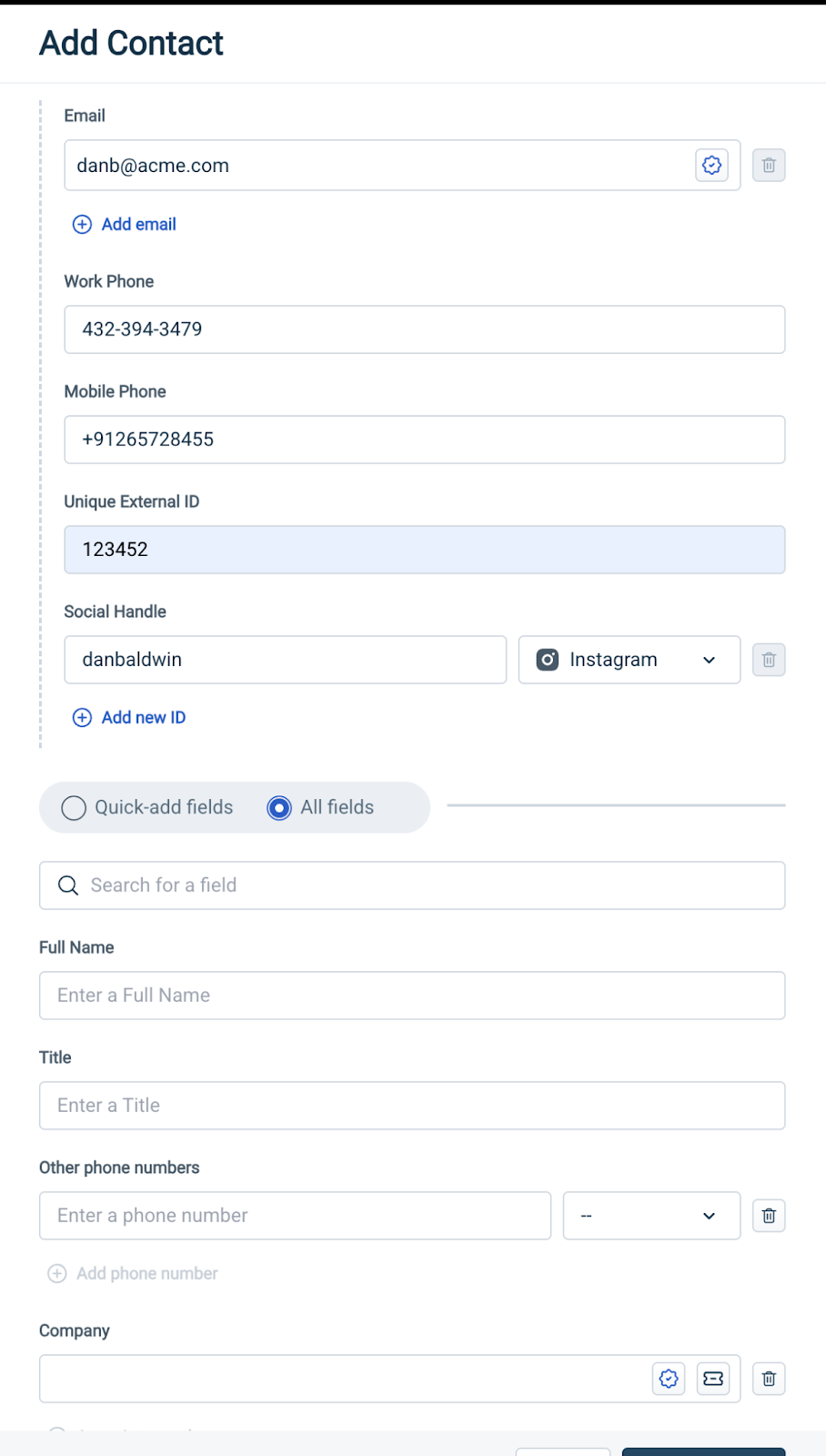
1. Click + New (on the top bar) > Contact 2. In the Add contact overlay, once you start adding field values, you will see the option to add only a few field values (quick fields) or all the fields available for the Contact (All fields).
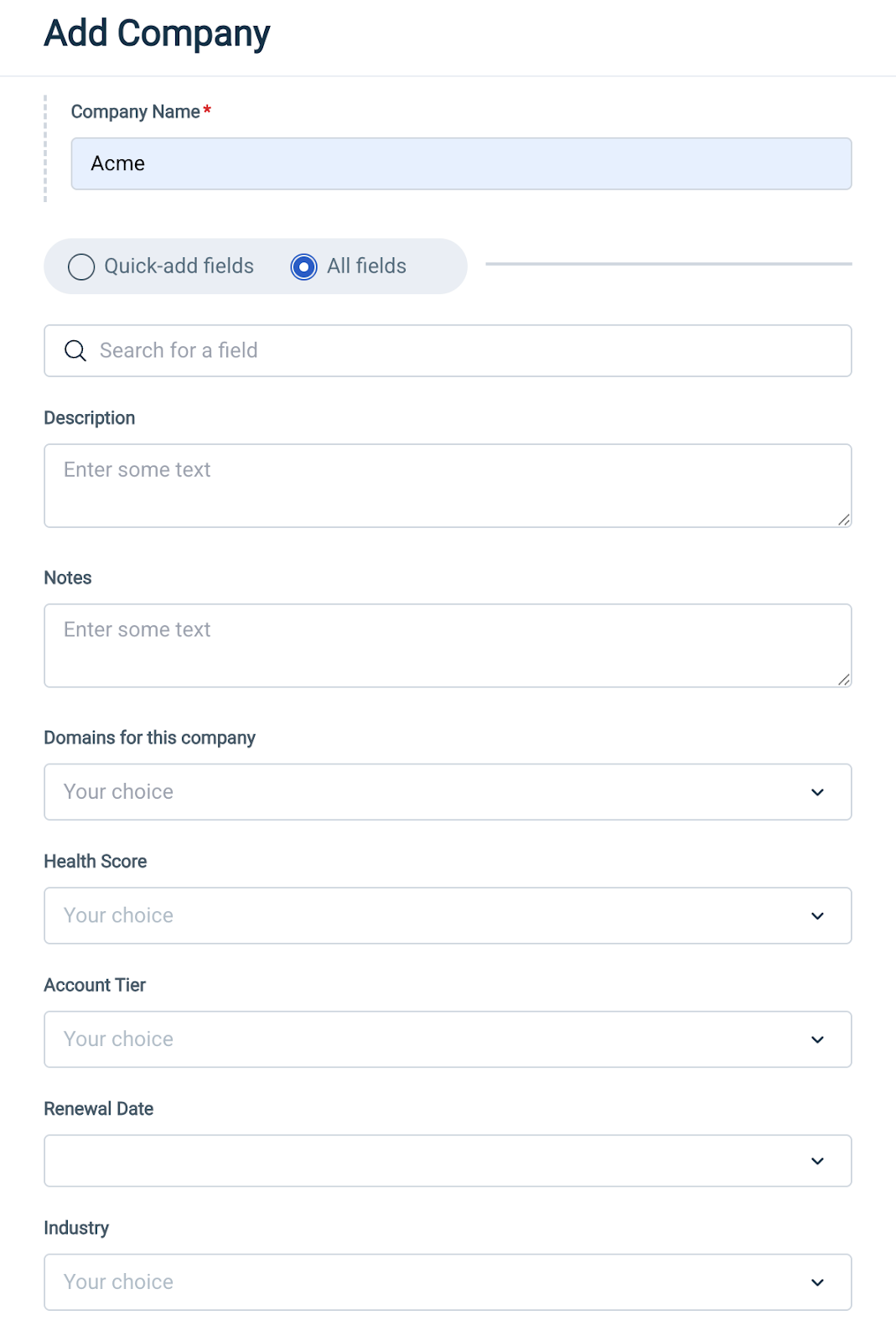
You can also add companies in a similar way. Click New > Company and enter the Company name in the Add Company overlay, filling in the necessary fields (using either Quick-add or All fields options).
About activation emails
By default, new contacts receive a user activation email with a link to verify their contact and login to your customer portal. To control this, go to Admin > Workflows > Email Notifications. Go to the Requester Notifications tab and toggle User Activation Email or click Edit to change the email content.
Using the Contacts and Companies pages
Your customer data is split across 2 pages - Contacts and Companies.
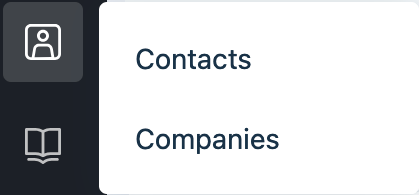
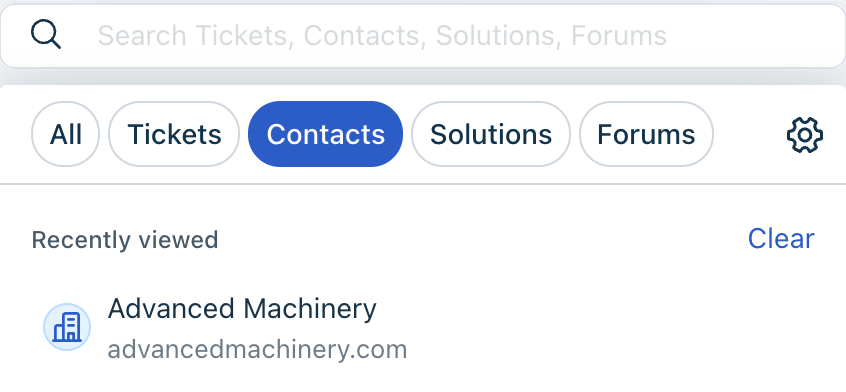
By default, each page displays 30 entries, but you can adjust this setting to view more contacts simultaneously.
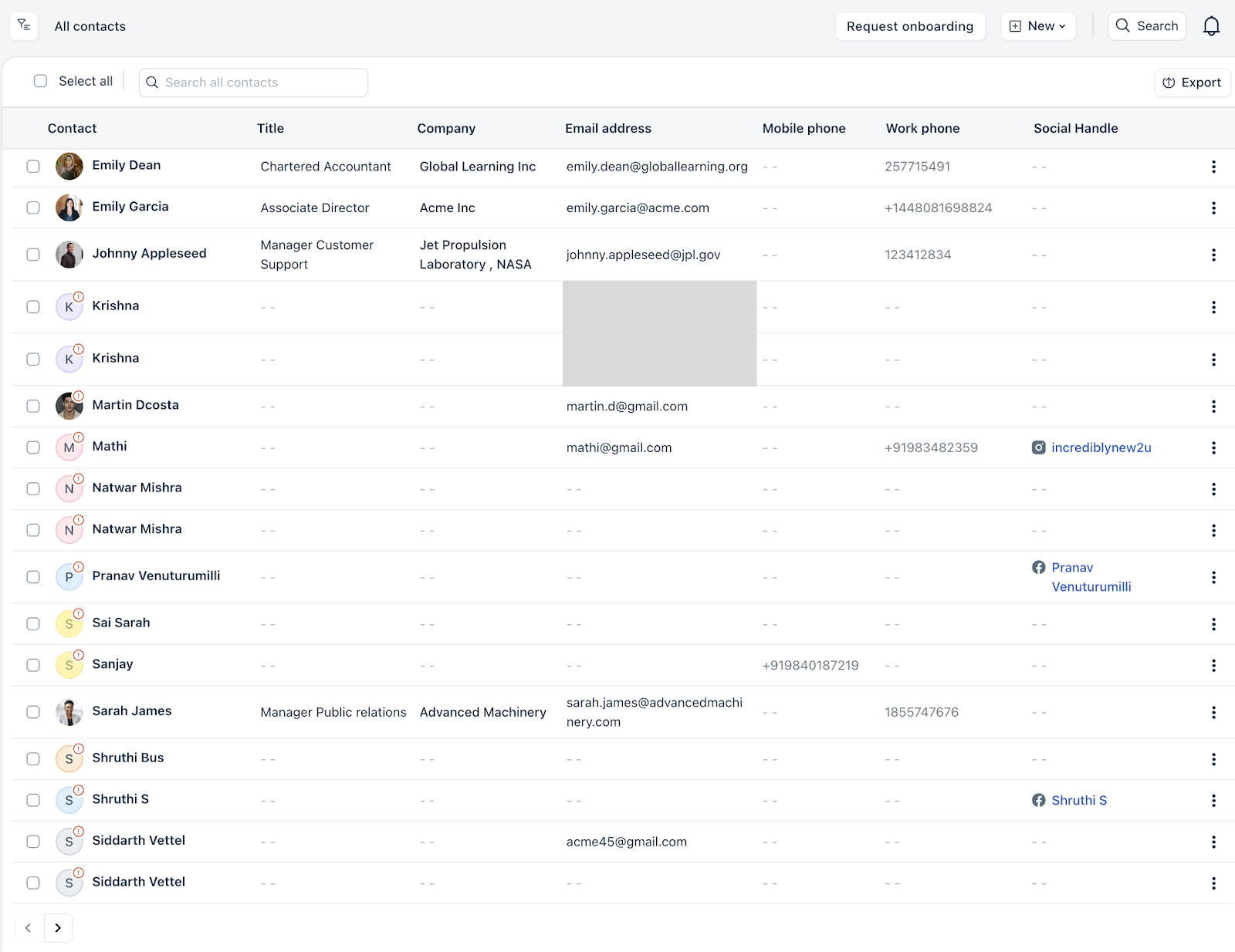
From this page, you can:
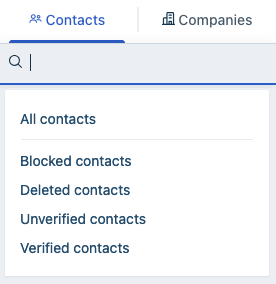
- Blocked contacts—These are contacts blocked from submitting tickets to your portal. - Deleted contacts—These are soft-deleted contacts. See About deleting contacts. - Unverified contacts—These contacts haven't logged into Freshdesk or activated their email address. You can select these contacts and Send activation email in bulk. - Verified contacts—These are contacts that have activated their account and logged into Freshdesk.
When you click on a contact, you view the Contact details page. There are several actions you can take from this page.
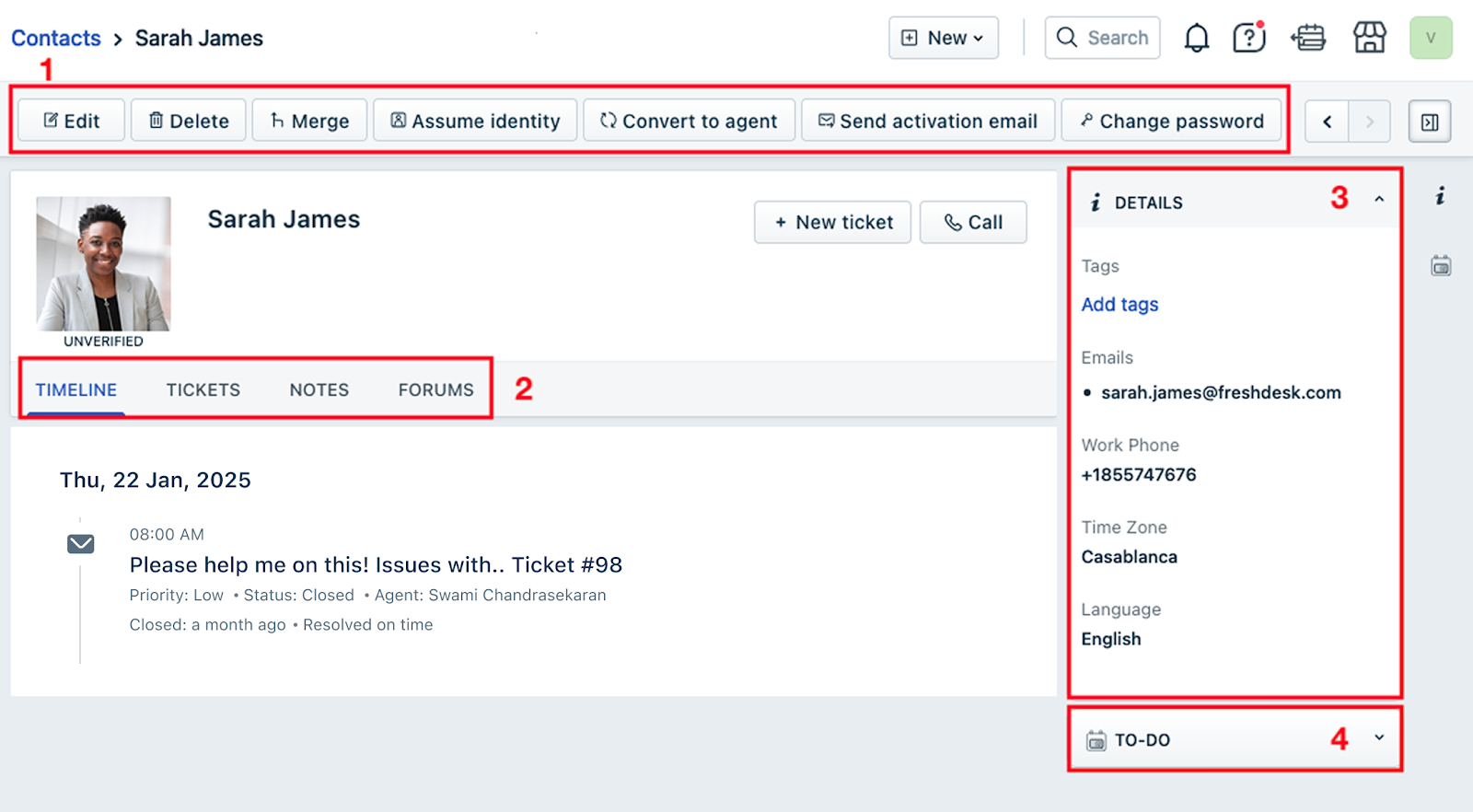
The options on the page are:
1. The Actions bar—contains several buttons to take common actions on contacts. - Edit: Click this button to bring up the contact panel and modify any fields. - Delete: Click this button to soft-delete the contact. See About deleting contacts. - Merge: See Merge contacts below. - Assume identity: (Pro plans onwards) View the customer portal from the contact's point of view. See Assuming identities. - Convert to agent: Convert this contact into a support agent—Full time, Occasional, or Collaborator.
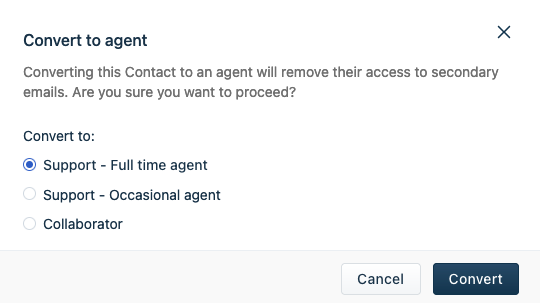 - Send activation email: If the contact is unverified, send an activation email. - Change password: Change the contact's password so they can login to your customer portal.
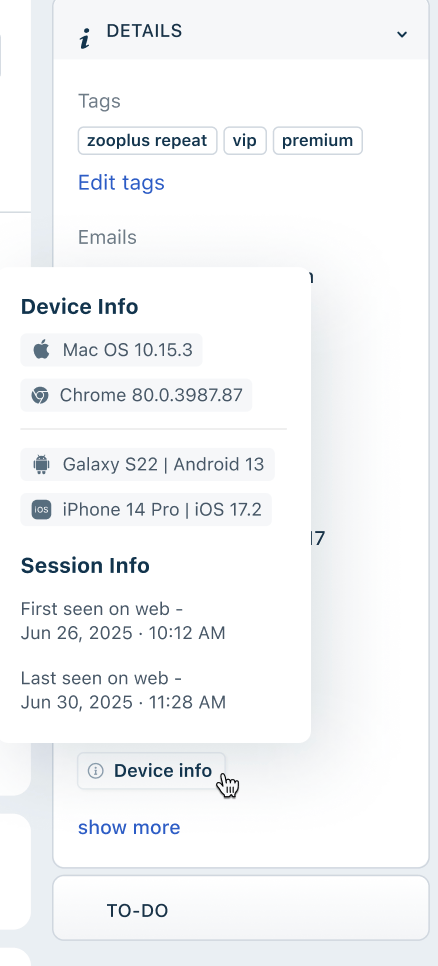
``` Note: You can also view a visitor’s device details, captured at the time the ticket was created. This includes: ```
8. Contact tabs—These pages organize additional information about the contact. 1. Timeline: This tab displays customer interactions, including tickets, forum posts, and activity from all channels, in reverse chronological order.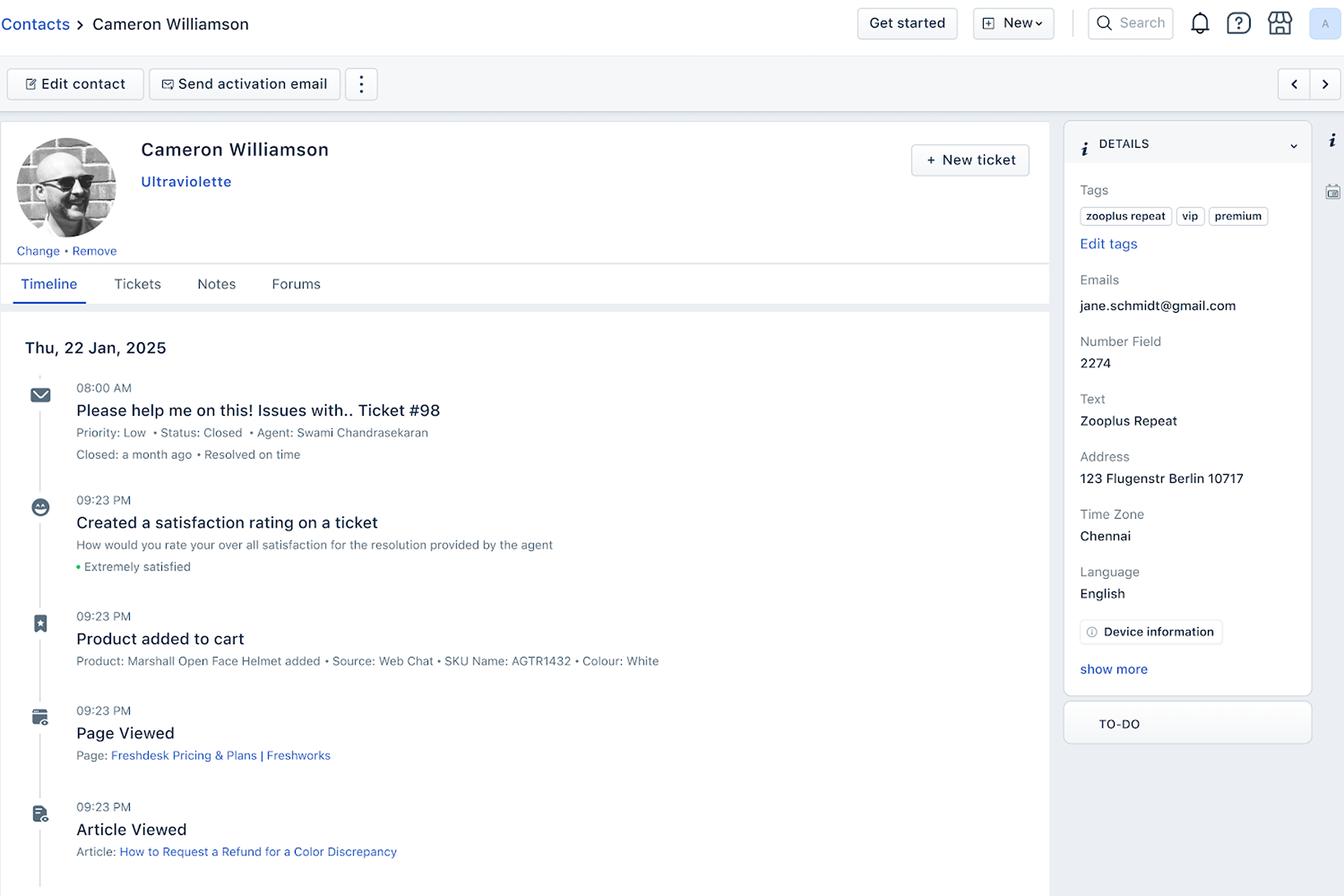 2. Tickets: This tab shows the tickets of the customer. 3. Notes: (Pro plan onwards) See Customer notes and testimonials below. 4. Forums: This tab shows the forum posts and replies from the customer. 9. Contact details widget—displays additional fields available for the contact. 10. To-do widget—track actions and tasks for the contact or company. See Customer To-do lists below. 11. For Visitor Contacts, you can view device and session information from the Details pane on the right. They appear as contacts with a “Visitor” tag and can be converted to full contacts by adding their email or phone number.
The details page for a company is similar, with fewer actions, but with the addition of:
About deleting contacts
| Soft delete (Delete button) | Hard delete (Delete forever button) |
| Retains contact information in the Deleted contacts view. | Removes contact information from your helpdesk. |
| Existing tickets from the contact are not affected. | All tickets, notes, to-dos, forum topics etc. are removed from your helpdesk. |
| Future communication from the contact is automatically marked as Spam. | Future communication creates a new contact. |
| You can bulk delete contacts from the contact list view. | You cannot delete contacts forever in bulk. |
| Trying to sign up or add the contact with the same information will throw an error. | Trying to sign up or add the contact with the same information will create the contact anew. |
You can soft delete a contact by:
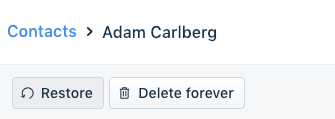
To hard delete contacts:
1. From the contact list page, click the Views button in the top-left corner and select Deleted contacts. 2. Click a contact from the list to see their details. 3. Click Delete forever to permanently delete the contact. This takes a few moments. 4. Alternatively, click Restore to reverse the soft delete of the contact.
Merge contacts
A customer might reach out from multiple contact points, such as via an email and via your Facebook page. In such cases, they might be recorded twice within Freshdesk. You can merge such contacts and get a more accurate picture of their relationship with you.
When you merge contacts, you designate one as the primary contact. That primary contact receives all the tickets, notes, and contact information from the selected secondary contacts. After that, the secondary contacts are deleted and cannot be restored.
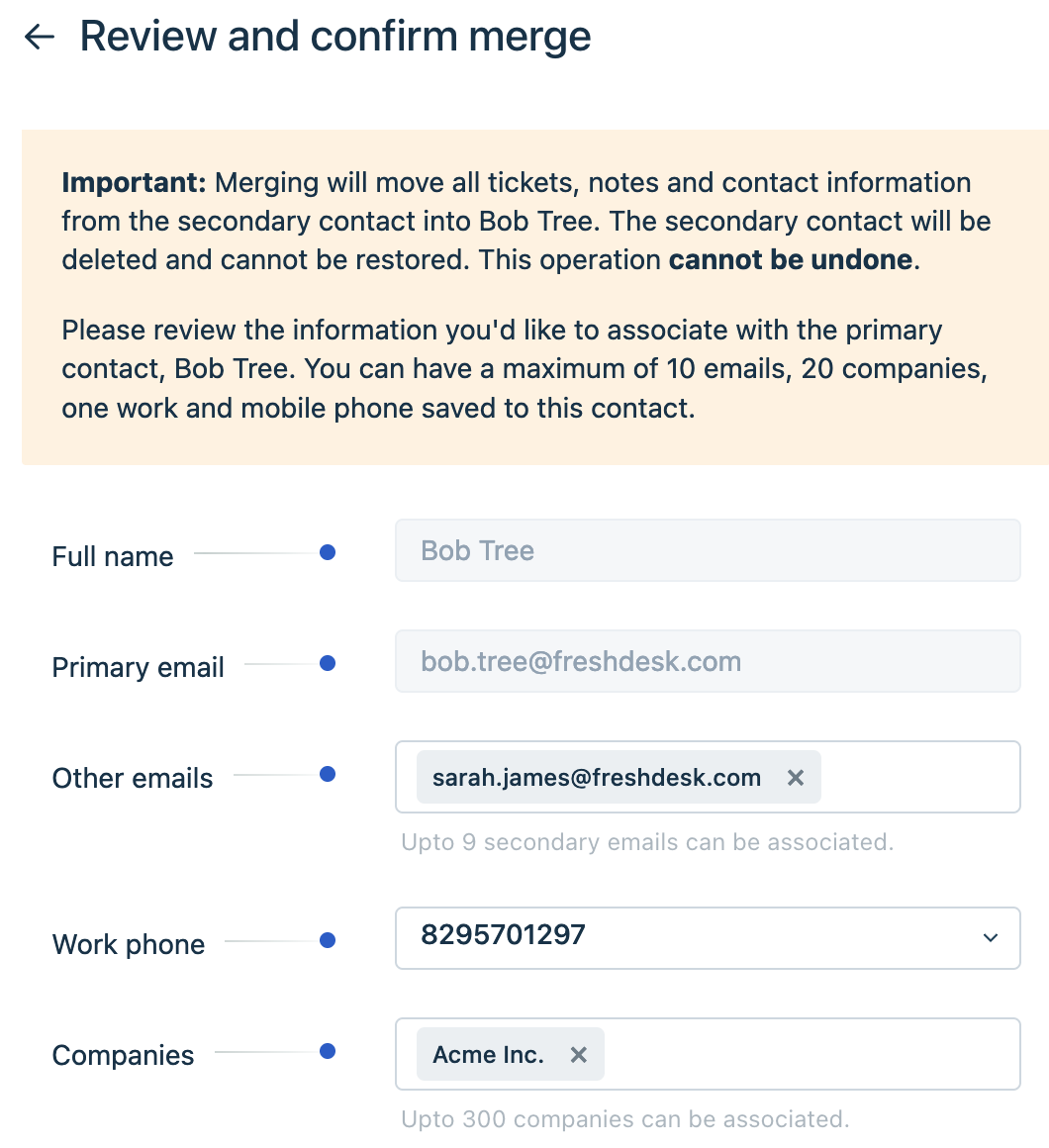
Important: You can have a maximum of 10 emails, 20 companies, 1 work phone, and 1 mobile phone saved to a contact. In case of overlapping data between contacts, you choose which information to retain during the merge process.
To merge contacts:
1. From the Contacts page, open one of the contacts and click Merge.
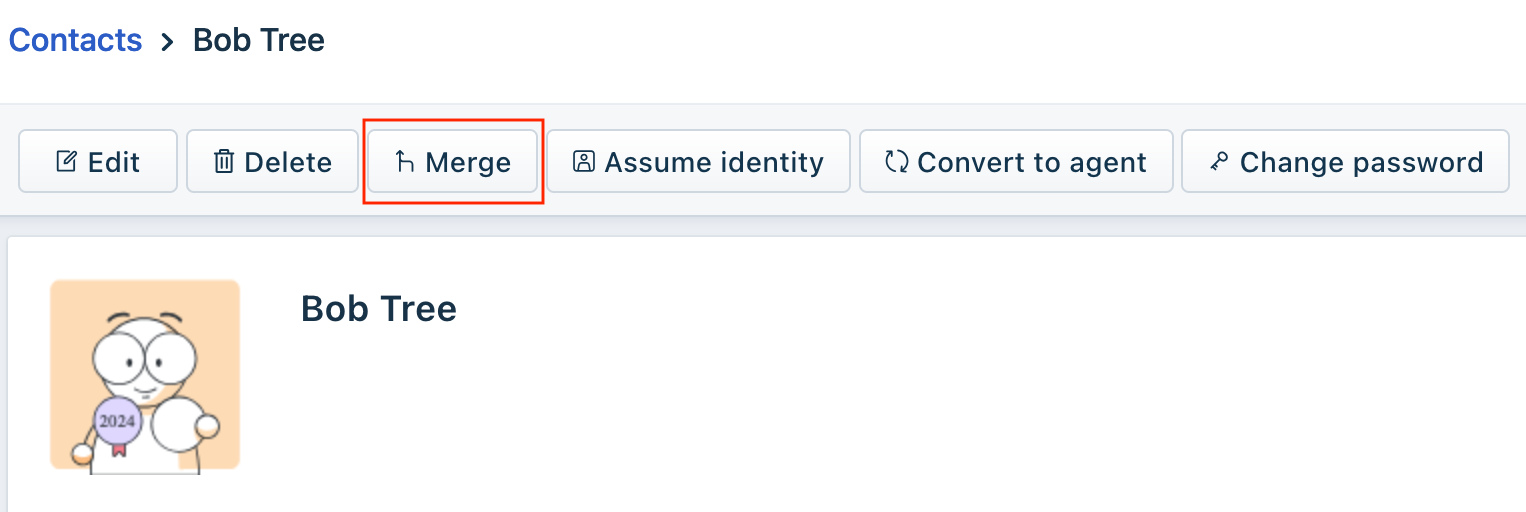 2. In the Merge contacts panel, search for the other contacts to merge and click the Plus icon.
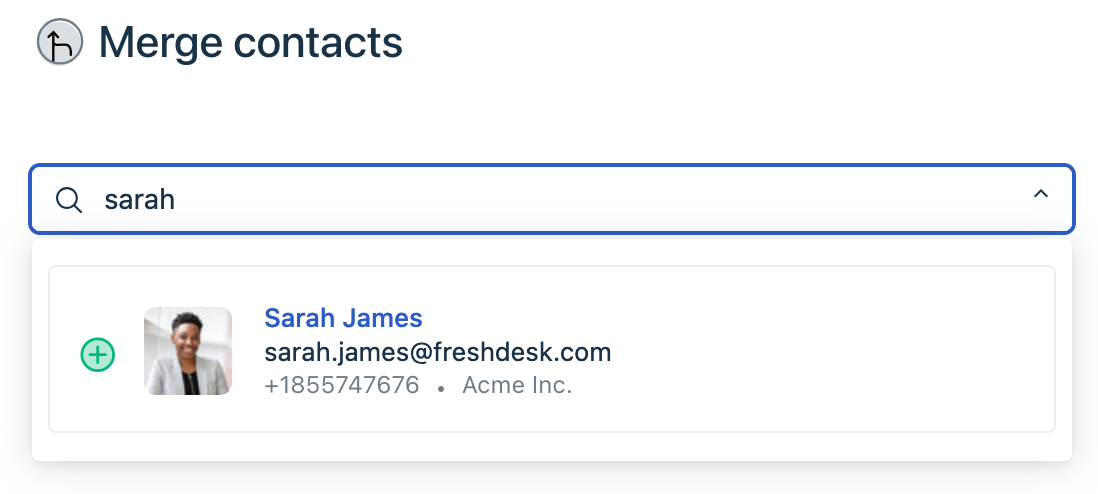 3. The first contact is marked Primary by default, but you can click the stamp next to a selected contact to mark them as Primary instead.
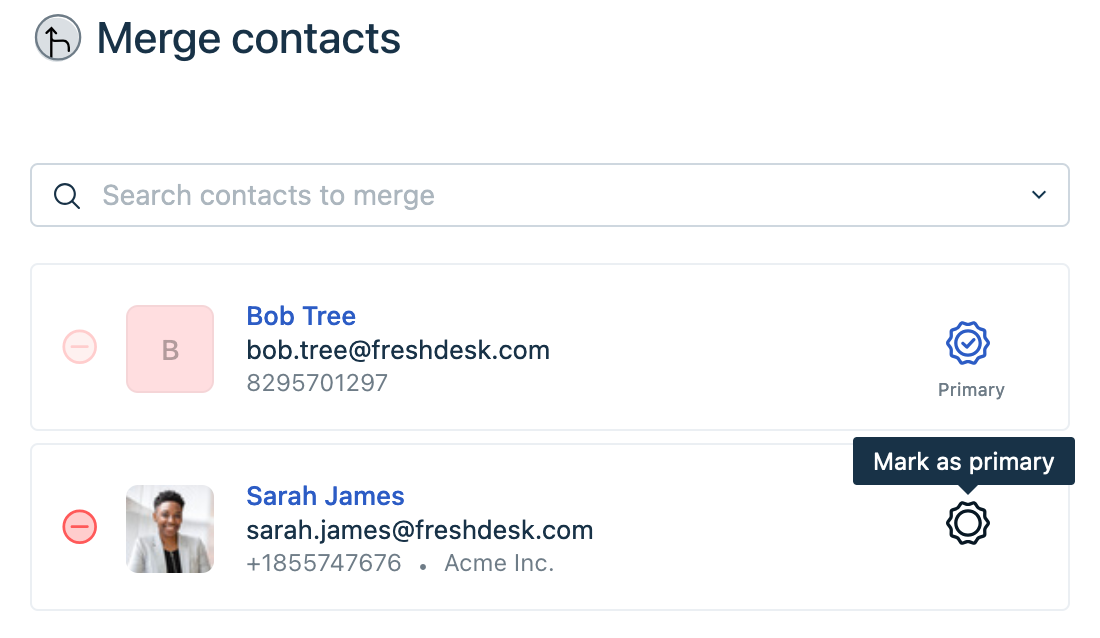 4. Review the contacts and click Continue. 5. In the Review and confirm merge panel, review the contact information, select which overlapping data to retain, and click Confirm. Your primary contact receives the selected information and your secondary contacts are deleted. This is irreversible.
Associate one contact with multiple companies
In some cases, you may want to associate a single contact with multiple companies. For example:
Customers cannot do this themselves. This can be done by Admins and agents with the "Create or edit contact or company" permission. To associate a contact with multiple companies:
``` Note: This feature is available from Pro plans. ```
1. In the Contacts page, click the contact and click Edit. 2. In the Edit contact panel, scroll down to the Company field and add a company if there isn't one. 3. Click Associate another company to add another field. Search for and add another company. Repeat for each company you want to add. - For each company, click the Ticket icon to allow that contact to view all tickets from the company.
 - From the companies you've added, use the radio button on the left to select the Primary company. If a ticket is opened without specifying a company, it is associated with the primary company of the requester. We recommend keeping the contact's actual workplace as their primary company.
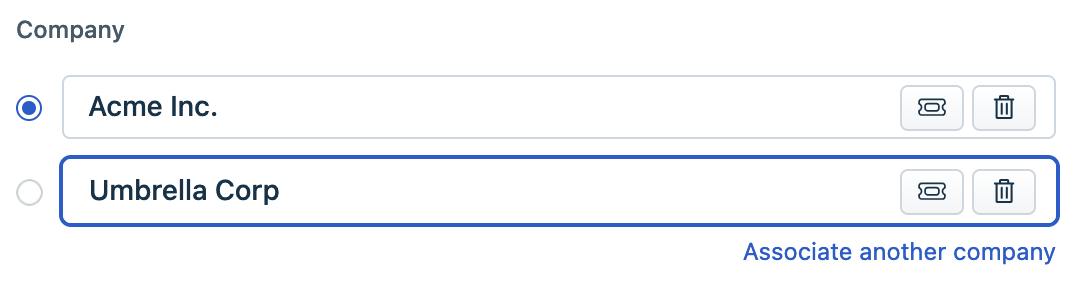 - To remove a company, click the Trash icon. 4. Review the companies you've added and click Save.
In your support flow, Companies are seen as part of tickets rather than contacts. When a contact is associated with multiple companies, a Company field is added to your ticket fields. This means:
The feature to associate a contact with multiple companies is enabled by default. If you disable this feature, tickets will not be affected, but any secondary companies will be deleted from all existing contacts. To disable this feature:
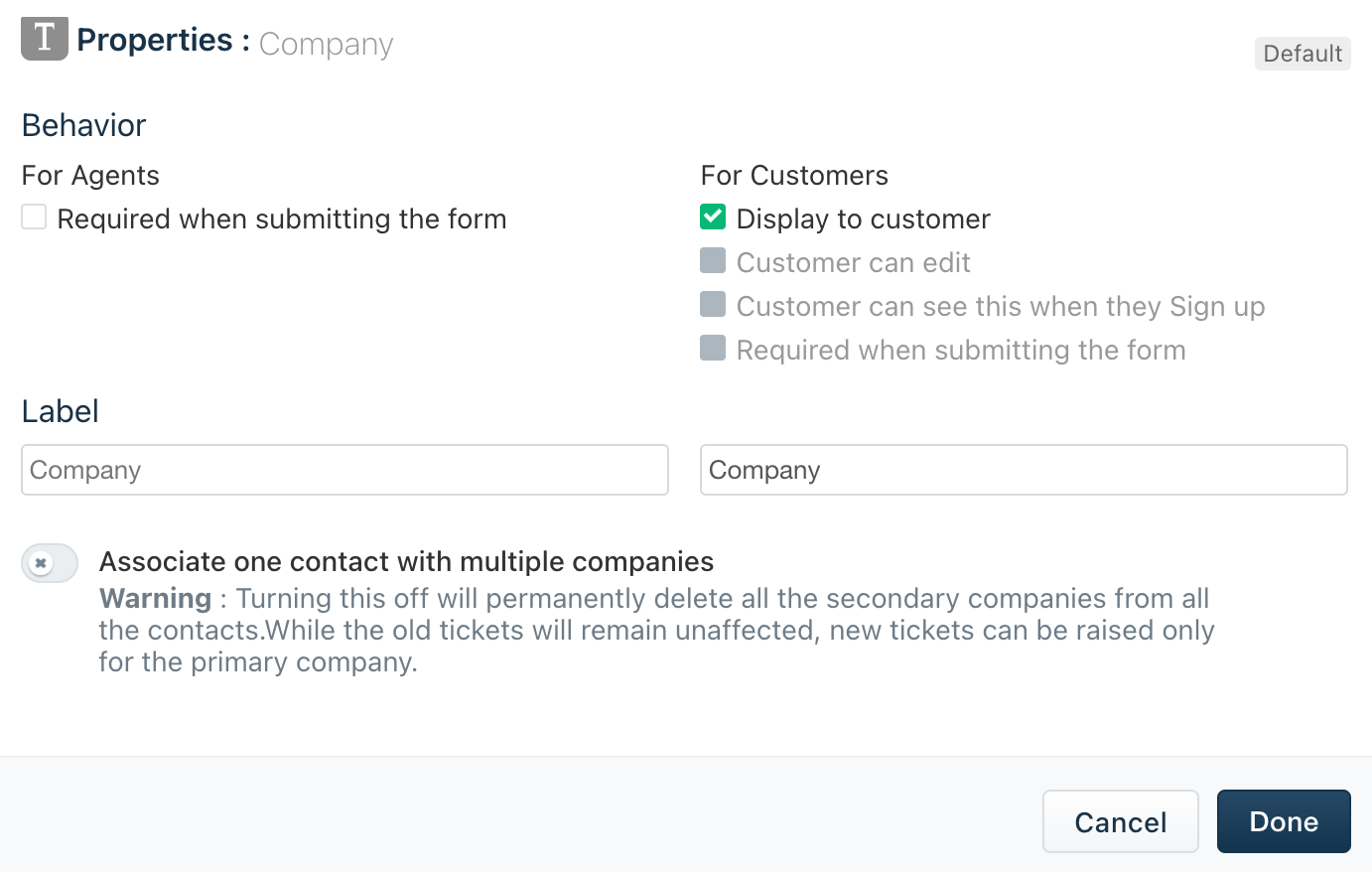
1. Go to Admin > Support Operations > Customer Fields and select the Contacts tab. 2. Scroll down to the Company field and click Change.
 3. Toggle off the Associate one contact with multiple companies button and click Done.
Customer notes and testimonials
The Notes tab for contacts and companies is available from the Pro Plan onwards.
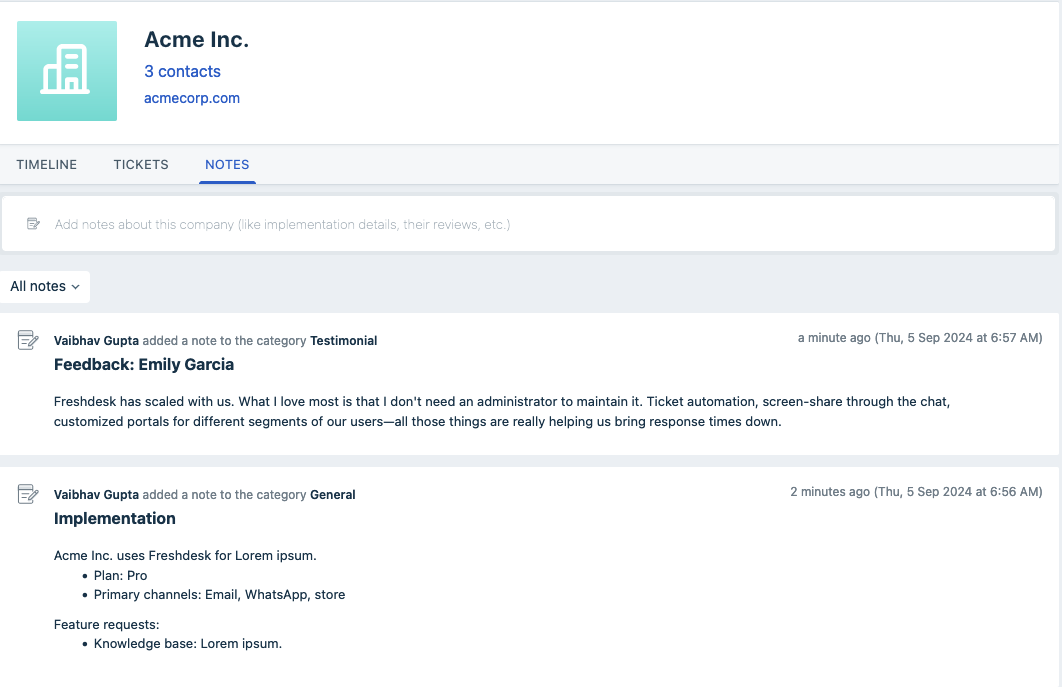
Sometimes, you may need to capture details about your customers that you're tracking via documents, spreadsheets, or other tools. Rather than switch between tools, use the Notes tab in a Contact or Company to capture detailed information such as:
 nials,
Information added to the Notes tab is only visible to agents visiting the profile and seeing the Notes tab. It is not replicated anywhere else.
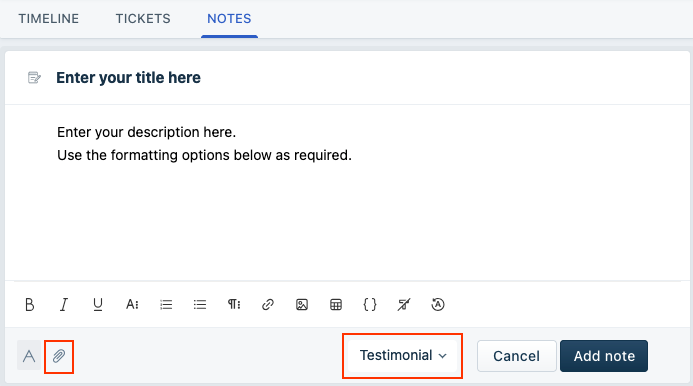
To add a note to a contact or company, go to the Contact or Company details page and click the Notes tab:
1. Click the Add notes field to expand it, and fill it out. 2. Provide a title and description using the available formatting options. 3. Optionally, attach files up to 20MB in size. 4. If writing a note for a Company, select whether the note is General or Testimonial. 5. Review your note and click Add note.
The latest note added is displayed first by default. Hover over a note to see the Edit and Delete icons. You can edit notes at any time. If you delete a note, it cannot be recovered.
Customer To-do lists
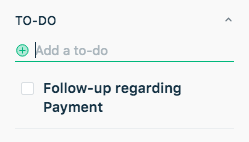
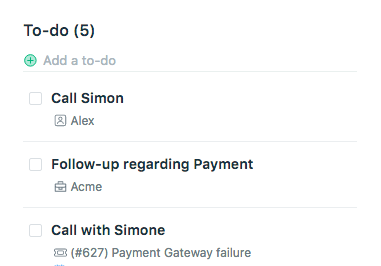
Every customer has a To-do widget on their details page to track multiple tasks or notes. You can use the To-do widget in the following ways:
For more support, contact support@freshdesk.com.
Signup Date: After June 2022
After you review your customer data schema, you are ready to create, edit, and delete contacts and companies.
Applicable Plans
| Freshdesk | Free, Growth, Pro, Enterprise |
| Omnichannel | Growth, Pro, Enterprise |
| Freshdesk Omni (formerly CSS) | Growth, Pro, Enterprise |
| Freshdesk (previous plans) | Sprout, Blossom, Garden, Estate, Forest |
| Omnichannel (previous plans) | Estate, Forest |
Before you begin
This article is the second in a series about Managing your Customers.
1. Manage your Customer Data Schema—understand contacts, companies, and their respective fields. 2. Manage Customer Data in Freshdesk—understand how to create, edit, delete, and manage contacts and companies. 3. Personalize support using Customer Segments—filter and group customers and create automations and self service for them.
About creating contacts and companies
Contacts are created in Freshdesk in 3 ways:
1. Customers submitting tickets are automatically added as contacts. 2. Agents can click the New button from the top bar and select New contact or New company. 3. Admins can bulk import contacts and companies. See Import and Export Data in Freshdesk.
Create a new contact or company
| To create a company:<br>1. In the top bar, click New > New company.<br>2. In the New company panel, fill in the details.<br> 1. (Mandatory) Provide the Company Name.<br> 2. Use the Description and Notes fields to hold general and additional details about the company.<br> 3. Use the Domains for this company field to associate email domains. Contacts with the chosen domains will be automatically mapped to this company.<br>3. If you're on the Growth plan or above, optionally fill in 4 additional fields.<br> 1. Health Score: Assign a value that represents the ongoing relationship with the company. Default choices: Happy, Doing okay, At risk.<br> 2. Account Tier: Assign a value that represents the customer's tier in your business. Default choices: Basic, Premium, Enterprise.<br> 3. Renewal Date: a date field to contain the contract renewal date for the company. <br> 4. Industry: Choose from standard industry choices to associate with the company.<br>4. Review your information and click Create. |  |
About activation emails
By default, new contacts receive a user activation email with a link to verify their contact and login to your customer portal. To control this, go to Admin > Workflows > Email Notifications. Go to the Requester Notifications tab and toggle User Activation Email or click Edit to change the email content.
Using the Contacts and Companies pages
Your customer data is split across 2 pages - Contacts and Companies.

When you go to either page, you see a list with 30 entries on a page.

From this page, you can:
- Blocked contacts—These are contacts blocked from submitting tickets to your portal. - Deleted contacts—These are soft-deleted contacts. See About deleting contacts. - Unverified contacts—These contacts haven't logged into Freshdesk or activated their email address. You can select these contacts and Send activation email in bulk. - Verified contacts—These are contacts that have activated their account and logged into Freshdesk.

When you click on a contact, you view their details page. There are a lot of actions you can take from this page.
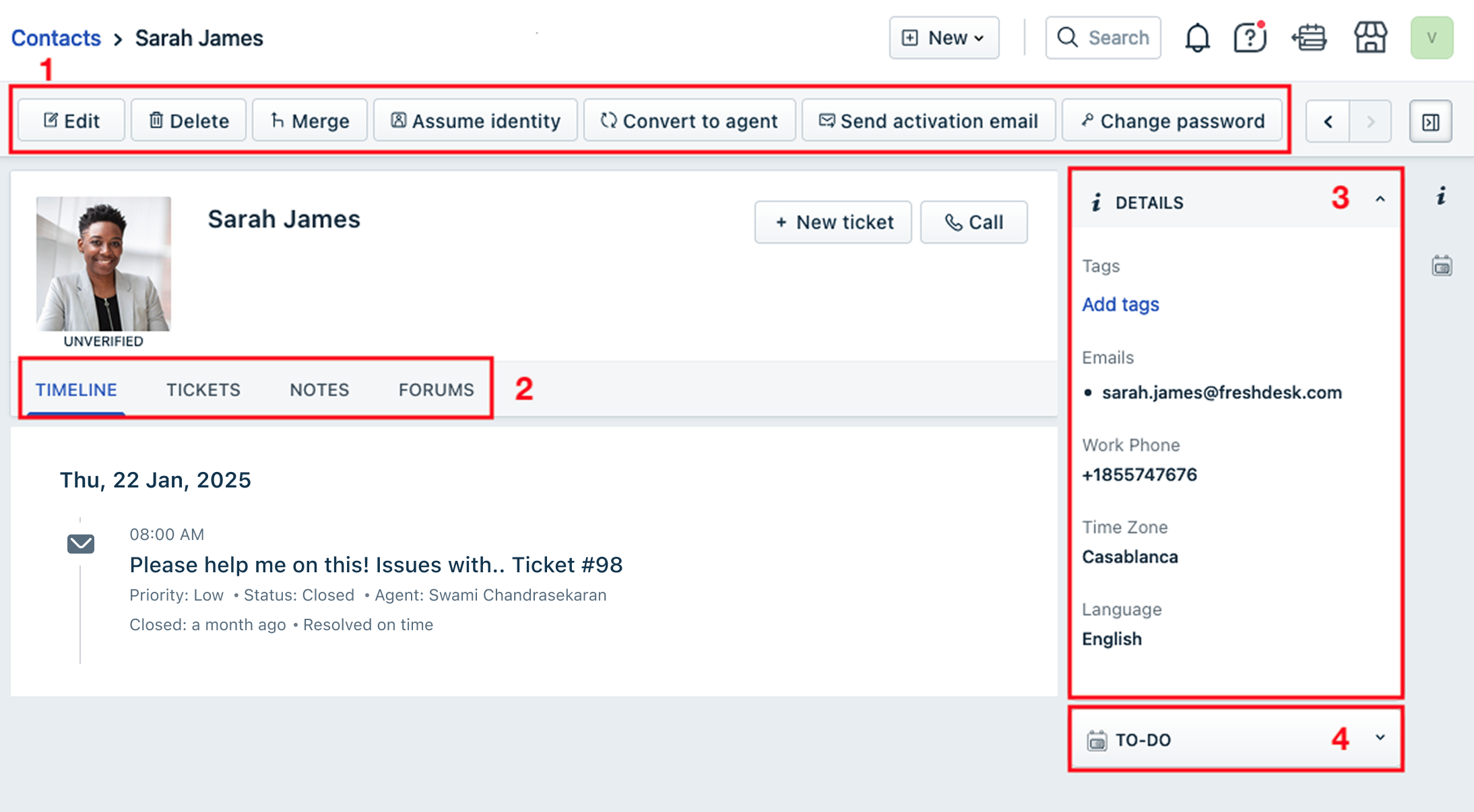
The options on the page are:
1. The Actions bar—contains several buttons to take common actions on contacts. 1. Edit: Click this button to bring up the contact panel and modify any fields. 2. Delete: Click this button to soft-delete the contact. See About deleting contacts. 3. Merge: See Merge contacts below. 4. Assume identity: (Pro plans onwards) View the customer portal from the contact's point of view. See Assuming identities. 5. Convert to agent: Convert this contact into a support agent— Full time, Occasional, or Collaborator.
 6. Send activation email: If the contact is unverified, send an activation email. 7. Change password: Change the contact's password so they can login to your customer portal. 2. Contact tabs—These pages organize additional information about the contact. 1. Timeline: This tab displays customer interactions, including tickets, forum posts, and activity from all channels, in reverse chronological order.
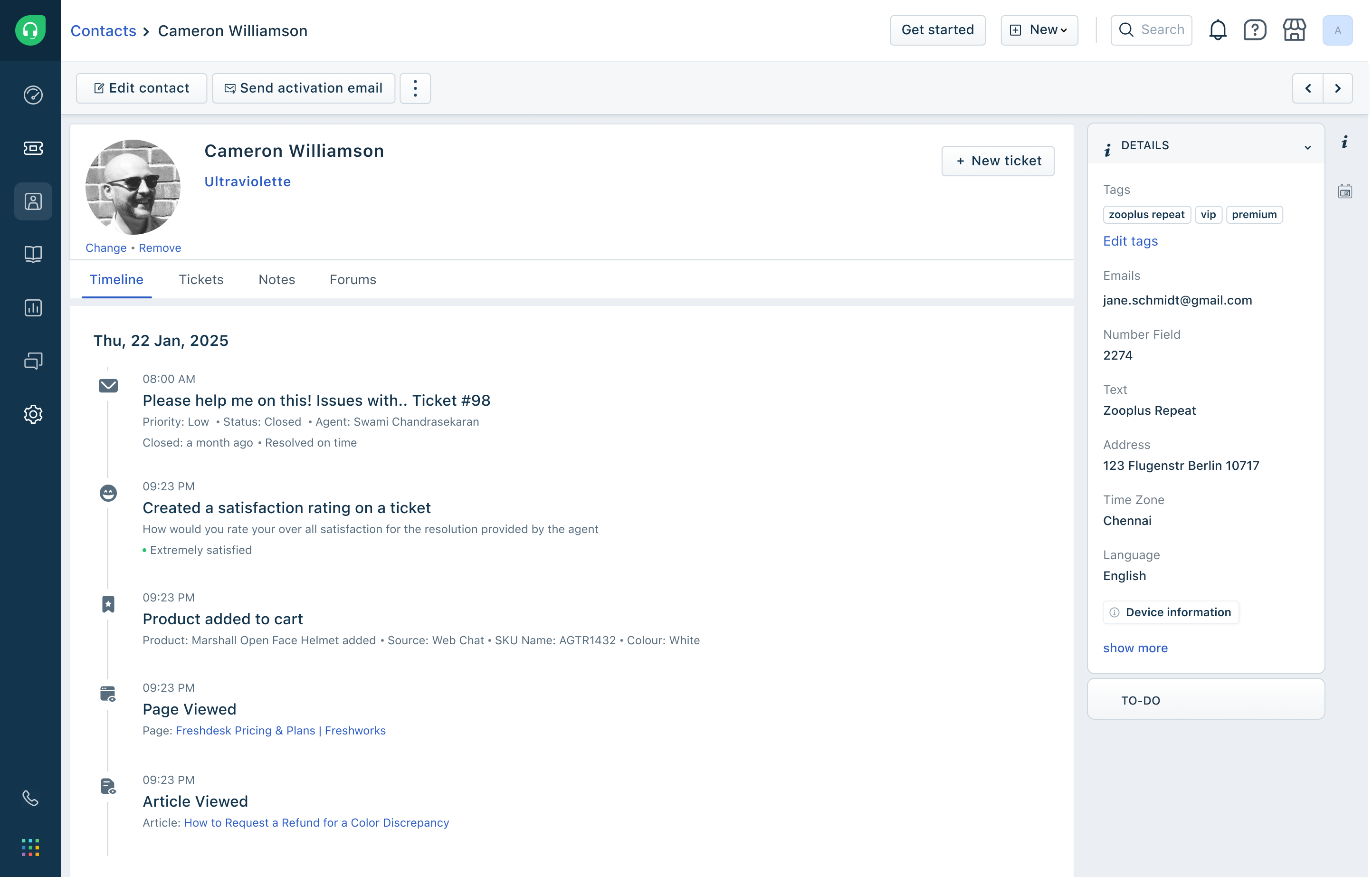 2. Tickets: This tab shows the tickets of the customer. 3. Notes: (Pro plan onwards) See Customer notes and testimonials below. 4. Forums: This tab shows the forum posts and replies from the customer. 3. Contact details widget—displays additional fields available for the contact. 4. To-do widget—track actions and tasks for the contact or company. See Customer To-do lists below.
The details page for a company is similar, with fewer actions but with the addition of:

About deleting contacts
| Soft delete (Delete button) | Hard delete (Delete forever button) |
|---|---|
| Retains contact information in the Deleted contacts view. | Removes contact information from your helpdesk. |
| Existing tickets from the contact are not affected. | All tickets, notes, to-dos, forum topics etc. are removed from your helpdesk. |
| Future communication from the contact is automatically marked as Spam. | Future communication creates a new contact. |
| You can bulk delete contacts from the contact list view. | You cannot delete contacts forever in bulk. |
| Trying to sign up or add the contact with the same information will throw an error. | Trying to sign up or add the contact with the same information will create the contact anew. |
You can soft delete a contact by:
To hard delete contacts:
1. From the contact list page, click the Views button in the top-left corner and select Deleted contacts. 2. Click a contact from the list to see their details. 3. Click Delete forever to permanently delete the contact. This takes a few moments. 4. Alternatively, click Restore to reverse the soft delete of the contact.

Merge contacts
A customer might reach out from multiple contact points, such as via an email and via your Facebook page. In such cases, they might be recorded twice within Freshdesk. You can merge such contacts and get a more accurate picture of their relationship with you.
When you merge contacts, you designate one as the primary contact. That primary contact receives all the tickets, notes, and contact information from the selected secondary contacts. After that, the secondary contacts are deleted and cannot be restored.
Important: You can have a maximum of 10 emails, 20 companies, 1 work phone, and 1 mobile phone saved to a contact. In case of overlapping data between contacts, you choose which information to retain during the merge process.
To merge contacts:
1. From the Contacts page, open one of the contacts and click Merge.
 2. In the Merge contacts panel, search for the other contacts to merge and click the Plus icon.
 3. The first contact is marked Primary by default, but you can click the stamp next to a selected contact to mark them as Primary instead.
 4. Review the contacts and click Continue. 5. In the Review and confirm merge panel, review the contact information, select which overlapping data to retain, and click Confirm. Your primary contact receives the selected information and your secondary contacts are deleted. This is irreversible.

Associate one contact with multiple companies
In some cases, you may want to associate a single contact with multiple companies. For example:
Customers cannot do this themselves. This can be done by Admins and agents with the "Create or edit contact or company" permission. To associate a contact with multiple companies:
``` Note: This feature is available from Pro plans. ```
1. In the Contacts page, click the contact and click Edit. 2. In the Edit contact panel, scroll down to the Company field and add a company if there isn't one. 3. Click Associate another company to add another field. Search for and add another company. Repeat for each company you want to add. - For each company, click the Ticket icon to allow that contact to view all tickets from the company.
 - From the companies you've added, use the radio button on the left to select the Primary company. If a ticket is opened without specifying a company, it is associated with the primary company of the requester. We recommend keeping the contact's actual workplace as their primary company.
 - To remove a company, click the Trash icon. 4. Review the companies you've added and click Save.
In your support flow, Companies are seen as part of tickets rather than contacts. When a contact is associated with multiple companies, a Company field is added to your ticket fields. This means:
The feature to associate a contact with multiple companies is enabled by default. If you disable this feature, tickets will not be affected, but any secondary companies will be deleted from all existing contacts. To disable this feature:
1. Go to Admin > Support Operations > Customer Fields and select the Contacts tab. 2. Scroll down to the Company field and click Change.
 3. Toggle off the Associate one contact with multiple companies button and click Done.

Customer notes and testimonials
``` The Notes tab for contacts and companies is available from the Pro Plan onwards. ```
Sometimes, you may need to capture details about your customers that you're tracking via documents, spreadsheets, or other tools. Rather than switch between tools, use the Notes tab in a Contact or Company to capture detailed information such as:
Information added to the Notes tab is only visible to agents visiting the profile and seeing the Notes tab. It is not replicated anywhere else.

To add a note to a contact or company, go to the Contact or Company details page and click the Notes tab:
1. Click the Add notes field to expand it, and fill it out. 2. Provide a title and description using the available formatting options. 3. Optionally, attach files up to 20MB in size. 4. If writing a note for a Company, select whether the note is General or Testimonial. 5. Review your note and click Add note.

The latest note added is displayed first by default. Hover over a note to see the Edit and Delete icons. You can edit notes at any time. If you delete a note, it cannot be recovered.
Customer To-do lists
Every customer has a To-do widget on their details page to track multiple tasks or notes. You can use the To-do widget in the following ways:


For more support, contact support@freshdesk.com.