Last updated: 2024-12-06
Playvox and Freshdesk Integration
This article provides instructions for integrating the Playvox app with Freshdesk. Before you begin, ensure that you have:
The article contains:
| - Overview<br>- Installation<br>- Plavox Configuration |
Overview
Playvox Workforce Management (WFM) uses AI to make capacity planning, forecasting, employee scheduling, and intraday planning easier, more accurate, and less time-consuming.
It is designed for the many digital channels that are common in today's helpdesk solutions. With Playvox WEM integrated with Freshworks, you can:
Installation
Prerequisites:
To install Playvox from the Freshdesk marketplace, you will need:
Get Playvox details:
To get the Playvox details:
1. Go to Admin > Integrations > oAuth Tokens > Add New. 1. Client ID: Enter this while creating the OAuth token. For example, freshchat\_integration 2. Secret: The secret key will be generated while creating the OAuth token. For example, o<rg^!nDdFAa(Tan>zws4+rguLflKiAL 3. Domain(Tenant) URL: The URL used to access your Playvox instance. For example, https://freshworks.sandbox.cloud.agyletime.io/-
Get Freshdesk details:
Get the Freshdesk Domain and API Key:
1. To get the API key, click on your profile picture on the top right and select Profile Settings. Click View API key and complete the captcha verification.
Once you have the required details:
1. Log in to Freshdesk as an admin, go to Admin > Apps, and search for the Playvox app. 2. Click Install. 3. Enter the following details: 1. Plavox Client ID, Secret, and Domain URL 2. Freshdesk API key and domain URL.
For details on how to get the information, see the Prerequisites section.
 4. Click Authenticate account.
Configure app settings Data synchronization
Once you install and authenticate the app, choose the data you want to sync from Freshdesk.

1. Enable this option to ensure that users of Freshdesk and Playvox are mapped for sending data. The email ID of the agent will be used for integration in Playvox. 2. Once you toggle the option, click Sync agents to synch the data. 3. Each time you add new agents to Freshdesk, go to the Manage Apps section, click Edit Settings, and then click Sync agents.
Enable this option to send the real-time availability status of agents to calculate Occupancy and Adherence.
Enable this option to send ticket data to Playvox for scheduling and forecasting.
Plavox Configuration
Configure the following in Playvox:
``` Notes: All tickets from Freshdesk are sent to Playvox regardless of whether an agent is mapped to a ticket. To calculate the handle time, data is sent from Freshdesk only after the agent resolves a ticket. ```
Agent status in Freshdesk 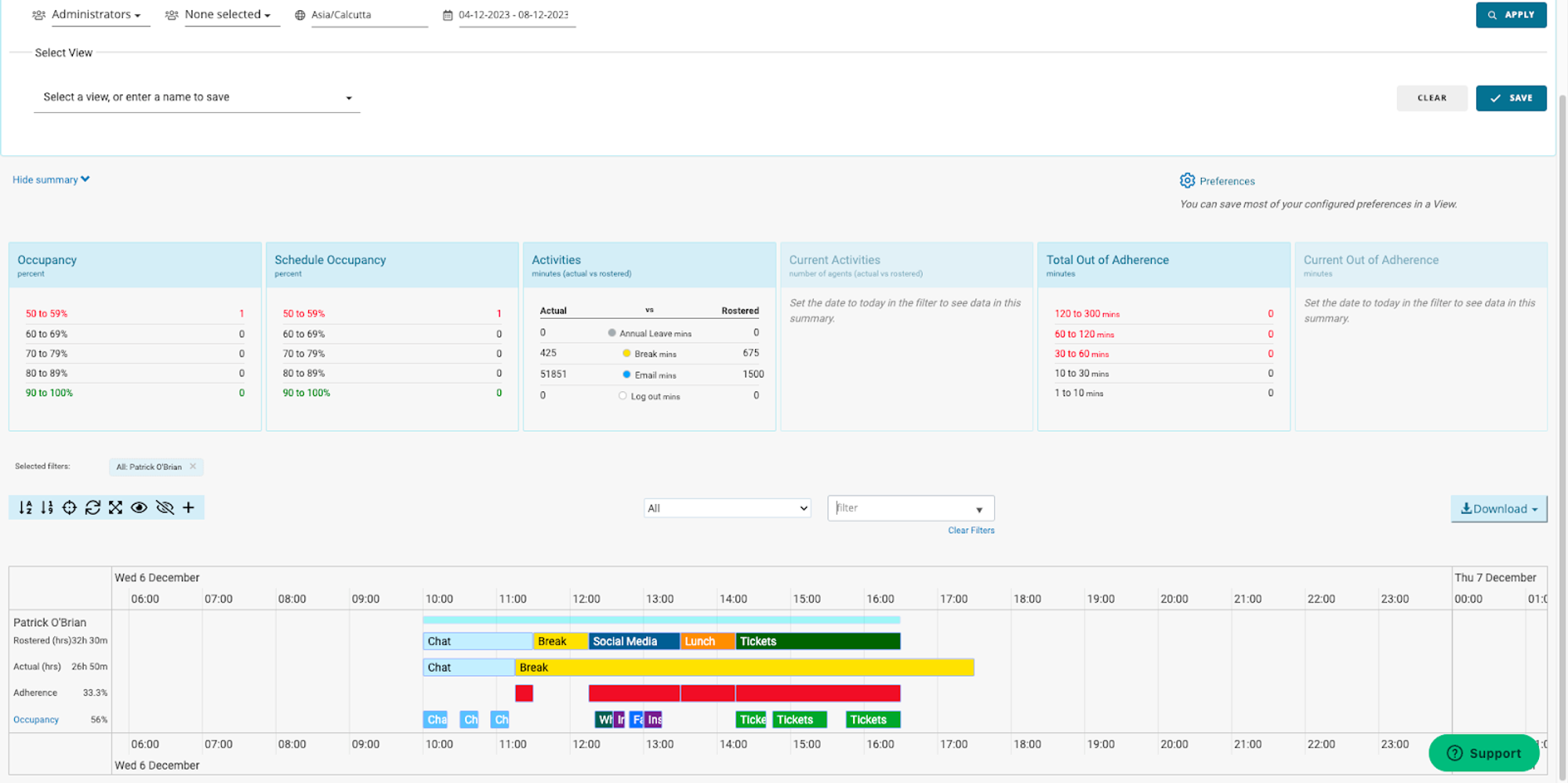
To configure:
1. In Playvox, go to Task Definitions > Integration and enter the status name from Freshdesk that needs to be mapped to the task. 2. Freshdesk sends both default and custom status changes to Playvox.

Ticket Records
To configure:
1. From Freshdesk, the group, source, and type are sent to Playvox. 2. Under Source Type identifier, enter the source, group name, and ticket type in the following format: _\[Source\]:Email\[Group\]:Sales\[Type\]:Feature Request_ 3. If you want to use a part of this data to create a workstream, use only the relevant details.
