Last updated: 2026-01-13
Source: https://support.freshdesk.com/support/solutions/articles/50000011658-live-translate-in-freshdesk
Freshdesk’s Live Translation feature helps agents seamlessly communicate with customers in different languages. Powered by Freddy AI, it automatically detects and translates ticket conversations in real time, ensuring language is never a barrier to great support.
Live Translation helps your teams:
How to enable Live Translation
To enable Live Translation in your Freshdesk account:
1. Log in as an Admin. 2. Click Admin > Freddy > Toggle on Live translation for tickets
How Translation Works in the Ticket Details Page
Once Live Translation is enabled, agents can view and manage translations directly within the ticket details page by following the steps below:
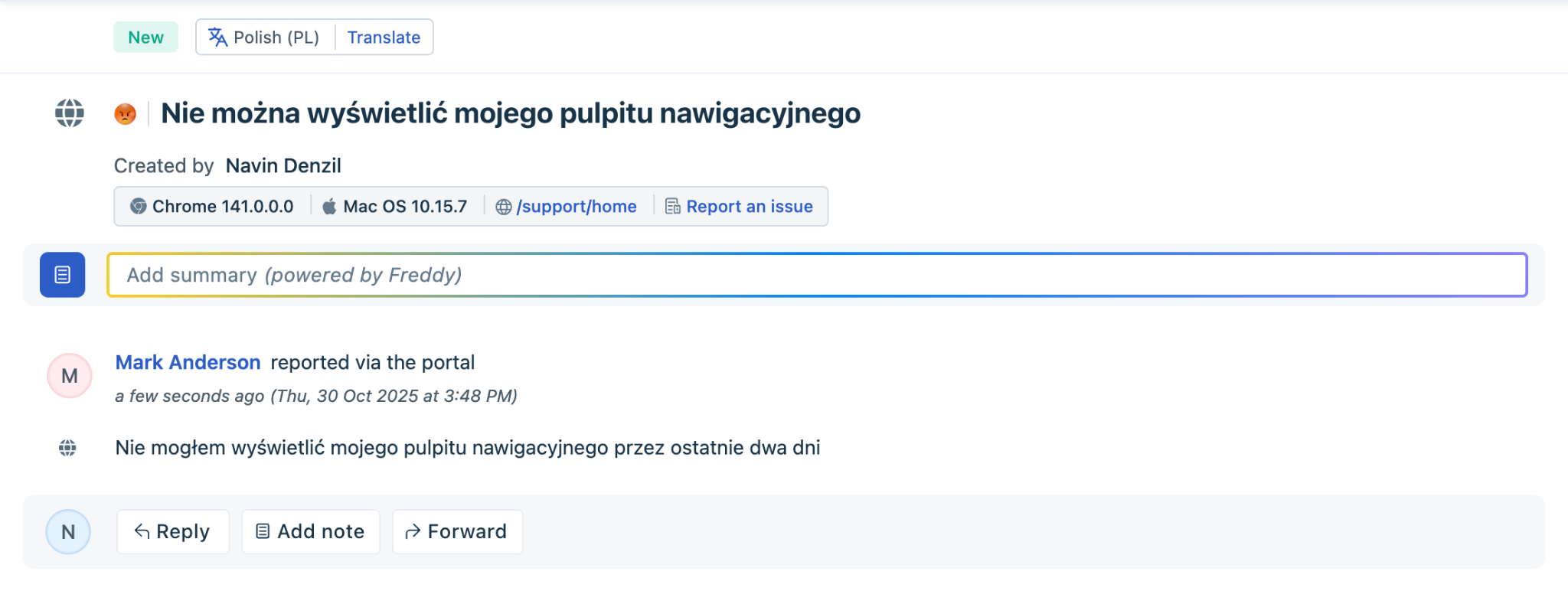
1. When a ticket’s language differs from the agent’s language, a Translate button appears at the top of the conversation.
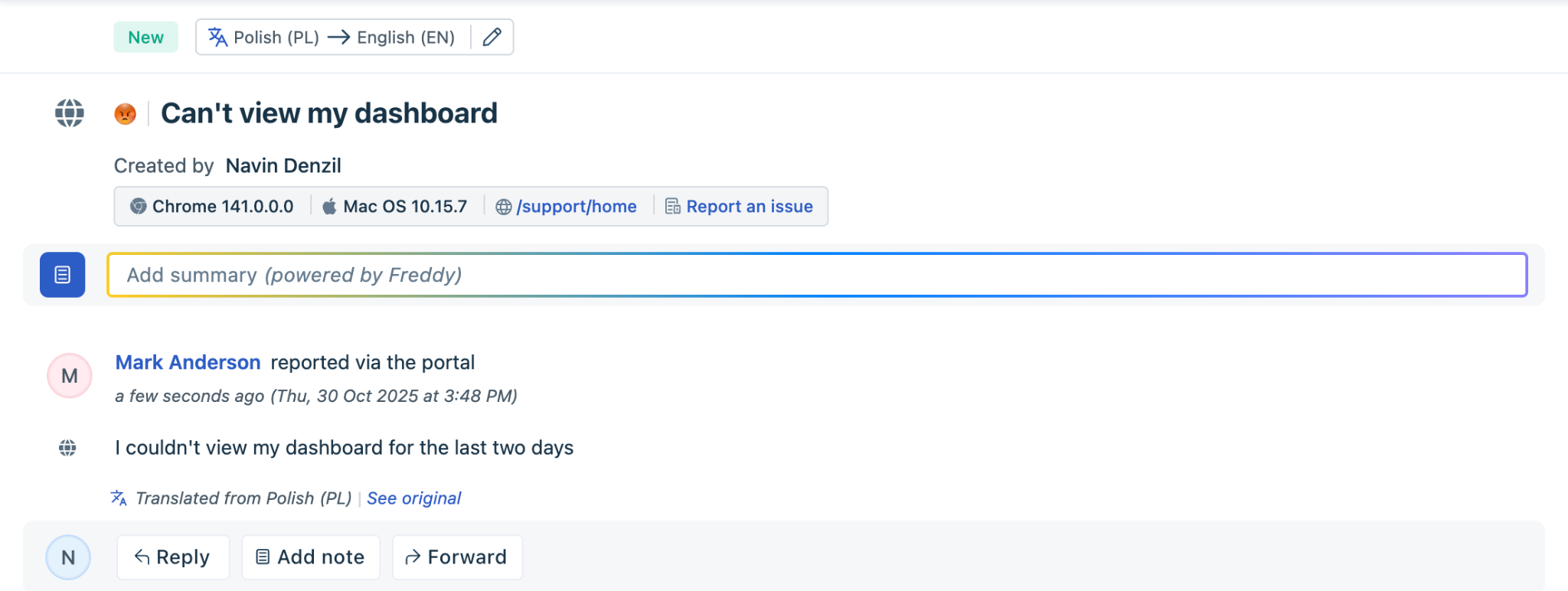
2. Clicking Translate instantly converts the customer’s message into the agent’s language, and the translated text appears. You can click See original to view the message in the agent's language if required.
3. If the translation limit is reached for the account, the button is disabled, and a banner appears:
“Translation limit reached for this billing cycle.”
``` Note: 1) For every ticket, agents need to click the Translate button manually. 2) Agents can still view previously translated messages; ongoing or resolved tickets translated before the limit was reached will continue to display translations. 3) Each translation supports a maximum length of 40,000 to 50,000 characters. ```
Supported Languages
The following languages are supported for live translation in Freshdesk:
01. English US 02. German 03. Spanish (LATAM) 04. French 05. Dutch 06. Portuguese (BR) 07. Swedish. 08. Russian 09. Italian 10. Polish 11. Turkish 12. Czech 13. Danish 14. Flemish 15. Finnish 16. Norwegian 17. Japanese 18. Korean 19. Chinese (simplified) 20. Chinese (traditional) 21. Thai 22. Vietnamese 23. Spanish (ES) 24. Arabic 25. Bosnian 26. Bulgarian 27. Catalan 28. Croatian 29. Czech 30. Estonian 31. Greek 32. Hebrew 33. Hungarian 34. Indonesian 35. Latvian 36. Lithuanian 37. Malay 38. Portuguese (PO) 39. Romanian 40. Serbian 41. Slovak 42. Slovenian 43. Ukrainian
Ticket Limits and Usage
Ticket limits help optimize translation costs and prevent overuse.
How are ticket limits calculated?
The ticket limit per license per month is 100. Ticket limits are applied at the account level using the formula:
Ticket Limit = Number of Copilot licenses × 100
How is translation usage measured?
One count of translation (Metering) is completed only when:
Translation count or Metering does not occur when:
What happens when the translation limit is reached?
Tracking Translation Usage
Admins can track and analyze translation usage in Impact Reports under the Freddy AI module:
You can view:
You can also:
Understanding the 50,000-Character Limit in Live Translate
Live Translate can process up to 50,000 characters per translation, whether it’s an inbound message, outbound reply, or a public or private note.
However, this limit applies to the entire underlying message, and not just the visible text. The character count also includes:
Why translations may fail even if the text appears short
The visible text is often only a small part of the full message payload. Formatting, signatures, or embedded images can add thousands of hidden characters. Even short messages can exceed the 50k limit because these elements are included in the final character count.
Key things to remember
System limitations and best practices for enhancing performance
1. For inputs that include mixed-language content only a single language is returned. In general the language with the largest representation in the content is returned, but with a lower confidence score. 2. The feature does not yet support the romanized versions of all languages that do not use the Latin script. Language detection of text is only possible for native scripts. 3. Some words exist in multiple languages. For example, "impossible" is common to both English and French. For short samples that include ambiguous words, you may not get the right language. 4. In general, longer inputs are more likely to be correctly recognized. Full phrases or sentences are more likely to be correctly recognized than single words or sentence fragments. 5. Not all languages will be recognized. Please check the list of supported languages mentioned in this article under the section 'Supported Languages'. 6. To distinguish between multiple scripts used to write certain languages such as Kazakh, the language detection feature returns a script name and script code according to the ISO 15924 standard for a limited set of scripts. 7. Due to unknown gaps in our training data, certain dialects and language varieties less represented in web data may not be properly recognized.
FAQs
1. Q. Can I still translate after the limit is reached?
No, but tickets that were already translated before reaching the limit remain supported until closed. 2. Q. Will reopened tickets count again toward the limit?
Yes, reopened tickets will be metered again when translation is requested. 3. Q. What happens if an agent changes the detected language? The translation updates immediately, and metering continues as per the defined rules.