Last updated: 2026-05-18
Applicable Plans
| Freshdesk | Growth, Pro, Enterprise |
| Freshdesk Omni (formerly CSS) | Growth, Pro, Enterprise |
| Omnichannel | Growth, Pro, Enterprise |
| Freshdesk (previous plans) | Blossom, Garden, Estate, Forest |
| Omnichannel (previous plans) | Estate, Forest |
Overview of the SLA Calculation Change
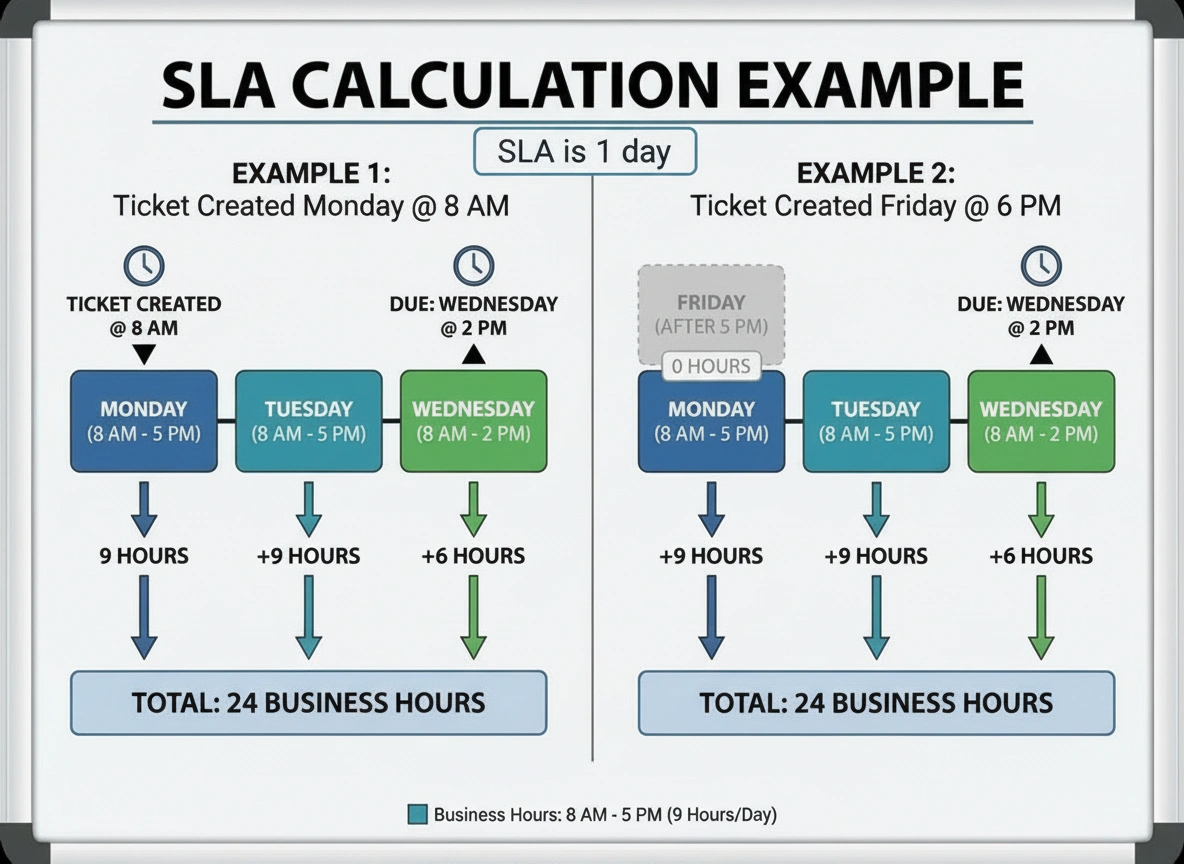
Setting an SLA to 1 day will now be interpreted as 24 Business hours.
Before the update
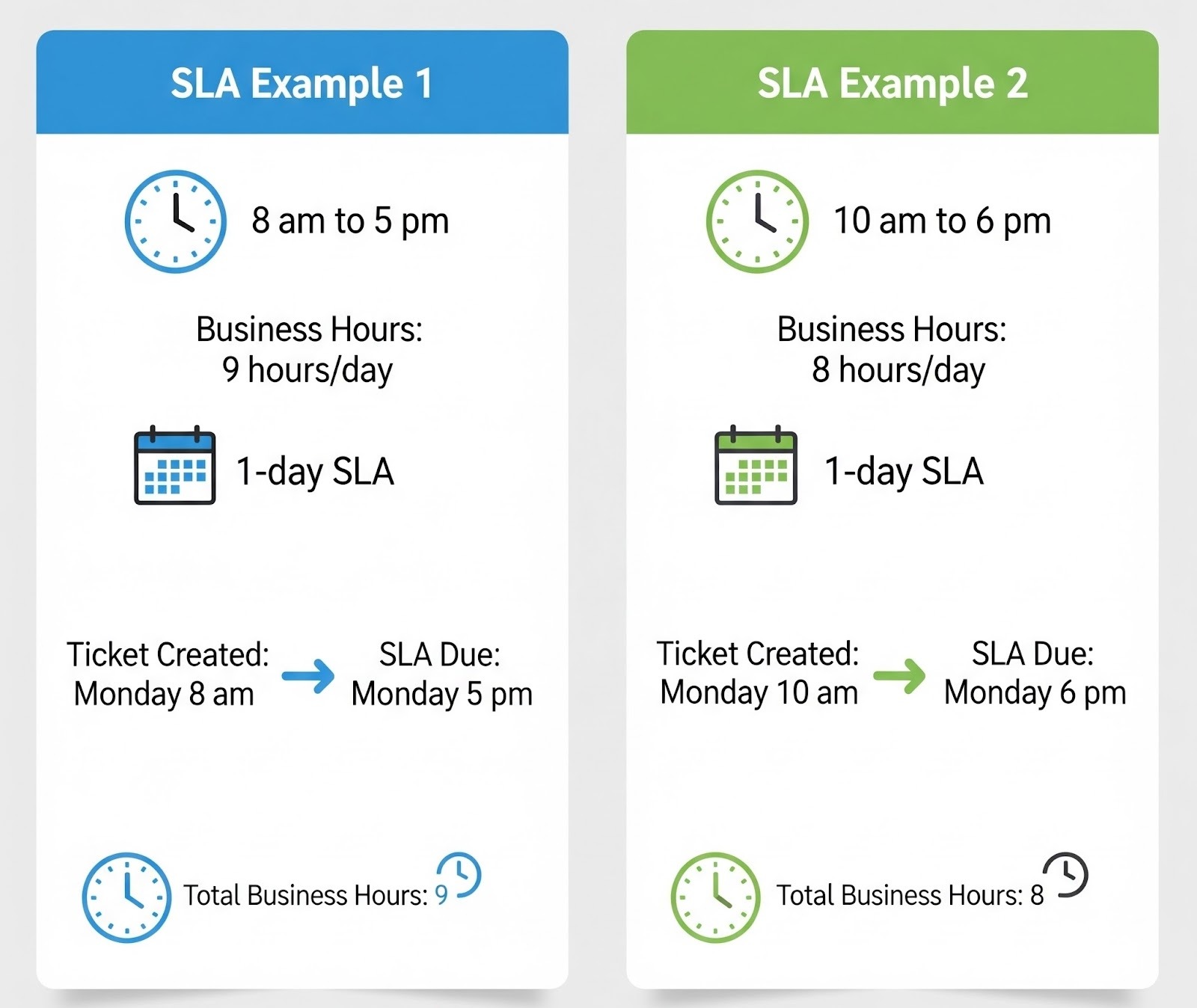
1 Business day referred to the start and end of a business day. For example,
After the update
1 Business day refers to 24 Business hours. For example,
The sections below explain the current behavior, the updated logic, and the actions required to prevent unintended changes.
This update is scheduled for phased release in 2026.
Understanding SLAs within Business hours
Current SLA logic
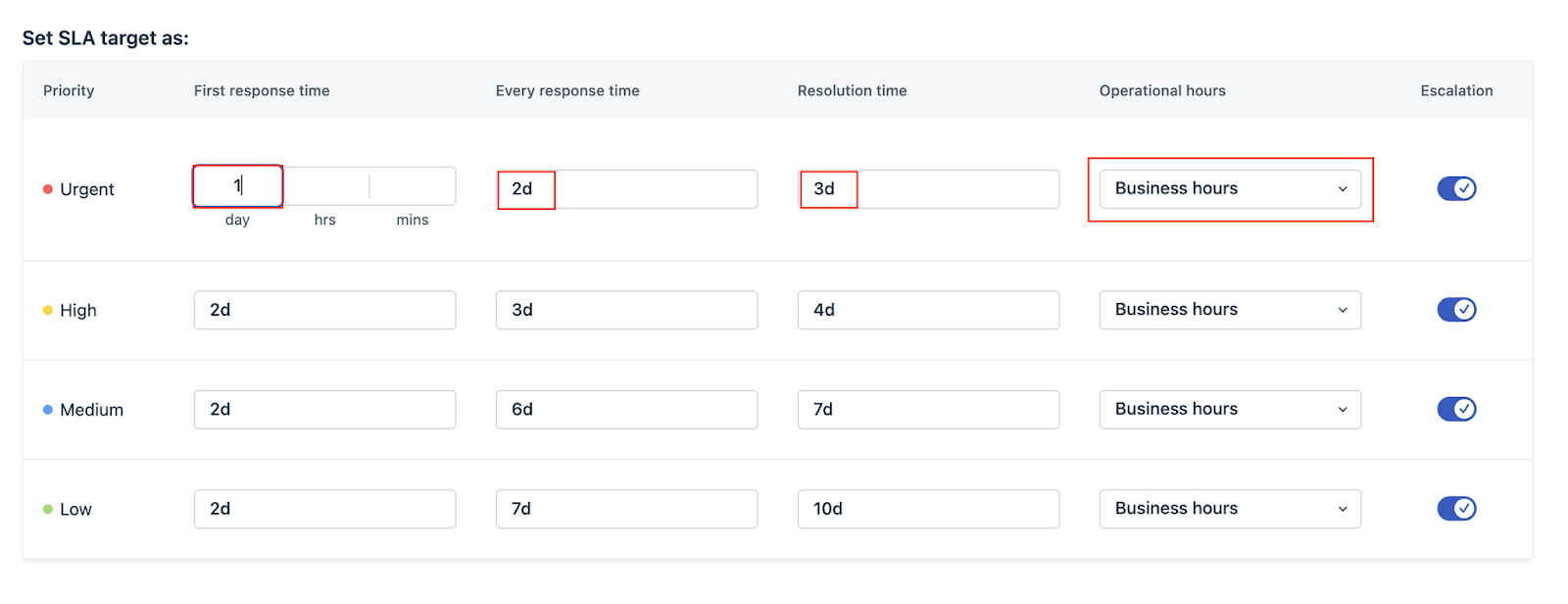
Currently, when SLAs are configured in days, one business day equals the total working hours defined in the Business hours schedule (for example, 8 or 9 hours, depending on the configuration). For example, Business hours are configured as 8 am to 5 pm, Monday to Friday, as shown below:
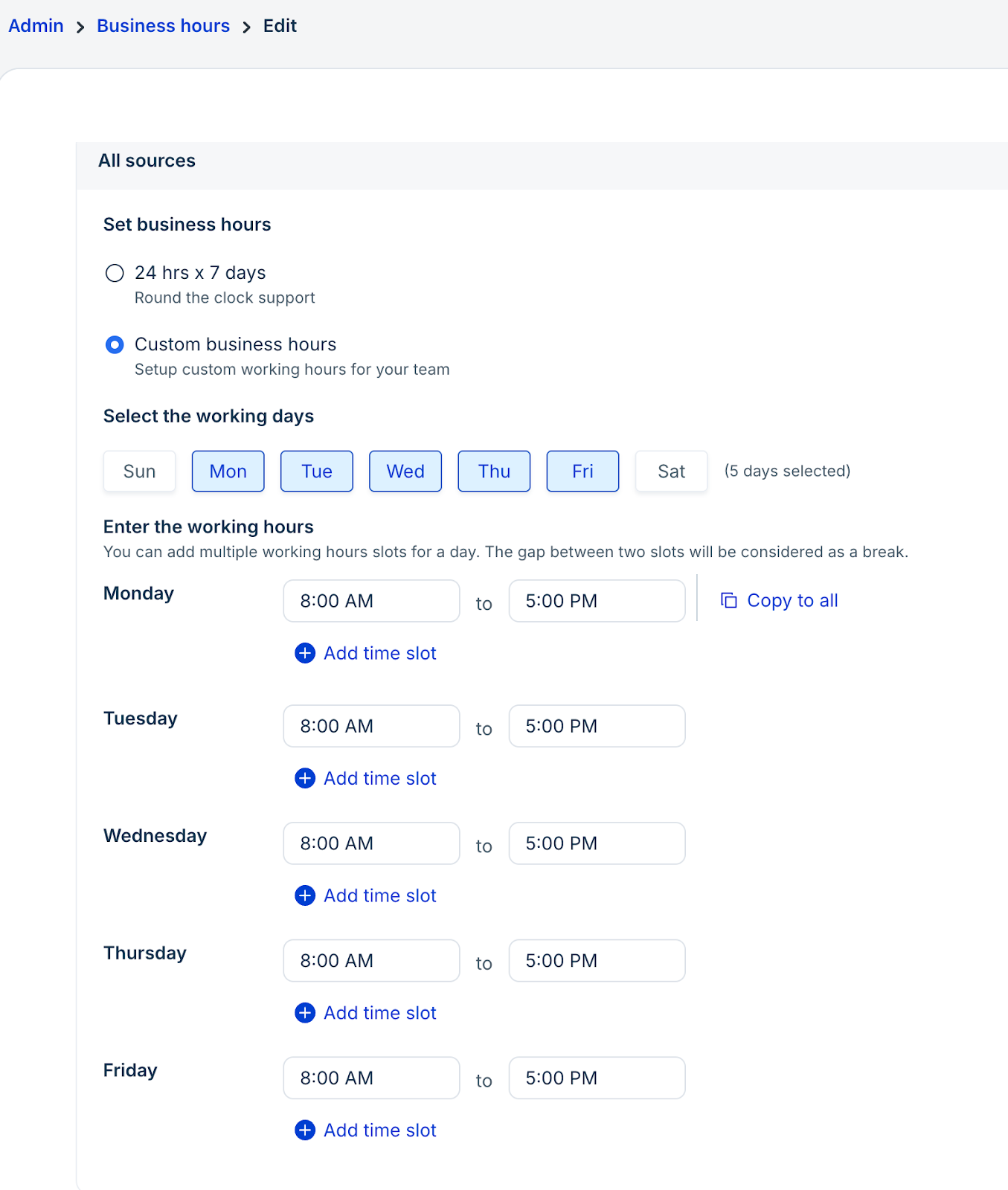
In this setup, one business day equals 9 hours. The SLA policy may have targets configured in days, as shown below.

As per the current working in Freshdesk, a 1-day SLA does not mean 24 hours. In this setup, 1 day equals 9 hours. Based on the configured Business hours, Freshdesk automatically converts days to business hours (for example, 1 day = 9 hours, 2 days = 18 hours, and so on). The following examples explain the same:
Post-update SLA logic and required actions
After the update, Freshdesk will treat 1 day as 24 Business hours. SLA calculations will use the configured Business hours until 24 hours are accumulated, which may span multiple working days. This change aligns SLA calculations with the common interpretation that 1 day equals 24 hours.
This change is being introduced as many customers have informed us that, in the current setup, 1 day is interpreted as 24 hours, which is incorrect.
To prevent unintended changes to SLA targets, SLA configurations currently defined in days must be changed to hours. Otherwise, all SLAs set in days within Business hours will be calculated using the new 24-hour logic.
Updating SLAs ensures that current working time expectations remain unchanged after the release.
Required actions for existing SLA configurations
To manually modify existing SLA configurations, refer to the scenario below, which mirrors current setups. The following example provides guidance for applying the required changes.
Current configuration
The following example defines the current or existing SLA policies, Groups, and Business Hours setup. Here, Business hours remain the same every day of the week.
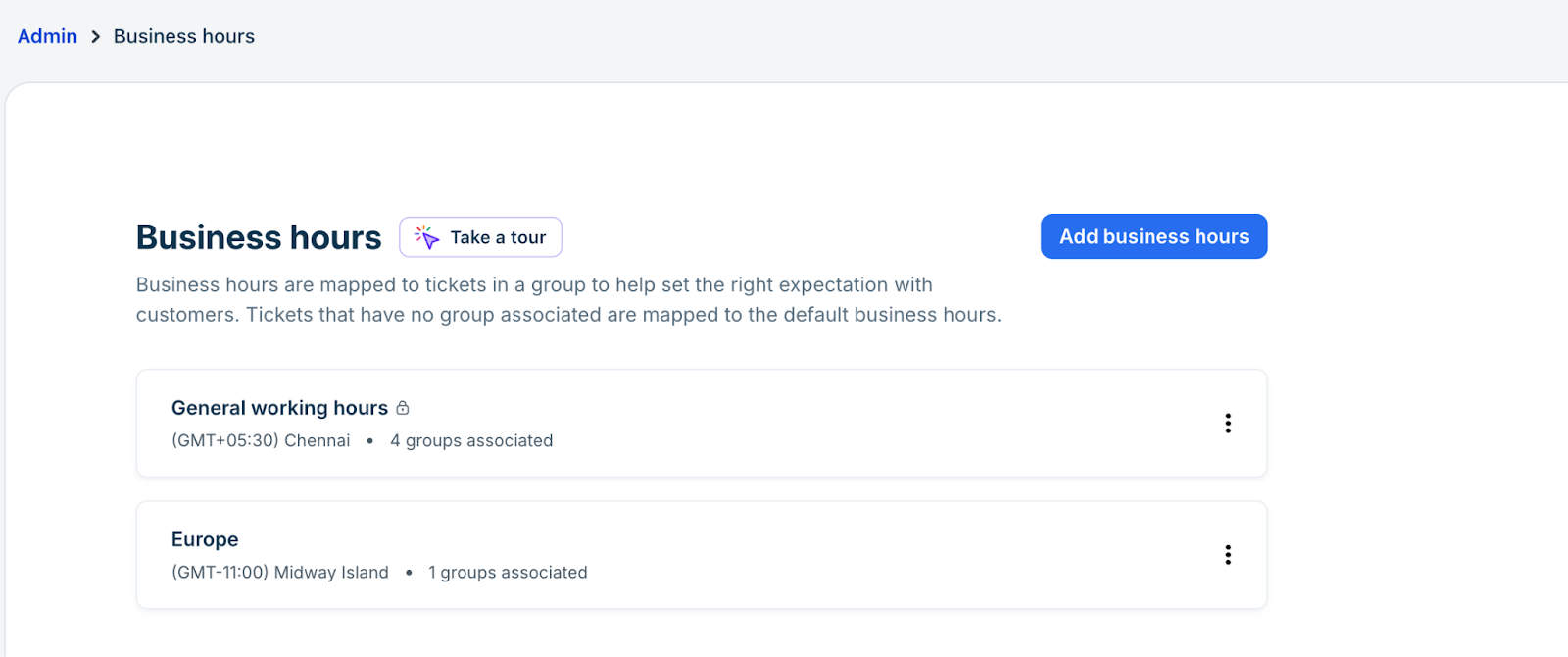
Business hours
Two Business hours are configured:
SLA policies
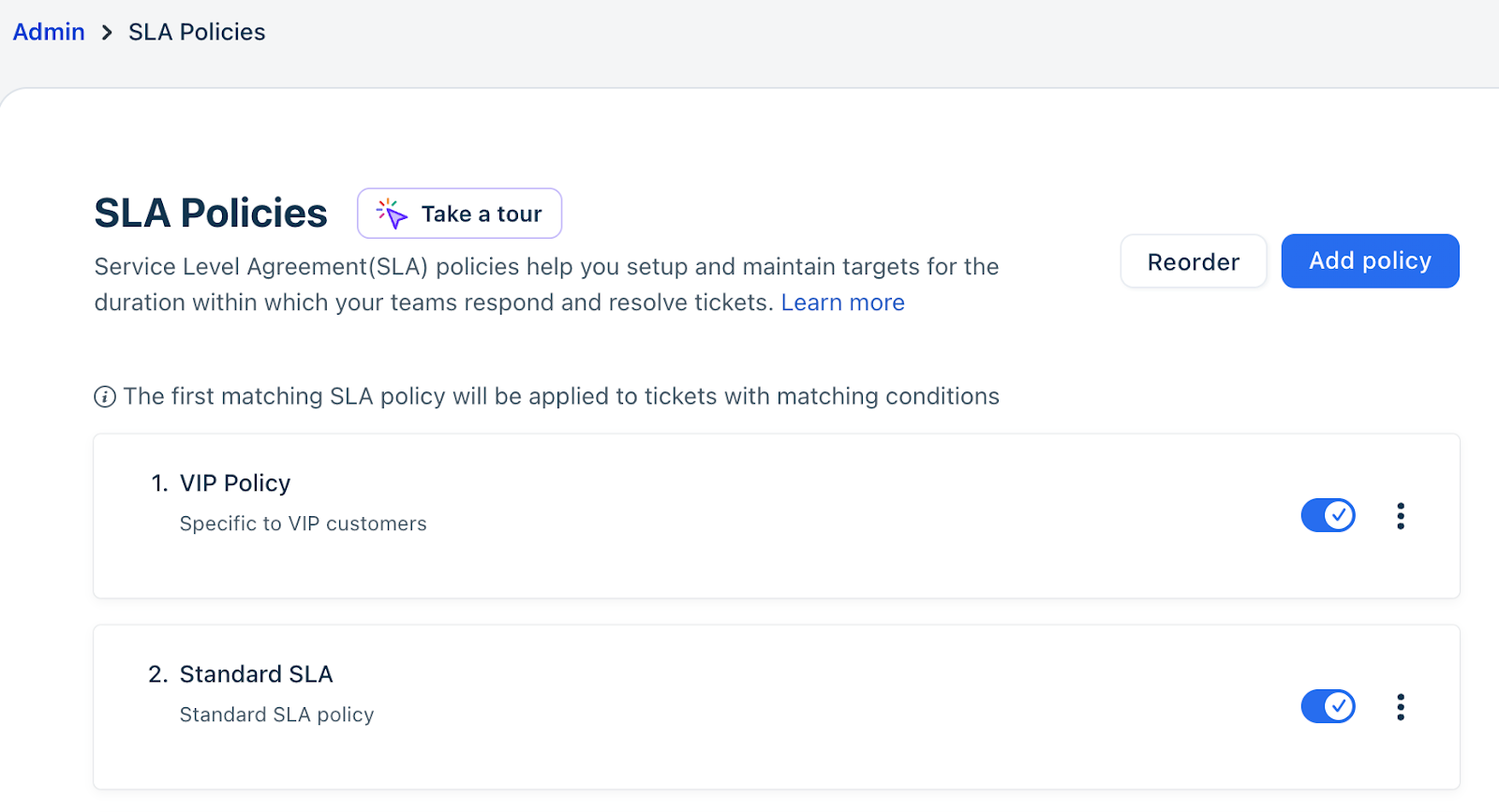
Two SLA policies are configured:
Neither policy is mapped to a specific Group, and some or all SLA targets are configured in days.
``` Note: Even when SLA policies are mapped to specific groups, the scenario remains the same. The same steps outlined under Required actions to prevent SLA changes will apply as long as Business hours remain consistent throughout the week. ```
Groups
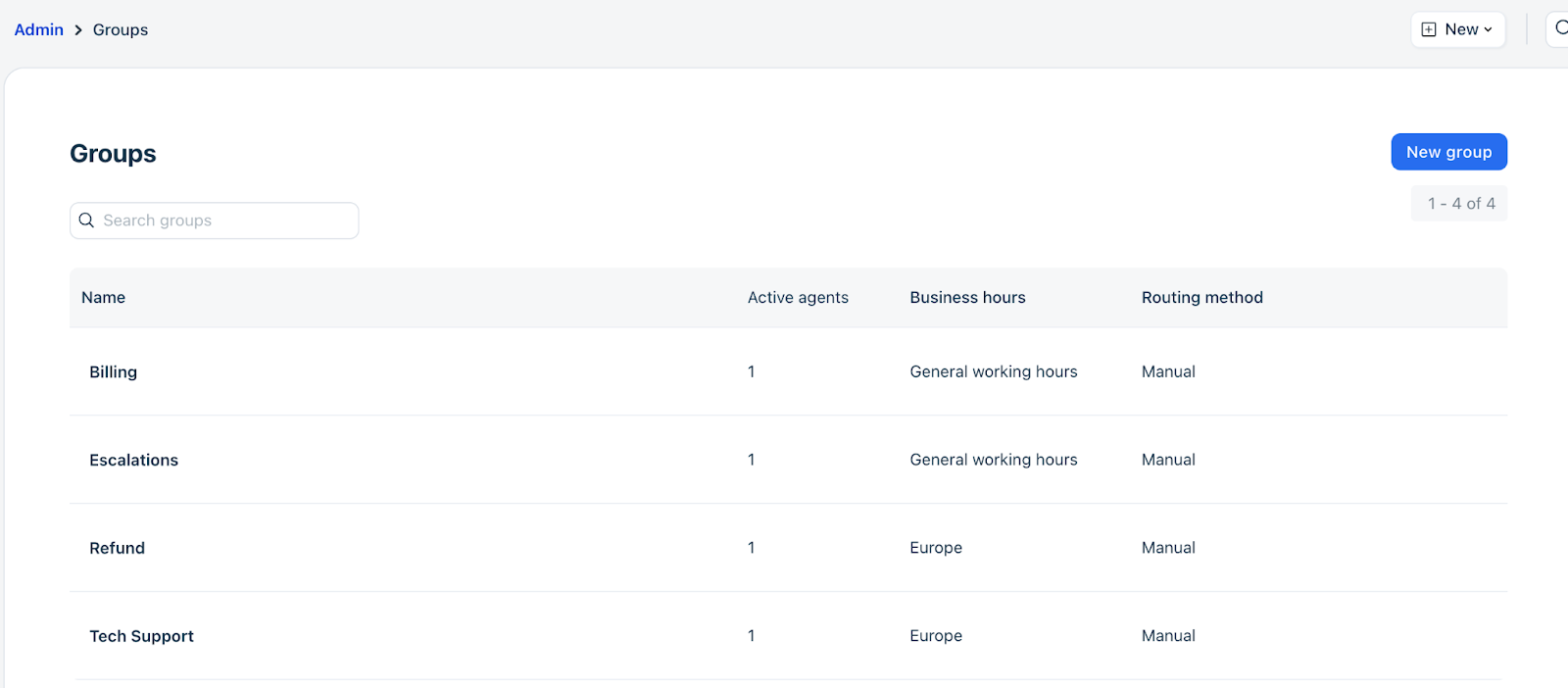
There are 4 Groups configured:
1. Billing 2. Escalations 3. Refund 4. Tech Support
Required actions to prevent SLA changes
``` Note: Review only SLAs marked as Update Required. These are the ones with targets defined in business days that need modification. All other SLAs will continue to function as expected and do not require any changes. ```
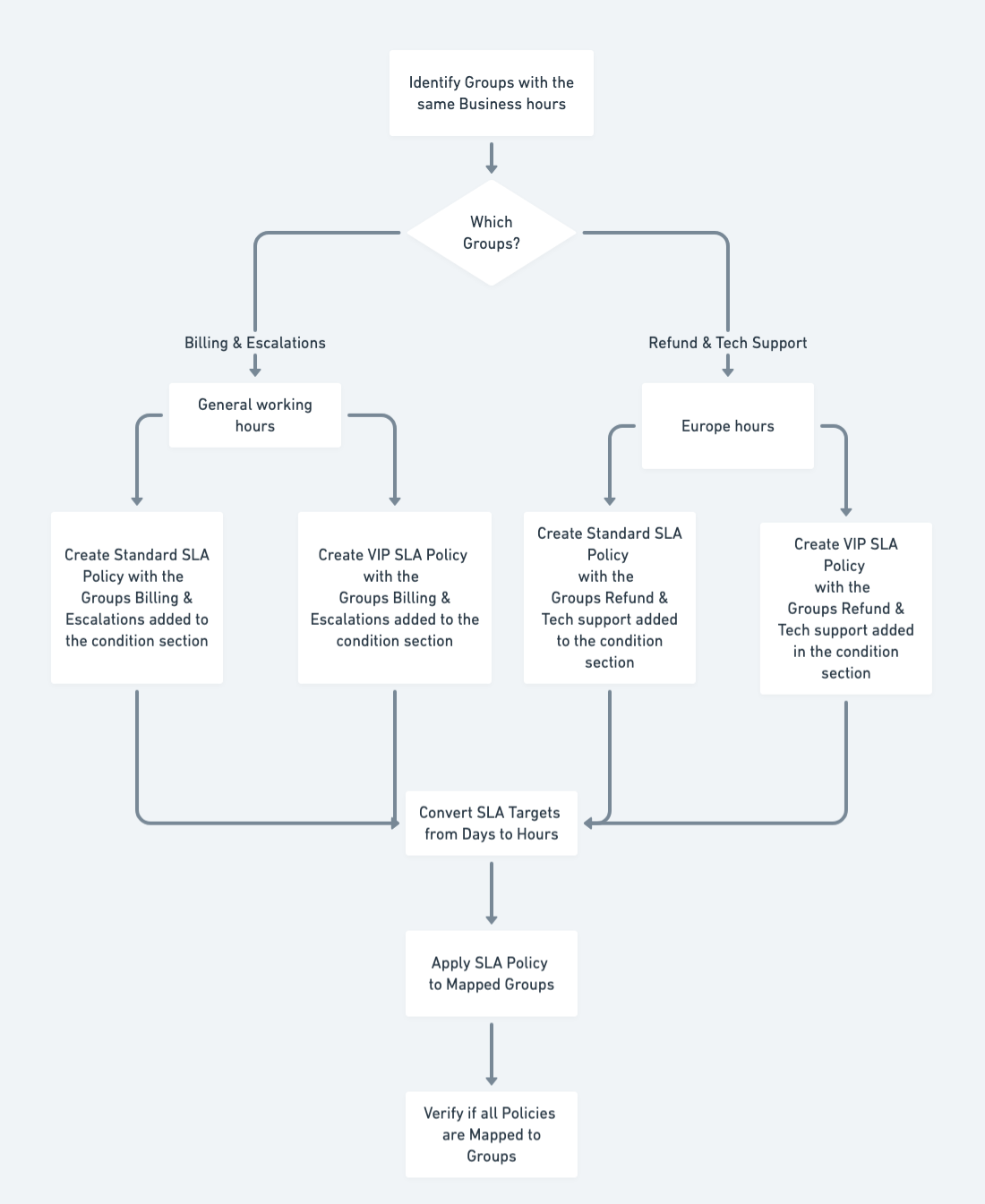
All SLA policies must be mapped to Groups that share the same Business hours. This requires the following actions:
1. Identify Groups with the same Business hours:
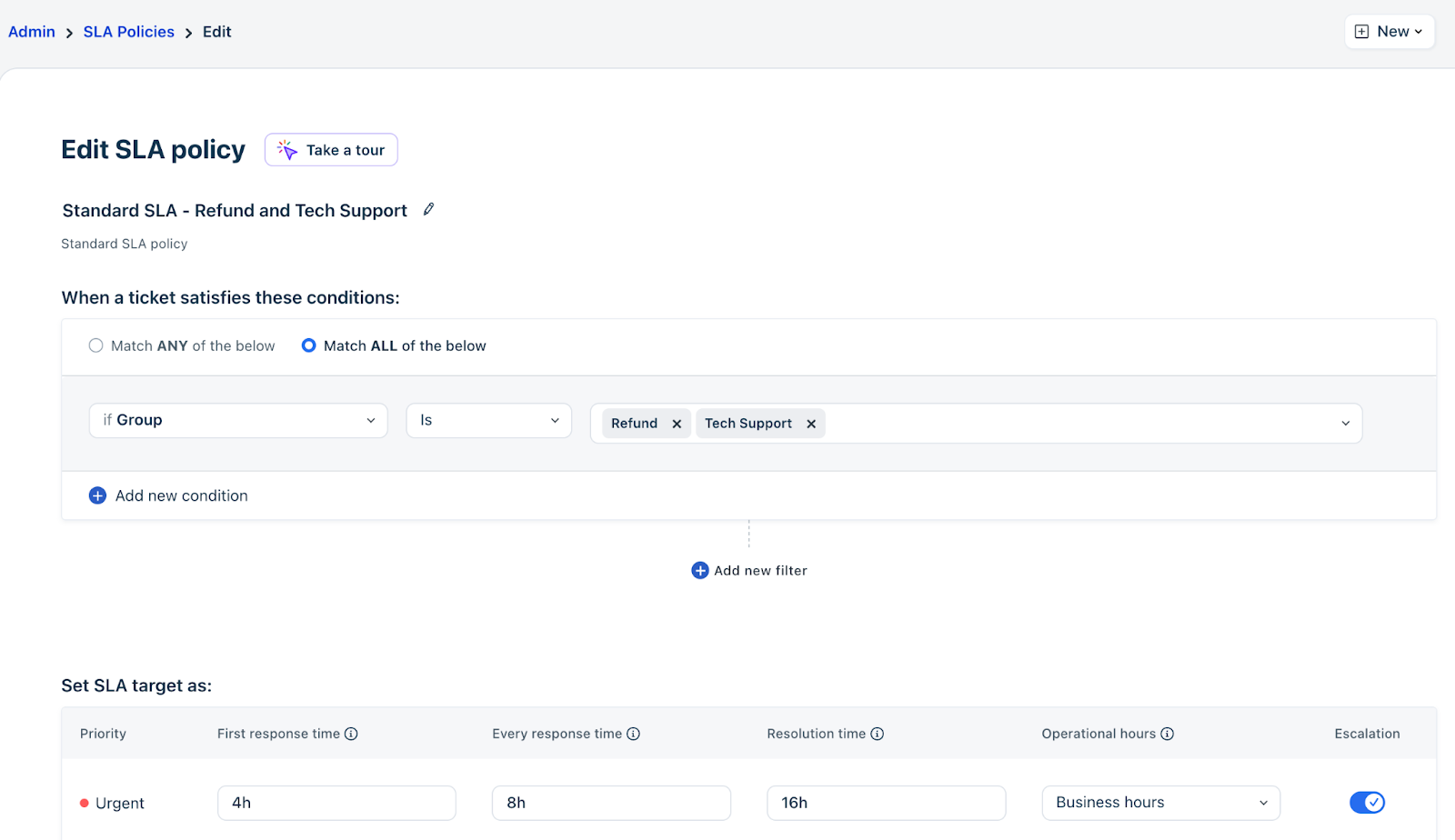
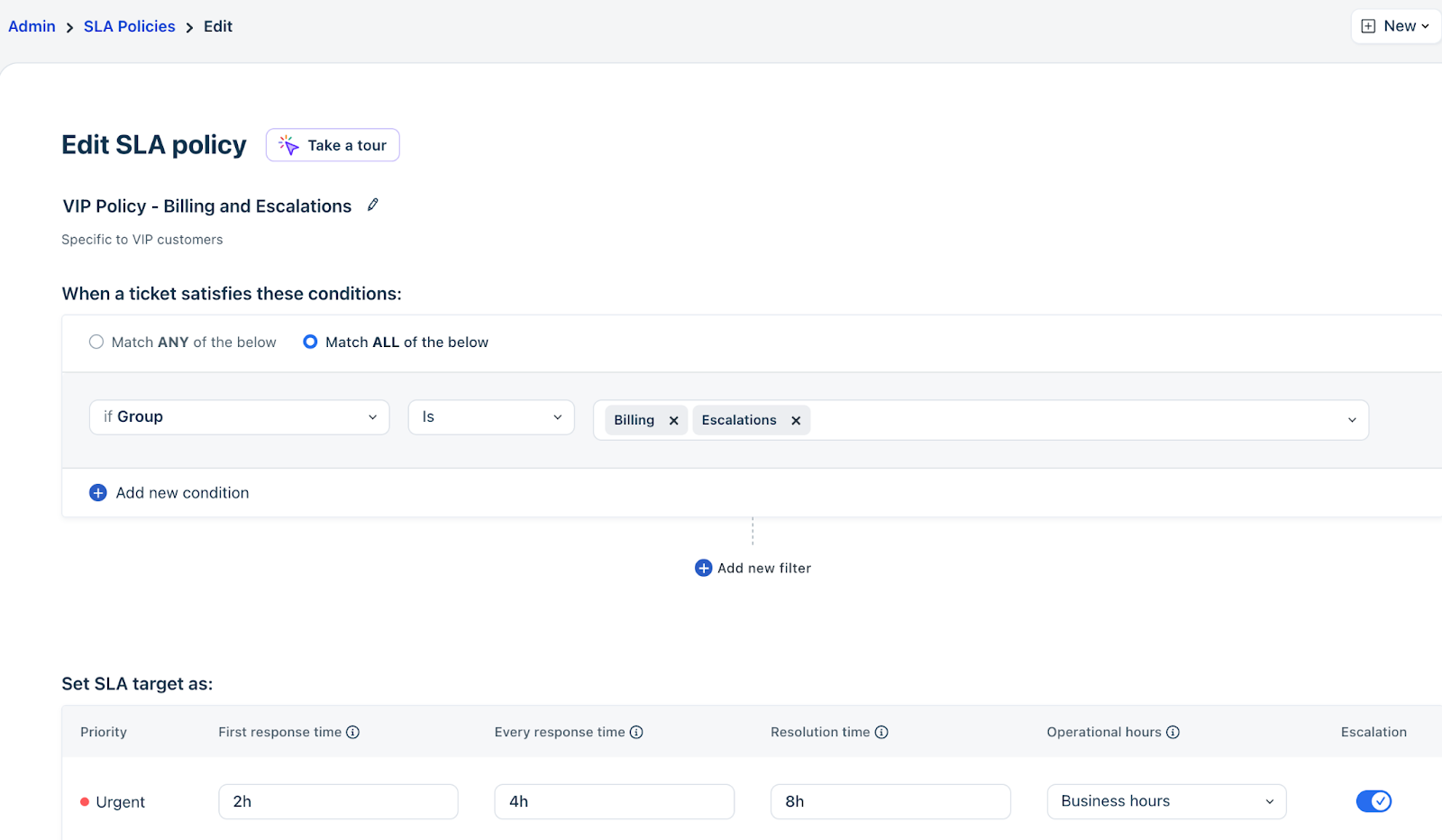
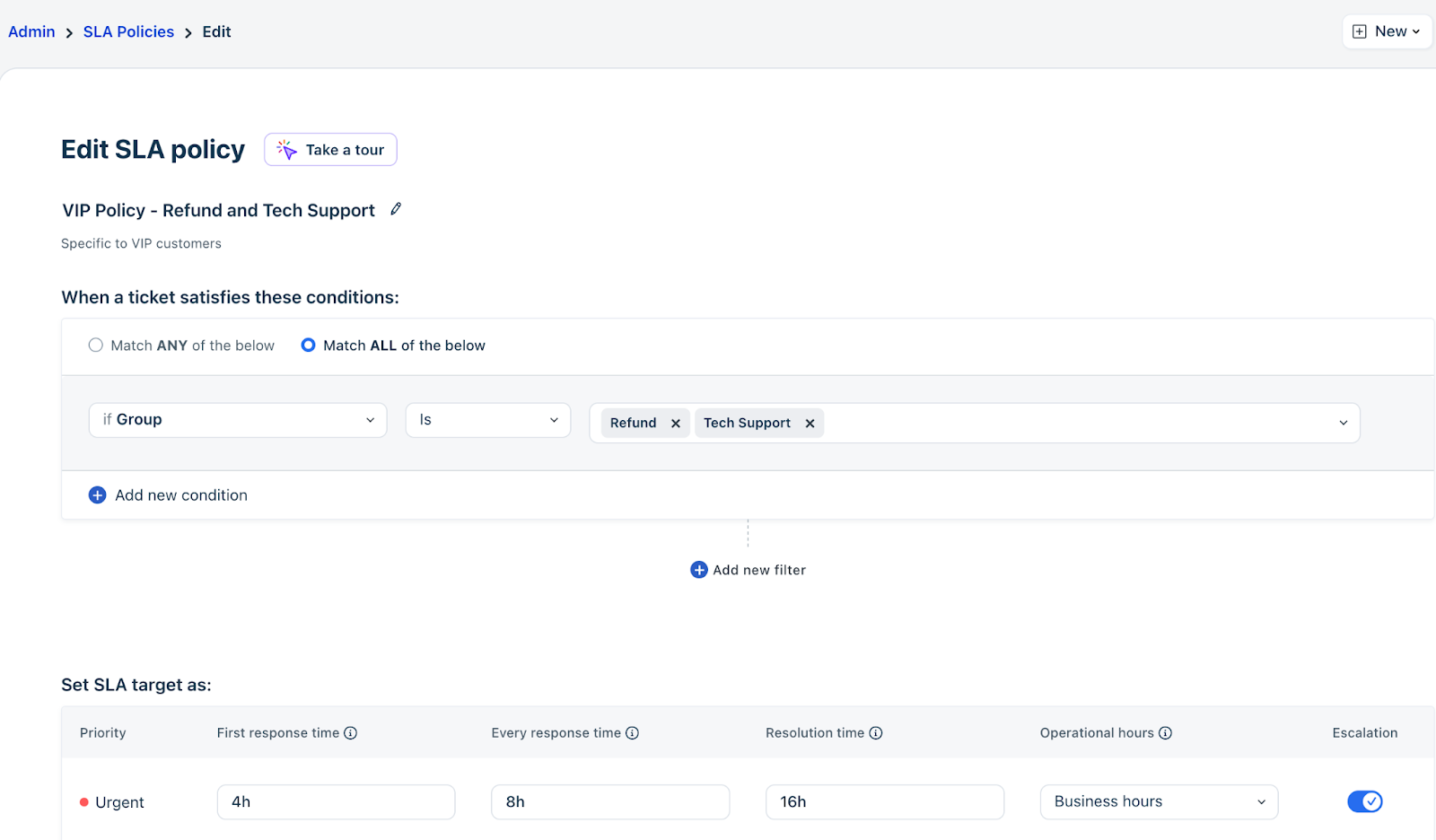
2. Each SLA policy must apply only to Groups with the same Business hours, and all SLA targets must be converted from days to hours to align with those Business hours, as shown below: 1. A Standard SLA policy for Billing and Escalations
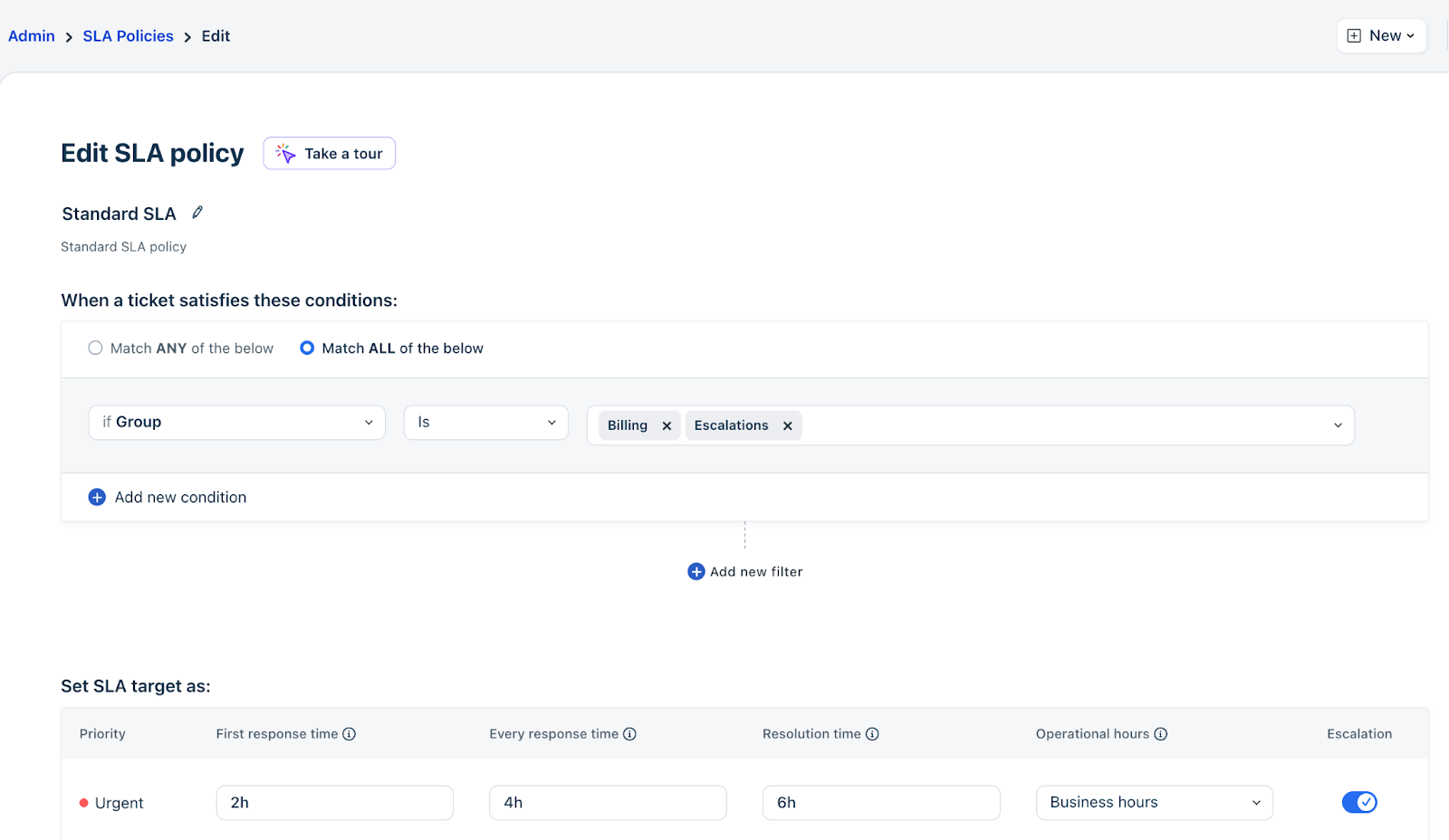
2. A Standard SLA policy for Refund and Tech Support
3. A VIP SLA policy for Billing and Escalations
4. A VIP SLA policy for Refund and Tech Support
The following flowchart outlines the required actions.
Handling variations in Business hours across days
If Business hours vary across days, you don’t have to modify them. Instead, you can define SLA targets in hours based on your typical daily working duration.
Consider a Business hours setup where working hours are 9 hours from Monday to Friday (9 AM–6 PM) and 2 hours on Saturday (10 AM–12 PM).
Current behavior (SLA in days):
If a ticket is created after 6 PM on Friday and before 10 AM on Saturday, agents effectively have only 2 hours (10 AM–12 PM on Saturday) to resolve it, due to the shorter working window.
After defining SLA in hours (9 hours):
The ticket receives the full 9-hour resolution time, regardless of when it is created. In this case, the due time will be 3 PM on Monday (2 hours on Saturday + 7 hours on Monday).
This ensures that:
Current vs. Required SLA configurations
The following summary tables show the contrast between the current and required configurations:
Current configuration (SLAs in days)
In this configuration, SLAs are set in days. Freshdesk automatically converts each day into the working hours defined for the ticket’s assigned group. As a result, the appropriate Business hours are applied even when groups are not explicitly included as SLA conditions.
| SLA Policy Name | Applies to Groups | Current SLA Configuration |
| Standard policy | Billing, Escalations, Refund, and Support | 1 day |
| VIP policy | Billing, Escalations, Refund, and Support | 1 day |
Required Configuration (SLAs in hours, split by Business hours)
With SLAs configured in hours, the automatic conversion from days to Business hours no longer applies. Hours are absolute, and Freshdesk must determine which Business hours schedule to use when calculating those hours. To enable this, Groups must be included in SLA conditions. This configuration preserves the same behavior as before, expressed in hours instead of days.
| SLA Policy Name | Applies to Groups | Required SLA configuration |
| Standard policy – Billing and Escalations | Billing and Escalations | 8 hours |
| Standard policy – Refund and Support | Refund and Support | 16 hours |
| VIP policy – Billing and Escalations | Billing and Escalations | 8 hours |
| VIP policy – Refund and Support | Refund and Support | 16 hours |
You can watch the following video as well to understand the changes:
SLA days (1)
Please write to support@freshdesk.com for any queries.