Last updated: 2026-01-22
Source: https://support.freshdesk.com/support/solutions/articles/50000011521-agent-experience-on-facebook
This article explains how agents work with Facebook messages, comments, and posts inside Freshdesk.
Identifying Facebook Tickets in the Inbox
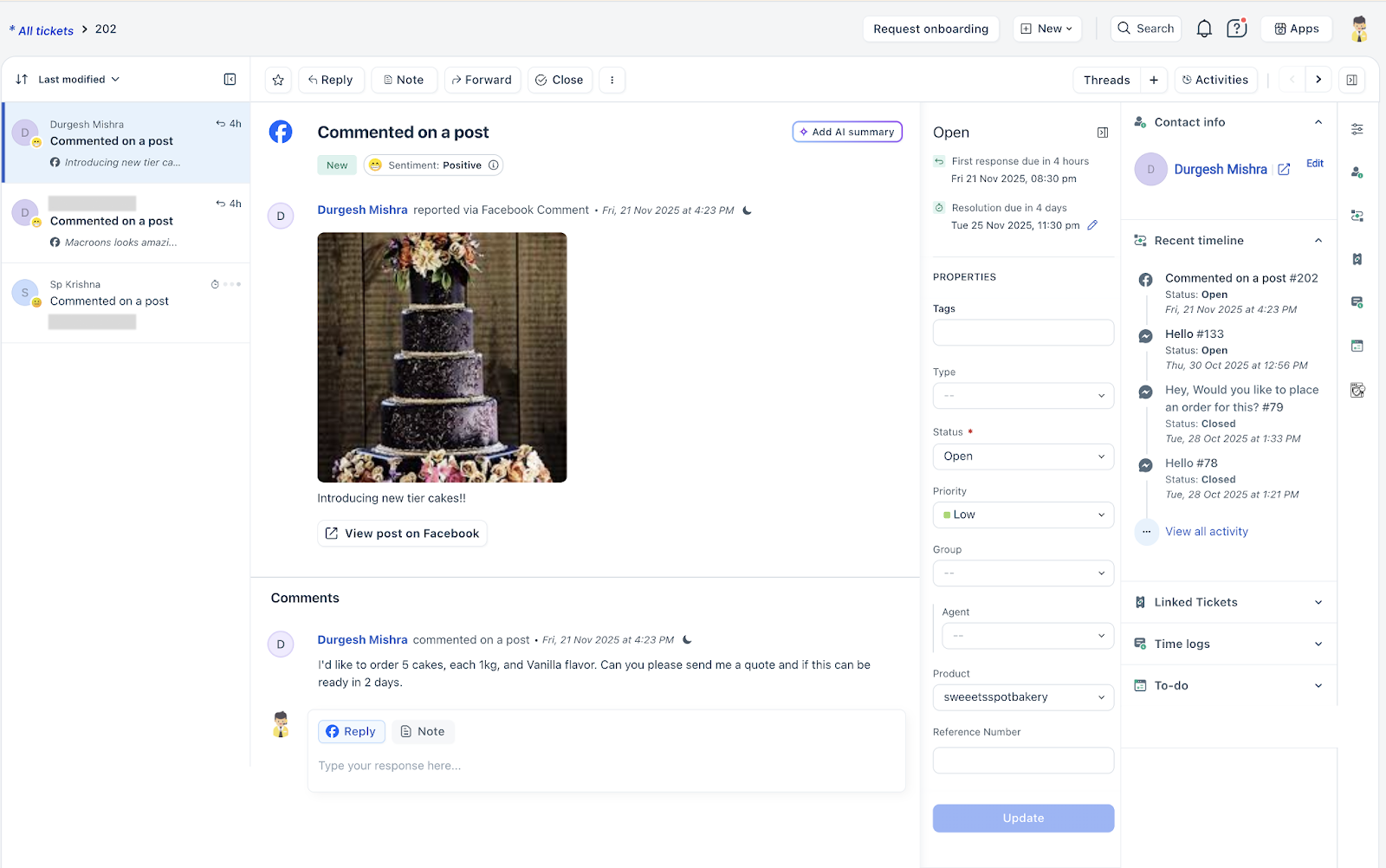
- Direct Messages (DM) - Comments (from business post) - Visitor Post
How Facebook Ticket Subjects & Source Info Work in Freshdesk
When a ticket is sent from Facebook, Freshdesk automatically fills in two fields (source and source info) to help you instantly understand what happened and where it originated.
Ticket Subject – Tells you what type of interaction happened
Direct Messages (DMs):
Comments:
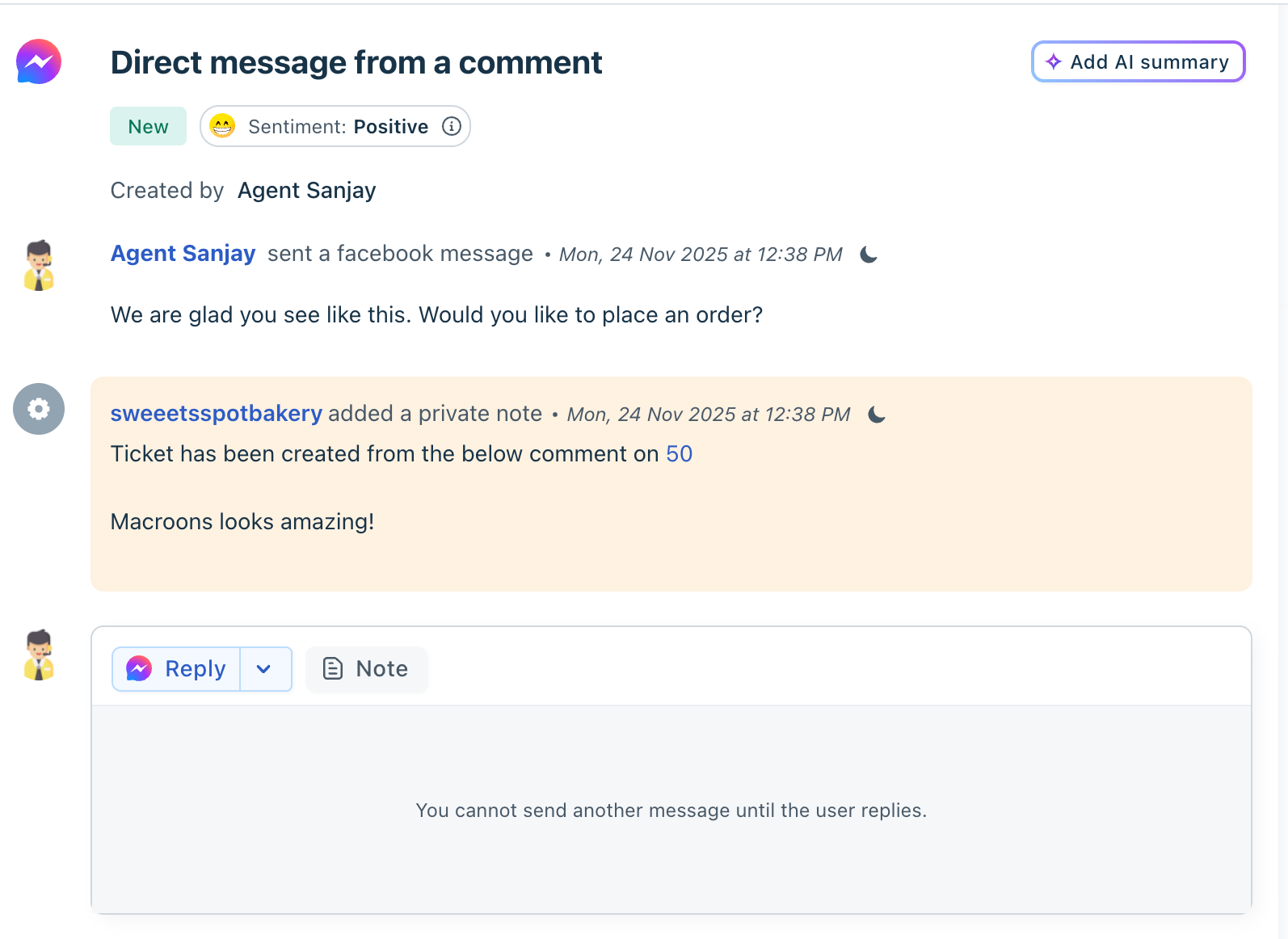
DM created from a comment (agent-initiated):
This way, you know the context without opening the ticket.
Source & Source Info – Tells you where the ticket came from
These fields help identify the exact Facebook entry point:
For example, under ticket properties, the source info will appear as ‘Facebook Messages – India Support. Here, ‘India Support’ is the configured source info name for the page, and the source will be prefixed accordingly.
Working with Facebook DMs
Agents can handle direct messages sent to the connected Facebook Page.
Agent actions for Facebook DMs
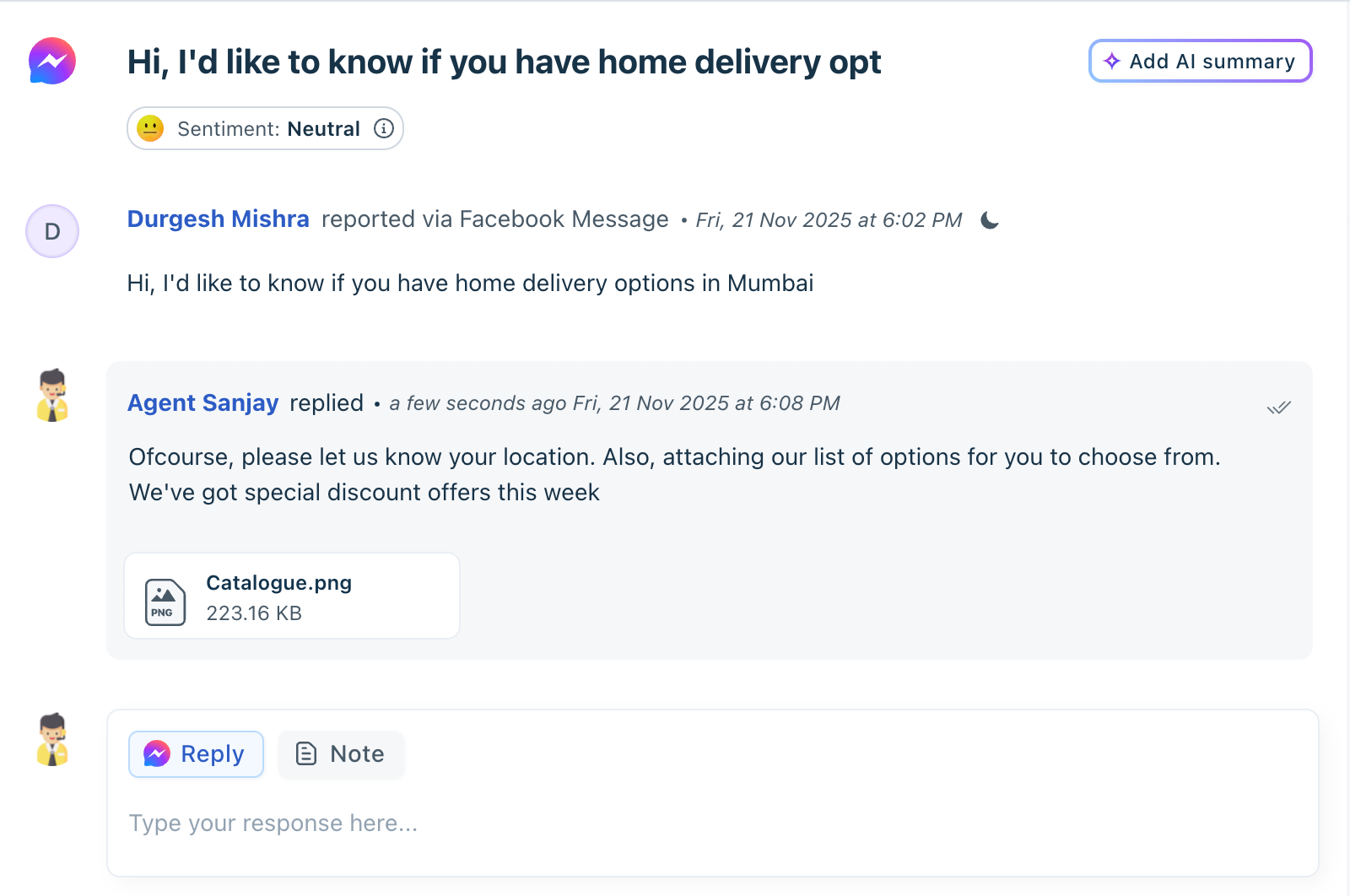
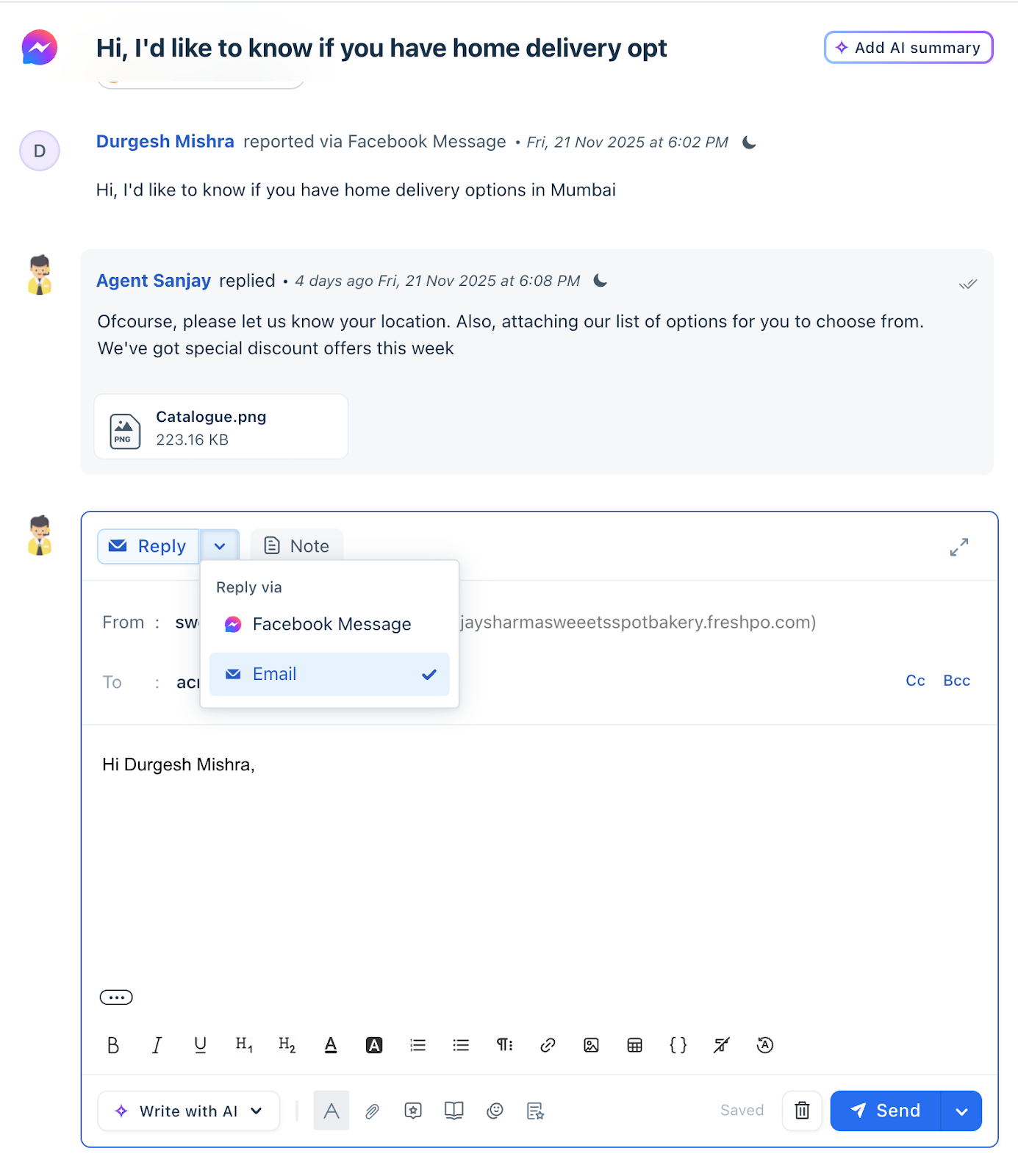
If the contact has an email, the Agent can switch the channel to email and respond.
Managing Comments
Agents can respond to comments on Facebook posts once the admin has enabled ‘convert comments into tickets’.
Individual Comments
If comments are set to be converted individually:
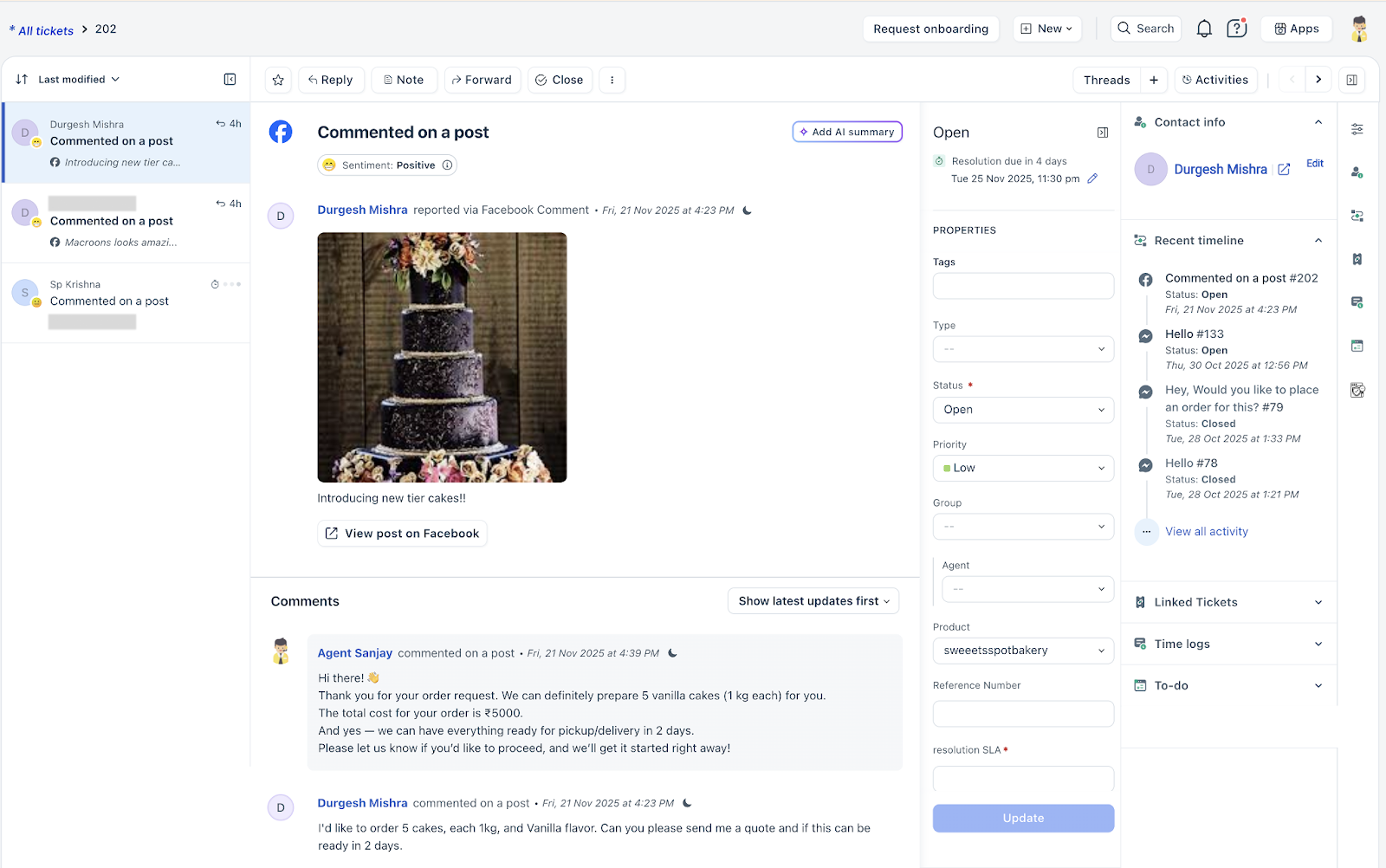
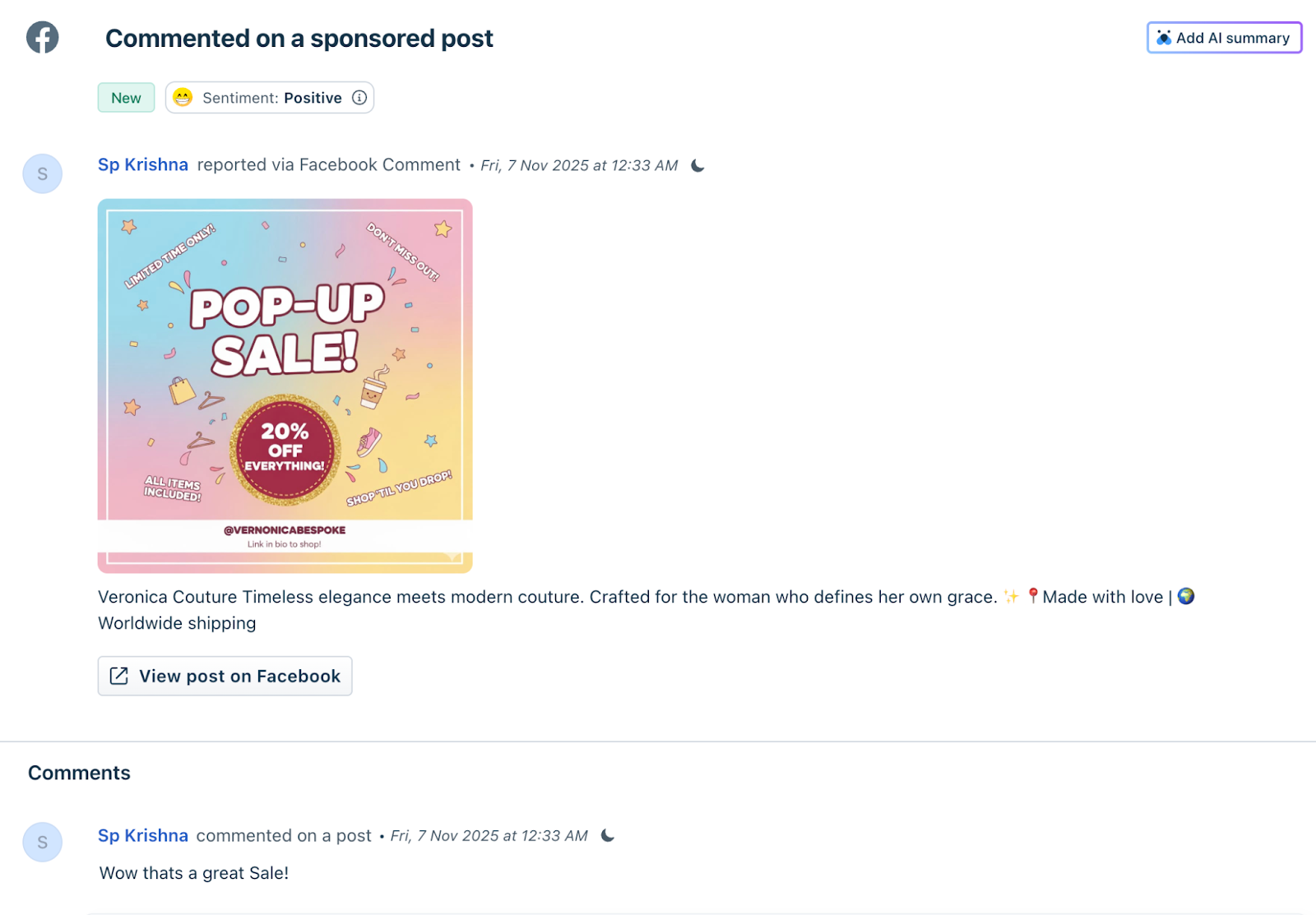
Here is what the sponsored post looks like when an end user adds a comment.
Grouped Comments (Threaded Ticketing)
If admins choose to “Thread all comments into a single ticket”:
- Comment list - Sender names - Thread sequence
Sorting Comments
Agents can sort comments using:
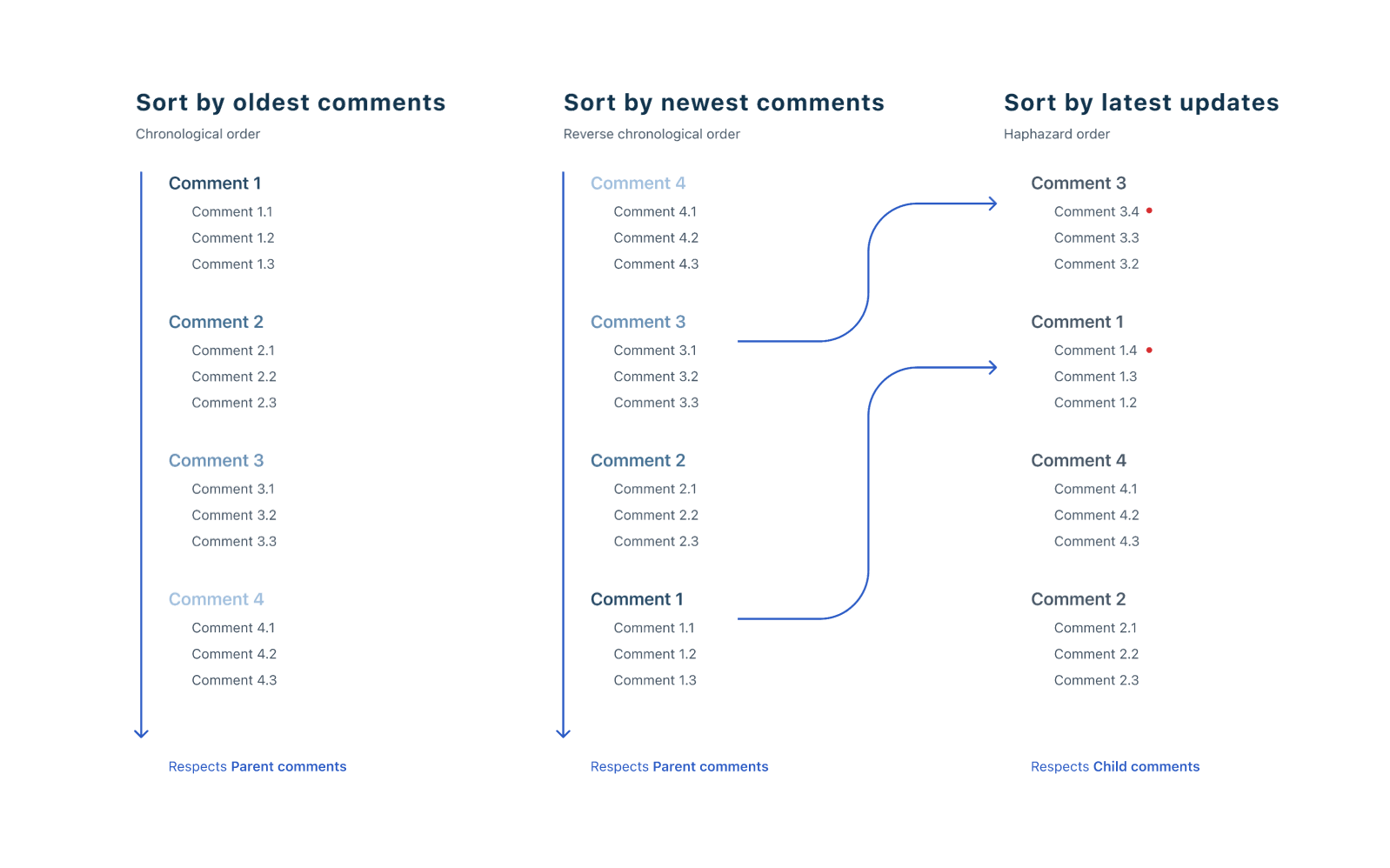
- Oldest and Newest options apply only to parent comments within a post. - Latest Updates First applies to both parent and comment tickets.
- At any given time, a maximum of 3 comments (parent or child) are shown. - If a parent comment has fewer than 3 child comments, all child comments will be displayed alongside it (based on the search context). - Sorting is also applied to child tickets when relevant.
- Clicking View Replies expands and displays all child replies for the selected parent comment. - Clicking +Conversations expands to show all comments in the post. Upon this action, all child comments will be collapsed to reduce clutter.
Replying to Comments
Agents can use the Reply Editor, and their comments will be added directly as parent comments to the post.
Agents can also respond to an end-user’s comment by clicking on Reply (on hover) near a parent or a child comment. Here they can see three options:
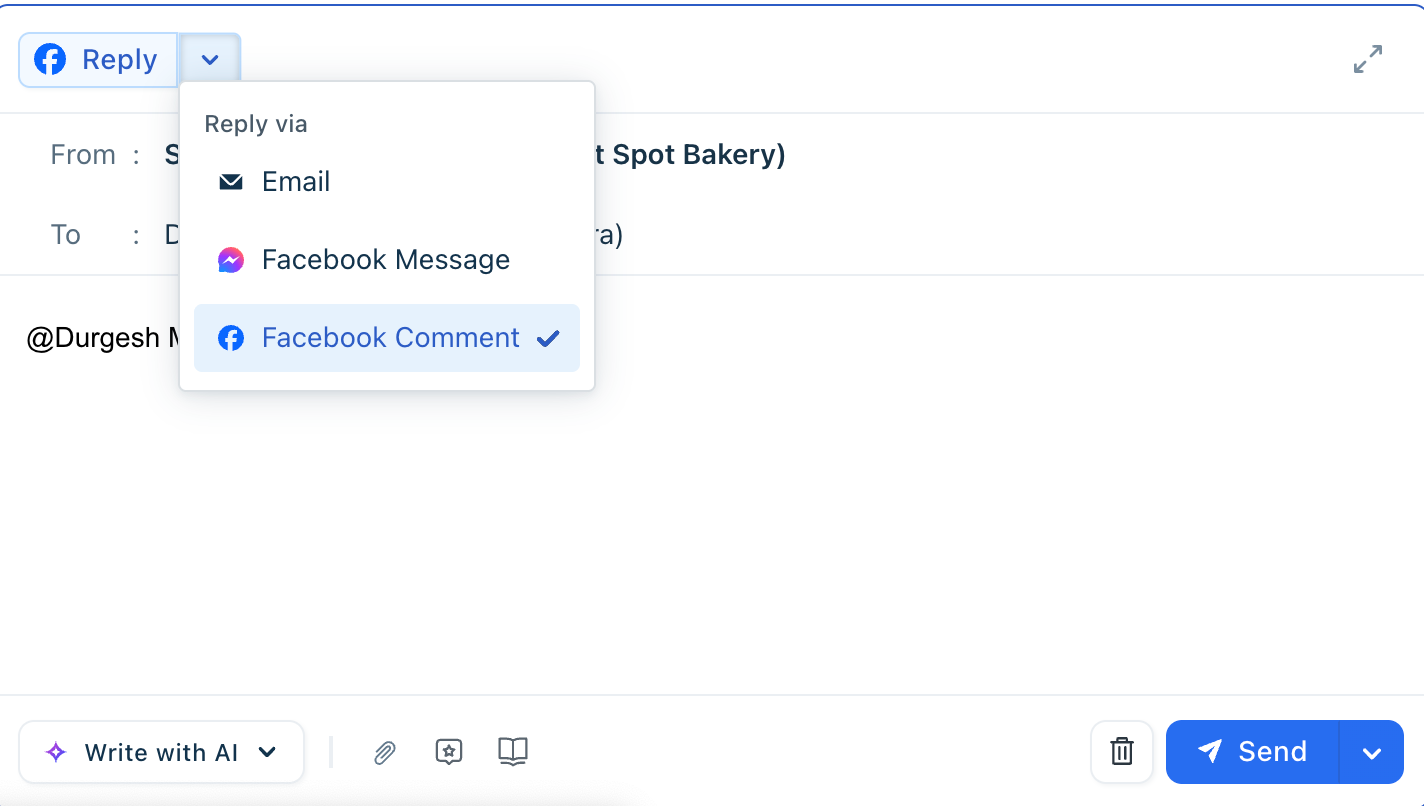
Reply as Facebook Comment
- The reply still posts as a child comment, and - Freshdesk retains mapping for the conversation.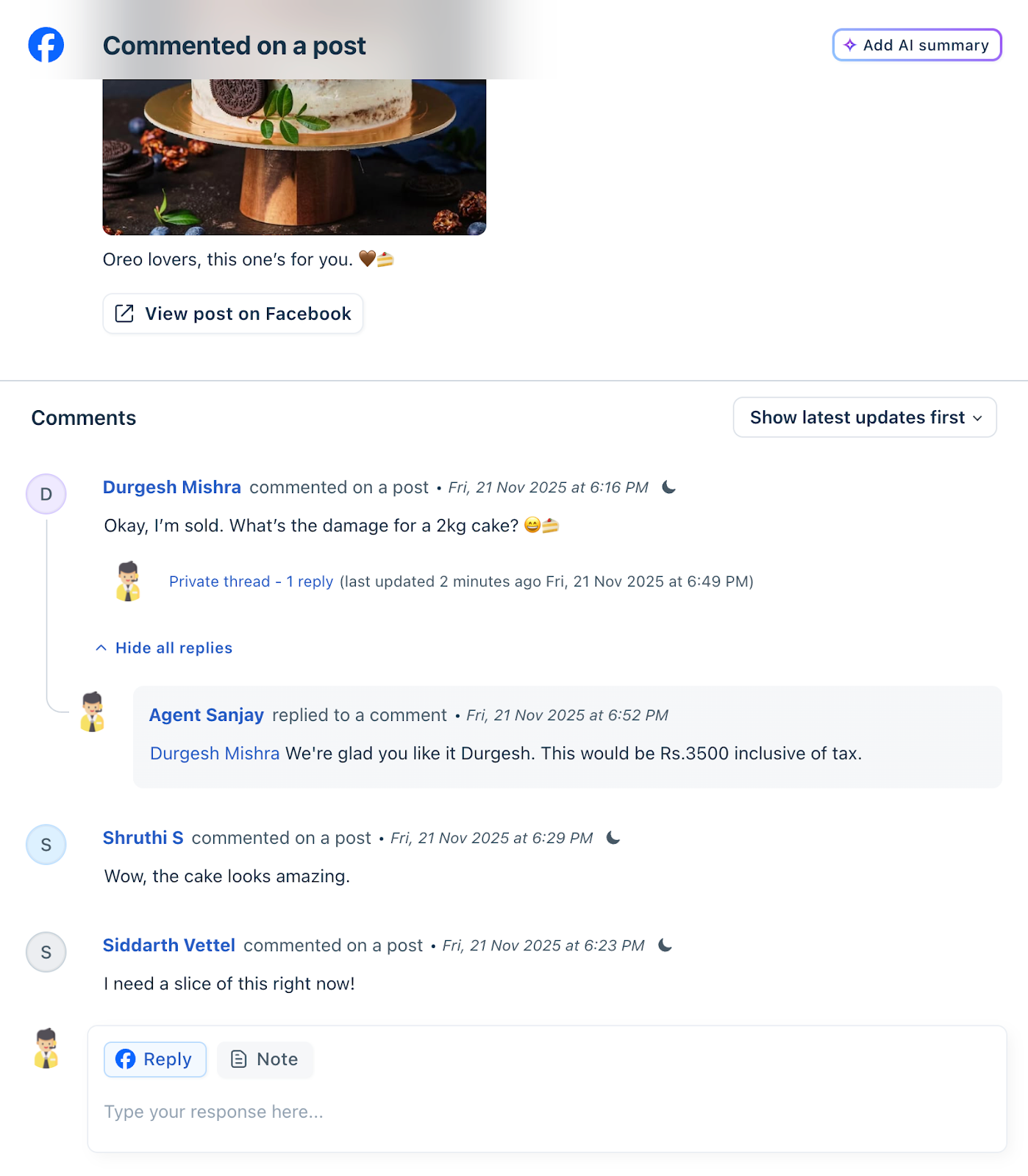
Reply to Comment via Email
Agents can choose to reply to a Facebook comment through email when a contact has a valid email address. Use the drop-down near Reply in the rich text editor to choose this option.
Acceptance Criteria
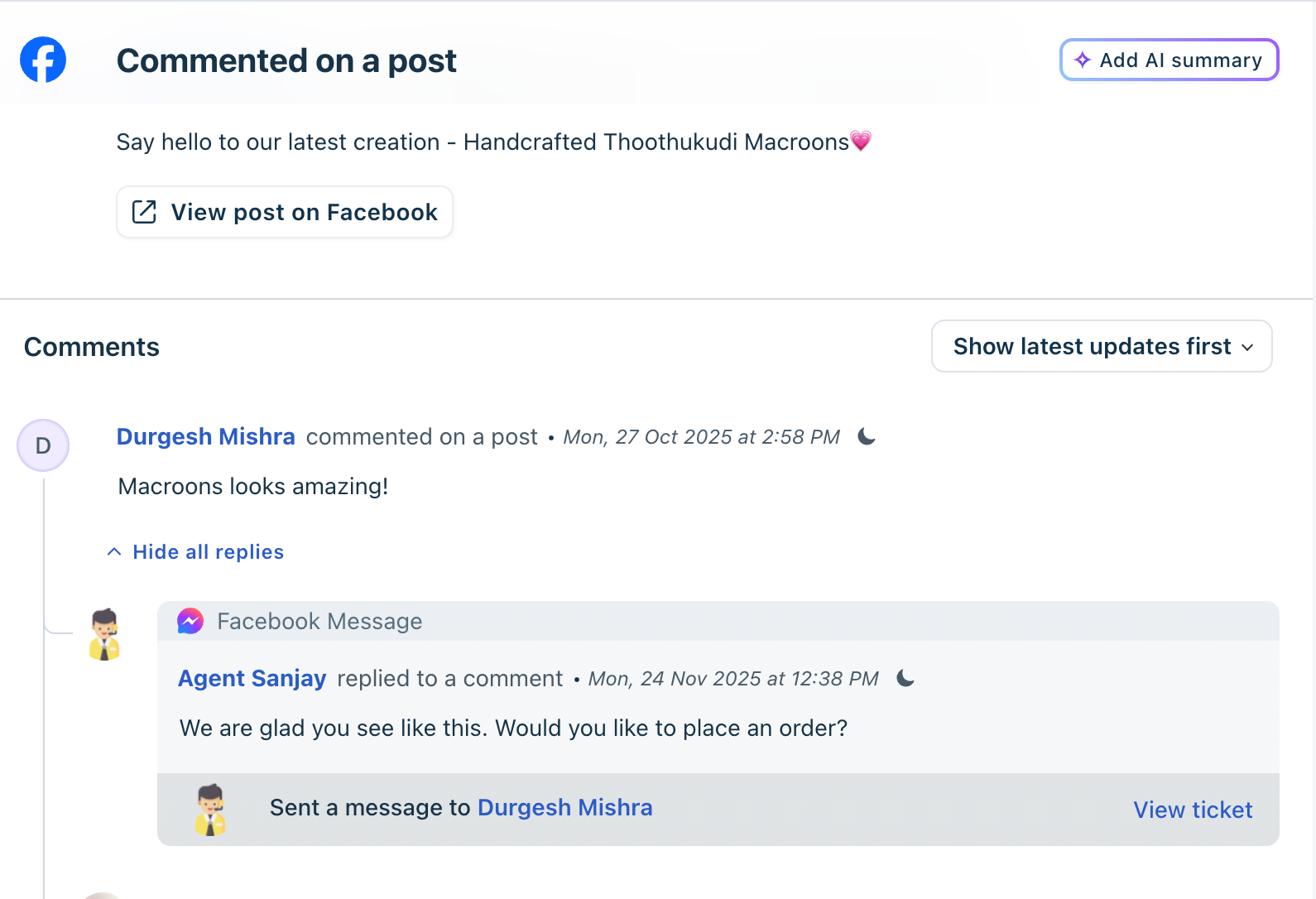
Reply to Comment via Direct Message (DM)
Agents can convert a Facebook comment into a private Messenger conversation when the user prefers or requires a one-to-one interaction. Use the drop-down near Reply in the rich text editor to choose this option.
Facebook Visitor Posts
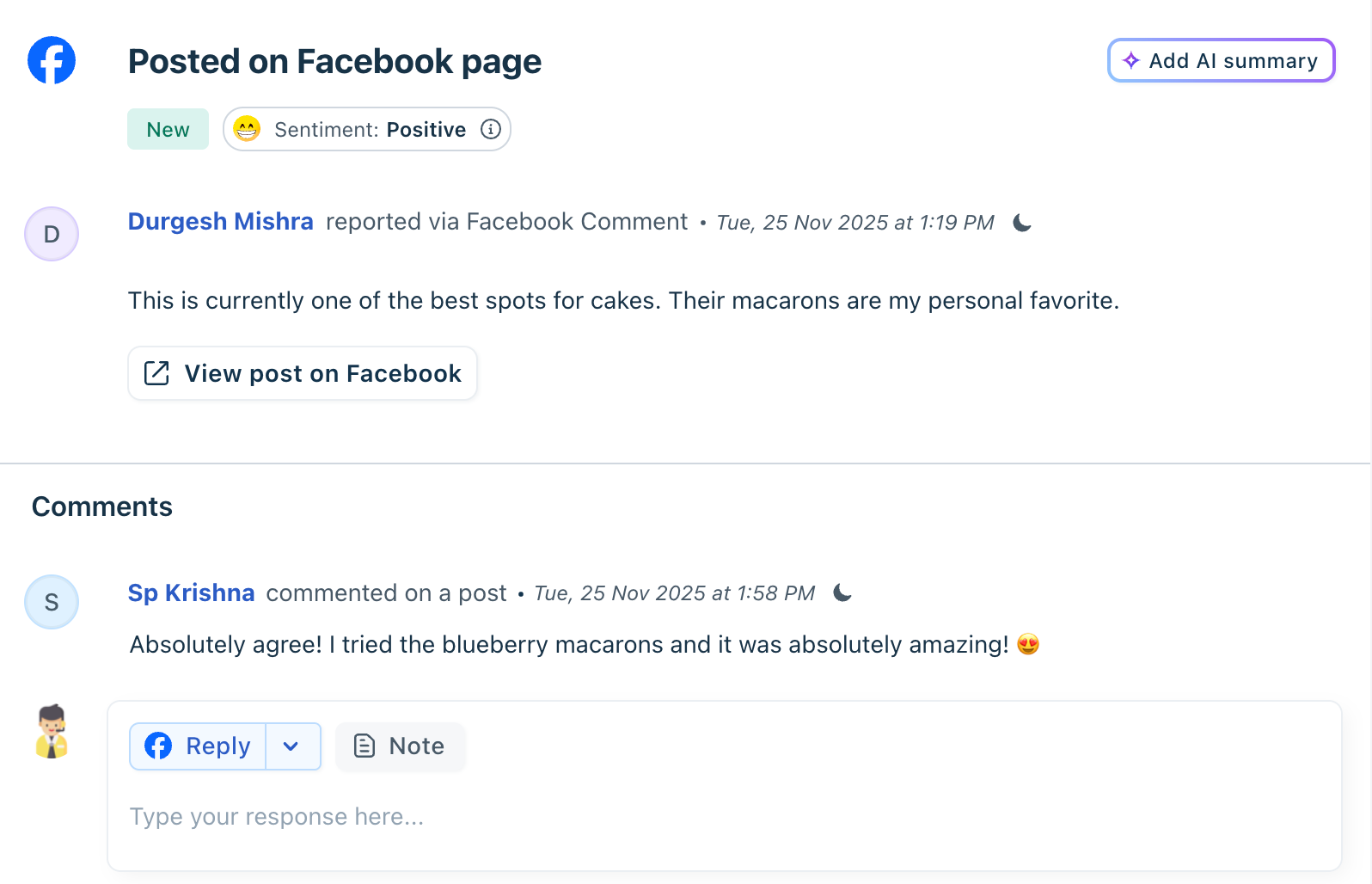
For Facebook visitor posts:
Splitting Comments into Tickets
Viewing Facebook Handle on a Contact
``` Note: 1) Facebook DM and Comment tickets can be forwarded via email, and all forwarded messages (including replies) appear as notes on the same ticket. No new ticket is created. 2) Facebook-origin tickets cannot be merged. The merge option is hidden for Facebook Messages and Comments, and these tickets will not appear in merge lists from other channels. 3) Agent responses can include up to 2,000 characters in DMs and up to 4,000 characters in comments. ```
Supported files
Check out the list of message types supported on Facebook:
| Media Type | Direction | Direct Messages | Comments on Posts |
| Text | User to agent | Yes | Yes |
| Agent to user | Yes | Yes | |
| Image | User to agent | Yes | Yes |
| Agent to user | Yes | Yes | |
| Video | User to agent | Yes | NA |
| Agent to user | Yes | NA | |
| Audio | User to agent | Yes | NA |
| Agent to user | NA | NA | |
| File | User to agent | NA | NA |
| Agent to user | NA | NA | |
| Emoji | User to agent | Yes | Yes |
| Agent to user | Yes | Yes | |
| GIFs | User to agent | Yes | Yes |
| Agent to user | No | No | |
| Stickers | User to agent | NA | NA |
| Agent to user | NA | NA | |
| Call | Audio Call | No | NA |
| Video Call | No | NA | |
| Consumer Profile | |||
| Handle Name | Yes | Yes | |
| Profile Picture | No | No | |
| Followers | No | No |
Related features
1. CSAT Agents can send or trigger CSAT surveys for Facebook messages. Learn more about sending CSAT surveys. 2. Analytics - Facebook tickets appear under in curated reports where you can see Ticket Volume, Response & Resolution metrics, and Agent Performance. Learn more about curated reports here. 3. Automations (Rules & Quick Automations) - Facebook tickets support Workflow Automator rules, Event- or time-based actions, and Quick actions for bulk changes. Learn more about Automations here. 4. Business Hours - SLA timers follow the business hours set for Facebook (if channel-based hours are configured in Freshdesk Omni). Learn more about Business hours here.
5. Routing - Facebook DMs and comment tickets can be auto-assigned based on Keywords, Page name, Comment type, and Agent skills. Learn more about ticket routing here.
6. SLA Policies - Facebook tickets follow the SLA associated with their group or type. Learn more about SLA policies here.
7. Ticket Activities Page - Shows the complete Facebook activity log, including Comment added, Reply sent, DM received, and Post details. 8. Audit Logs - All Facebook ticket actions taken by agents are captured in audit logs (available with the Enterprise plan only). Learn more about Audit logs here.