Last updated: 2025-12-05
Requests often come in with limited information and you might end up asking a set of repetitive questions to your customers. While replying, the customer would have to copy and paste the set of questions before they begin to answer them. Using Canned forms, you can now process these requests efficiently and with ease. These readily accessible form templates are customizable and help in resolving major service requests faster.
A quick guide to set up Canned forms:
01. Login as an admin
02. Click Admin > Agent Productivity > Canned Forms.
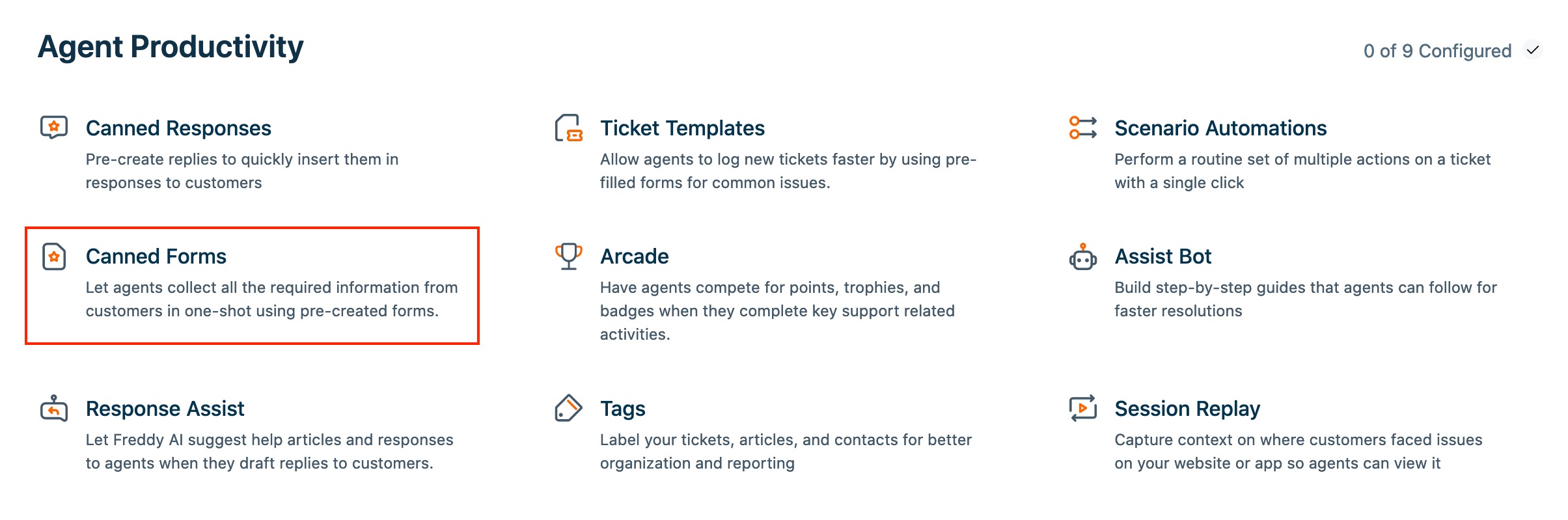
03. Click Create New
04. Give your canned form a suitable name and hit ‘ Next’. You can edit the title later by clicking on the ‘ Edit’ button against the form name.
05. Set up a Welcome message for your form in the center panel.
06. Drag and drop the required fields from the ‘ Form Fields’ panel on the left, into the center panel.
07. You can add four types of fields: Single line text field, Multiline text field, Dropdown field and Checkbox field.
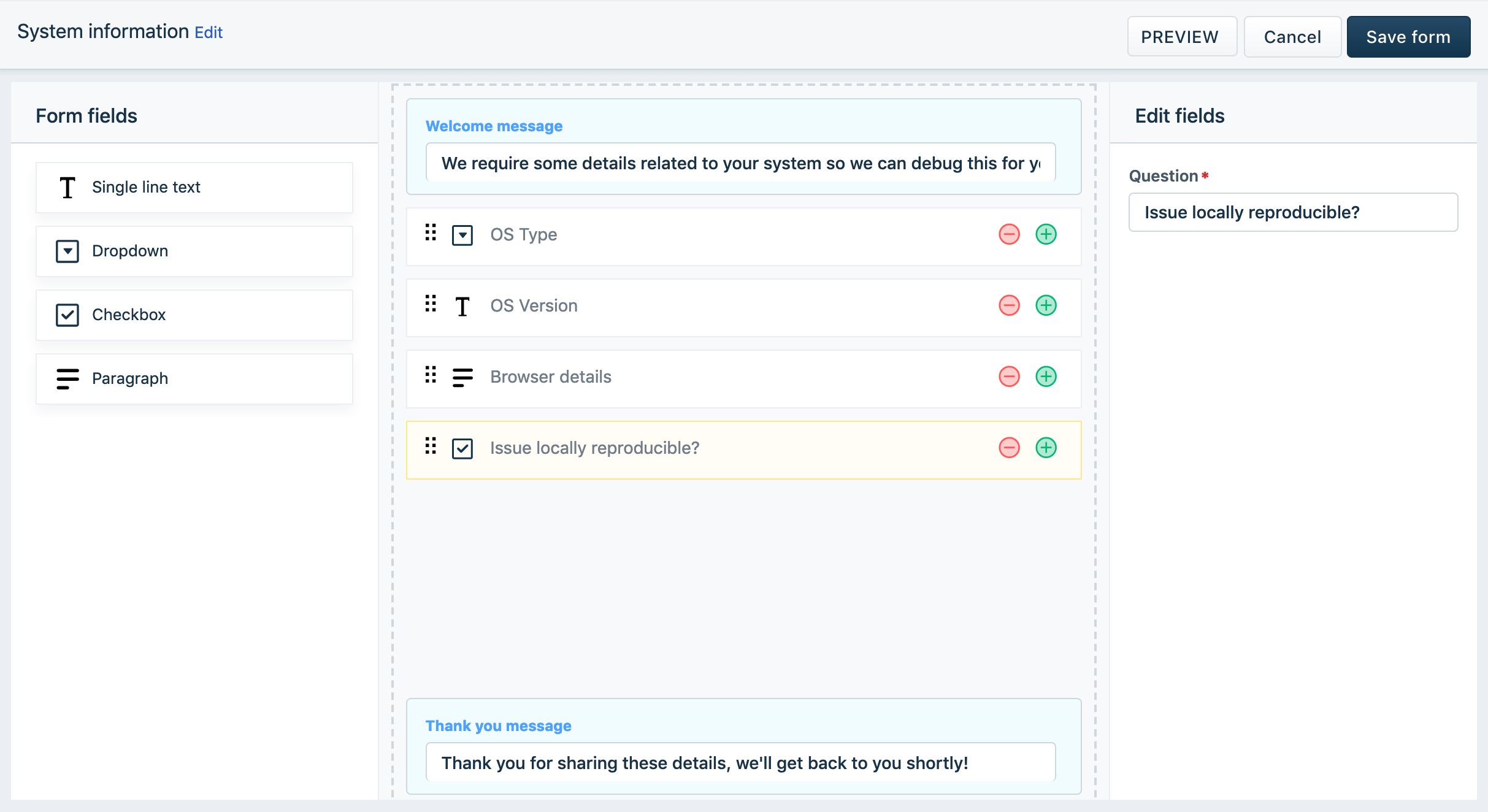
08. Configure the values for these fields under the ‘ Edit fields’ panel on the right.
09. You can also reorder the fields by dragging and dropping them however necessary within the center panel. The fields in the form will appear in this order for your customers.
10. Set up a ' Thank you message' to display when your customers submit their responses.
11. Use the ‘ Preview’ button to preview the form before saving it:
12. Once you’re done, click on ‘Save form’.
The saved form will now be available for usage, as part of the reply editor, on the ticket details page.
canned forms 1

A quick guide to using Canned forms:

Your customers will receive the link to the form you just sent. Clicking on the link will take them to the form page where they can fill in the necessary details.
canned forms 2
The answers submitted on the form will come into the corresponding ticket as a note. These values are not stored as ticket fields and will only be available as part of the ticket conversation. The default automation rule that runs on ticket updates will reopen the ticket and send the Assigned agent a notification when the customer submits the form.
canned froms 3