Last updated: 2025-12-01
Source: https://support.freshdesk.com/support/solutions/articles/37589-viewing-ticket-activity-history
When a ticket is assigned, reassigned, or updated, you may want to review what has changed since it was created, whether automatically or manually.
For example:
``` Note: If you signed up for Freshdesk before November 2025, the view activity page will be different. ```
How to view ticket activities?
To View Ticket Activities:
1. Click on any ticket from Tickets. 2. In the Ticket Details page, click on the Activities button in the top right corner.
In the normal view:
You will only see the ticket description, all replies/notes, and CSAT survey responses (if enabled).
When Activities is on:
1. Replies/notes are collapsed. 2. A chronological list of ticket activities becomes visible. Each activity has a corresponding label and action description, such as SLA updated or Watcher added.
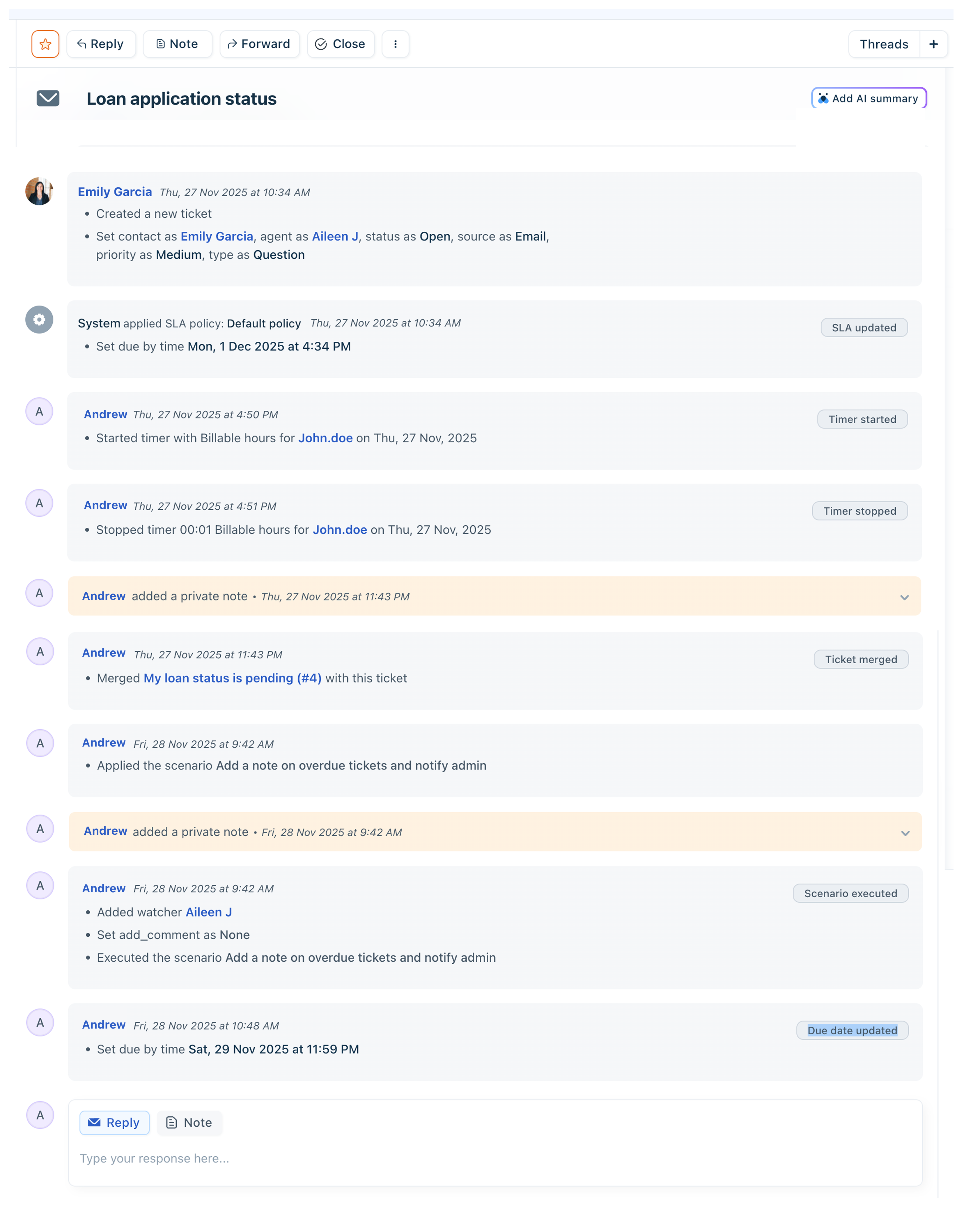
What are the types of activities tracked?
The Activities log captures the following:
A few things to note:

Pagination in Ticket Activities
Normal mode:
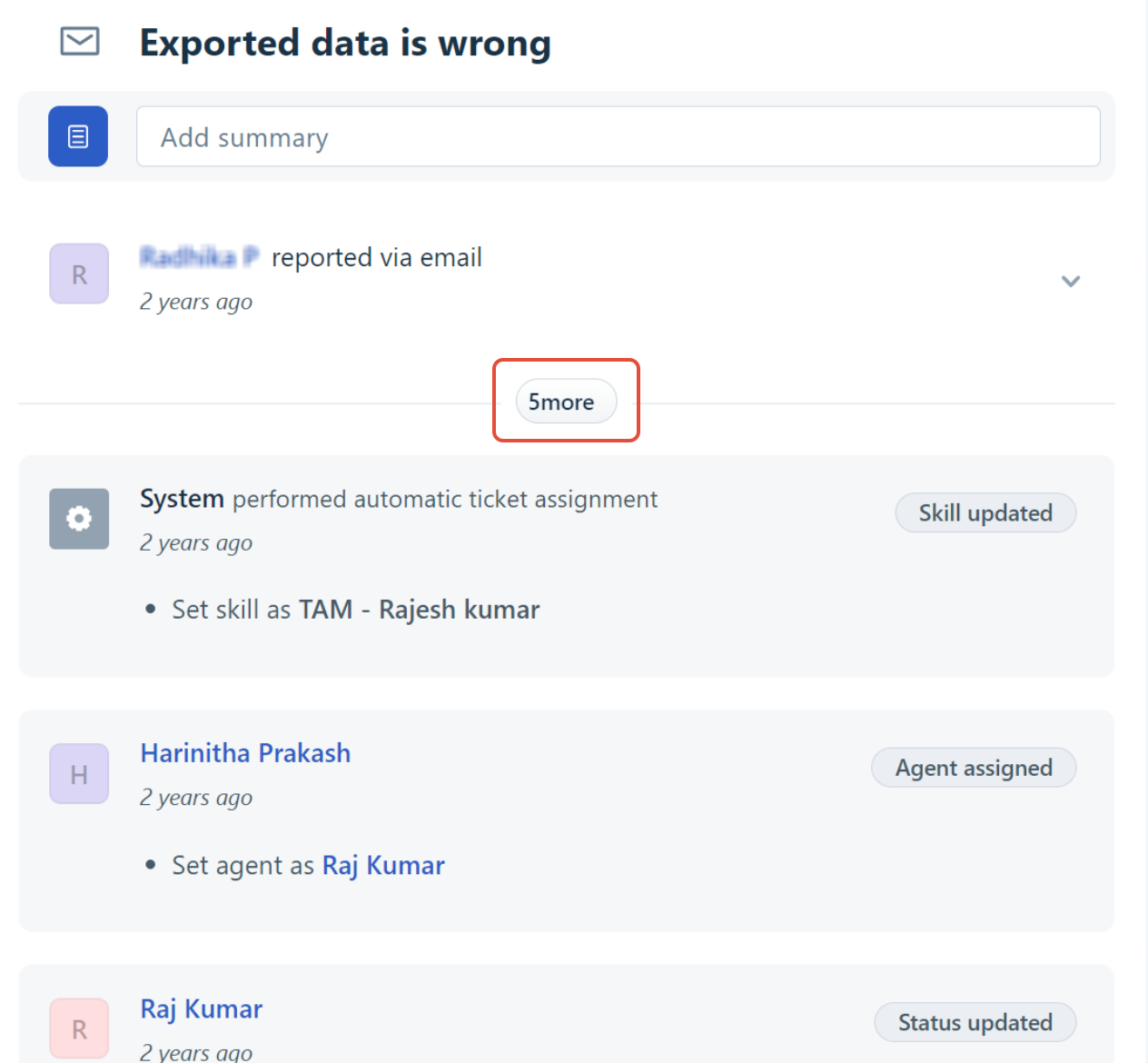
Activities mode:
For example, for a ticket with 72 activities, you may have to click three more times to see all activities.
Labels for ticket activities
Each activity block is labeled for quick reference. If multiple activities occur together, one label is chosen based on the priority list below:
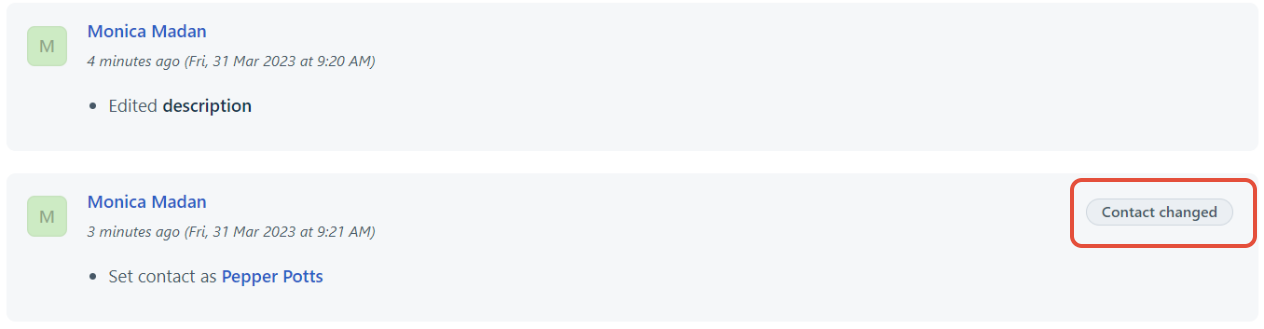
| Priority | Activity | Label |
| 1 | Delete a ticket | Ticket Deleted |
| 2 | Mark as spam | Marked Spam |
| 3 | Restore a ticket from trash/spam | Ticket Restored |
| 4 | Change ticket status | <Status> |
| 5 | Assign ticket to a specific agent | Agent Assigned |
| 6 | Reassign ticket to another agent | Agent Reassigned |
| 7 | Change ticket agent to None | Agent Unassigned |
| 8 | Change ticket priority | <Priority> |
| 9 | Assign ticket to a specific group/Change ticket group to None | Agent Group Changed |
| 10 | Associate ticket to a specific product/Change ticket product to None | Product Updated |
| 11 | Change ticket source | Ticket Source |
| 12 | Change ticket type | Ticket Type |
| 13 | Add/remove tags | Tag Updated |
| 14 | Execute a scenario automation | Scenario Executed |
| 15 | Add a watcher to a ticket | Watcher Added |
| 16 | Remove a watcher from a ticket | Watcher Removed |
| 17 | Change Due by time | Due Date Updated |
| 18 | SLA is updated | SLA updated |