Last updated: 2025-12-08
With Omnichannel Business hours, you can
To set up new Business Hours:
1. Log in as an admin and go to Admin >Team > Business Hours. 2. The default Business Hours are listed. You can edit this by clicking on the Edit button on the right. 3. To create new Business Hours, click on the New Business Hours button on the top right. 4. Give your Business Hours a name and a description. 5. Select which Time Zone you want your Business Hours to follow from the drop-down menu.
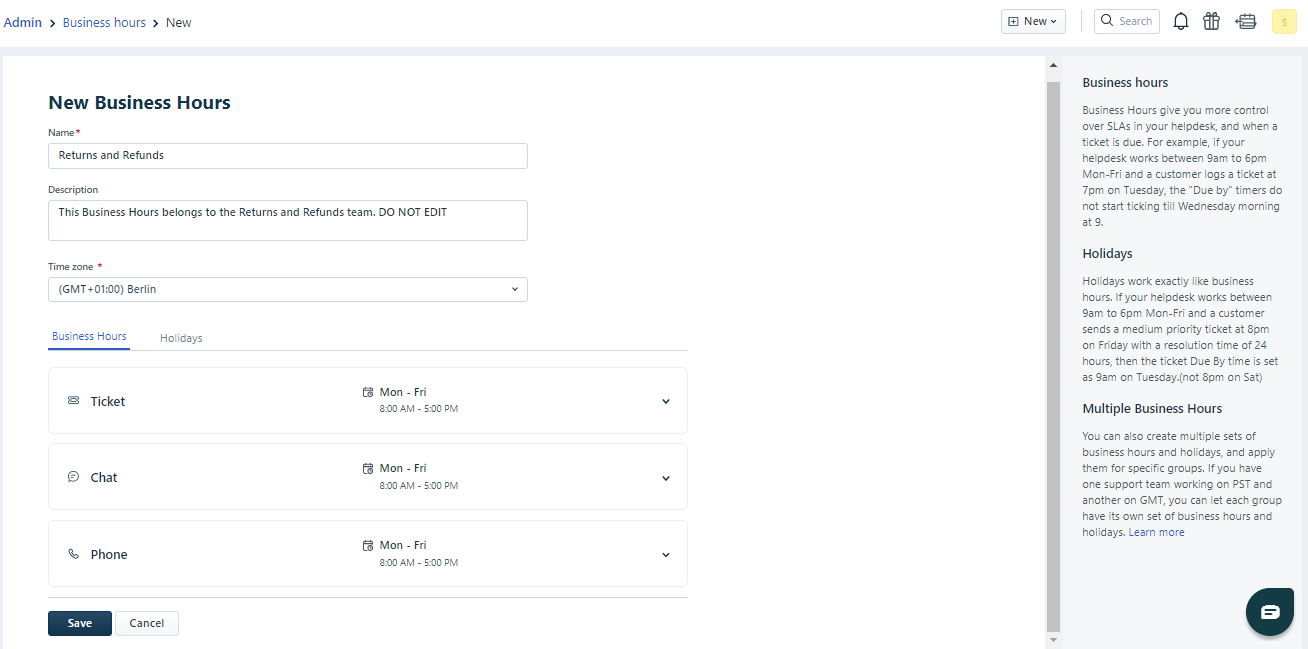
7\. You can create separate Business Hours for Tickets, Chat, and Phone channels.
8\. To add Business Hours for a particular channel, click on that tab to expand it.
9\. If your team is available round the clock on all days, click on 24 hrs x 7 days else click on Custom business hours.
10\. Select the days of the week and time period your team will be working on.

11\. If you want the same Business hours to be applied for chat and phone, click Copy to chat and phone on the top right corner.
12\. For chat and phone channels, you can also add multiple business hours for the same day.

13\. Please note that Omnichannel Business Hours can only be modified from your Freshdesk account. You can view your Business Hours from your Freshchat and Freshcaller accounts but not modify them.
If your team doesn't work on certain public or regional holidays, you can add those dates to your Business Hours as Holidays so they will automatically be considered as outside working hours.
To add Holidays to your Business Hours:
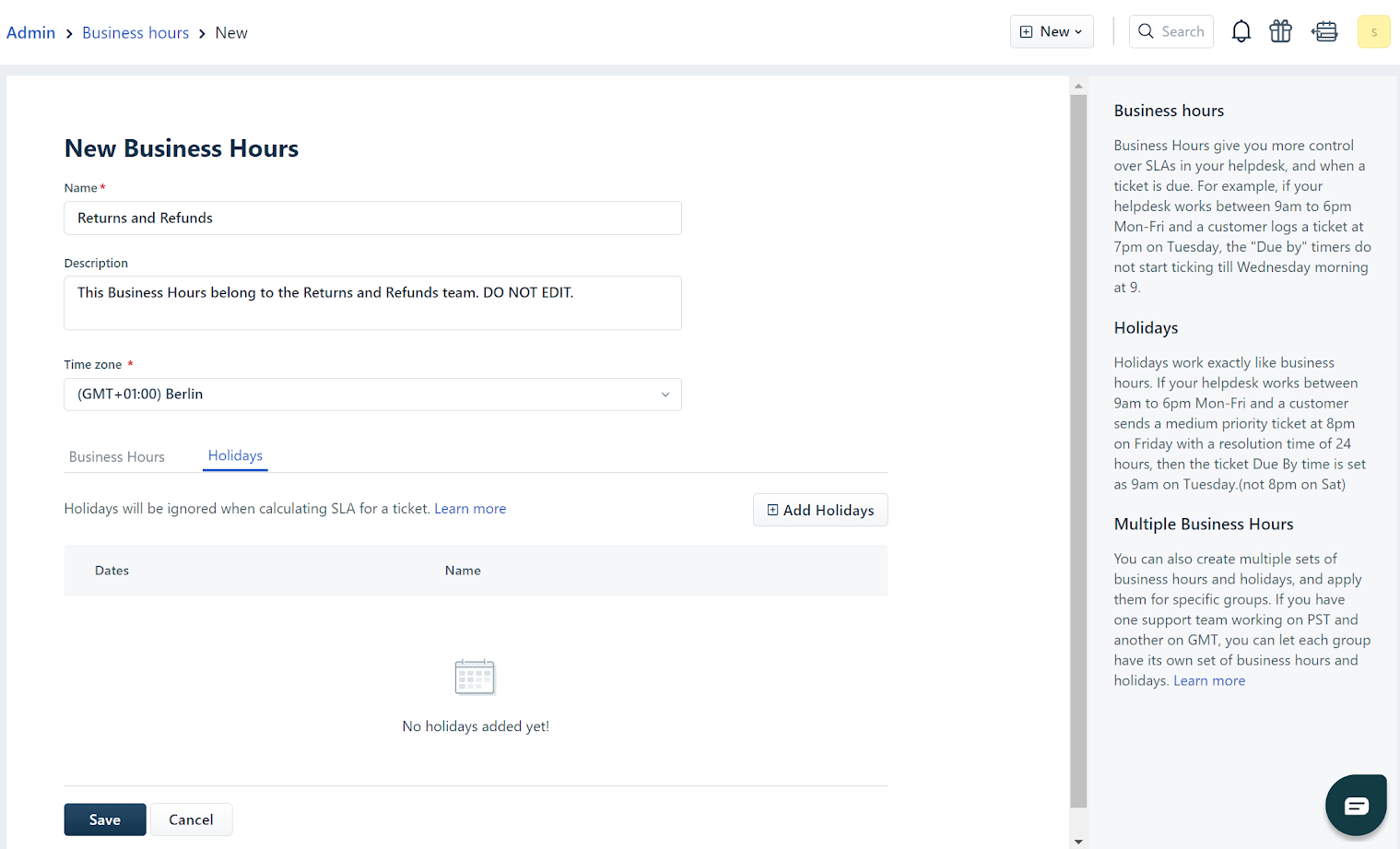
- Exclusive Holidays lets you add custom dates that are not present in the Regional Holidays Calendar
- Regional Holidays are a set of public holidays from your region
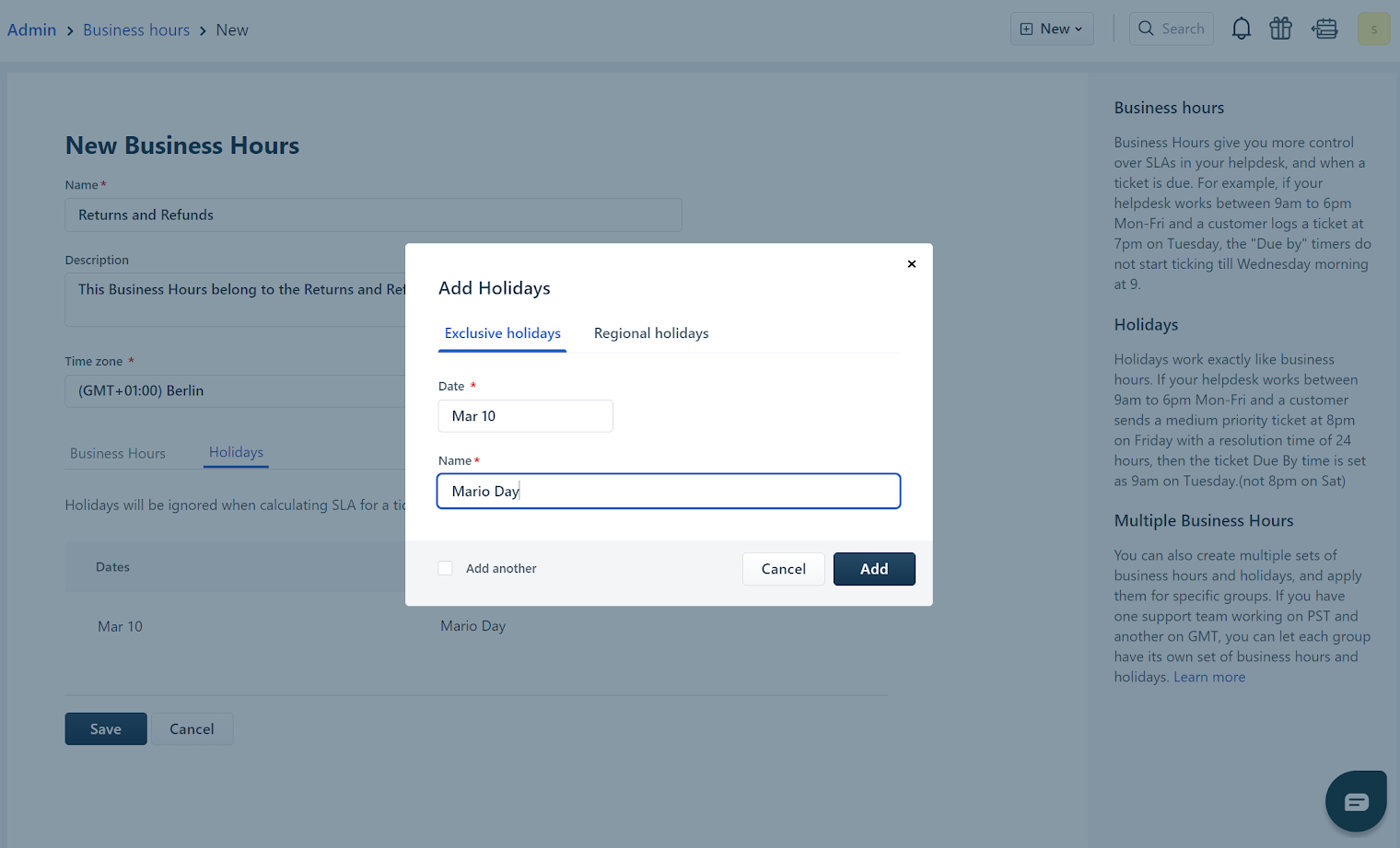

After you are done, click on the Save button to save the holidays.