Last updated: 2026-04-15
Source: https://support.freshdesk.com/support/solutions/articles/37588-understand-the-ticket-details-view
Understand the Ticket Details View
Signup Date: After December 2025
Signup Date: Before December 2025
Select the tab based on your signup date. Not sure of your signup date? Learn how to find it here.
Applicable Plans:
| Freshdesk | Free, Growth, Pro, Enterprise |
| Freshdesk Omni | Growth, Pro, Enterprise |
- Sort conversations - Use AI-generated ticket summary - Perform ticket actions
About the ticket details interface
As an agent, you may spend most of your time on the Ticket Details page. It brings together everything you need to manage and resolve customer queries in one place. From here, you can reply to customers, track progress, and access important context about the ticket.
When you open a ticket from the Ticket List view (Inbox), you will see the following view.
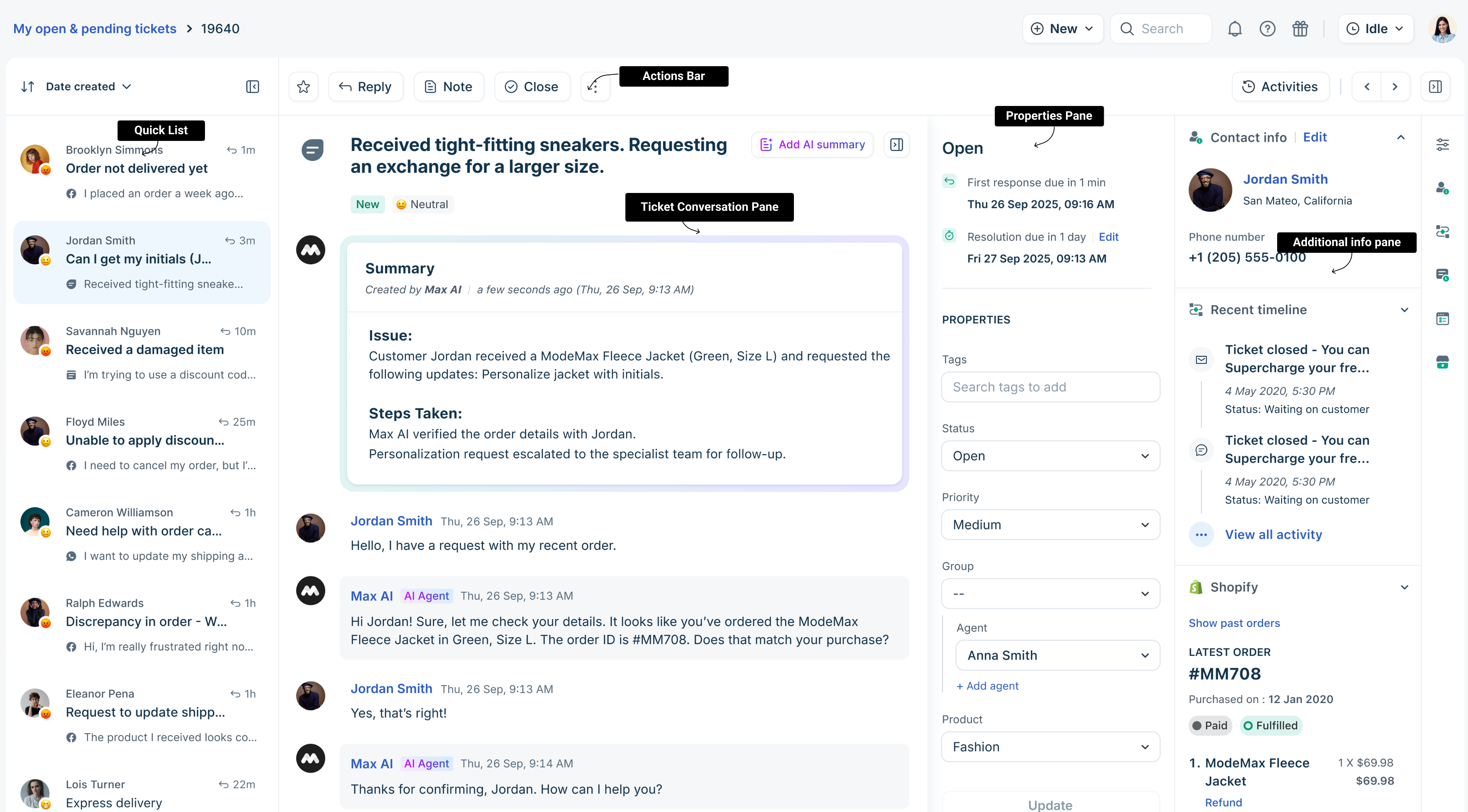
The Ticket details page is organized into the following sections:
| Section | Purpose |
|---|---|
| Quick list | - Quickly move between tickets without leaving the page<br>- Expand and collapse the view as needed<br>- Get instant ticket updates |
| Ticket conversation pane | - View all conversations<br>- Read ticket history, understand context |
| Properties pane | - Control ticket settings<br>- Change status, priority, and assignments |
| Additional info panel | View and manage additional information associated with a ticket, such as contact details and other connected apps. You can collapse and expand the panel as required. |
| Action bar | Perform ticket actions, reply to tickets, add notes, forward tickets, execute scenarios, and more. |
Quick list view
The quick list provides a sidebar view that displays multiple tickets simultaneously, allowing you to navigate between them without leaving the Details page. This feature becomes valuable as you handle larger volumes of tickets or work on complex issues that span multiple related cases. You can expand and collapse the view as needed.
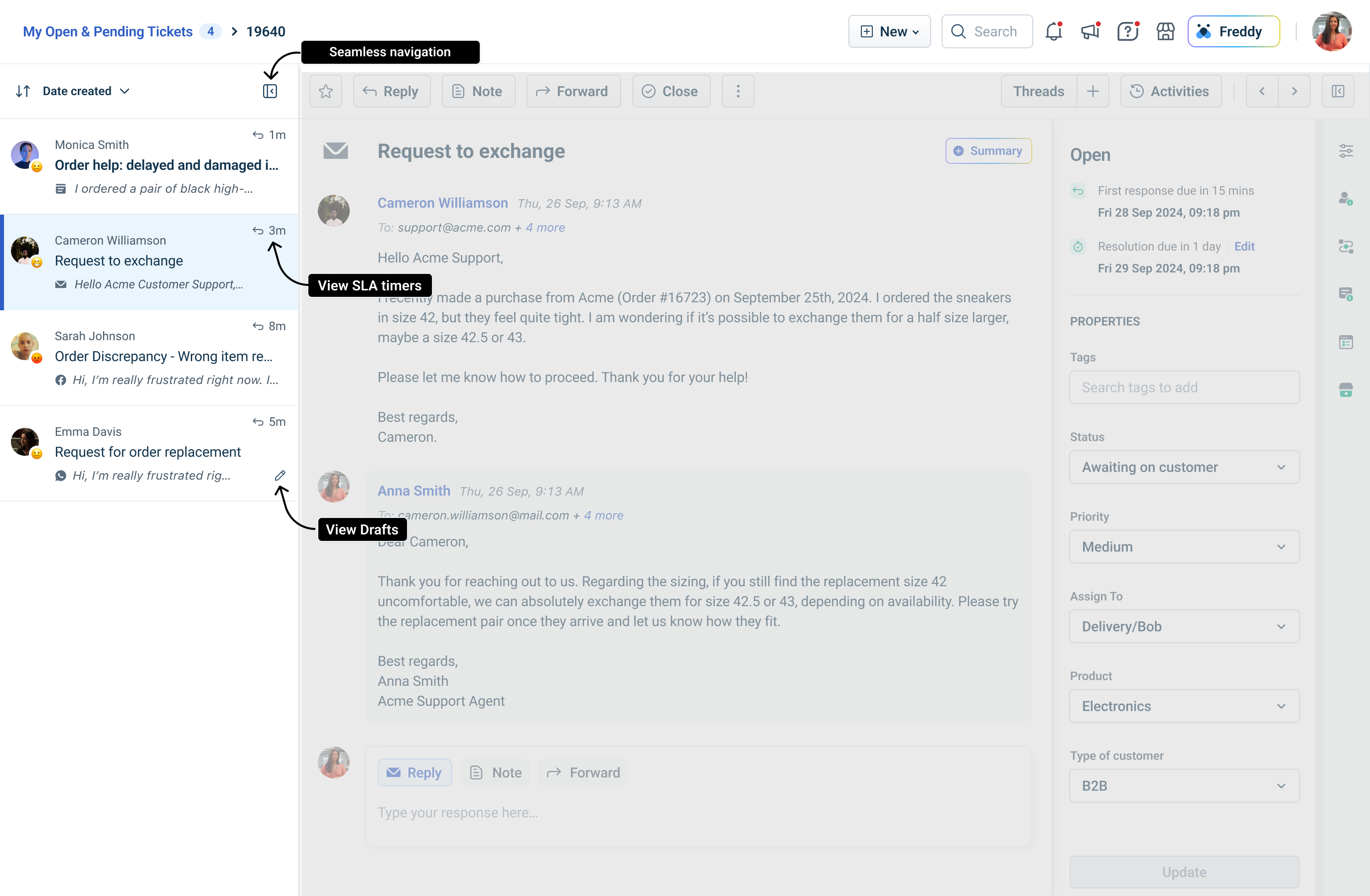
With this feature, you can:
View the incoming messages from all support channels (email, Web Chat, social media) in real-time as they are received. - The message list will be updated automatically to reflect new messages. - If the quick list is collapsed, the expand icon will show an indicator with a count to denote that there are unattended tickets
Ticket conversation pane
The ticket conversation pane displays the complete conversation history for a ticket in chronological order, starting with the customer’s initial message.
You can see customer replies, responses from other agents, AI Agent conversations, internal notes added by teammates, any ticket activity - all in one place to help you easily understand the full context of the conversation. The view refreshes automatically in real time as new messages arrive and ensures that you always have the most updated information.
Here’s what you can do:
- Important ticket actions: reply, add notes, forward - Advanced actions: execute scenarios, merge tickets
Sort conversations
By default, the messages are organized with the oldest message displayed first. However, you can change this setting.
1. Click on your profile in the top right corner. 2. Select Profile settings.
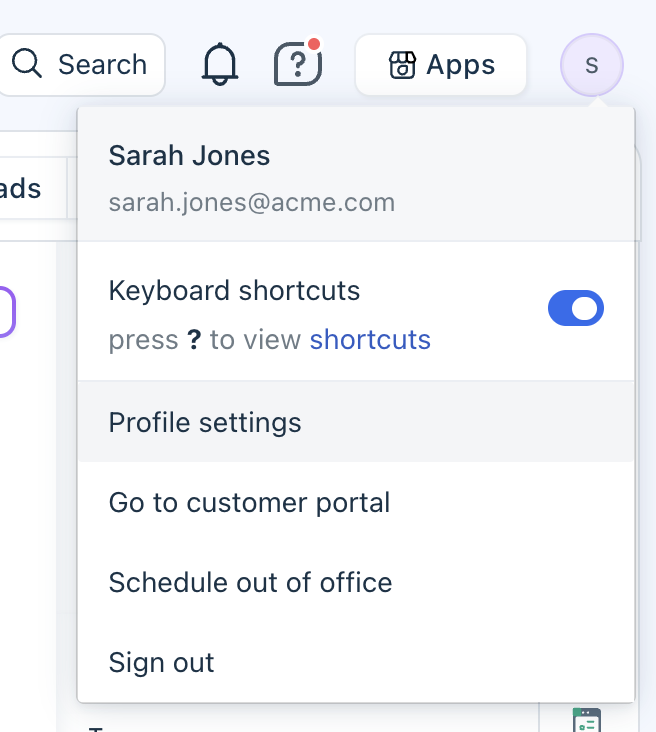 3. Change the Sort conversations order from the dropdown.
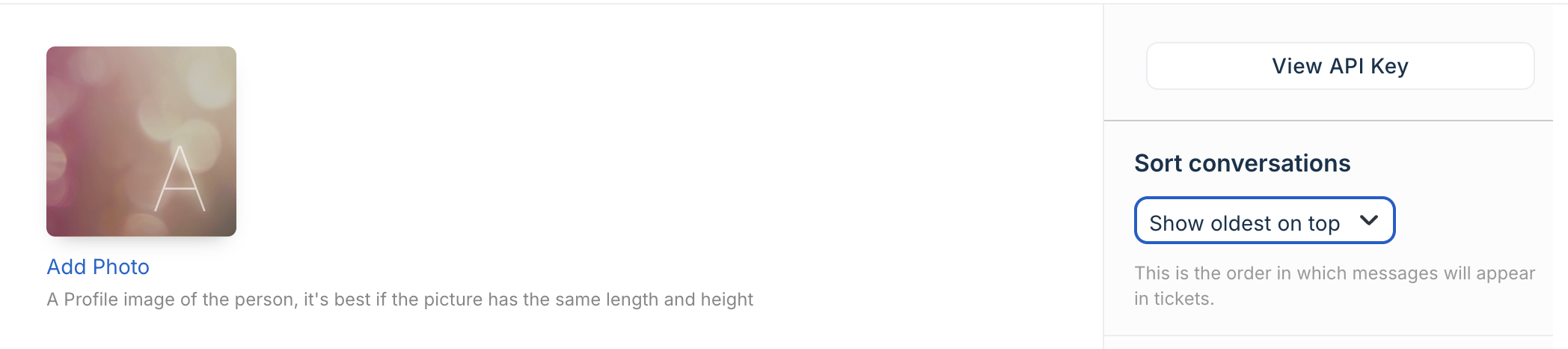 4. Click Save.
Use AI-generated ticket summary
The ticket summary feature, powered by Freddy, automatically generates a brief summary of the ticket conversation. This summary is visible only to agents as a private note. You can edit and save the generated summary, and allow other agents to understand the necessary context when they view the ticket.
Note: This feature is enabled by default. However, admins can disable it from Help Desk Settings.
To auto-generate a ticket summary:
1. Click on the Add AI summary icon to expand the section. You will see the automatically generated text.
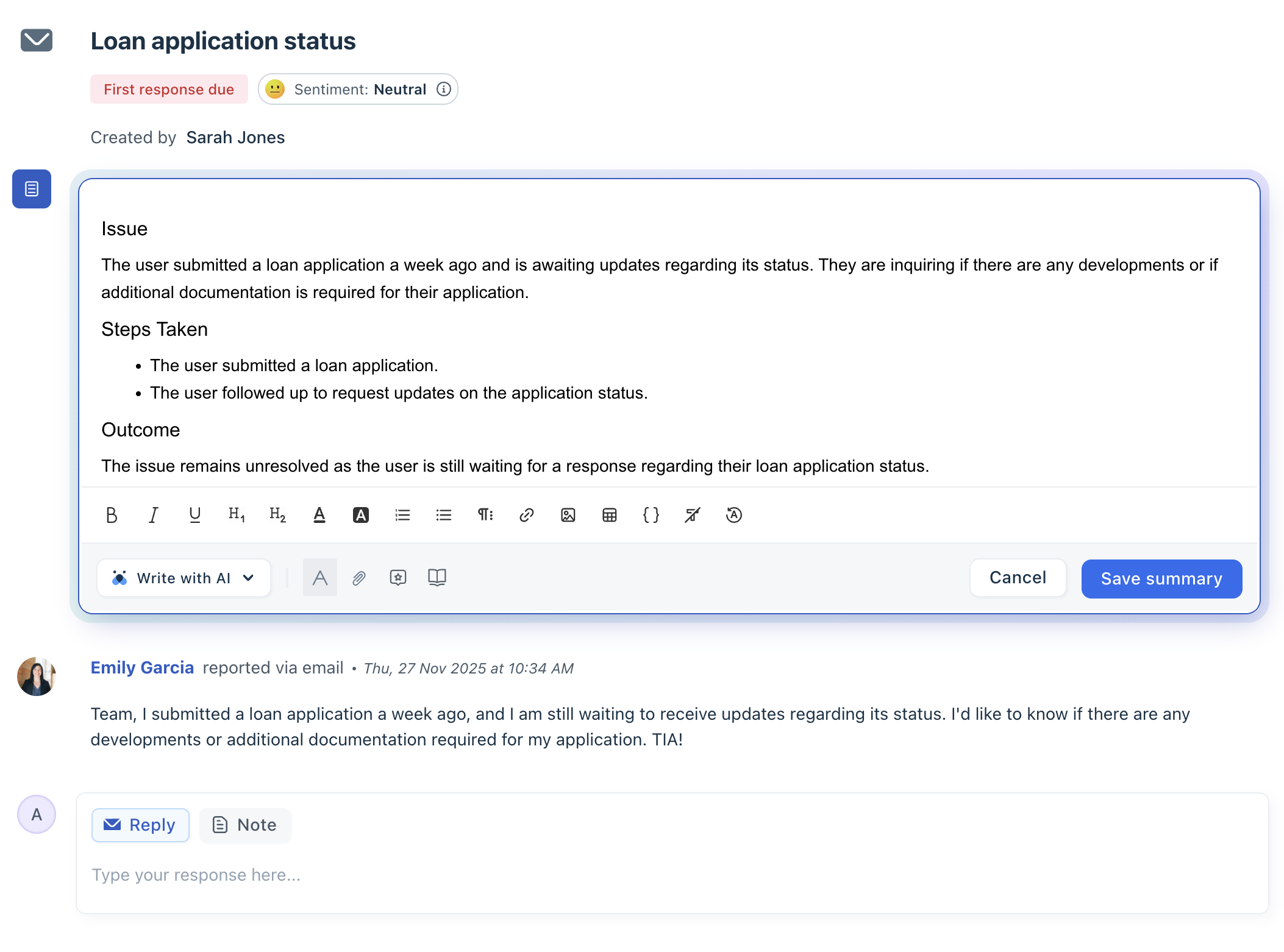 2. You can edit the summary, add attachments, use canned responses, format the text, and then save it. 3. Once saved, other agents will be able to view the summary.
Perform ticket actions
Use the Actions bar to perform various ticket actions like responding to customer issues, adding private notes, and starting threaded discussions. You can also perform advanced actions, such as executing scenarios.
For more details, see Perform ticket actions.
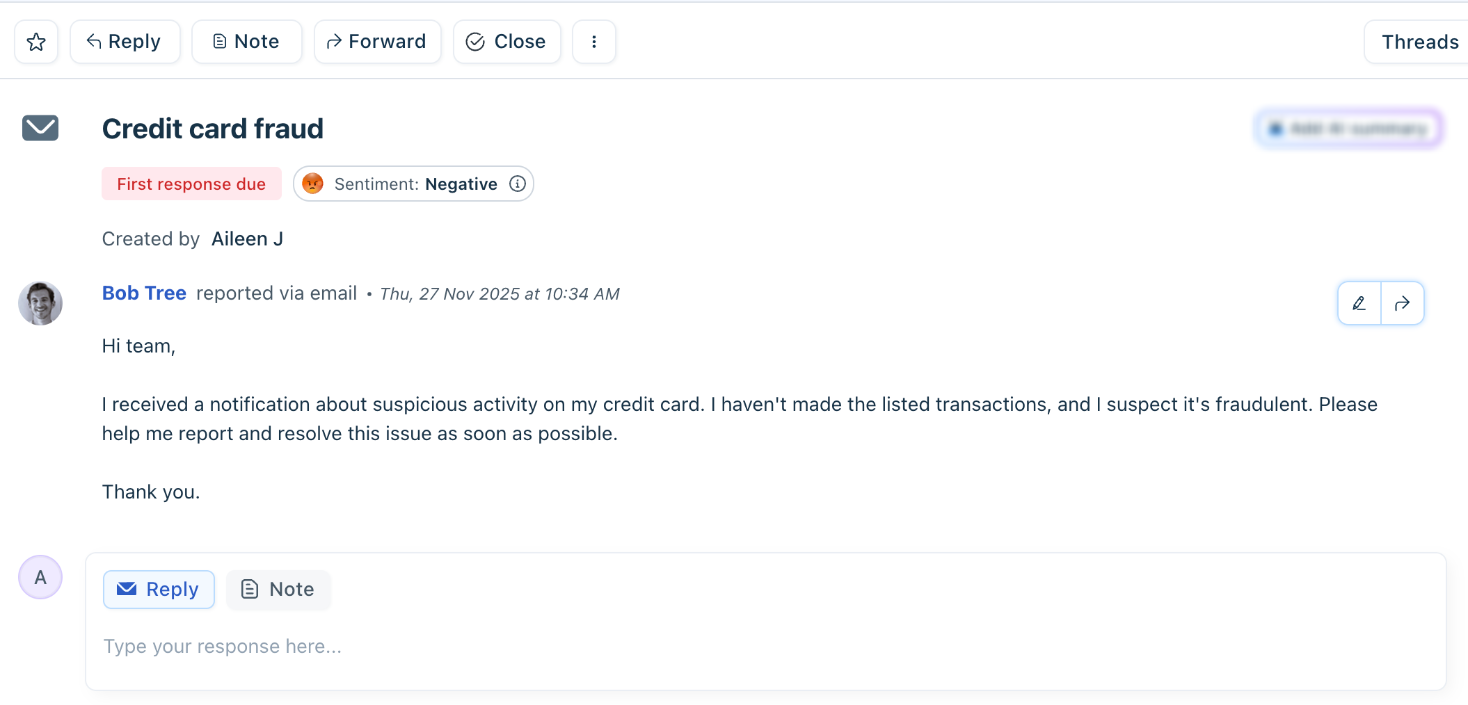
For clear visibility, you can view the important actions at the top and bottom of the ticket:
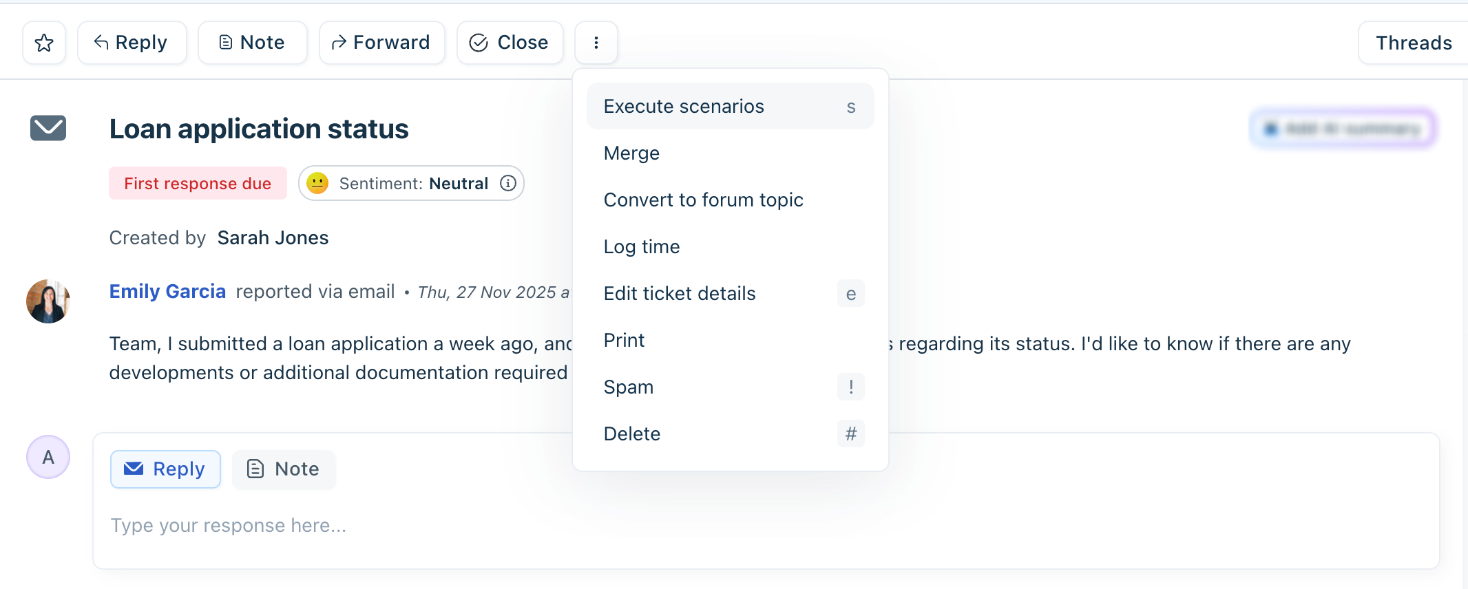
To view more (advanced) ticket actions, click on the three dots. With this option, you can:
For detailed information on each action, see Manage Tickets.
Properties pane
The properties pane lets you view and modify the ticket properties. For example, you can add tags, change ticket priority, status, assign the ticket to a different group or agent, and more. You can expand and collapse the properties pane as required.
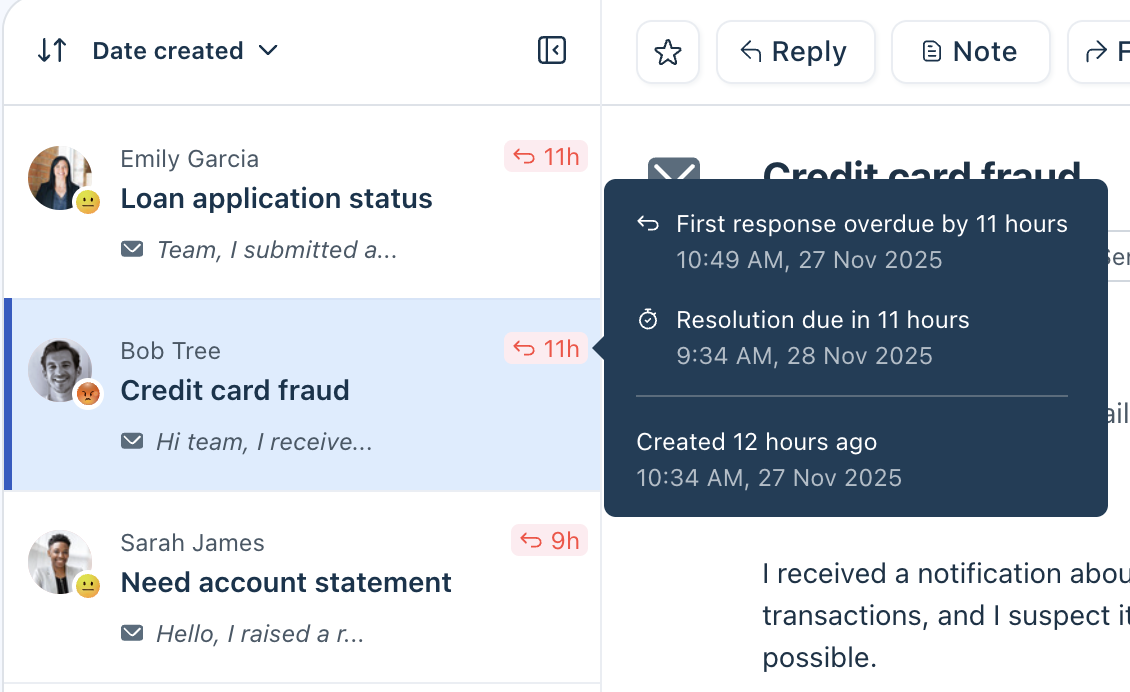
``` Tip: Always check the SLA timers here; they tell you which tickets need attention first. ```
The default list of ticket properties available:
| Property | Description |
| SLA timers | Check the SLA time to quickly view the ticket's first response and resolution deadline. This helps you identify tickets that are close to violating the SLA. |
| Tags | Add tags or labels to easily organize and find your tickets. <br>You can use tags to categorize issues by product area, problem type, or customer segment.<br>For details, see Using Tags. |
| Status | Track and update the ticket’s current state. Default statuses are:<br>- Open<br>- Pending<br>- Closed<br>- Resolved<br>- Waiting on Customer<br>- Waiting on third-party<br>Admins can create custom ticket statuses using Ticket Fields and set visibility rules based on them. |
| Priority | View and change ticket priorities. The default ticket priority can be set to Low, High, Medium, or Urgent. |
| Group/Agent | Assign tickets to another group or agent. |
Additionally, the properties pane can show options if more custom fields and ticket fields are added.
Additional info pane
The Additional Info pane gives you extra context about the ticket and the requester. It can be expanded or collapsed depending on your workflow. For example, you can view the contact (customer/company) details and linked third-party apps.
This includes:
Contact details
1. View contact details such as name, email, company, and phone numbers.
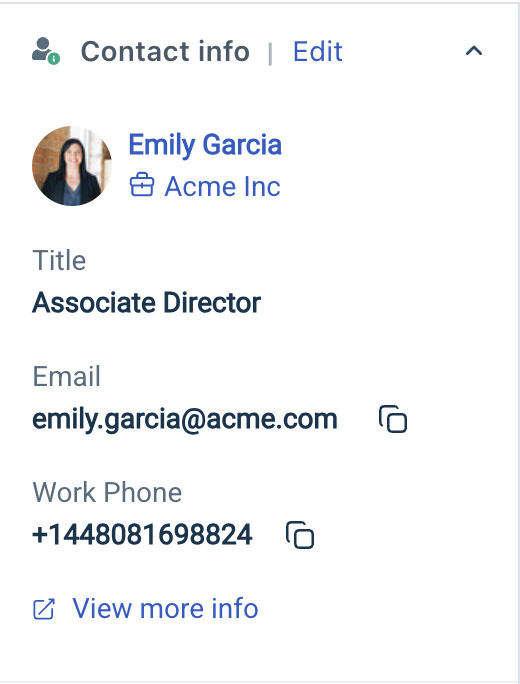 2. Click edit contact details link to update basic contact details. You cannot edit the requester’s email address here; however, you can do it from the Contacts page instead.
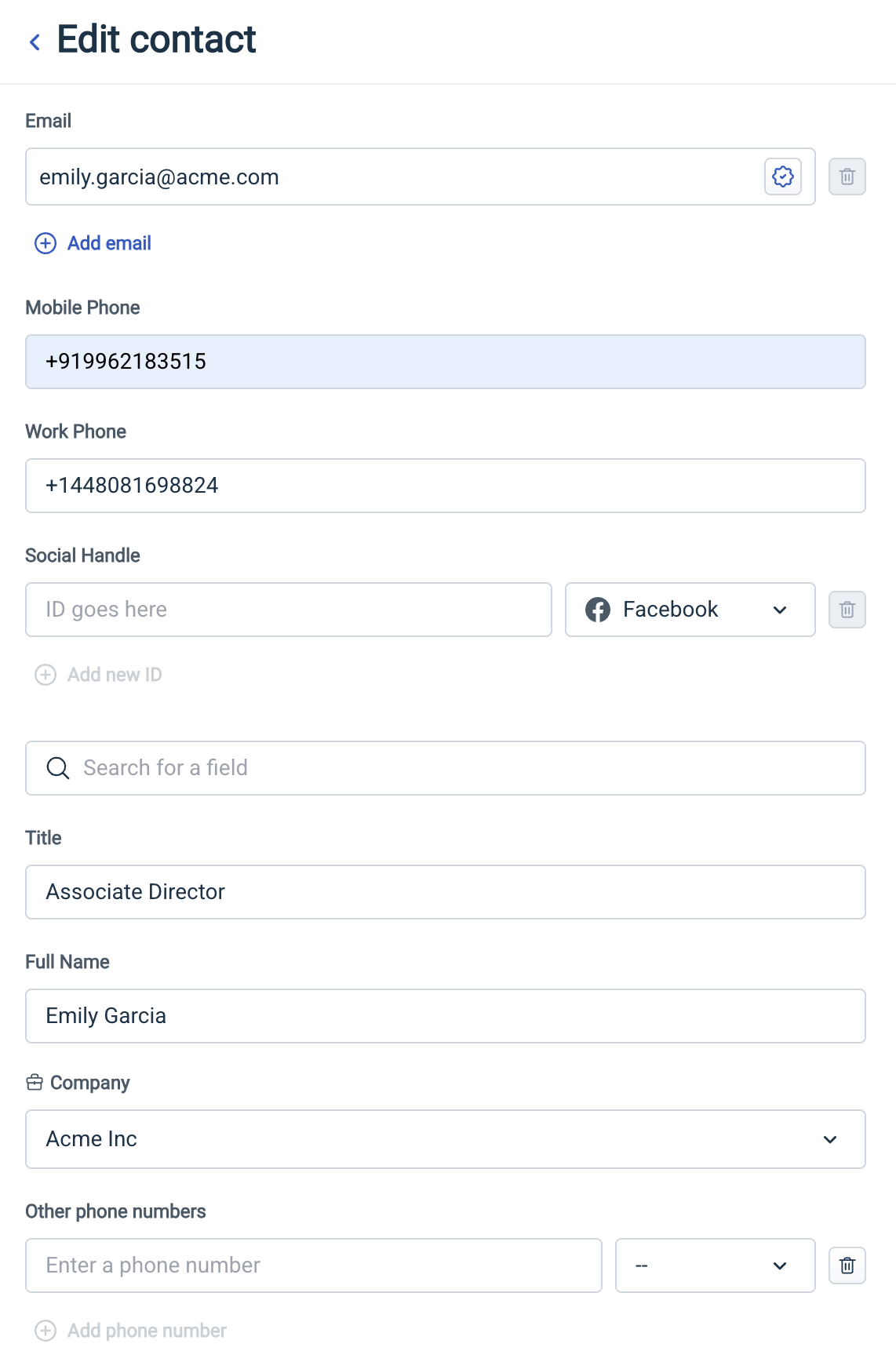 3. Click View more info to open the details on the Contacts page.
Note: Admins can customize the Contact Details widget to surface the most relevant information to agents.
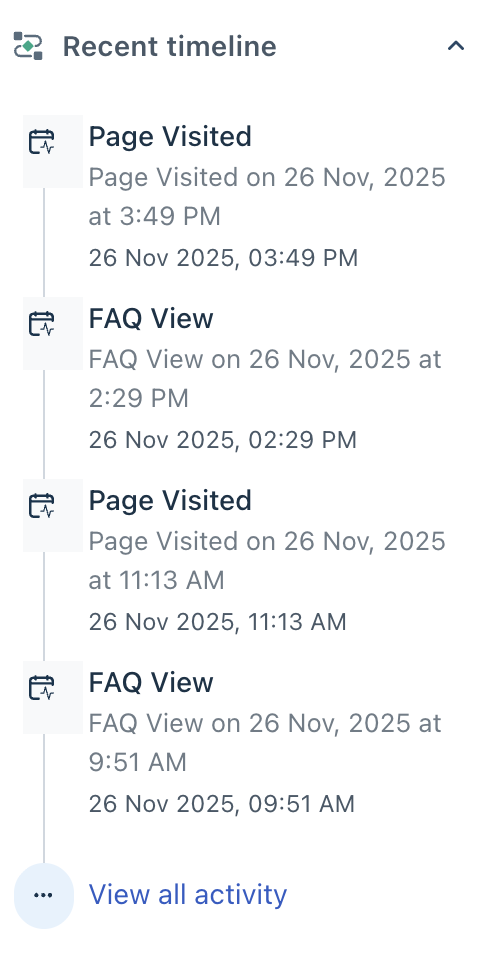
Recent timeline
Linked Tickets
For more details, see Creating and Linking a Tracker.
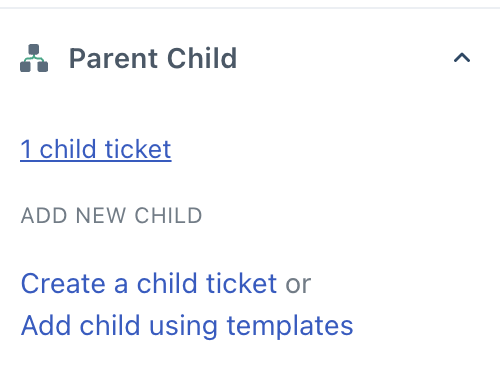
Parent Child Tickets
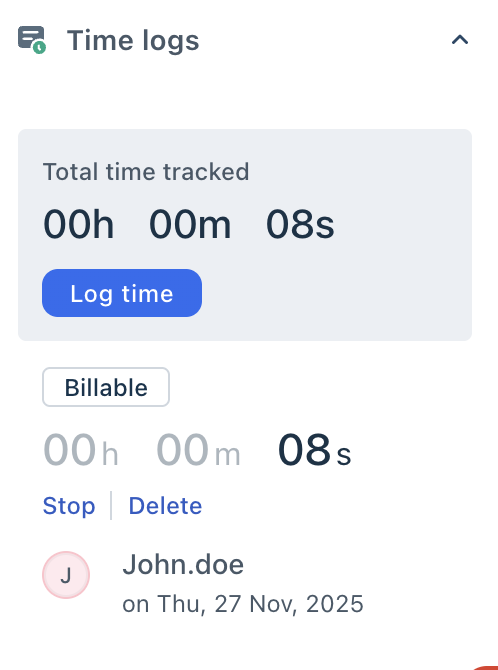
The Time Logs widget
View the time logs tracked on the ticket. See How to Track Time on a Ticket.
To-do widget
You can use the To-Do widget in the following ways:
1. Type a task and press Enter.
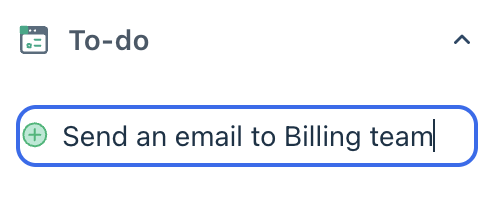 2. Once added, anyone with ticket access can view it.
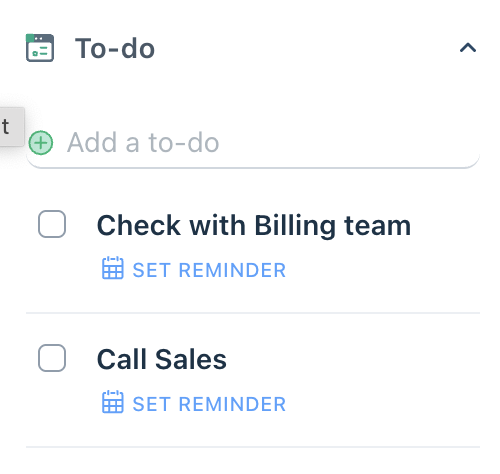 3. Hover to Edit or Delete tasks. 4. To receive an alert for a particular task, click the Set Reminder option, choose a date and time, and click Save. - You must enable Desktop notifications for Freshdesk to receive the alert. - You'll also receive a consolidated email from Freshdesk for items due on a particular day. 5. To mark an item as done, click the checkbox next to it. You can uncheck marked items at any time.
Other actions
In addition to the primary components, the Ticket Details page also includes shortcuts to other action features:
1. Initiate threads
With Threads, you can discuss a topic in a chat-like interface inside the ticket without cluttering the body. For details, see Organize internal conversations with Threads.
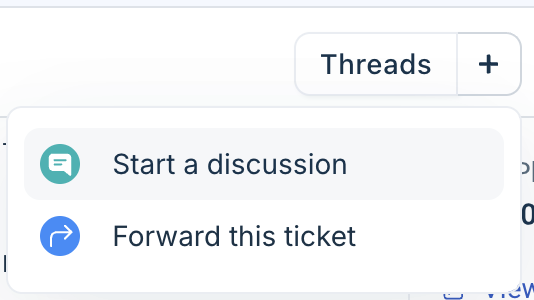 2. Show/Hide activities
Displays a comprehensive log of all the activities that have happened on a ticket. For more details, see Viewing Ticket Activity History.
 3. Navigation buttons Click Previous or Next to move to the previous or next ticket in the list, respectively.
Applicable Plans:
| Freshdesk | Free, Growth, Pro, Enterprise |
| Freshdesk Omni (formerly CSS) | Growth, Pro, Enterprise |
| Omnichannel (classic) | Growth Omnichannel, Pro Omnichannel, Enterprise Omnichannel |
| Freshdesk (previous) | Sprout, Blossom, Estate, Forest |
| Omnichannel (classic-previous) | Estate Omnichannel, Forest Omnichannel |
When you open a ticket in Freshdesk, you’re presented with the Ticket Details View, which comprises several information segments. Understanding these segments helps you process tickets quickly and efficiently.
- The Contact Details widget - The Time Logs widget - The To-Do widget - App shortcuts sidebar
- Ticket activity history - Threads
Overview of the Ticket Details view
When you open a ticket, there are a lot of details on the page.

The segments of information are as follows:
1. Ticket body: the actual conversation between the ticket requester and support agents 2. Ticket actions bar: buttons for common actions taken on tickets 3. Properties widget: metadata for the ticket 4. Apps pane and shortcuts: contact details, efficiency tools, and other apps 5. Collaboration features: Threads for private conversations and ticket history to check all updates on a ticket 6. Navigation features: quick navigation between tickets
Each segment is explained below.
Ticket body
This segment shows the messages and notes added to the ticket. Based on your admin settings, the content might be in chronological or reverse chronological order by default.
You may change this setting for yourself:
1. As an agent, click on your profile in the top right corner and select Profile settings. 2. On the right, change the Sort Conversations setting from the dropdown and click Save.
(Growth plan onwards) Admins can set a default order for all agents:
1. As an admin, go to Admin > Account > Helpdesk settings. 2. Change the Sort Conversations setting from the dropdown and click Save. - Choose "Show newest on top" to see the latest conversations first. - Choose "Show oldest on top" to start with the original customer request.
Sorting Ticket Conversations
The ticket summary feature
The ticket summary feature is a private note at the top of the ticket body. It is not visible on the customer portal. Agents can edit this note to summarize tickets with a long-running conversation so that when other agents view the ticket, they can quickly understand the context necessary.
This feature is disabled by default. You must be on the Growth plan or higher to enable it.
1. As an admin, go to Admin > Account > Helpdesk Settings. 2. Turn on the Ticket Summary toggle, scroll down further, and click Save.

Once the feature is enabled, agents will see a summary section at the top of every ticket body. An agent can click the box and use the rich text editor to add their summary. Other agents can update the summary as necessary.

Ticket actions

This toolbar contains common actions taken on tickets. From left to right, the action bar contains:
1. Watch button: Receive email notifications when a ticket is updated. 2. Reply button: Add a response to the ticket. 3. Add note button: Add a public or private note to the ticket. 4. Forward button: Send the ticket to a third party. 5. Close button: Change the ticket status to Closed. 6. Merge button: Merge two or more tickets into one. 7. Delete button: Delete an obsolete ticket. 8. More actions (Hamburger menu): Contains additional ticket actions.
``` See How to Process a Ticket for detailed help, additional features, and best practices. ```
Properties widget
This segment is to the right of the Ticket Body and contains a list of fields associated with the ticket.
| At the top of the segment, the ticket’s status and due dates are displayed. The due dates are calculated based on the ticket priority and the SLA rules defined by your organization.<br>If the ticket is waiting for an agent resolution, you may manually change the due date by clicking Edit and selecting one of the options from the popup.<br>Below the status and due date are the various ticket properties set by your organization. You may add Tags, change the Status and Priority, assign an Agent or Group, or modify any other properties. Remember to click Update to save your changes.<br>## Understand ticket statuses<br>A ticket has 1 of 4 default statuses:<br>1. Open: The ticket requires an action by an agent or admin. New tickets are marked Open by default. Any time a customer responds to a ticket, it is automatically moved back to Open status.<br>2. Pending: The ticket is “paused” while the agent gathers additional information. This is useful to halt your SLA timers.<br>3. Resolved: The ticket is completed according to the agent, i.e. a solution has been provided.<br>4. Closed: The ticket is completed according to the customer i.e. a solution has been accepted.<br>Additionally, your organization can add custom ticket statuses using Ticket Fields and set visibility rules based on those statuses. Any statuses created are global to the organization. A ticket may only have 1 status at a time. |  |
``` Warning: If you attempt to resolve or close a ticket without providing any required fields, an error message will ask you to update those fields. ```
Apps pane
The right-most segment on the page is the Apps pane. It contains individual widgets for every app added to your Freshdesk account. See Freshdesk Integrations to explore apps.
By default, the Apps pane has 3 important widgets: Contact Details, Time Logs, and To-Do.
The Contact Details widget
This widget contains a profile of the original requester, along with their recent tickets.
| The widget contains:<br>- Default fields: The requester’s Full Name, Title, and Company are displayed if available.<br>- Contact info: The requester's Email and Phone number are displayed if available.<br>- The View more info link leads to a detailed view of the requester contact.<br>- The Timeline shows recent tickets by the requester, which is useful to understand the requester’s journey through the product.<br>If an agent has permission to edit contact information, they can do so via the Edit link, which opens a panel with the contact details.<br>Empty fields are not displayed in the widget but are in the Edit panel. |  |
``` Warning: Agents cannot edit the requester’s email address from the Edit panel. They can do so from the Contacts page instead. ```
Admins can customize the Contact Details widget to surface the most relevant information to agents.
1. Go to Admin > Support Operations > Customer Fields and click Customize Requester widget. 2. Choose up to 15 fields to display and click Save. - The 3 default fields cannot be removed or rearranged. - Click the ➕ sign to add a new field and choose from the list displayed. - Drag and drop the grid icon on the left of fields to rearrange them. - Click the ⛔︎ sign to remove a field.
The Time Logs widget
The Time Logs feature allows agents to manually log their time on a ticket, or use timers for automatic logging. See How to Track Time on a Ticket.
The To-Do widget
For complicated tickets, you may need to perform many smaller tasks, such as reproducing an error, downloading logs, or collating information from multiple sources. You can easily list such tasks in the To-Do widget.

You can use the To-Do widget in the following ways:
- You must enable Desktop notifications for Freshdesk to receive the alert. - You'll also receive a consolidated email from FreshDesk for items due on a particular day.
App shortcuts sidebar
Each app in your Apps pane has an icon in the right-most sidebar. This is useful when you have a lot of apps installed. Hover over an icon to see the app name in a tooltip, and click it to expand the related widget.
The first icon in the sidebar brings up a panel that lets you rearrange apps and control their visibility to optimize your workflow.
Collaboration features
The Threads button and the Activities button are collaboration tools that make it easier to work in a team.
Ticket activity history
In a normal workflow, tickets are passed around from agent to agent who add various bits of information to the ticket. At any time, you can click Activities to view a comprehensive log of all activities on the ticket. See Viewing Ticket Activity History.
Threads
Threads help you to create organized discussions around specific topics or tickets. With Threads, you can discuss a topic in a chat-like interface inside the ticket without adding clutter to the ticket body. See Organize internal conversations with Threads.
Navigation features
Lastly, there are 3 buttons above the apps pane to help you manage your ticket queues faster. If you arrive at a ticket from a search result, these buttons will be disabled.
However, the buttons are enabled if you arrive at the ticket through a ticket list view. The top-left corner shows you the ticket list you arrived from.

Click Previous or Next to move to the previous or next ticket in the list respectively. Click Jump to ticket to bring up a panel with the ticket list view for quick navigation.

As a best practice, use the Agents or Groups filters to create a list view for your tickets, so that you can use these navigation buttons while processing your tickets. See Understand the Ticket List View.