Last updated: 2026-03-16
Customize Portal Appearance (Themes)
You can use the basic styling options to modify the colors and fonts of different sections of your portal. Additionally, you can use the advanced code editor to personalize and perform custom design changes to each and every part of your portal. For example, you can design how the buttons, forms, filters, and articles should look on your portal.
For a general overview of portals, see Overview of Freshdesk Portals.
Understanding themes
The default Freshdesk portal is designed using the Marina theme. When you sign up for a Freshdesk account, you will see a primary portal enabled with the Marina theme.
Here's a list of theming options available:
Note: Only .zip files can be imported.
``` A few things to note: If you are an existing customer using the Freshdesk Portal on the classic or Mint theme without using any theme customizations, you can quickly switch to the new Marina theme.
If you are an existing customer using a customized theme for the portal, ensure to make changes to your current theme using the Code Editor after switching to Marina. Since the new Marina theme uses a different layout, elements and classes, the same CSS or HTML used on the older version will be invalid. To resolve this, redo the customizations on the code editor.
The elements, colors, style, and font size used in the Marina theme are the recommended WCAG components. When you customize these elements, we recommend you stick to the WCAG recommendation. ```
View and access themes
1. Log in to your account as an admin. 2. Go to Admin > Portals and click edit next to any portal. 3. Switch to the Appearance tab.
 4. Here you can see your current Live theme and all other available themes. On the right pane, you can preview the theme on the portal.
Note: If you are an existing customer using the Mint theme, you will see the Mint theme as your current live theme. 5. Click on the three dots at the bottom of the theme to access various options:
 - View on portal: Preview the portal theme on a new tab. - Download: Use this option to download an existing theme and reuse the same code to make changes to the new portal theme. The downloaded theme will be sent as a .zip format to your email address. - Rename: Lets you rename the portal. Note that you cannot rename the live Freshdesk theme. - Clone: Clone and modify an existing theme. - Delete theme: Delete the theme. Note that you cannot delete the live theme. 6. As you click on a theme, you can view the preview on the right pane.
``` Tip. If you already use multiple portals with customizations, you can dowload an existing theme and import it to set up new portal. For details, see Import Themes. ```
Customize portal appearance
A portal's look and feel or appearance includes the colors, fonts, logos, and the layout of each section of your portal. With themes, you can design and personalize each component, such as the Home page or Knowledge Base section, and create a visually enriched portal to enhance user experience.
To customize the portal appearance:
1. Go to Admin > Portals and click edit next to any portal. 2. Switch to the Appearance tab. 3. On the Appearance tab, choose the theme you want to edit. If you want to edit a live theme, click Clone & Edit theme. To change other available non-live themes, click Edit theme.
 4. You will be redirected to the customization page.
 This includes the following tabs: - Customise portal: Perform basic branding changes like modifying the colors and fonts of your portal sections. - Pages: Perform advanced customization and personalize the layout of each page/section of your portal using the code editor. For more information, see 5. See the sections below for more details.
Customize portal (basic branding of colors and font)

Brand colors
You can customize the colors for the following sections using the pallet:
More colors
To customize the colors for more sections, click More colors. Here, you can modify the colors for cards, tabs, and form elements:

Change Portal fonts
To modify the fonts of headings and body, click Portal Fonts and change the fonts.

Preview and publish themes
Before making the portal changes live, you can see a preview to understand how it appears on various platforms. Click on the theme to view it in the right pane.
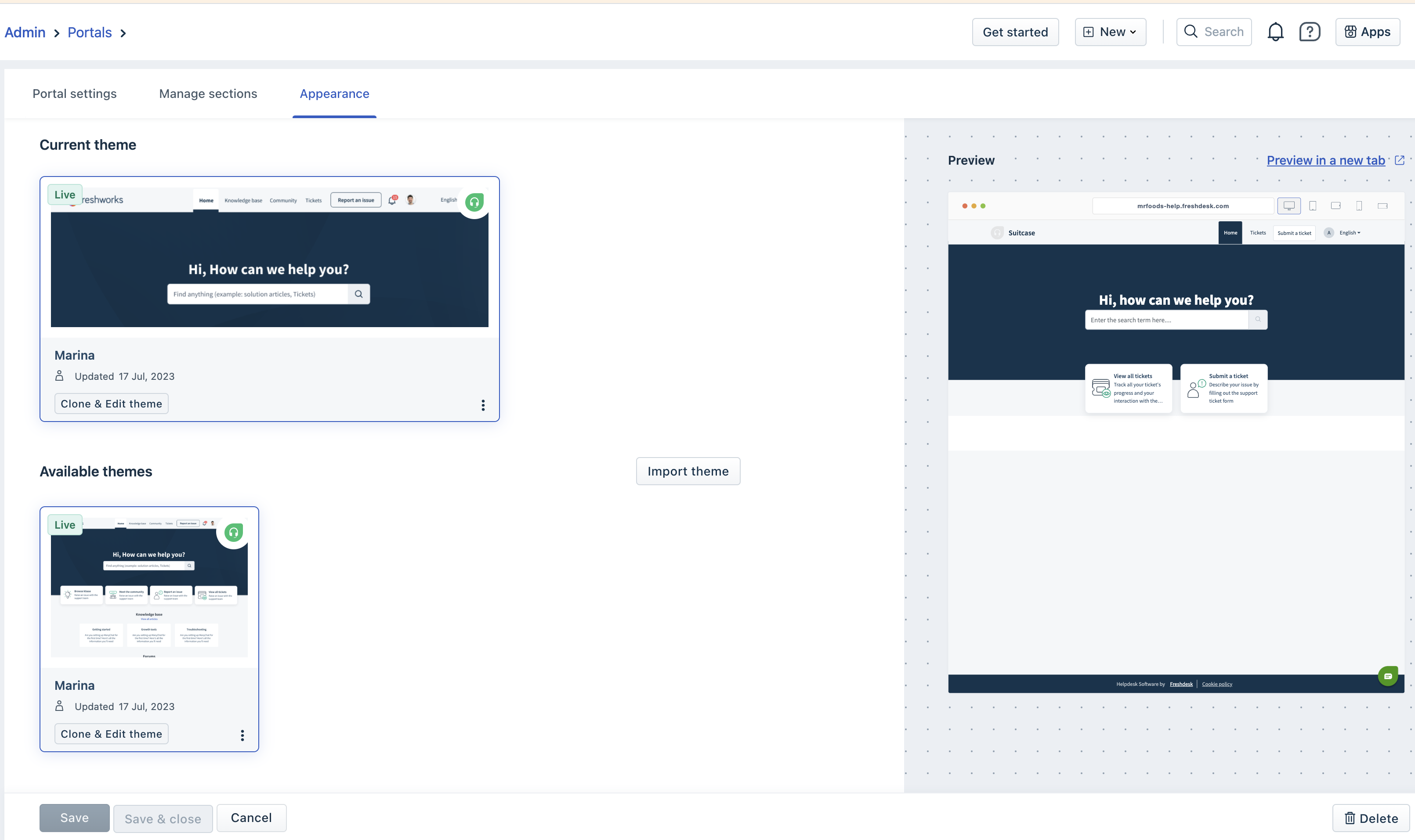
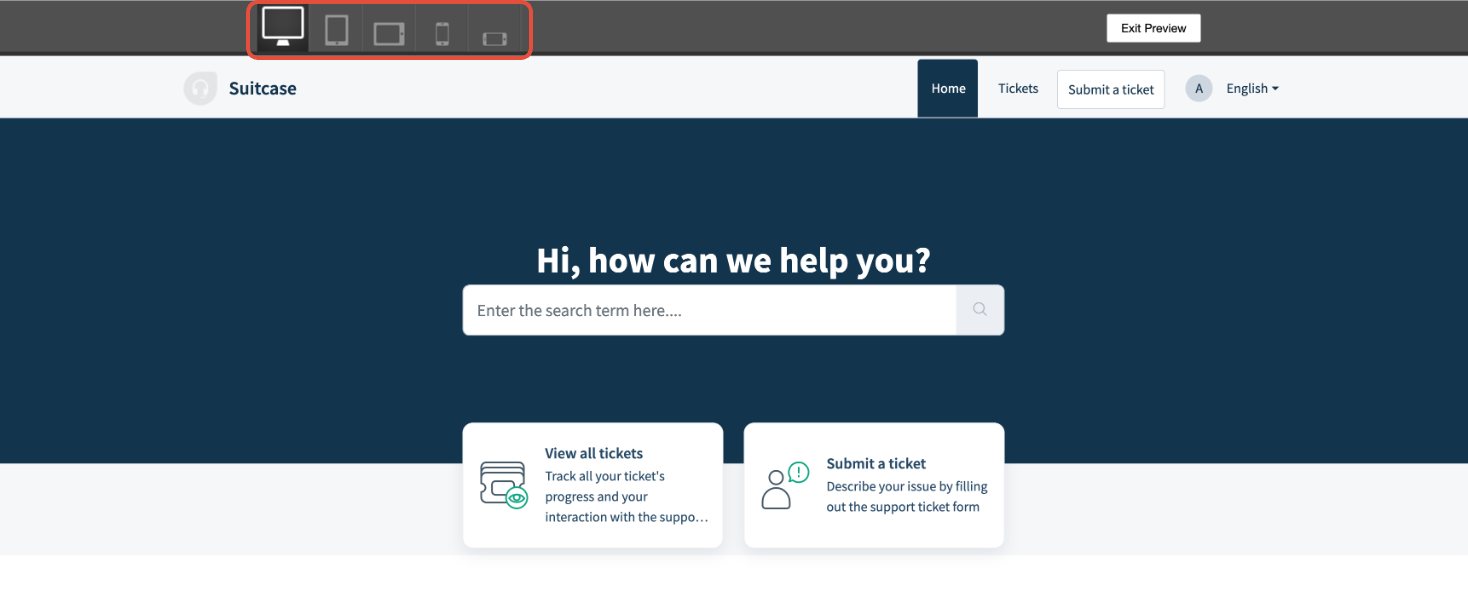
To see it on various devices, click Preview in a new tab. Select the different devices at the top to view the portal on the corresponding devices.
Once you have made all the changes, click Save and Publish. To reset the changes, click Reset.
Customize pages (Advanced customization using editor)
In addition to the basic color and font customization, you can perform advanced portal CSS customization via the Freshdesk in-built code editor. For more details, see Advanced Portal Layout Changes.