Last updated: 2026-02-25
Getting Started with Freshdesk Omni
This onboarding guide helps you set up your Freshdesk account, explore essential features, and start resolving customer queries.
You will learn about:
About Freshdesk SKUs
We offer two core products that differ by capabilities and channel support. Choose the product that matches your support needs:
Here’s a feature comparison of core features. For a detailed comparison, check your Billing page.
| Feature | Freshdesk Omni | Freshdesk |
| Channel capabilities | Email, Web Chat, WhatsApp, Facebook, and Instagram, all managed from one unified inbox. | Email, Facebook, and a basic Web Chat channel. |
| Automation | Advanced channel-specific routing, assignment rules, and SLA policies. | Essential automation rules, ticket assignment, and SLA policies. |
| Web Chat | Advanced Web Chat channel with live chat, topic routing, and AI Agent integration. | Basic Web Chat channel with knowledge base integration and ticket forms. |
| Manage Facebook messages, comments, and posts directly from the unified inbox | Manage Facebook messages, comments, and posts directly from the unified inbox. | |
| Manage DMs, story replies, and comments directly from Instagram Messaging. | Not available | |
| Connect your WhatsApp Business number, respond in real time, and send approved message templates. | Not available<br>Note: If you signed up for Freshdesk before December 2025, you can continue using your existing WhatsApp integration. | |
| Freddy AI Copilot (add-on) | All AI Copilot features help agents and admins to improve their productivity and offer context-aware assistance. | All AI Copilot features help agents and admins to improve their productivity and offer context-aware assistance. |
| Freddy AI Agent (add-on) | Includes AI Agent Studio (with Live Chat support) and Email AI Agent | Only Email AI Agent |
| Freddy AI Insights (add-on) | Includes Proactive insights and Conversation analytics (Beta) | Includes Proactive insights and Conversation analytics (Beta) |
Tip: Start with Freshdesk Omni's 14-day free trial. You can explore all channels and decide what works best for your team.
Core features
Freddy AI (add-on)
Freddy AI includes powerful tools that enable your agents to work faster and more efficiently.
Freddy AI Agent Studio
Freddy AI Agents act as digital teammates that automate repetitive work across all your channels. With AI Agent Studio:
For more information, see Set Up AI Agent Studio.
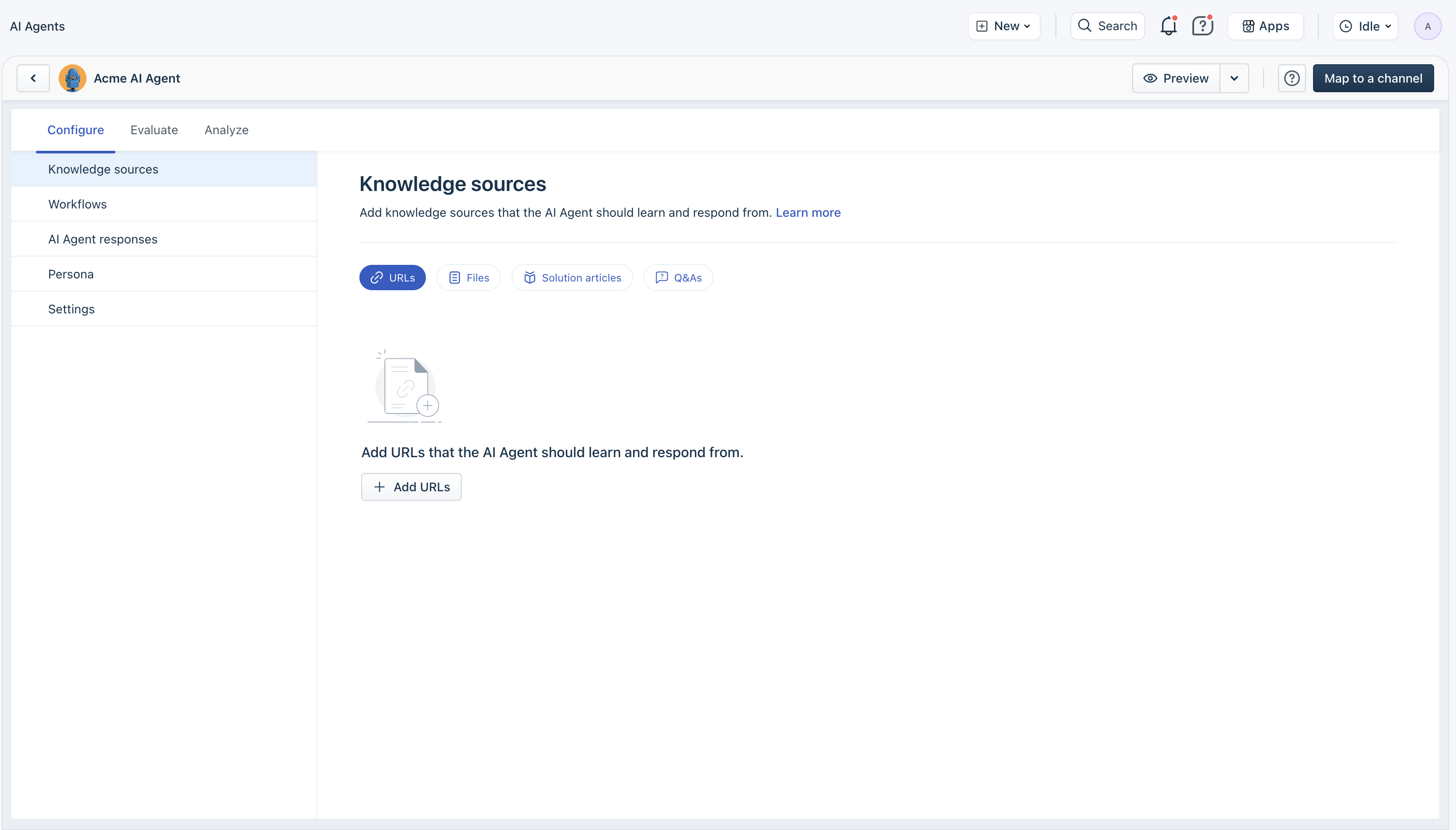
Email AI Agent
Email AI Agent automatically responds to incoming customer emails using context-aware answers generated by Freddy AI from your configured knowledge base.
With Email AI Agent, you can:
For more information, see Email AI Agent Configuration Guide.
Freddy AI Copilot
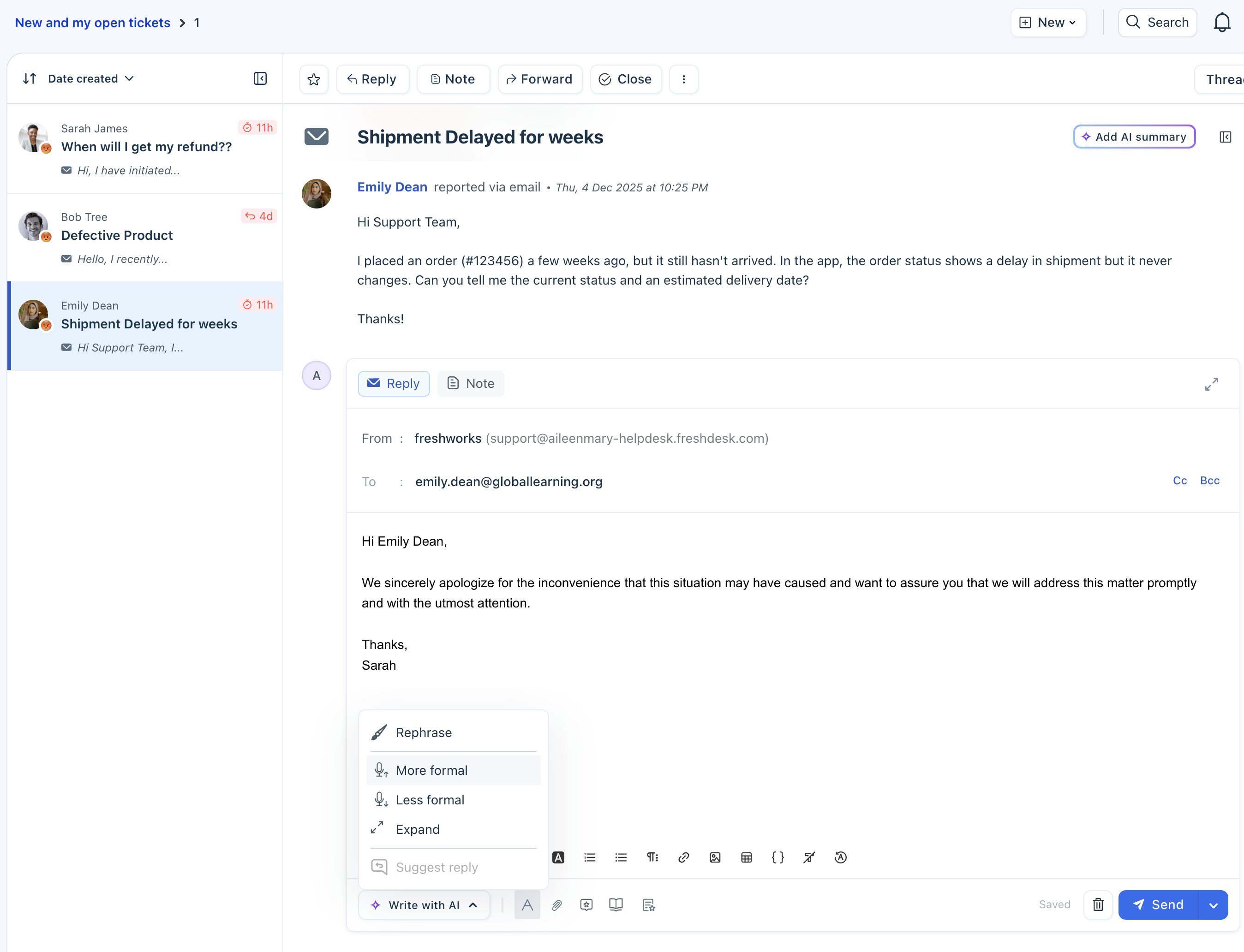
Freddy AI Copilot helps every human agent work smarter by offering context-aware assistance right inside the ticket.
For more information, see Freddy AI Copilot.
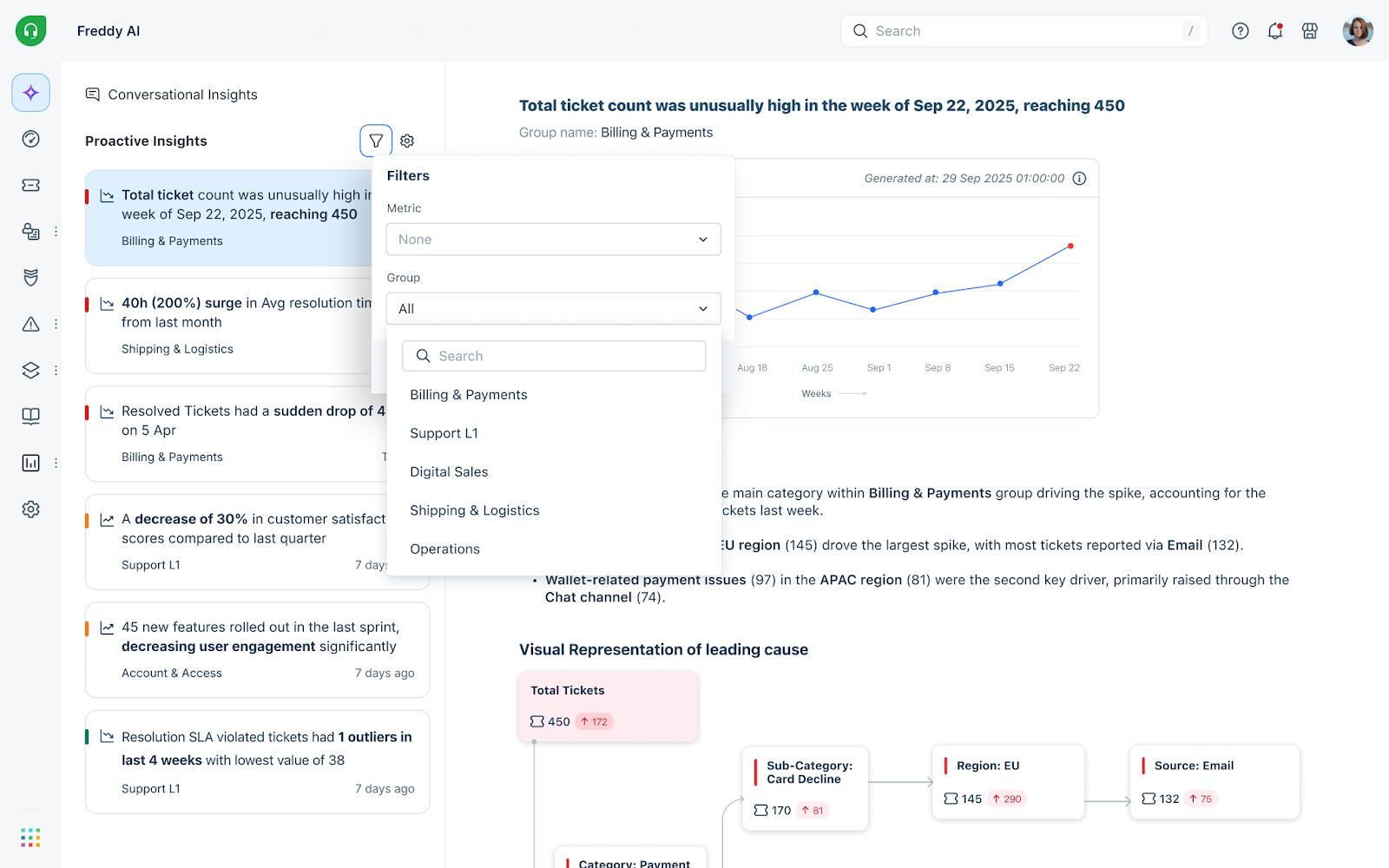
Freddy AI Insights
Freddy AI Insights provides actionable insights to admin to improve support operations.
For more information, see Freddy AI Insights.
Unified Inbox (Freshdesk Command Center)
The Ticket Inbox/Ticket Details page is the central workspace in Freshdesk Omni, where agents manage all customer conversations across multiple channels, like Email, Web Chat, WhatsApp, Facebook, Instagram, and more. Every message becomes a ticket, and agents can respond without switching between tools.
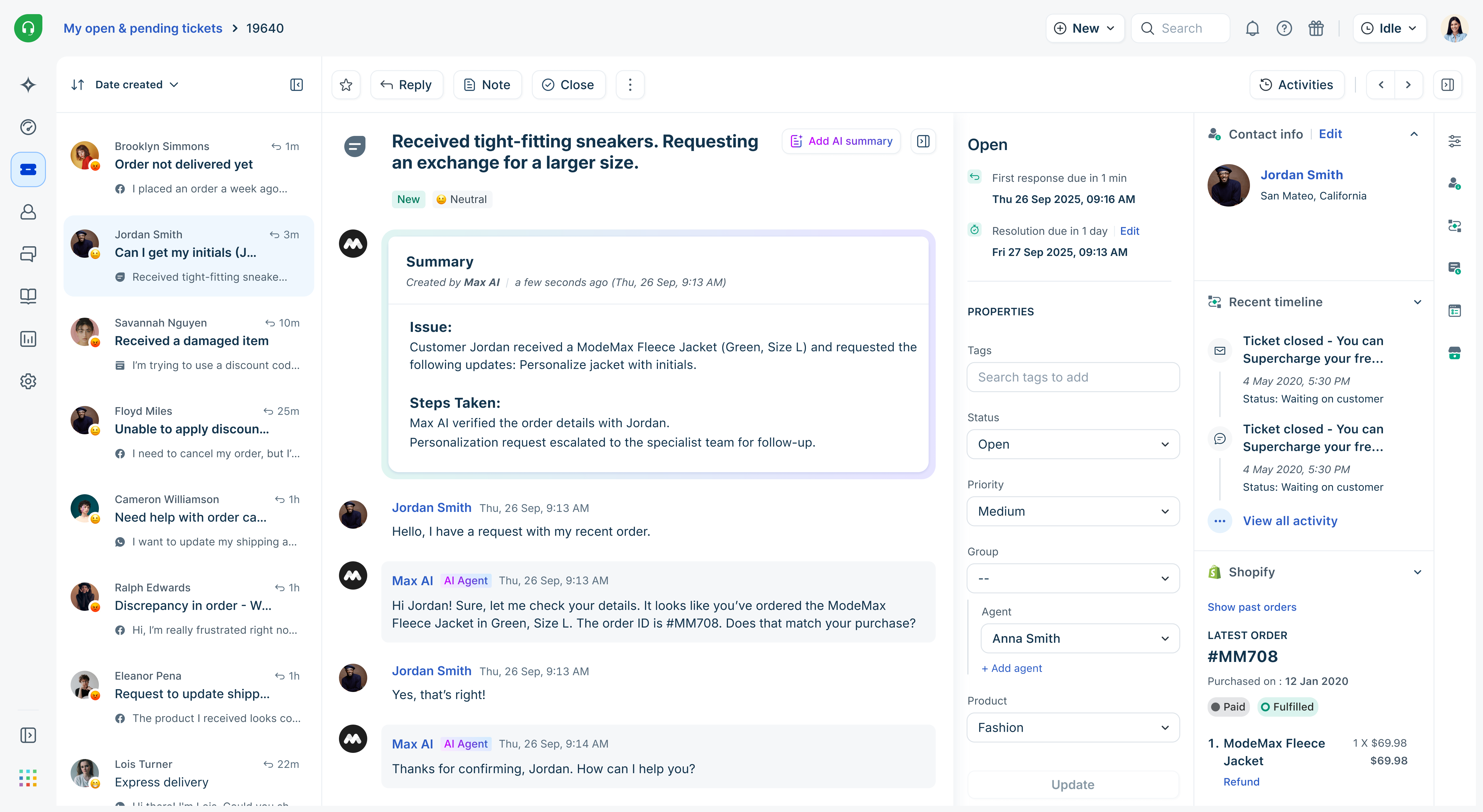
Key capabilities:
For more information, see Ticket Details.
Channel Capabilities
| Channel | Description |
|---|---|
| Web Chat | - Add real-time live chat to your website or app <br>- Convert chats into trackable tickets<br>- Route conversations by topic and availability |
| WhatsApp Business | - Respond to customer messages directly from the Inbox<br>- Send proactive notifications using approved templates<br>- Connect your existing WhatsApp number to Freshdesk |
| Instagram Messages and Comments | - Manage Instagram DMs and comments as support tickets<br>- Respond directly from the Inbox<br>- Deploy AI Agents to manage customer queries |
| Facebook Messenger & Comments | - Handle Facebook Comments, Posts, and Direct Messages (DMs) as tickets<br>- Respond and collaborate from a single workspace<br>- Handle tagging for comments, a tree-structured comments view, and richer media support, enabling faster and more personalized responses. |
| - Convert inbound and outbound emails into tickets<br>- Apply SLAs, automations, and collaboration tools<br>- Track full conversation history | |
| Portals | - Create Knowledge Base articles and enable self-service<br>- Raise tickets, track requests, and find answers through a self-service portal. |
| Phone - Freshcaller Integration | - Integrate Freshcaller to handle voice calls alongside other channels<br>- Automatically create tickets from inbound calls<br>- Access call recordings and transcripts within tickets<br>- Track call metrics and agent performance |
Workflows
Automate ticket routing, assignments, and follow-ups to eliminate manual work:
Knowledge Base
Build a branded Help Center to deflect common questions and reduce ticket load.
You can:
For details, see Knowledge Base.
Analytics Reports and Dashboards
Use powerful analytics and visual dashboards to monitor team performance and identify improvement opportunities:
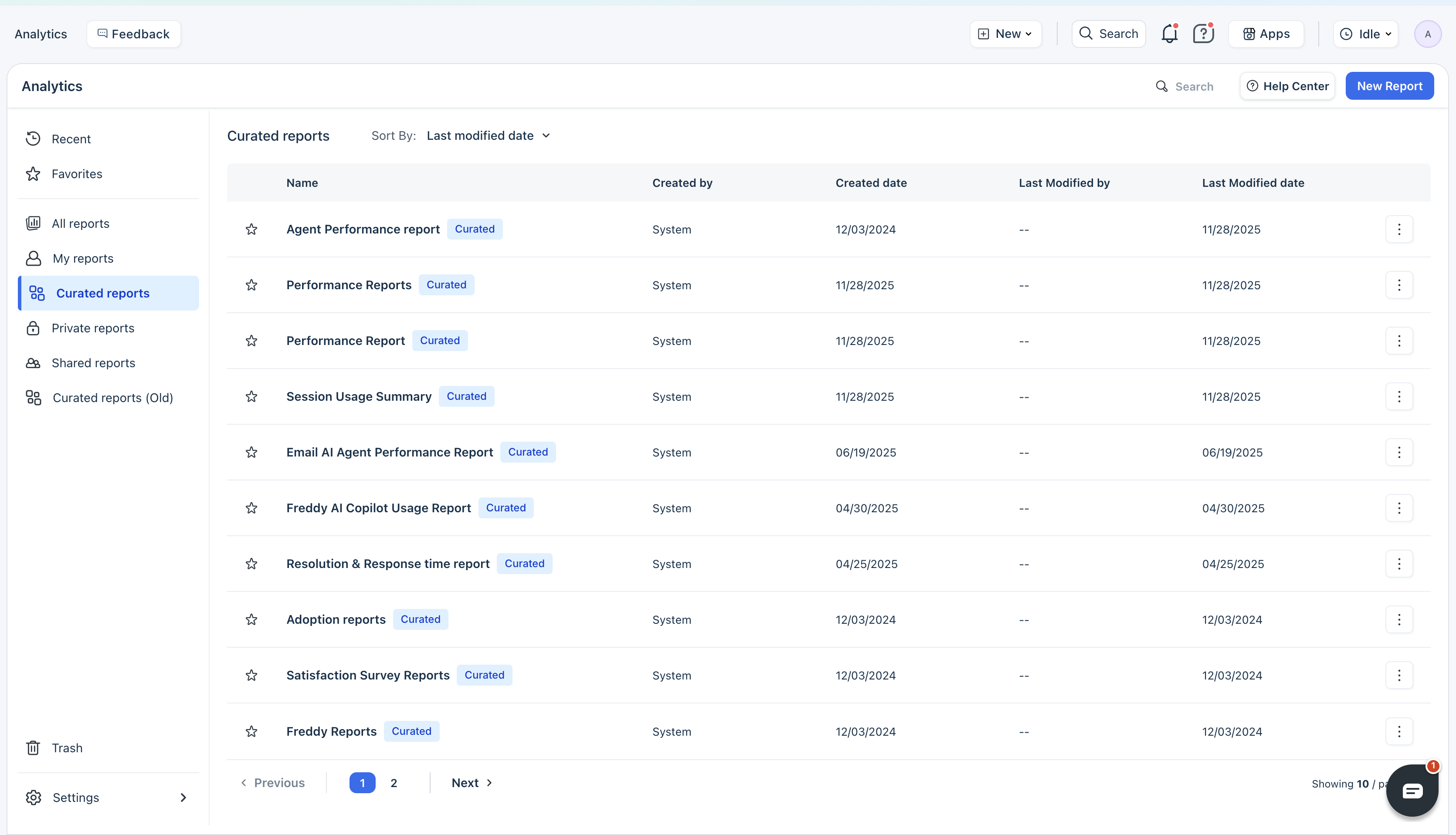
For details, see Analytics.
Quick start for admins
Follow these steps to configure Freshdesk and prepare your team to start supporting customers.
Before you begin
Ensure that you have:
1. Sign up and explore - Sign up for Freshdesk Omni or Freshdesk. - Explore all features with a 14-day free trial (no credit card required). - Once you are ready, choose a subscription plan - Growth, Pro, or Enterprise
Note: You can upgrade or change plans at any time. For more details, see Understanding Pricing Plans. 2. Connect your support email
Connect your support email to Freshdesk and convert incoming customer emails into tickets
Supported email types: - Freshworks mail server (default, quickest setup) - Gmail - Microsoft Office 365 - Custom email servers
For details, see Set Up Your Email. 3. Set up your team Add agents, assign roles, and organize them into groups. 1. Add Agents 1. Add agents 2. Assign roles based on responsibilities (Agent, Admin, Supervisor)
For instructions, see Add agents. 2. Create Groups 1. Create groups based on expertise. For example, Billing, Technical Support, VIP Customers. 2. Add agents to relevant groups 3. Set group-specific business hours if needed
For instructions, see Groups. 4. Define Business Hours and SLA Define when your team is available and set customer expectations. 1. Add business hours
Specify the team’s availability based on your company’s policies. Create multiple schedules if needed (weekday vs. weekend support). For instructions, see Configure Business Hours.
2. Define SLA policies
Set clear timelines for your support team to solve customer tickets. For example, how quickly an agent should reply to or resolve a ticket. You can also apply different SLAs by priority, channel, or customer type.
For instructions, see SLA policies. 5. Add more support channels (optional)
Expand beyond email by adding additional channels where your customers are.
Available channels 1. Web Chat (both Freshdesk and Freshdesk Omni)
Freshdesk: Basic Web Chat widget with Knowledge Base integration
2. WhatsApp Business (Freshdesk Omni only) 3. Facebook Messenger (both Freshdesk and Freshdesk Omni) 4. Instagram Messaging (Freshdesk Omni only) 6. Enable Freddy AI tools
If you purchased Freddy AI add-ons, enable AI Agents and Freddy AI Copilot to boost agent productivity. - Set Up AI Agents: 1. Choose a pre-built workflow. For example, Order Status, View Past Orders, and more) 2. Or build a custom AI Agent using the no-code builder 3. Test your AI Agent and deploy it to specific channels
For instructions, see AI Agent Studio. - Enable AI Copilot:
Enable Freddy AI Copilot from Admin Settings and activate features such as Summary Generator, Writing Assistant, and more. For instructions, see Freddy AI Copilot.
You're All Set! Your Freshdesk account is now ready. Share login credentials with your team and start serving customers.
Tip: Refer to the Freshdesk Admin Guide for advanced configuration options like custom fields, canned responses, and marketplace integrations.
Quick start for Agents
If you are new to Freshdesk as an agent, here's how to start responding to customers in minutes.
1. Log in and explore the Inbox 1. Open your Freshdesk account using the credentials provided by your admin 2. Navigate to the Inbox (Tickets page). 3. Get familiar with the layout: - Ticket List: Get a glance of all your tickets in your account. - Layouts and views: Use the different layout options (Card, Table, Inbox) and choose your preferred view (New and My Open tickets, Unresolved, etc.). - Filters: Refine your view using an exhaustive list of filters.
For instructions, see Ticket List. 2. Respond to your first ticket 1. Select a ticket from Unassigned or My Open Tickets. 2. Read the customer's message and any internal notes. 3. Click Reply to compose your response. 4. Type your message or use AI Copilot to generate a suggested reply 5. Click Send to respond to the customer.
Tip: Use canned responses for frequently asked questions to save time and effort.
For instructions, see Ticket List. 3. Use AI Copilot for faster responses
When you click on the Reply button, Freddy AI Copilot appears in the editor. Try these features: - AI summary: Get a quick overview of long conversation threads - Writing assistant: Generate a draft response based on the ticket context - Find Similar Tickets: See how teammates handled similar issues - Recommend Articles: Pull relevant knowledge base articles to share
For instructions, see Freddy AI Copilot. 4. Collaborate with teammates
Get help from other teammates or loop them on a ticket - Add a private note - Assign to another agent - Start a thread
For instructions, see Perform Ticket Actions. 5. Track and resolve tickets - Monitor the SLA timer at the top of the ticket to stay on track - Update the ticket Status as you progress (Open, Pending, Resolved) - Set Priority (Low, Medium, High, Urgent) to help organize your workload
Tip: Resolved tickets can be reopened by customers if they reply within a set timeframe.
What’s Next?
- Email: support@freshdesk.com - Live Chat: Available 24/7 from your Freshdesk account - Help Center: support.freshdesk.com