Last updated: 2025-12-18
Source: https://support.freshdesk.com/support/solutions/articles/37604-organize-agents-into-groups
Organize Agents into Groups
Signup Date: After December 2025
Signup Date: Before December 2025
Select the tab based on your signup date. Not sure of your signup date? Learn how to find it here.
Applicable Plan
| Freshdesk | Free, Growth, Pro, Enterprise |
| Freshdesk Omni | Free, Growth, Pro, Enterprise |
- Configure routing method - Manual (no routing)) - Advanced automatic routing (powered by Omniroute)) - Define escalation settings - Configure reassignment preferences
Overview of groups
Groups let you organize agents into teams that share a common purpose or scope of work. This makes it easier to manage ticket assignments, apply consistent settings, and track performance at a team level.
For example, you can create groups based on:
Since an agent can belong to multiple groups, Groups are flexible and ensure each agent sees only the tickets that matter to them.
Features available at the Group level
Configurations set for a group automatically apply to all agents within that group. The group-level features include:
Create a new group
1. As an Administrator, go to Admin > Team > Groups. 2. Click New Group.
3. Enter a Name and Description for your group. 4. Select the relevant Business Hours for your group. 5. Click Create. 6. In the next step, select the agents for this group and click Add to Group.
``` Tip: You can also assign groups while adding or editing an agent. See Add, Edit, or Delete Support Agents. ```
Configure group properties
After creating a group, you can configure advanced settings.
1. Go to Admin > Team > Groups. 2. Click the edit icon next to the group. 3. Click on the Group Properties tab.
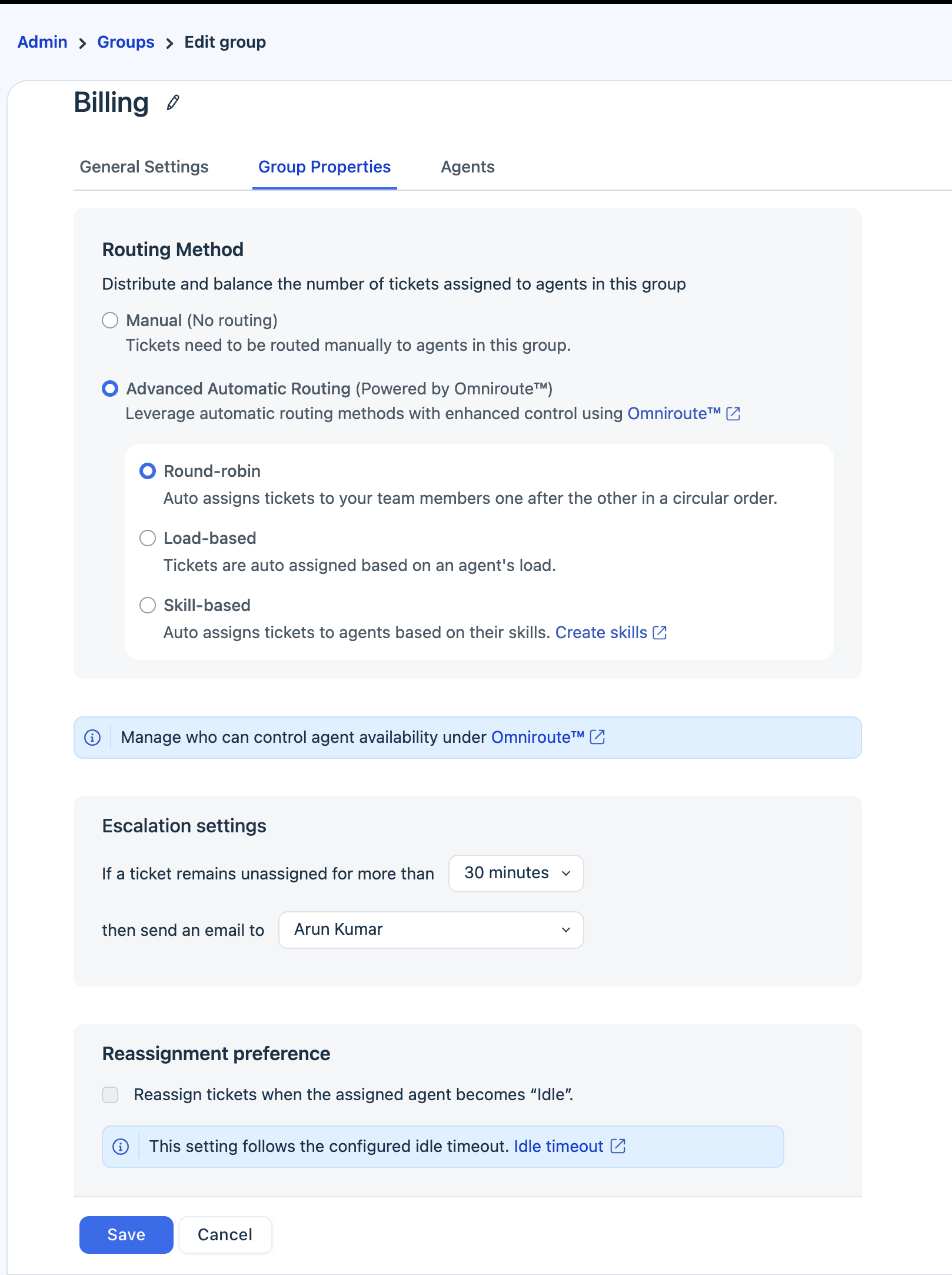
The different advanced settings you can configure are:
Configure routing method
Routing determines how tickets are distributed among agents within a group. Freshdesk supports two types of routing:
Manual (no routing)
In manual routing, tickets are not automatically assigned to agents. Instead, a supervisor or admin must assign them manually.
To do this:
1. Go to your Tickets Inbox. 2. Open the ticket you want to assign. 3. From the Properties pane, under Groups, select the preferred group.
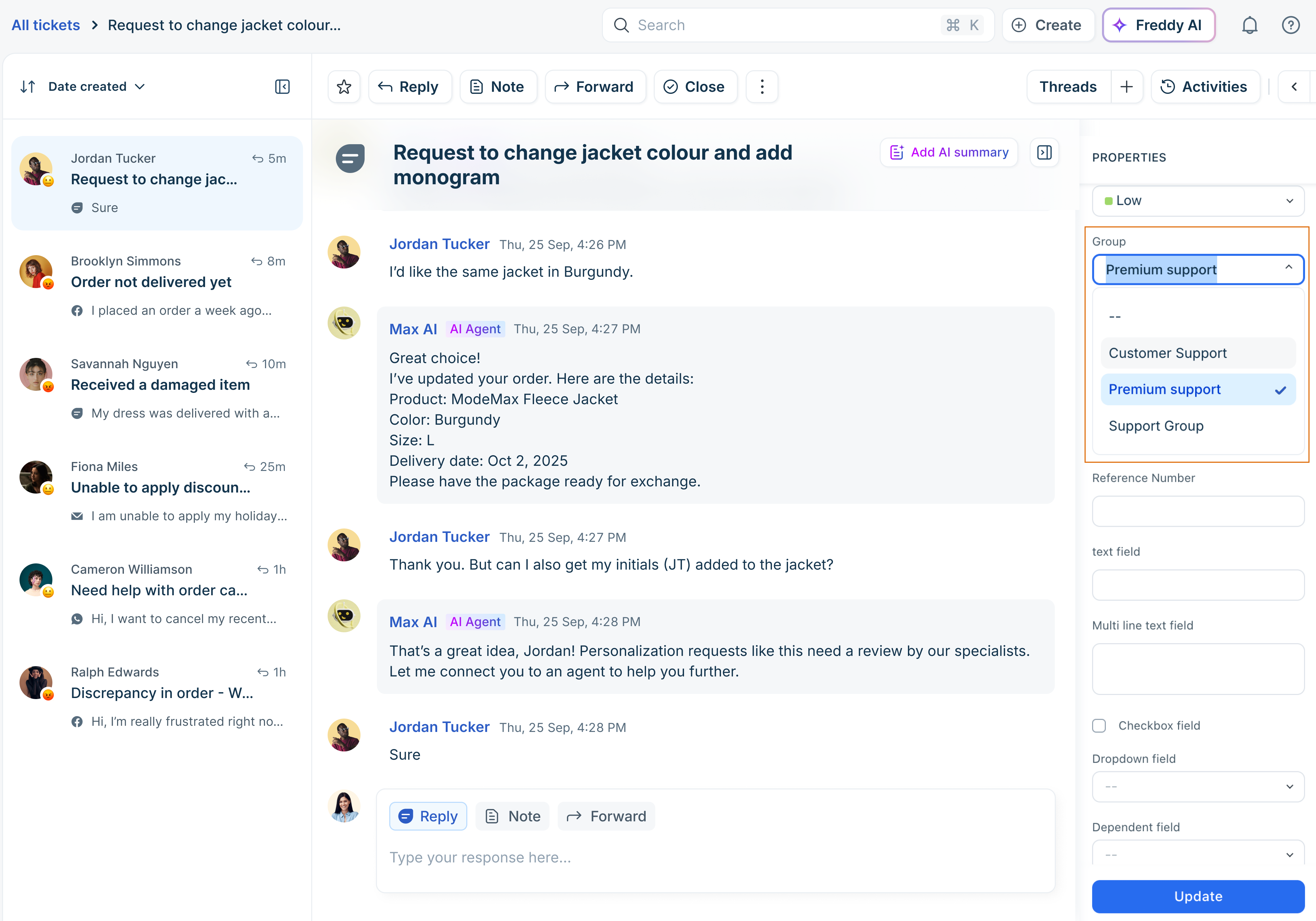 4. To assign in bulk, select multiple tickets from the Ticket List view and update their group.
``` Note: Assigning a ticket to a group does not assign it to an agent. Tickets remain unassigned until they are manually given to an agent. ```
Advanced automatic routing (powered by Omniroute)
Note: This feature is available only for Freshdesk Omni customers from the Pro plan.
If you have larger teams, manually assigning tickets can be time-consuming, delay response times, and increase the risk of overlooking high-priority tickets.
However, Advanced Routing, powered by Omniroute, resolves these challenges by automatically distributing tickets to the appropriate group and agent. Freshdesk provides the following advanced routing methods:
For more information, see About Advanced Automatic Routing.
Configure reassignment preferences
``` Note: This feature is available only for Freshdesk Omni customers from the Pro plan. ```
The Reassignment Preference option allows you to control how tickets should be handled when agents are in the Idle state.
The Idle status is a system-generated agent status that triggers automatically when an agent is inactive for a specific duration. Admins can set this inactivity period (idle timeout) in Assignment Preferences. Once the threshold is reached, the agent’s status automatically changes to Idle.
When Idle status is active:
However, tickets will be reassigned only if all of the following conditions apply:
Tickets must have an active SLA timer (configured in Ticket Field settings) running.
For example, if SLA timer is enabled for “Waiting on internal team” and the agent goes Idle while the ticket is in that status, the ticket will be reassigned.
This means, tickets will be reassigned only when the tickets are in a status with agent agent-occupied configuration enabled. By default, only tickets with an active SLA timer count towards an agent’s workload (ticket capacity). You can adjust this behavior in the Assignment Preferences tab in Omniroute Settings.
The ticket must belong to a queue where Assign to idle agents is not selected.
When should you use this?
Reassignment is especially useful for real-time messaging channels like WhatsApp or Webchat, where customers expect immediate responses. If an agent becomes Idle, tickets can be quickly rerouted to another available agent, keeping conversations active and reducing wait times.
Define escalation settings
Set up an automated email to trigger when a ticket remains unassigned to an agent for a defined time. To change the email content, see Configuring Email Notifications.
1. In the Group Properties page, scroll down to Escalation settings section. 2. Set the time after which the email should trigger. 3. Select the agent who should receive the mail.
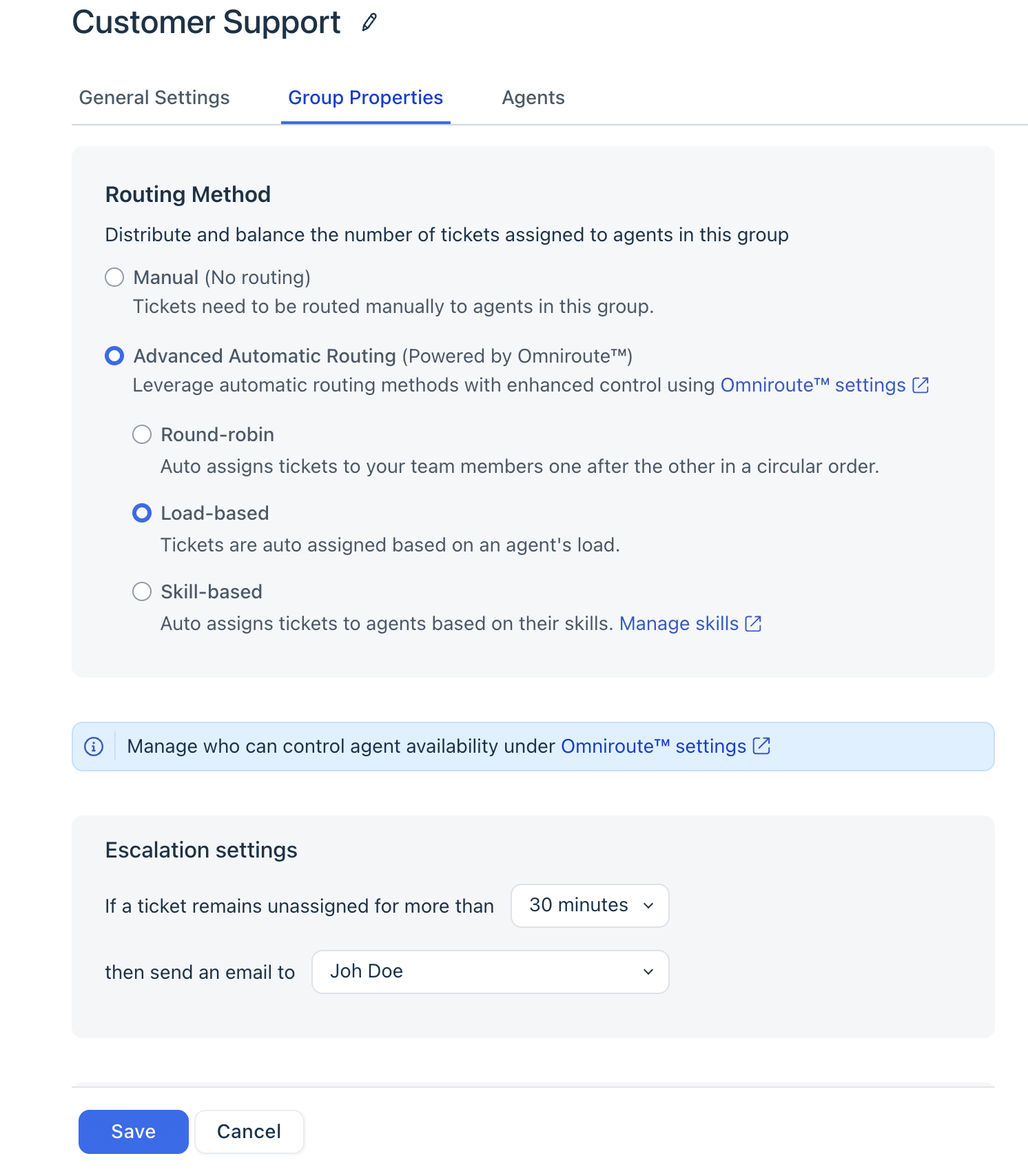 4. Click Save.
Edit and delete groups
1. As an admin, go to Admin > Team > Groups. You can see the list of Groups here with associated agents, business hours, and routing method applied to each group. 2. To edit a group, click the Pencil icon to edit it or the Delete icon to delete it.
``` Warning: If you delete a group, any tickets associated with it will have the Group property unassigned. We recommend reassigning all tickets before deleting a group. Groups are collections of agents that share common traits that make sense to your business. You can create groups to represent your teams and business functions within Freshdesk. ```
Applicable Plans
| Freshdesk | Free, Growth, Pro, Enterprise |
| Freshdesk Omni (formerly CSS) | Growth, Pro, Enterprise |
| Omnichannel (classic) | Growth Omnichannel, Pro Omnichannel, Enterprise Omnichannel |
| Freshdesk (previous) | Sprout, Blossom, Garden, Estate, Forest |
| Omnichannel (classic-previous) | Estate Omnichannel, Forest Omnichannel |
Groups are collections of agents that share common traits that make sense to your business. You can create groups to represent your teams and business functions within Freshdesk.
Since an agent can be part of multiple groups, groups are a versatile tool to help agents see only what's relevant to them. This helps reduce clutter and improve agent efficiency. For example:
Create a new group
1. As an Administrator, go to Admin > Team > Groups. 2. Click New Group. - If Field Service Management (FSM) is enabled, you'll see a dropdown to create a Service Group. See Creating Service Groups. 3. Provide a Name and Description for your group. 4. (Pro plans onwards) If you've set up multiple SLA policies, select the relevant Business Hours for your group.See SLA Policy Setup. 5. Click Create. 6. In the next step, select the agents for this group and click Add to Group.
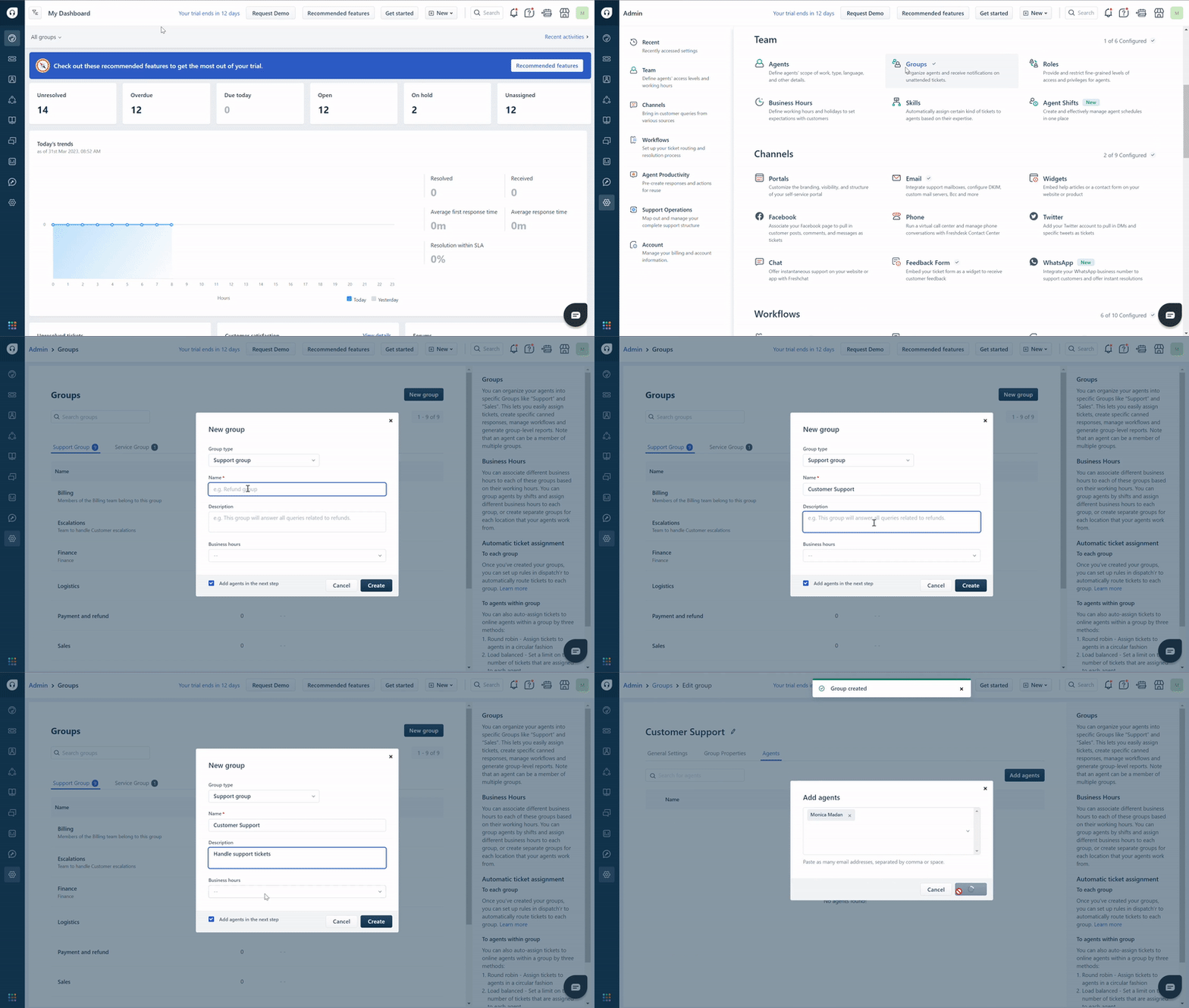
``` Tip: You can also assign groups while adding or editing an agent. See Add, Edit, or Delete Support Agents. ```
Edit or Delete a Group
On the Groups page, hover over a group and click the Pencil icon to edit it or the Trashcan icon to delete it.

``` Warning: If you delete a group, any tickets associated with it will have the Group property unassigned. We recommend reassigning all tickets before deleting a group. ```
Group Properties
While editing a group, select the Group Properties tab to configure the following:
1. (Pro plans and above) Automatic ticket assignment: choose how tickets are assigned to agents within the group. See Understanding automatic ticket assignment. - Tip: If you are on lower plans, you can still use automations to assign tickets to agents or groups. See Automation rules Examples: Ticket Creation. 2. Agent availability status: Restrict agents from changing their availability for automatic ticket assignment. 3. Ticket escalation settings: Set up an automated email to trigger when a ticket remains unassigned to an agent for a defined time. To change the email content, see Configuring Email notifications.