Last updated: 2025-05-21
``` Note: Field Service Management (FSM) was initially launched as an add-on feature. However, after careful evaluation, we have decided to discontinue it.
Existing customers currently using FSM will continue to have access, and the product will be maintained in its current state. However, no further enhancements will be made, and FSM will no longer be available to customers who signed up after May 5, 2023. ```
What is a Scheduling Dashboard?
Some customer problems require on-site support or field service from a technician. However, when it comes to delivering field service, coordinating field teams from the Admin desk can be incredibly challenging.
Incoming service requests need to be assigned to the right field technician for a speedy and accurate resolution. Dispatchers need multiple information points such as field technician’s current schedule, workload levels, and the customer’s history to identify the best field technician for each job.
The Scheduling Dashboard in Freshdesk helps dispatchers get a holistic view of their field technicians’ schedules, and allows them to assign service tasks in real-time, through a simple drag and drop, thereby ensuring the most efficient field team utilization.
The Scheduling Dashboard provides an intuitive, visual way for admins and dispatchers to:
1. View the calendar - daily as well as weekly schedules of Field Technicians.
2. Select from a list of preset service task views to narrow down to tasks that need your attention.
3. Filter the dashboard by Service Groups to view the workload of each field technician within the group for the selected date.
4. Drag and drop service tasks to effortlessly assign or reassign them to field technicians and set appointments.
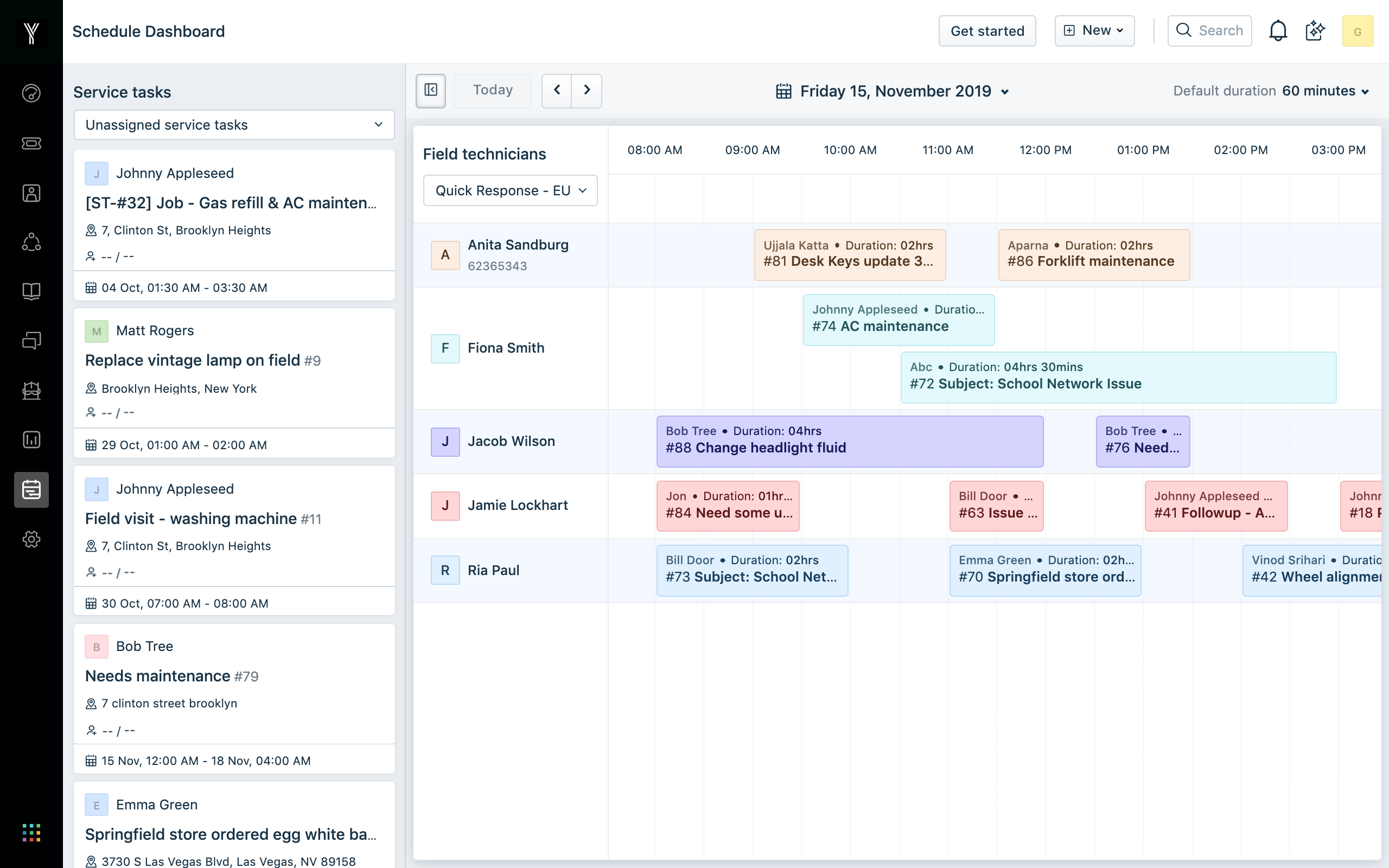
Here’s a quick guide to using the Scheduling Dashboard:
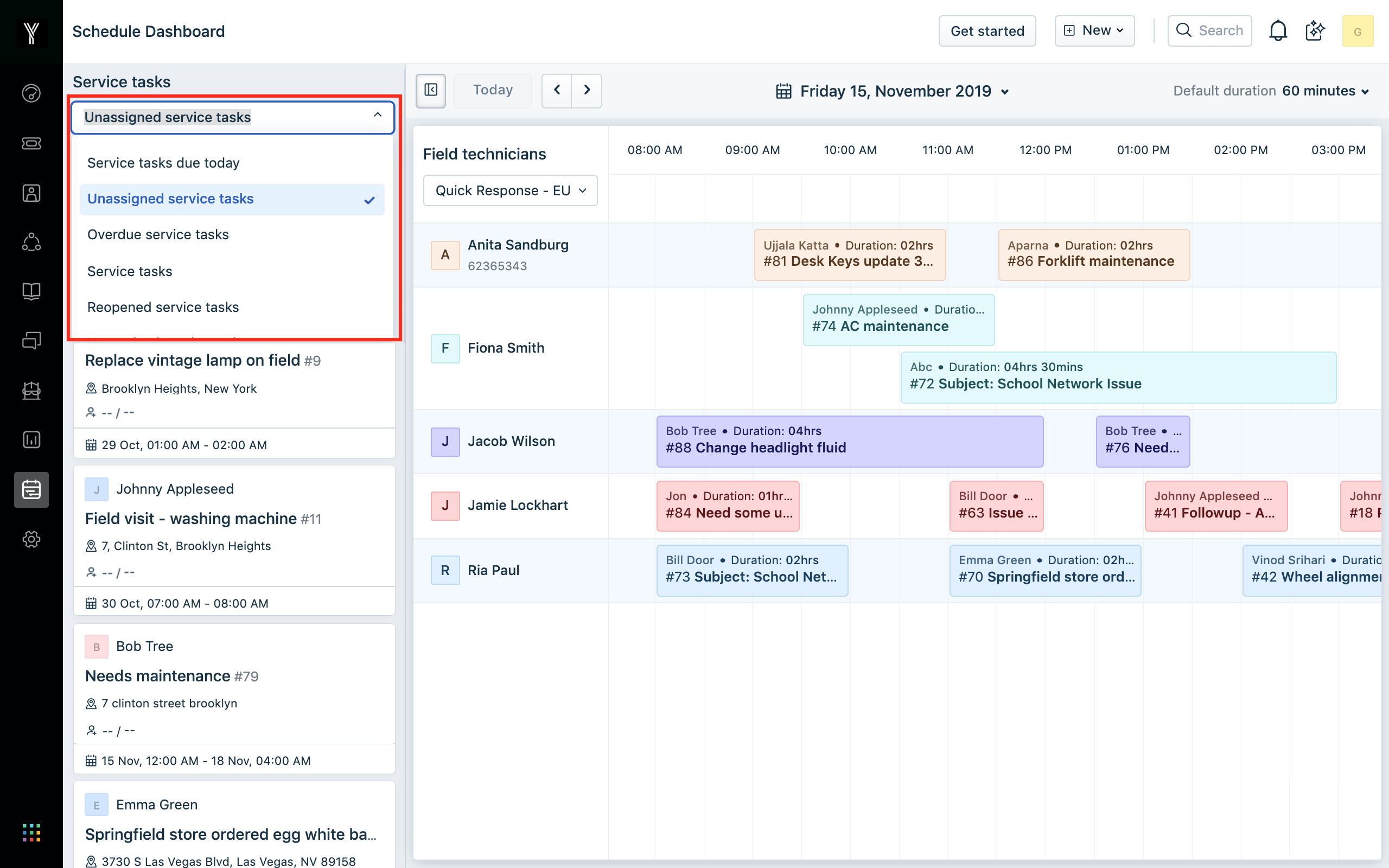
- Unassigned Service Tasks (this view is selected by default) - Service Tasks due today - Overdue Service Tasks - Unresolved Service Tasks and any other custom view you may have created.

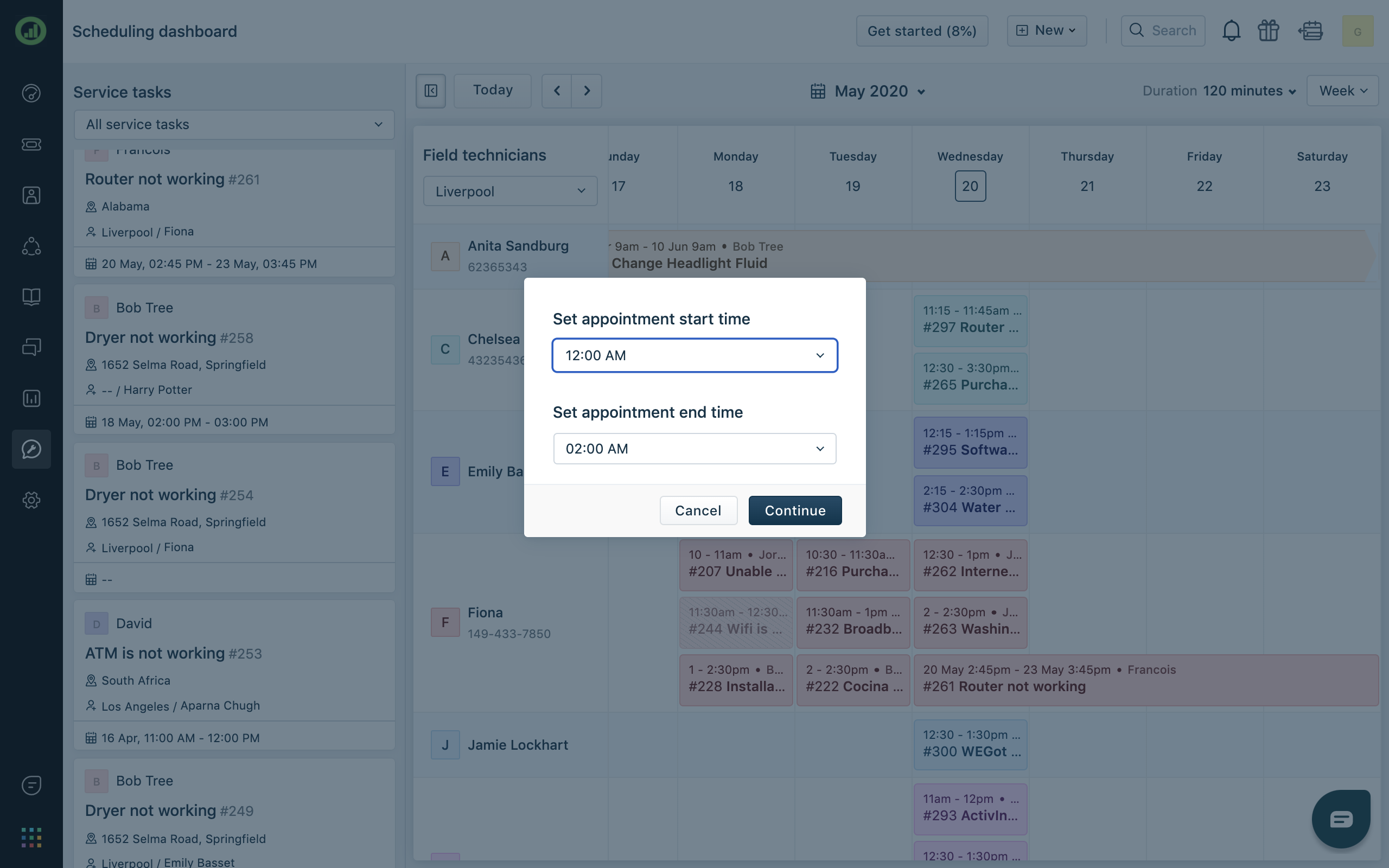
When assigning service tasks in Week view, if a task does not already have appointment start and end times associated with it, you will get a pop up (like the one below) where you can select the Appointment Start and End times.
Default Duration:
If you assign a task to a field technician using the Scheduling Dashboard with no appointment start or end times specified, Freshdesk automatically picks up the duration from the "Default Duration" setting on the top-right corner of the dashboard.
Default task durations can be as short as 15 minutes and can last as long as 2 hours.
``` Note: If you have already set start and end times for a service task the duration you specified is retained, overriding the default duration setting. ```
Scheduling Dashboard.mp4
To find out how you can track time spent working on a service task and log billable hours, read this solution article.
To learn more about Freshdesk Field Service Management or to sign up and try this feature, click here.