Last updated: 2023-04-06
Source: https://support.freshdesk.com/support/solutions/articles/220141-creating-and-using-ticket-templates
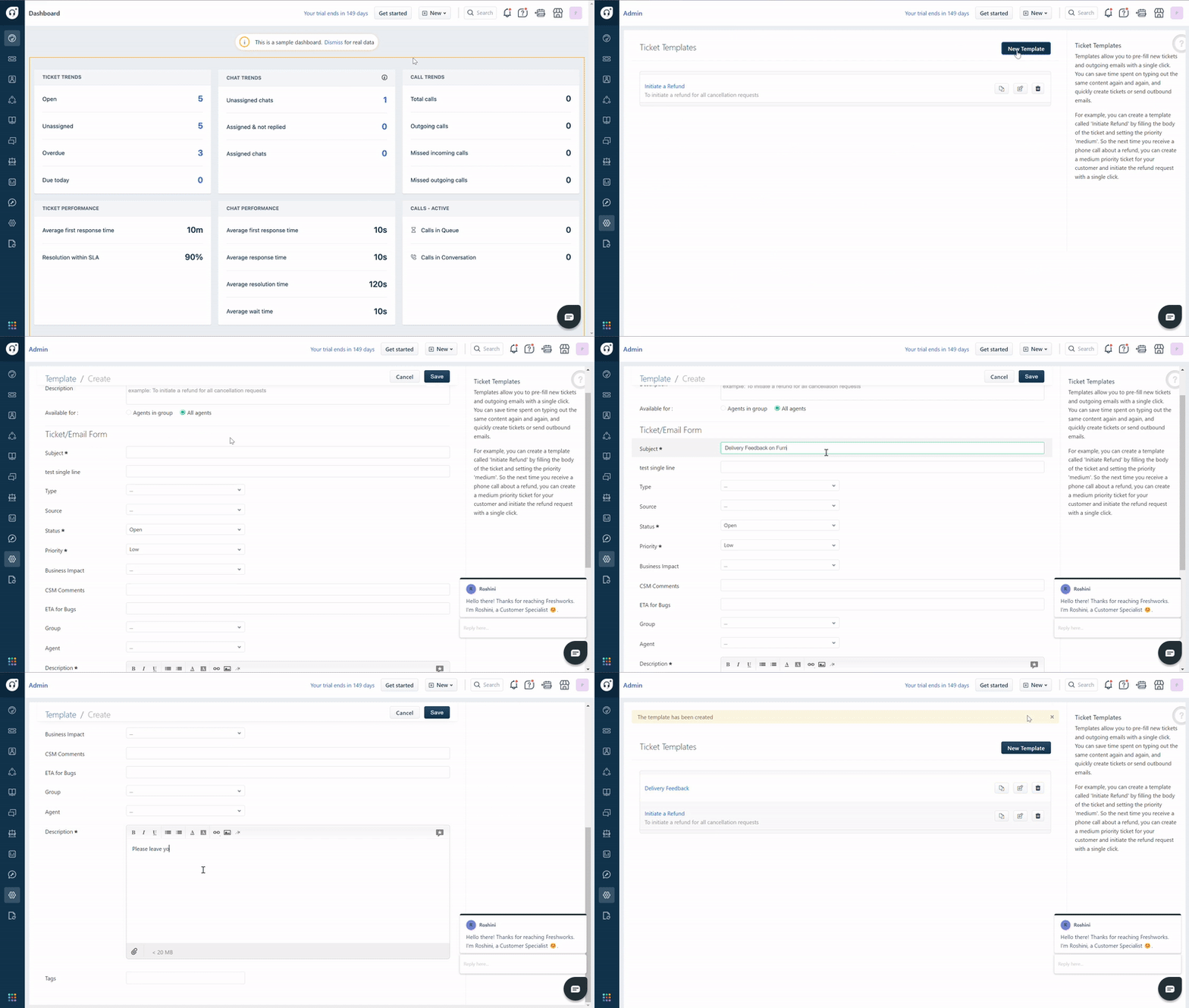
Ticket templates let you fill up your new ticket form or the new email form with one click. As an administrator, you can create templates where you pre-fill information like subject, description and ticket properties. These templates can be used by your agents and yourself to quickly create tickets and send emails.
For example, when your agent is on a call with customers back to back, they don't have to fill up all the details and type out the description of the ticket/email after every call. They can quickly apply a template, create a ticket/email and move on to the next call.
Creating a ticket template
Note: Please refrain from adding signatures to the email/ticket using the ticket templates. You can create your own signature under profile settings section and that would automatically get populated in the ticket form when you're trying to create a ticket/an outbound email.
Using canned responses in ticket template description
You can also use canned responses you have already created within the template. This way, the responses you created for agent replies to tickets can also be used in new tickets and emails.
To insert a canned response, click on the star icon in the description box.

Applying templates in new ticket and new email forms
When a template is applied to a new ticket/email, all the field values will be overwritten by the template field values. For example, if your agent sets priority as 'High' and then applies the template in which the priority is set as 'Low', then the resulting ticket form will have priority set as 'Low'. So if there are some fields that your agents need to fill out manually, it needs to be done after the template is applied.
Your agents can insert ticket templates in their new ticket form by clicking on the New Ticket button and choosing a template from the list of available templates on the right.

Similarly, to apply a template to an outbound email, click on the New Email button and click on the required template from the list of available templates on the right. It is advisable to clearly differentiate the templates while naming them because unlike ticket descriptions, email subjects need to have salutations and signatures.

After the template is applied, agents can edit the field they want or just create the ticket/email after filling the requester field.
How to use templates in Freshdesk - A walkthrough - YouTube
Tap to unmute
How to use templates in Freshdesk - A walkthrough Academy Freshworks
Academy Freshworks9K subscribers
_Enroll in the Freshdesk Academy for free to get access to interactive product tutorials._