Last updated: 2026-01-29
Source: https://support.freshdesk.com/support/solutions/articles/132589-using-webhooks-in-automation-rules
Using Webhooks in automation rules
Signup Date: After December 2025
Signup Date: Before December 2025
Select the tab based on your signup date. Not sure of your signup date? Learn how to find it here.
Signup Date: After December 2025
Applicable Plans
| Freshdesk | Growth, Pro, Enterprise |
| Freshdesk Omni | Growth, Pro, Enterprise |
You can create an automation rule that runs on ticket creation or ticket updates to make API calls. The two actions below allow this
1. Trigger Webhook- Use this when API response is not needed for further automations. eg) Update an external CRM with details on a ticket 2. Trigger API- Use this when the API response is needed for subsequent actions or if you need to run JavaScript functions on ticket fields. eg) GET details of the customer’s subscription plan from a CRM. eg2) Dynamically calculate the distance between a ticket field and the present date.
``` Note: Trigger API is applicable from Pro plan onwards. ```
About the Trigger Webhook Action
.You can use Webhooks to
Here are some examples where you can use webhooks:
| Example scenario | Conditions/events to look for | What the webhook can doshould call |
| Send out an SMS when a customer replies to a ticket | Customer replies to ticket (or adds comment) | Send comment content to third-party SMS tool |
| Update inventory when a Product Return request is updated | Ticket category (a custom field) is updated to 'Product Return' | Update product info in store inventory |
| Sync status for Feature Requests with internal Product Management tool | Status is updated for tickets of type 'Feature Request' | Update product management tool with ticket information |
| Sound the alarm when a Bad Customer Satisfaction rating is received | Customer feedback is received, and the rating is 'Not Good' | Customize a Smart Bulb and a siren soundboard to fire up triggered by this webhook |
Read more about webhook examples here.
About the Trigger API action
Use the Trigger API action when you get data from an external system and apply that information to triage or update ticket properties in Freshdesk.
With the JavaScript editor, you can transform and act on the API response before it updates the ticket. Common examples-
Both the Trigger APi action and the Trigger Webhook action use the Agent API, so they are treated as an agent performing an update
Set up “Trigger webhook” action in an automation rule
1. Navigate to Admin > Workflows > Automations 2. Choose the Ticket Creation or Ticket Updates tab and click New Rule. 3. Name your rule and set up your triggers and conditions. See Automation Examples: Using Webhooks. 4. Under Action, select the Trigger Webhook or Trigger API option.
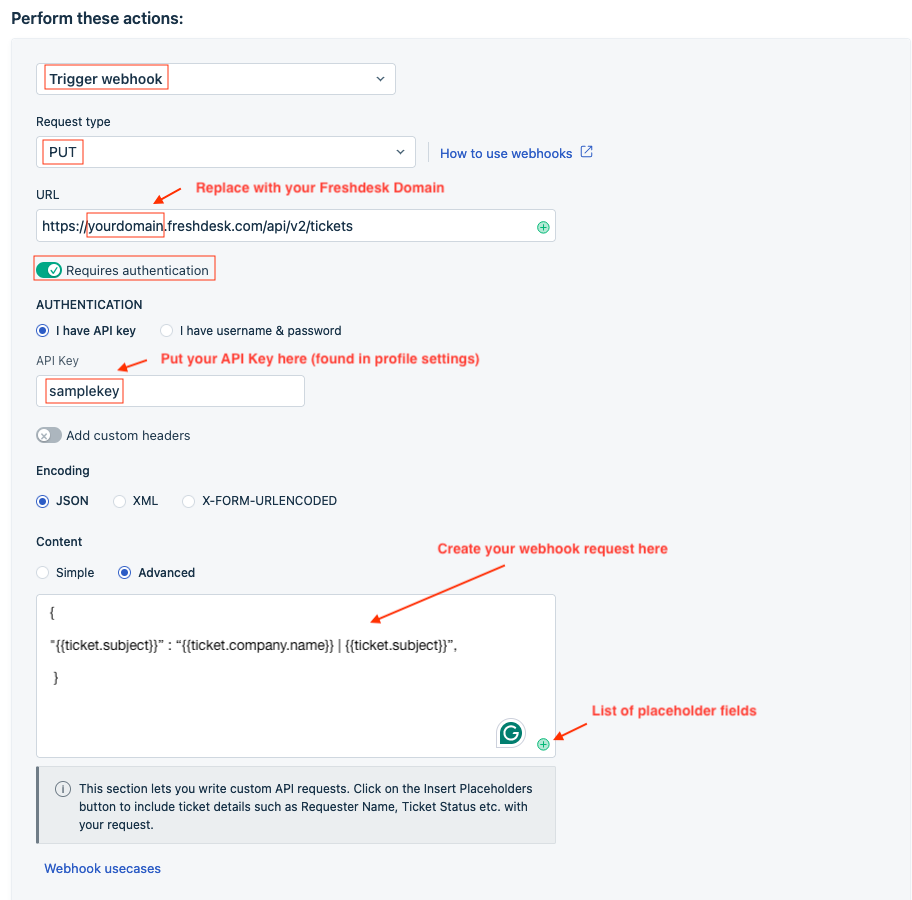 5. Choose the Callback Request Type. Most applications typically follow these standard methods: - GET . If you make a GET call with a webhook, your automation rules won't be able to use the response. Use “Trigger API” action if you would like to use the response. - POST - create new resources. Adding a note is a POST request. - PUT and PATCH - update a resource. - DELETE - delete a resource. 6. Specify your callback URL configured for webhook. You can make the URLs dynamic using placeholders. - For example, to add a note to a ticket, you must specify the ticket. Your callback URL would be https://acme.freshdesk.com/api/v2/tickets/{{ticket.id}}/notes with the placeholder {{ticket.id}}. 7. Toggle Requires authentication and provide your API key. 8. Toggle Add custom headers to convey additional information such as security details, API version details, etc. - A custom header has to be entered as a header-value pair following the specified format X-Sample-CustomHeader1: VALUE. - A header containing more than one value should be separated by delimiters (other than commas and colons). - To add a second header, enter the custom header and value pair in the next line. - The trigger will not be executed if there are spaces in between. If a space is entered at the end of the header, it will be skipped. - Header names are not case-sensitive. They will be handled as such regardless of the custom header name provided. The custom header values will be preserved as is. 9. Create your webhook body in the Content section. - Pick the Encoding of your request that the resource application supports (JSON, XML, or XML-Encoded). The example below is JSON. - Select the Simple Content option to send a list of ticket properties that you want in this webhook. - Select Advanced to write a custom API request. You can make dynamic API requests using placeholders. See Freshdesk API Reference. - You can use requestb.in or postman - REST client (a Google Chrome extension) to test our APIs. - The {{Triggered event}} placeholder is available only in webhooks and returns the name of the event that triggered the rule.
You can use the response in your API and map it to attributes to the ticket, contact and company object. Please refer this document for details on public APIs available.
Here’s an example of using the JS editor to fetch a contact’s unique ID in an external CRM, and using the ID to retrieve the contact’s subscription tier.
Prerequisites
1. Create two ticket custom fields in Freshdesk - cf\_single\_line\_text\_field (single-line or number) — to store the CRM contact ID. - cf\_subscription\_tier (single-line text) — to store the subscription tier returned from the CRM. 2. Have a CRM API credential (API key / bearer token) and the CRM endpoints:
- Contact search by email: GET https://crm.example.com/api/contacts?email={email}
- Contact subscription by ID: GET https://crm.example.com/api/contacts/{id}/subscription
Automation Rule 1 — Find CRM contact ID by email and save it on the ticket
When to run: On ticket creation (or when contact email is added/changed).
Purpose: Query the CRM for the contact with email amy@example.com, extract the CRM id, and store it in cf\_contact\_crm\_id.
Trigger API configuration (example)
(replace template with your automation variable for requester email; for Amy this becomes ...?email=amy@example.com)
- Authorization: Bearer <CRM\_API\_TOKEN>
- Accept: application/json
Example API response (simplified)
```html
```
HTML
JavaScript (Trigger API editor)
This script parses the CRM response and returns a ticket update object that sets the custom field cf\_single\_line\_text\_field
```javascript
```
JavaScript
Automation rule 2- Use stored CRM ID to fetch subscription tier and store i
When to run: After Rule 1 completes (or whenever cf\_single\_line\_text\_field is present/updated).
Purpose: Use the CRM ID saved in cf\_single\_line\_text\_field to call the CRM’s subscription endpoint, extract subscription\_tier, save it to cf\_subscription\_tier, and optionally set ticket priority based on the tier.
Trigger API configuration (example)
(ensure your automation engine substitutes {{ticket.custom\_fields.cf\_contact\_crm\_id}})
- Authorization: Bearer <CRM\_API\_TOKEN> - Accept: application/json
Example API response (simplified)
```html
```
HTML
JavaScript (Trigger API editor) This script extracts the tier, writes it to cf\_subscription\_tier, and maps tiers to Freshdesk
```javascript
```
JavaScript
What this does:
Example 2- JS to update priority based on how far a date field is from present date
```javascript
```
JavaScript
Webhook Callback Request Limits
The number of webhook requests you can use in an hour is limited to 1000 calls. If the status codes are:
Calls requested after the rate limit will be buffered until fresh calls are available after 1 hour.
If a webhook call fails, Account Administrators will receive an email stating the time and reason for failure.
| |
Signup Date: Before December 2025
Applicable Plans
| Freshdesk | Growth, Pro, Enterprise |
| Freshdesk Omni (formerly CSS) | Growth, Pro, Enterprise |
| Omnichannel | Growth, Pro, Enterprise |
| Freshdesk (previous plans) | Blossom, Garden, Estate, Forest |
| Omnichannel (previous plans) | Estate, Forest |
About Webhook calls
A webhook is a 'callback' to an application or web service that is automatically triggered in response to a specified event. In Freshdesk, a webhook lets you make an API call as part of an automation action. Webhooks use the Agent API, so they are treated as an agent performing an update.
For example, let's say you need to update a contact with their most recent satisfaction survey result. You can achieve this by:
Webhooks in automations that run on ticket creation
When tickets are created, you may want to automatically update certain properties or create records in an internal CRM, among other actions. You can use webhooks within automations that run on ticket creation to make those changes automatically.
Webhooks can update properties that aren't available as standard options within automation rules. For example, you can update the ticket subject or the contact property.
Webhooks in automations that run on ticket updates
Using automation rules that run on ticket updates, you can update, modify, send notifications, and run actions within Freshdesk. For example, you can update a ticket's priority, send escalation emails, and more.
Webhooks also come in handy when you want to trigger an action in an external application or tool (as well as some updates that the automation rule can't perform, such as updating the time entry on a ticket or adding a note to a ticket). Here are some examples of scenarios in which you could use webhooks:
| Example scenario | Conditions to look for | What the webhook should call |
| Send out an SMS when a customer replies to a ticket | Customer replies to ticket (or adds comment) | Send comment content to third-party SMS tool |
| Update inventory when a Product Return request is updated | Ticket category (a custom field) is updated to 'Product Return' | Update product info in store inventory |
| Sync status for Feature Requests with internal Product Management tool | Status is updated for tickets of type 'Feature Request' | Update product management tool with ticket information |
| Sound the alarm when a Bad Customer Satisfaction rating is received | Customer feedback is received, and the rating is 'Not Good' | Customize a Smart Bulb and a siren soundboard to fire up triggered by this webhook |
About the Trigger API action
``` Note: Trigger API is applicable from Pro/Estate plan onwards. ```
Use this when the API response is needed for subsequent actions or if you need to run JavaScript functions on ticket fields. eg) GET details of the customer’s subscription plan from a CRM. eg2) Dynamically calculate the distance between a ticket field and the present date. Use the Trigger API action when you get data from an external system and apply that information to triage or update ticket properties in Freshdesk.
With the JavaScript editor, you can transform and act on the API response before it updates the ticket. Common examples-
Both the Trigger APi action and the Trigger Webhook action use the Agent API, so they are treated as an agent performing an update
Set up a webhook request in an automation rule
1. Navigate: - In Freshdesk: Admin > Workflows > Automations - In Freshdesk Omni: Admin Settings > Configuration and Workflows > Ticket Automations 2. Choose the Ticket Creation or Ticket Updates tab and click New Rule. 3. Name your rule and set up your triggers and conditions. See Automation Examples: Using Webhooks. 4. Under Perform these actions, select the Trigger Webhook option.
 5. Choose the Callback Request Type. Most applications typically follow these standard methods: - GET - retrieve one or all resources. See the warning below. - POST - create new resources. Adding a note is a POST request. - PUT and PATCH - update a resource. - DELETE - delete a resource. 6. Specify your callback URL configured for webhook. You can make the URLs dynamic using placeholders. - For example, to add a note to a ticket, you must specify the ticket. Your callback URL would be https://acme.freshdesk.com/api/v2/tickets/{{ticket.id}}/notes with the placeholder {{ticket.id}}. 7. Toggle Requires authentication and provide your API key. 8. Toggle Add custom headers to convey additional information such as security details, API version details, etc. - A custom header has to be entered as a header-value pair following the specified format X-Sample-CustomHeader1: VALUE. - A header containing more than one value should be separated by delimiters (other than commas and colons). - To add a second header, enter the custom header and value pair in the next line. - The trigger will not be executed if there are spaces in between. If a space is entered at the end of the header, it will be skipped. - Header names are not case-sensitive. They will be handled as such regardless of the custom header name provided. The custom header values will be preserved as is. 9. Create your webhook body in the Content section. - Pick the Encoding of your request that the resource application supports (JSON, XML, or XML-Encoded). The example below is JSON. - Select the Simple Content option to send a list of ticket properties that you want in this webhook. - Select Advanced to write a custom API request. You can make dynamic API requests using placeholders. See Freshdesk API Reference. - You can use requestb.in or postman - REST client (a Google Chrome extension) to test our APIs. - The {{Triggered event}} placeholder is available only in webhooks and returns the name of the event that triggered the rule.
``` Warning: Webhooks run asynchronously to automations. If you make a GET call with a webhook, your automation rules won't be able to use the response. ```
Webhook Callback Request Limits
The number of webhook requests you can use in an hour is limited to 1000 calls. If the status codes are:
Calls requested after the rate limit will be buffered until fresh calls are available after 1 hour.
If a webhook call fails, Account Administrators will receive an email stating the time and reason for failure.