Last updated: 2026-05-14
Source: https://support.freshdesk.com/support/solutions/articles/50000002804-configure-advanced-ticket-scope
Configure advanced ticket scope
Advanced ticket scope helps administrators control ticket visibility for agents and collaborators in Freshdesk. You can configure whether users can access all tickets, only tickets assigned to them, or only tickets within selected groups.
Prerequisites:
Before you configure ticket scope for agents and collaborators, ensure that:
About ticket scope
Advanced ticket scope allows administrators to control how agents and collaborators access tickets in Freshdesk. The feature helps you manage visibility across teams while ensuring that the agents and collaborators can access only the tickets relevant to their responsibilities.
Using ticket scoping, administrators can configure ticket visibility to:
Understanding ticket scope
Ticket visibility is controlled through predefined scope options. The options are:
| All tickets | Agents and collaborators can view and edit all tickets across Freshdesk. |
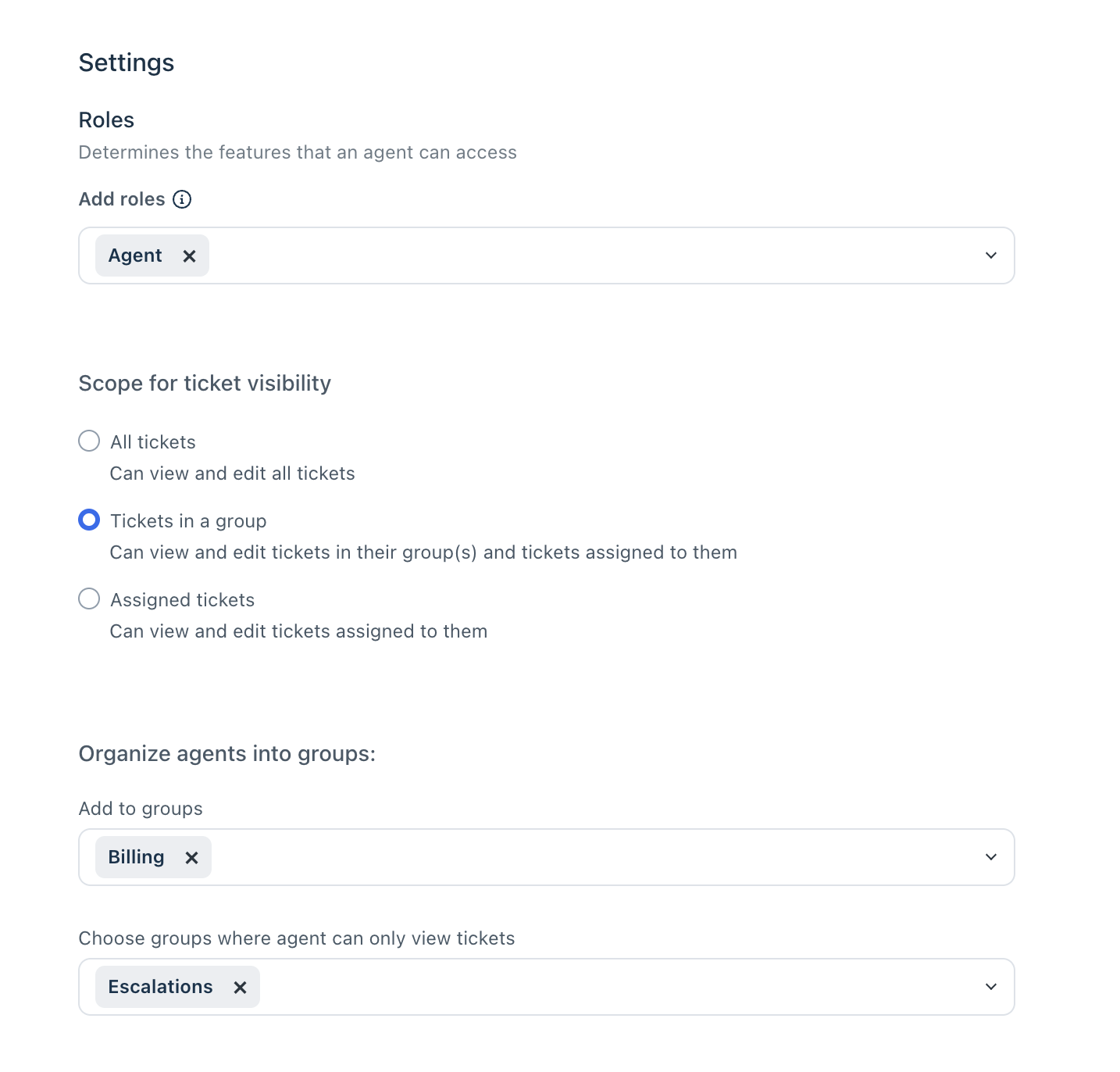
| Tickets in a group | Agents and collaborators can view tickets assigned to their groups, as well as tickets directly assigned to them. When group-based visibility is configured, administrators can additionally define:<br>- Groups where agents and collaborators can view and edit tickets<br>- Groups where agents and collaborators can only view tickets |
| Assigned tickets | Agents and collaborators can only access tickets directly assigned to them, tickets they are tagged on, or tickets they have secondary ownership of. |
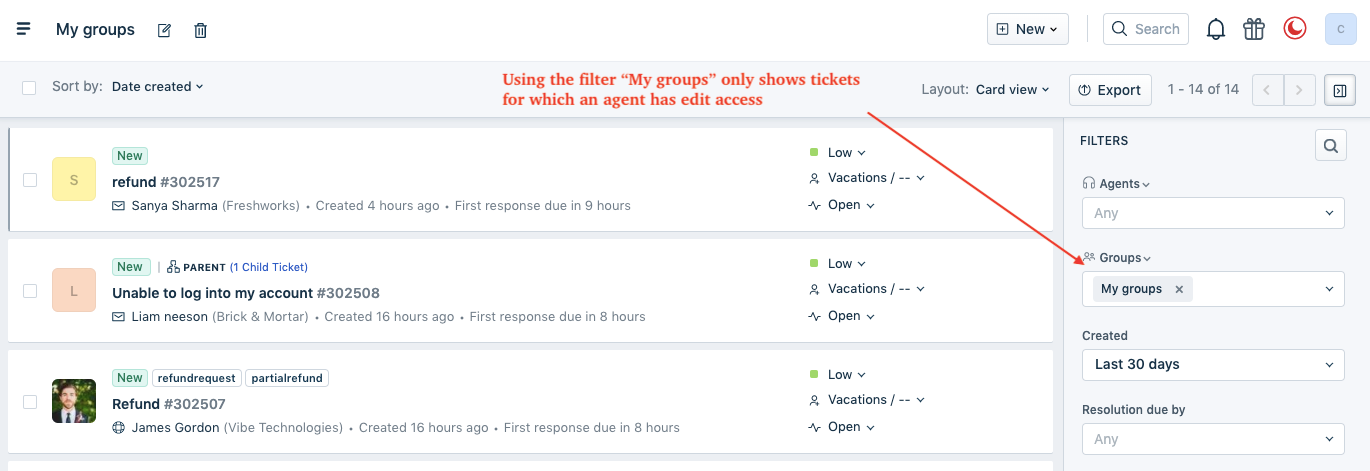
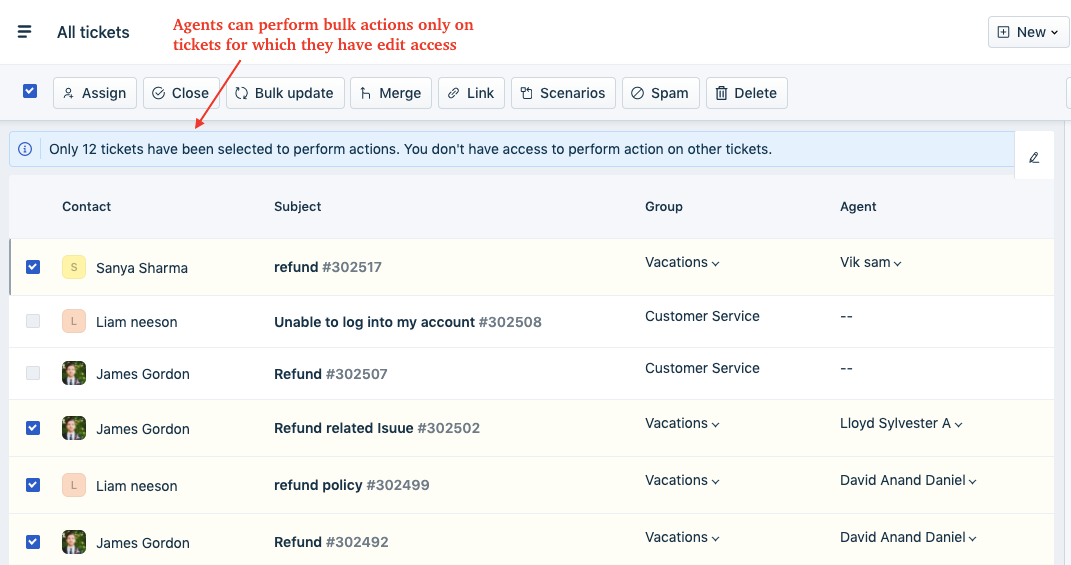
The following actions are available when agents/collaborators have only view access to tickets assigned to certain groups:
``` Note: When agents and collaborators have view-only access, they can open tickets in read-only mode and perform limited actions based on their assigned role permissions. ```
Configure advanced ticket scope
To configure the advanced ticket scope for agents or collaborators, follow these steps:
1. Go to Admin > Agents. 2. Click the Support Agent or Collaborator tab 3. Select the required agent or collaborator and click the Edit icon. 4. Under Scope for ticket visibility, select one of the following options: - All tickets - Tickets in a group - Assigned tickets 5. If you select Tickets in a group, configure the following settings: 1. Under Add to groups, select the groups where the collaborator can view and edit tickets. 2. Under Choose groups where agent/collaborator can only view tickets, select the required view-only groups.
Click Save.
Example: when agents and collaborators have both editable and view-only access across groups
The following example explains how ticket visibility and actions work when an agent or collaborator has edit access to one group and view-only access to another group.
Assume there are two groups, Vacations and Customer Service, where the user has edit access to Vacations and view-only access to Customer Service.
In this scenario, the visibility and access to tickets vary as follows: