Last updated: 2026-04-14
Overview
Field validations allow administrators to define rules on Service Item fields in the Freshservice Service Catalog, ensuring that users enter accurate, complete, and correctly formatted data before a request is submitted.
When a user fills out a Service Request — whether on the portal or via an agent — field validations check the input against the configured rules when the form is submitted. If the input does not meet the defined criteria, the field is highlighted and an inline error message is displayed, prompting the user to correct it before proceeding.
By configuring field validations, administrators can enforce data standards, reduce errors, and ensure that service requests are processed without downstream failures.
Benefits of field validations
Types of field validations
Freshservice supports two types of field validations for Service Item fields — Regex validation and Custom validation. The right type depends on what you want to validate.
| Validation type | Best used for |
| Regex validation | Enforcing a specific pattern or format on a single field (for example, phone number, email, IP address) |
| Custom validation | Cross-field logic using expressions and placeholders (for example, End Date must be after Start Date) |
Regex validation
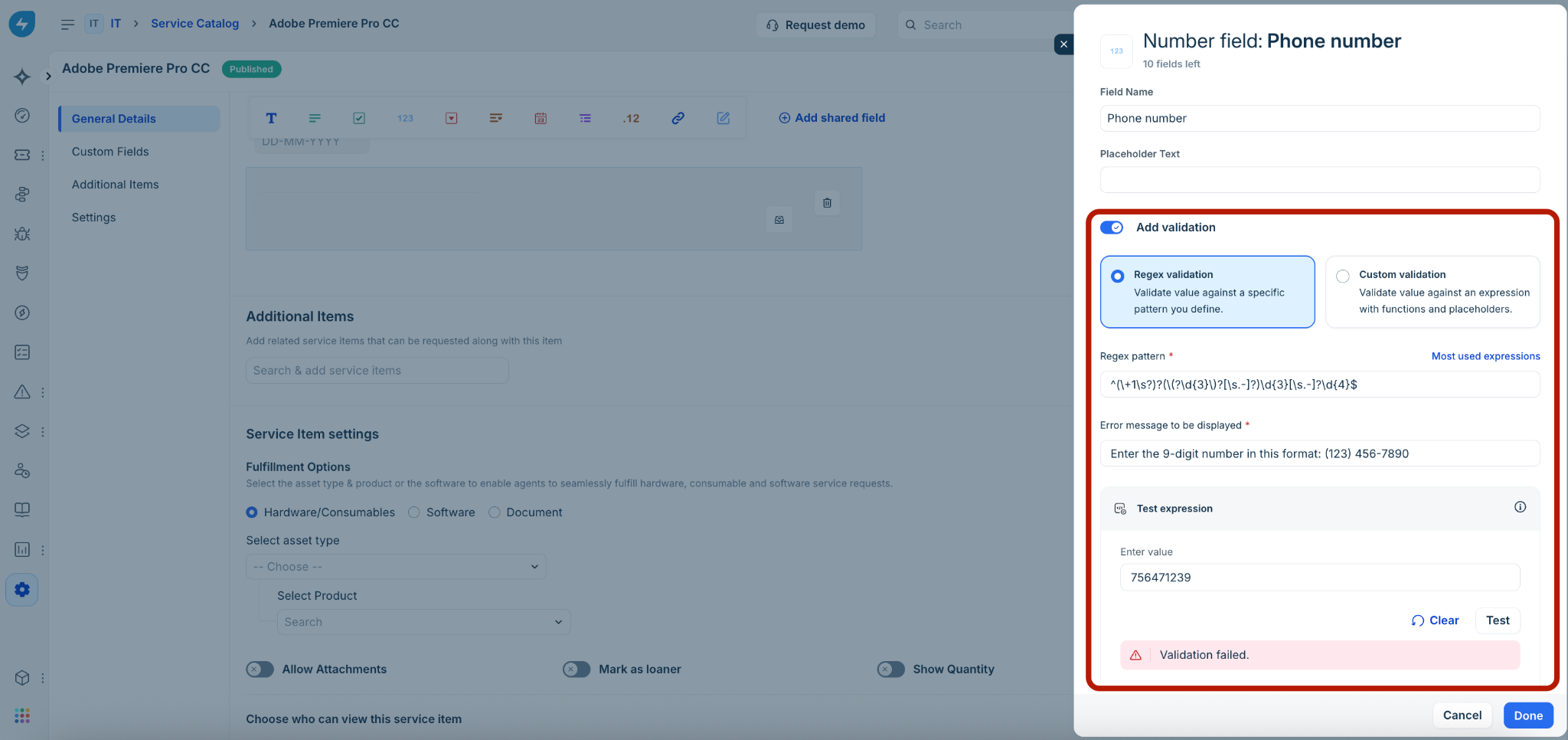
Regex validation lets administrators enforce specific patterns or formats for data entered in a field using regular expressions. It is supported for both custom fields within a Service Item and shared fields.
How to configure
To set up a regex validation, open any existing field within a Service Item or add a new field. Toggle on Add validation to start building the rule.
Key capabilities
How it appears to users
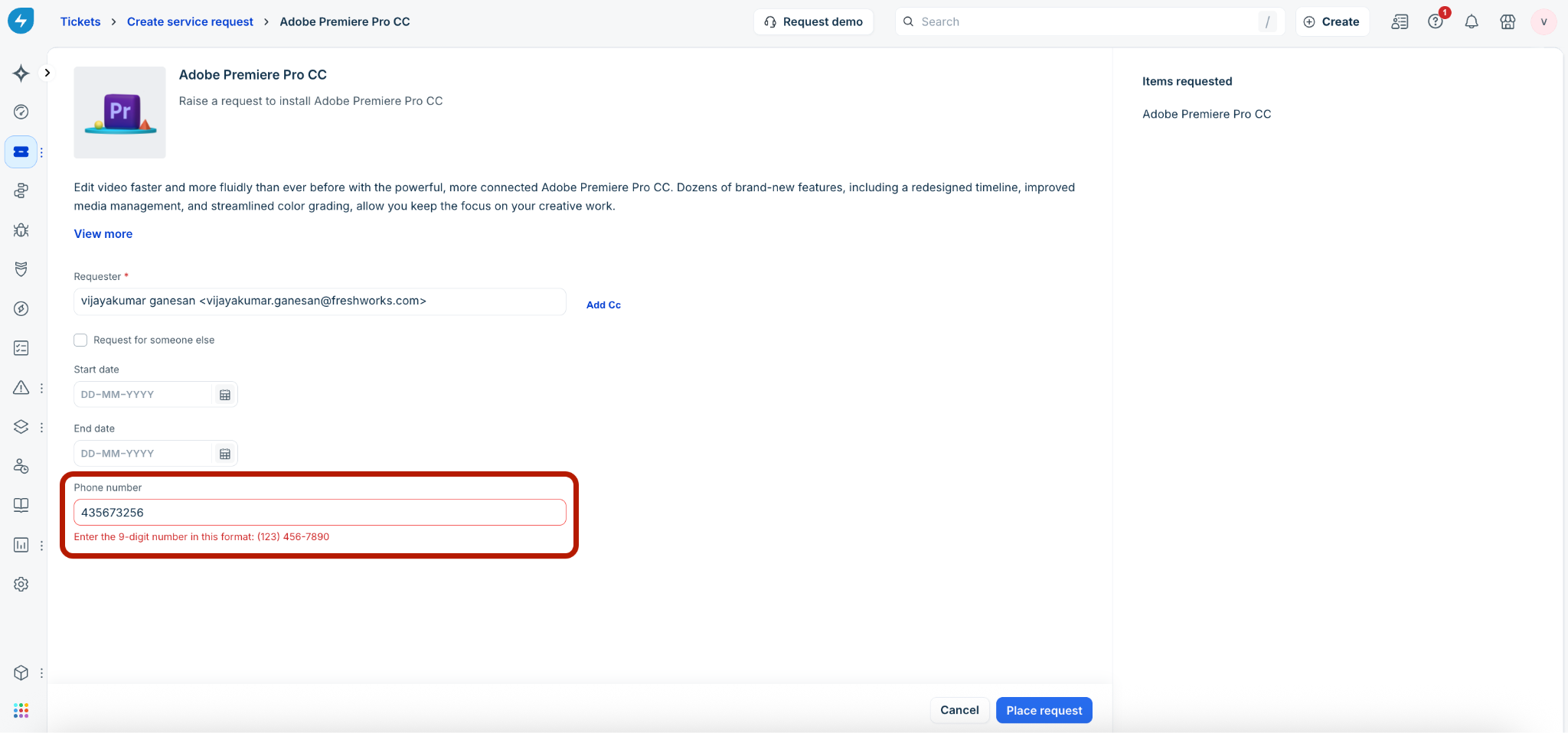
Once configured, the validation is enforced when the user submits the form. The field is highlighted in red and the custom error message is displayed if the input does not match the pattern.
Agent–Create service request
Requester–Request new service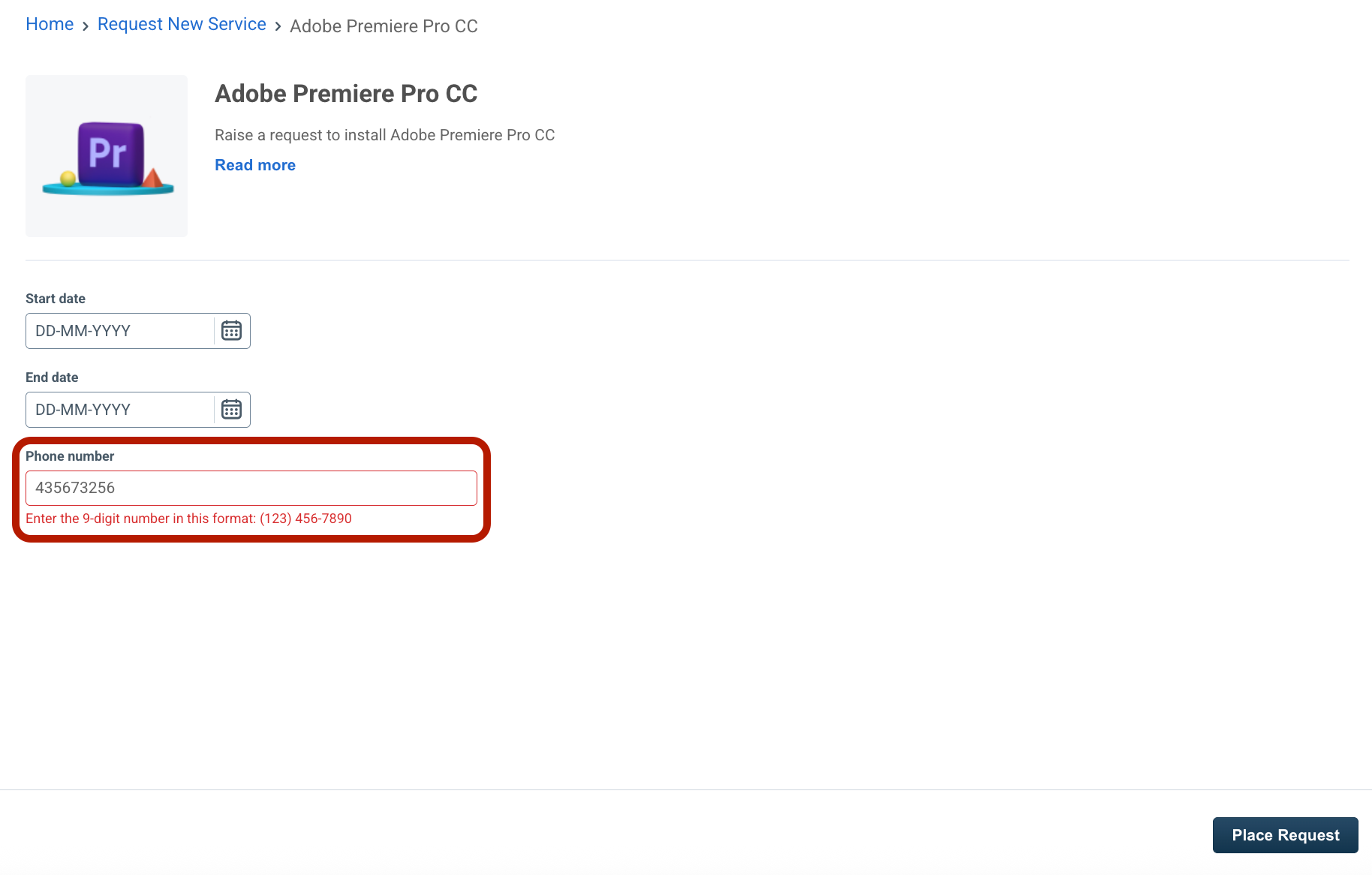
Custom validation
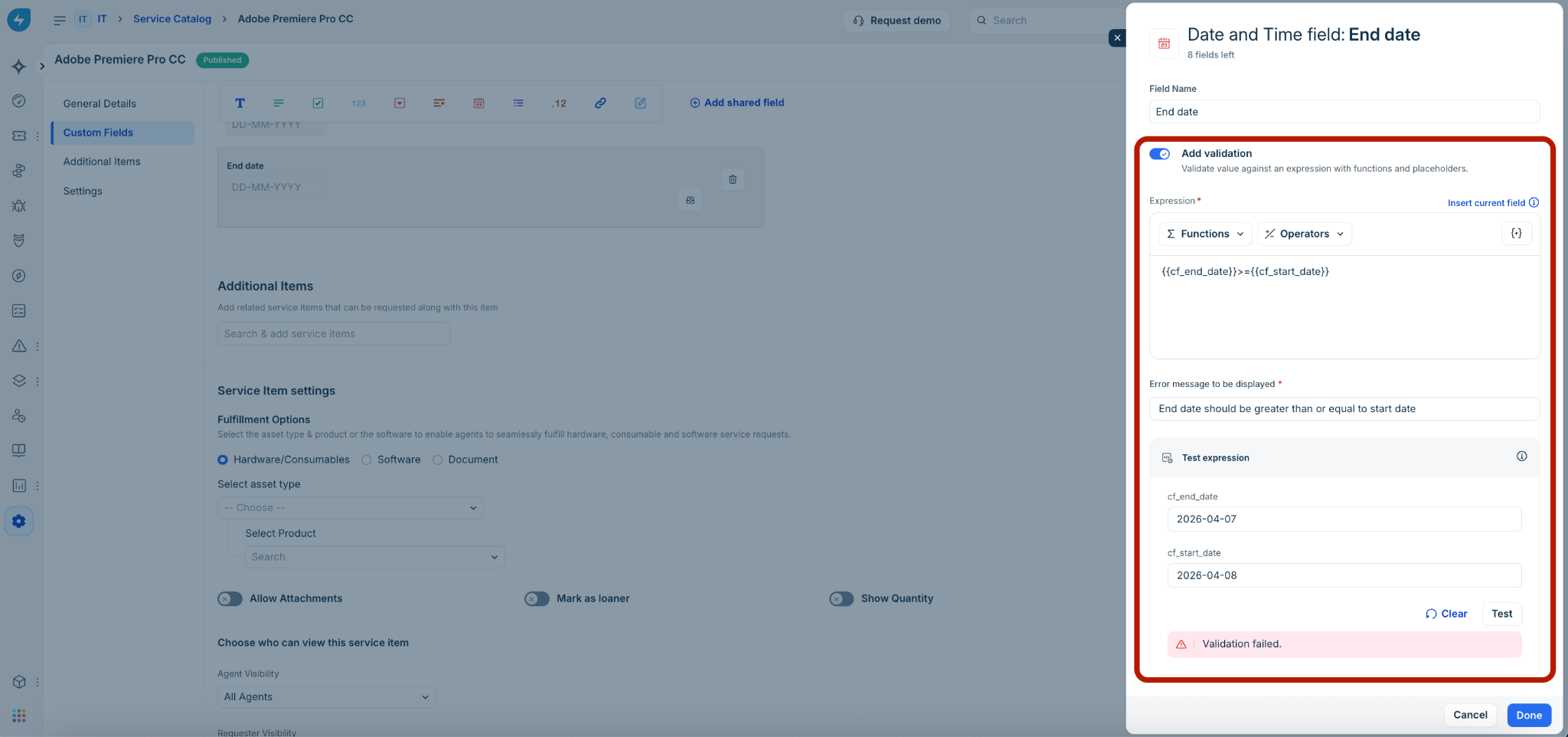
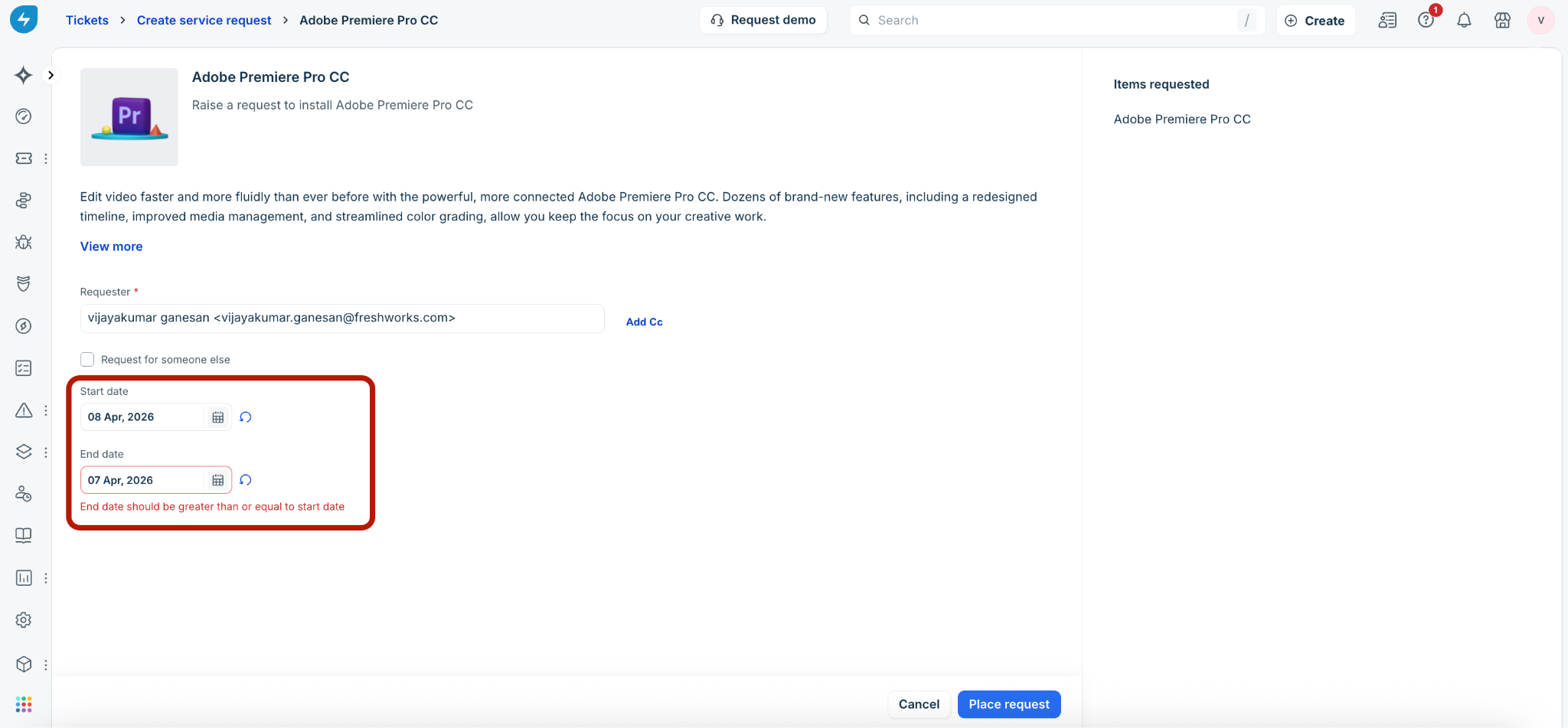
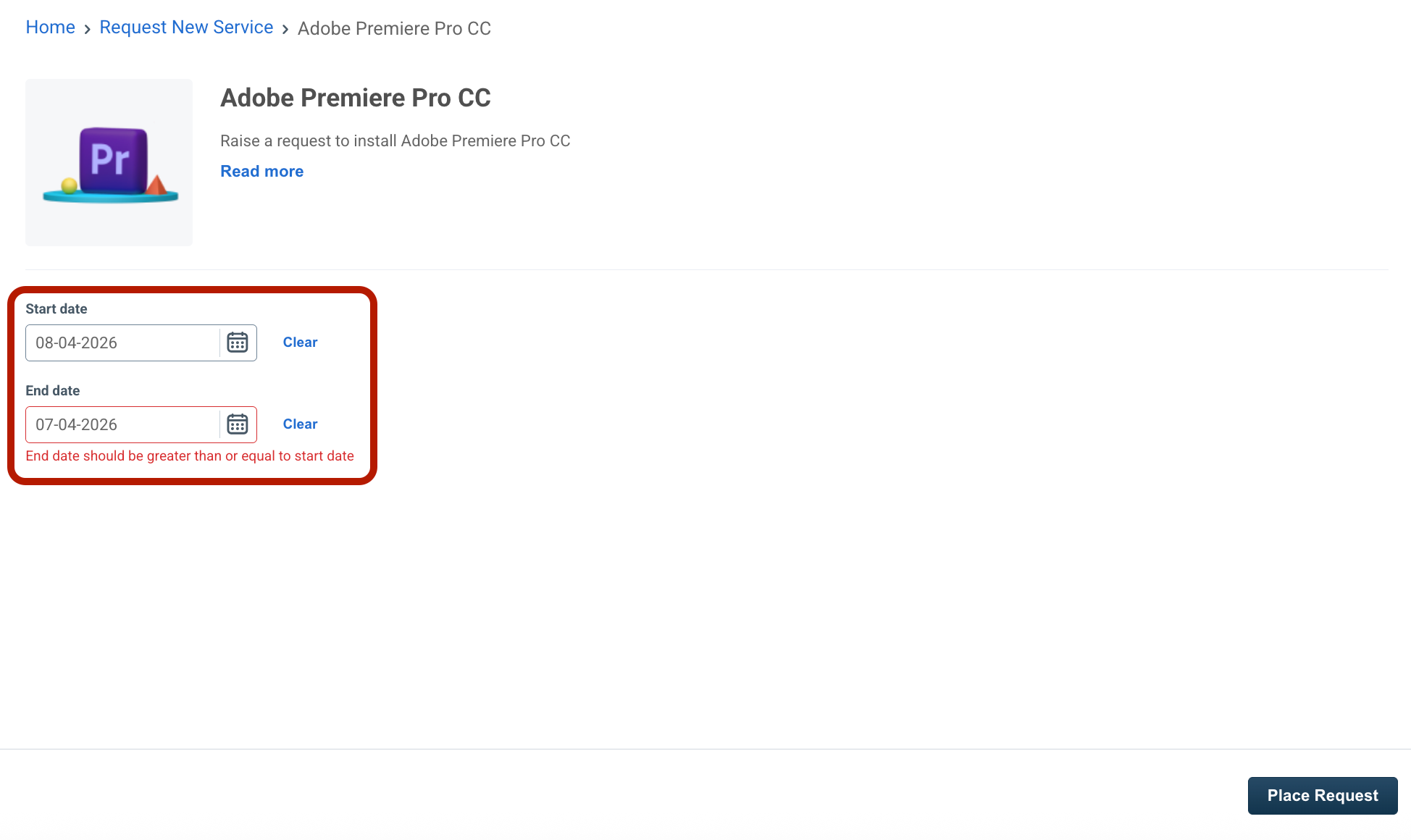
Custom validation lets administrators build expression-based rules that compare or evaluate data across multiple fields in the same Service Item form. This is useful for cross-field logic — for example, ensuring that an End Date is always after a Start Date.
Custom validations are supported only for custom fields within a Service Item and are not available for shared fields.
How to configure
Open the field you want to validate within a Service Item and toggle on Add validation. Use the expression builder to construct your rule using functions, operators, and placeholder fields.
Key capabilities
_Note:_
How it appears to users
Agent–Create service request
Requester–Request new service
Supported field types
Field validations are supported for select field types within Service Items. The supported validation type — Regex, Custom, or both — depends on the nature of the field.
_Note:_ _A maximum of 15 custom fields per Service Item can have validation rules configured. Additionally, validation rules can be configured for up to 10 shared fields__._
Supported custom fields
| Custom field type | Regex validation | Custom validation |
| Single line text | Yes | Yes |
| Number | Yes | Yes |
| Decimal | Yes | Yes |
| Date | No | Yes |
| URL | Yes | Yes |
| Checkbox | No | Yes |
Supported shared fields
Only Regex validation is supported for shared fields. Custom validations cannot be configured directly on shared fields — however, a shared field can be referenced as a placeholder in a custom validation expression within a Service Item.
| Shared field type | Regex validation |
| Single line text | Yes |
| Number | Yes |
| Decimal | Yes |
| URL | Yes |
_Note_ _:__Validation rules configured on a shared field automatically apply to all Service Items that use that field and cannot be overridden at the individual Service Item level._
How field validations are enforced
Understanding when and how validations are triggered helps administrators configure rules with confidence and set the right expectations for agents and requesters.
Trigger and user interface (UI) behavior
Dependencies and placeholder behavior
API and integration enforcement
Field validations are not limited to the Freshservice UI — they are enforced consistently across APIs and backend.
Any data created or updated via REST APIs, integrations, imports, or scripts must comply with the same validation rules configured on the fields. This ensures data integrity regardless of how a service request is submitted or updated.
Limitations
The following limitations apply to field validations in the Service Catalog. Admins should account for these when designing validation rules for their Service Items.
| Limitation | Details |
| Field limit | Validations can be configured for a maximum of 15 custom fields per Service Item and up to 10 shared fields. |
| Placeholder limit | A single custom validation expression can reference a maximum of 10 placeholder fields. |
| Legacy modules | Validations are not enforced in the legacy employee onboarding and offboarding modules. |
| Employee Journeys | When a Service Item is included in a Journey form, field validations configured for that Service Item are skipped. |
| Conversational bots | If any eligible field in a Service Item has a validation rule configured — including rules inherited from a shared field — the Service Item is treated as a complex form and is not supported in conversational request creation flows. This applies to Slack, MS Teams, and Portal bots. |
Administrative guidance
The following details cover system behavior and best practices admins should be aware of when configuring and managing field validations.
Deletion and archival of placeholder fields
If you attempt to delete or archive a field that is currently used as a placeholder in another field's validation expression, the system will block the action and display a message identifying the affected fields.
Validation expression integrity
The system validates that every saved expression produces a Boolean (True/False) output. If an expression does not evaluate to a Boolean, it cannot be saved. This prevents misconfigured rules from being applied to live forms.
Orphaned placeholders
If a shared field that is used as a placeholder in a Service Item's custom validation expression is deleted at the catalog level, the system flags the error in the Service Item field manager. Further saves are blocked until the expression is updated to remove or replace the deleted field.
Audit logs
All changes to validation rules are captured in audit logs, including:
This applies to both custom fields and shared fields.
Sandbox
Field validations are available in the Sandbox environment for both custom fields and shared fields, allowing admins to test and validate rules before deploying them to production.