Last updated: 2026-05-18
Freshservice integration with the Credit Card and Social Security Number Masker app enables IT teams to protect sensitive data by setting up rules for masking the Credit Card and Social Security numbers mentioned in the subject, description, and private/public notes of your Freshservice tickets. The app masks all digits of a credit card or social security number with ‘X’ except the last four digits.
Additionally, this app has the capability to identify and mask any data that resembles a credit card or social security number.
Prerequisites for integration
Ensure you have the following, as part of the prerequisites for integration:
Install the app
To install the app:
1. Go to Admin > Automation & Productivity > Extensibility > Apps.
2. Or, click the Marketplace Apps icon on the top-right corner, and select Marketplace Apps.
3. Search and select the Credit Card and Social Security Number Masker app using the Search apps option.

4. Click Install on the installation page. The Configuration page opens.
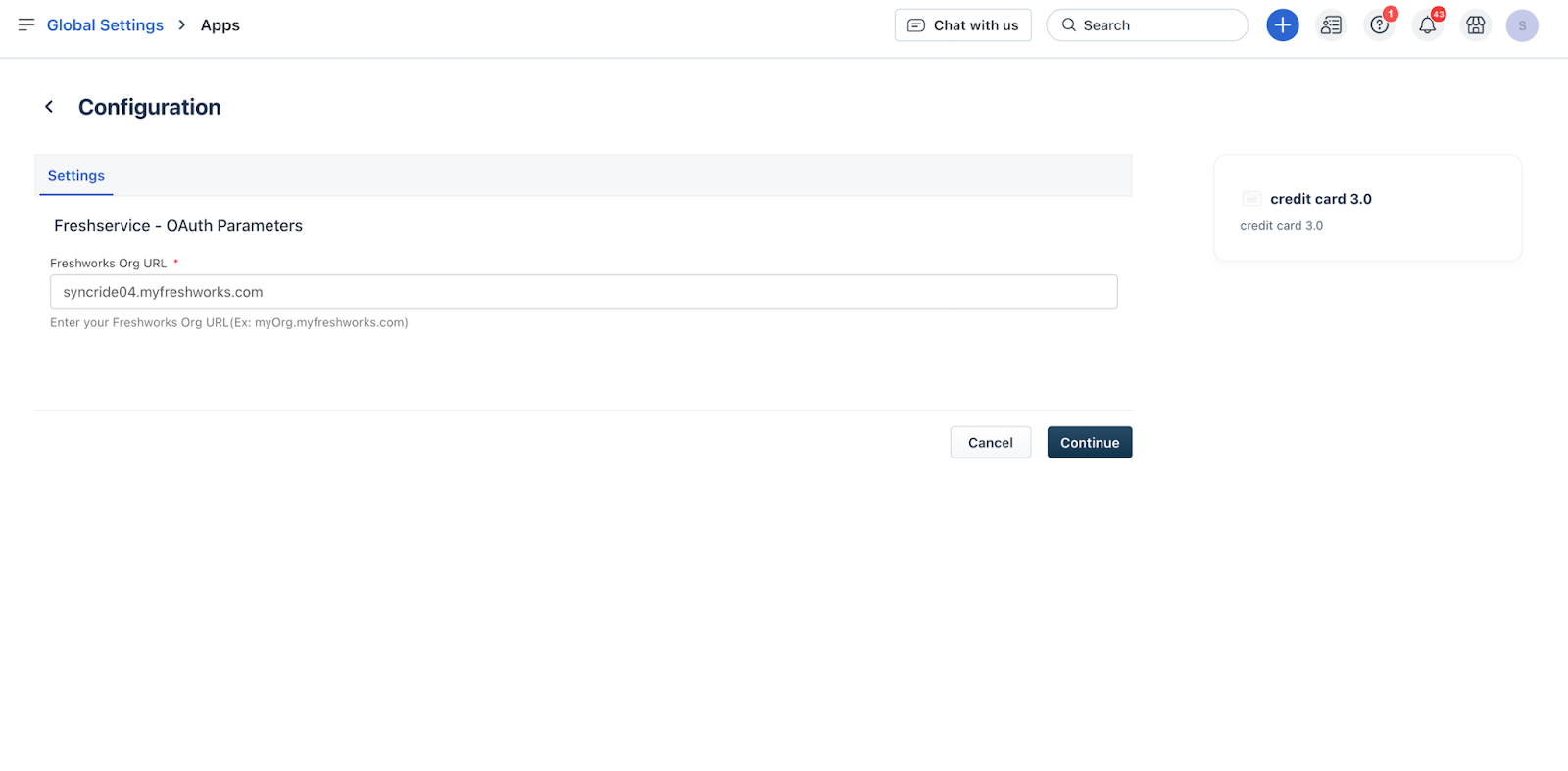
5. Enter the relevant organization URL details in the Freshworks Org URL field, and click Continue.
6. After your Freshworks Org URL is validated, select the account for which you want to install this app and click Continue (for example, your Freshservice account).
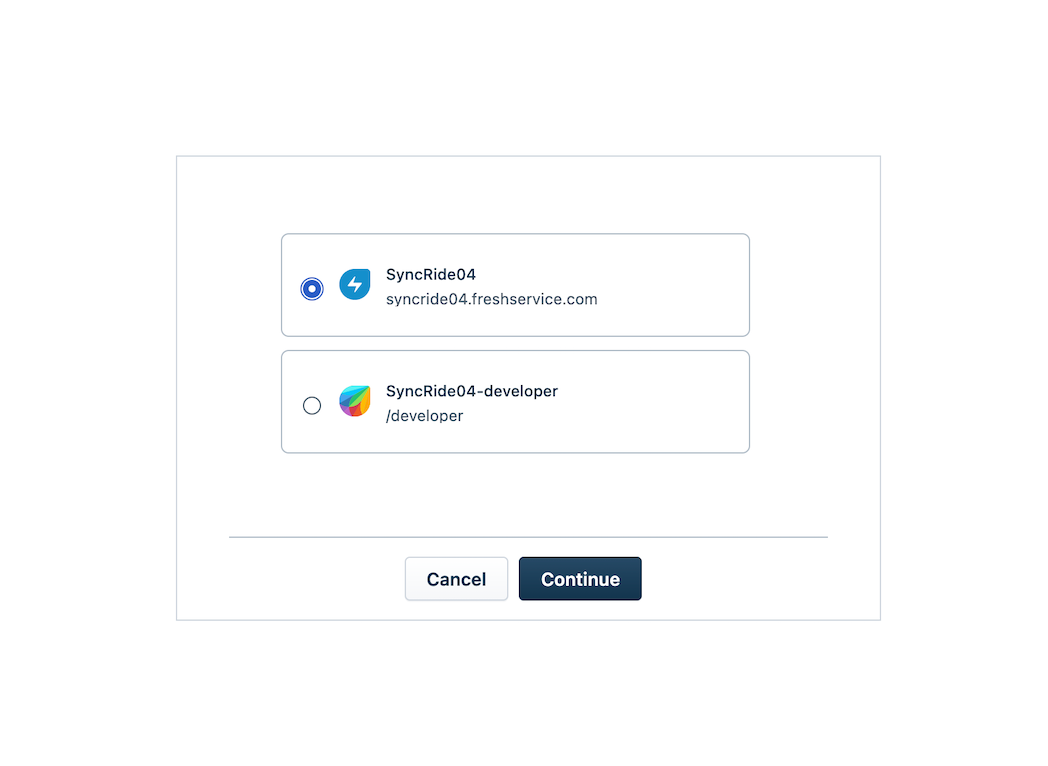
_Note:__You may also find an option to select a developer account, which is not applicable for installing this app._
7. Review the Authorization page and click Agree.
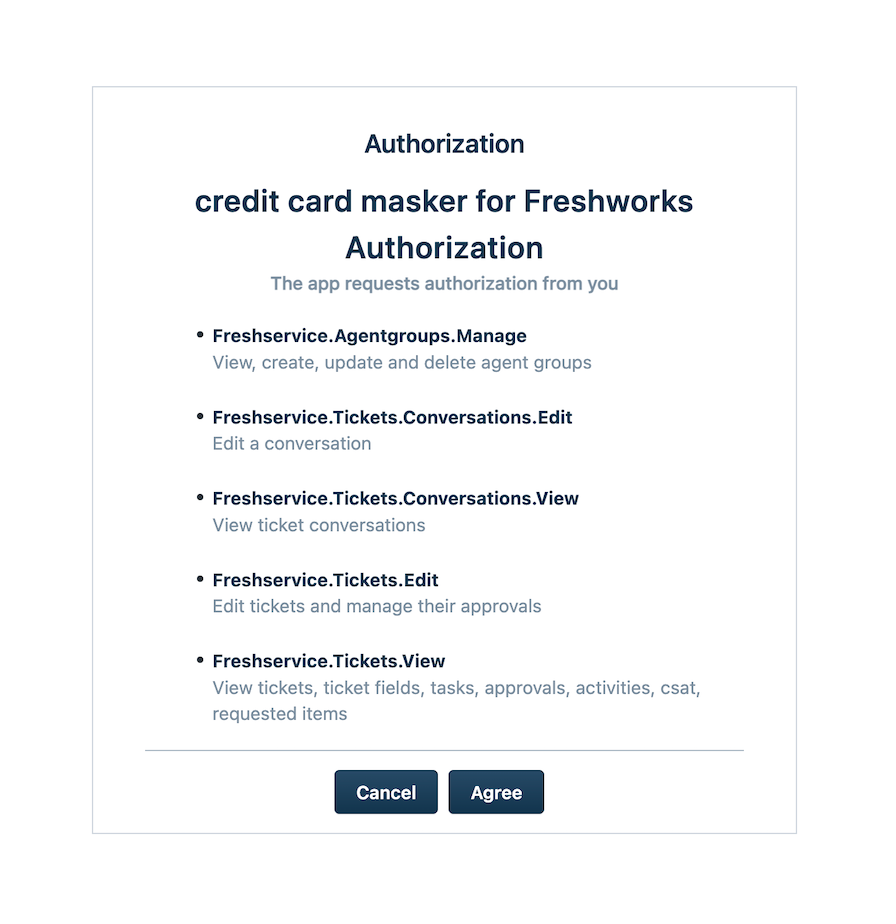
The Mask credit card and social security numbers page opens.
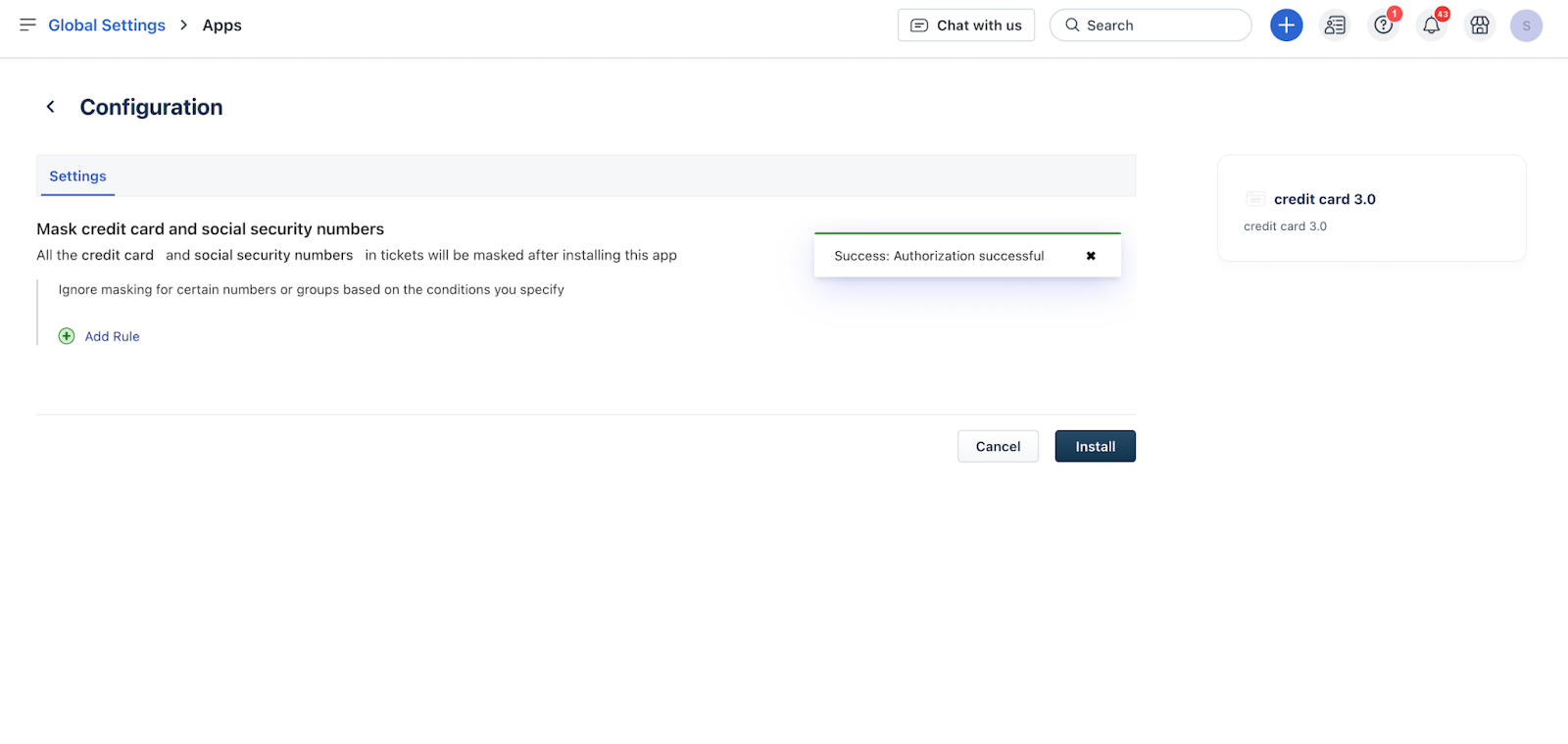
8. Add rules to ignore masking for certain numbers or groups based on specific conditions using the Add Rule option. See Add rules to exclude masking section for more information.
9. Click Install.
Add rules to exclude masking
The Credit Card and Social Security Number Masker app also provides options to set rules that exclude masking and expose credit card or social security numbers based on specific conditions, such as setting up rules applicable for:
To add rules that should exclude masking of credit card and social security numbers:
1. (To add rules during installation of the app) Click Add Rule on the Mask credit card and social security numbers configuration page. See Install the app section for information on the installation steps.
2. (To add rules after installation of the app) Go to Admin > Automation & Productivity > Extensibility > Apps.
3. Or, click the Marketplace Apps icon on the top-right corner, and select Marketplace Apps.
4. Click Manage Apps on the apps page.
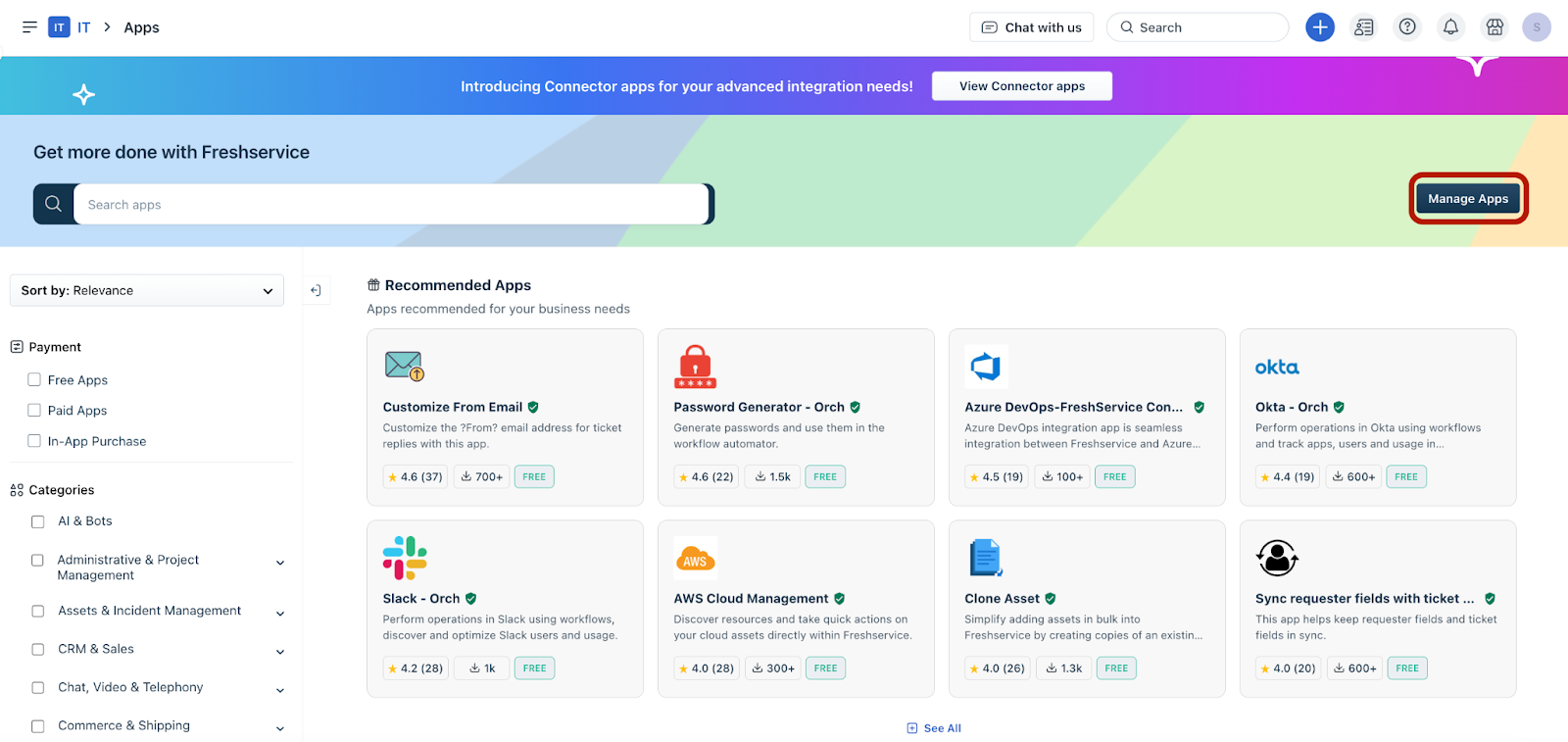
5. Under the Installed Apps section, click the Settings dropdown next to the Credit Card app.
6. Then, click Edit settings.
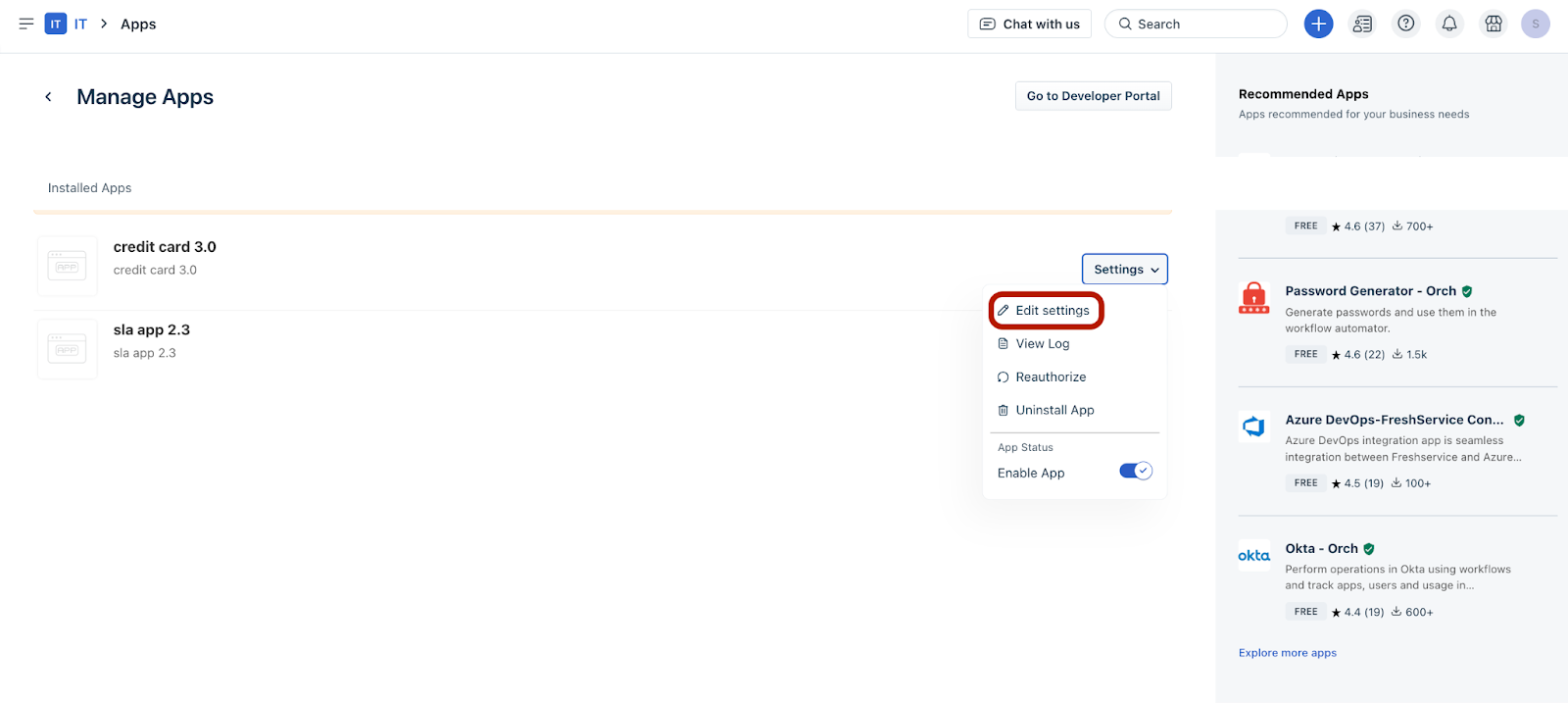
The Mask credit card and social security numbers configuration page opens.
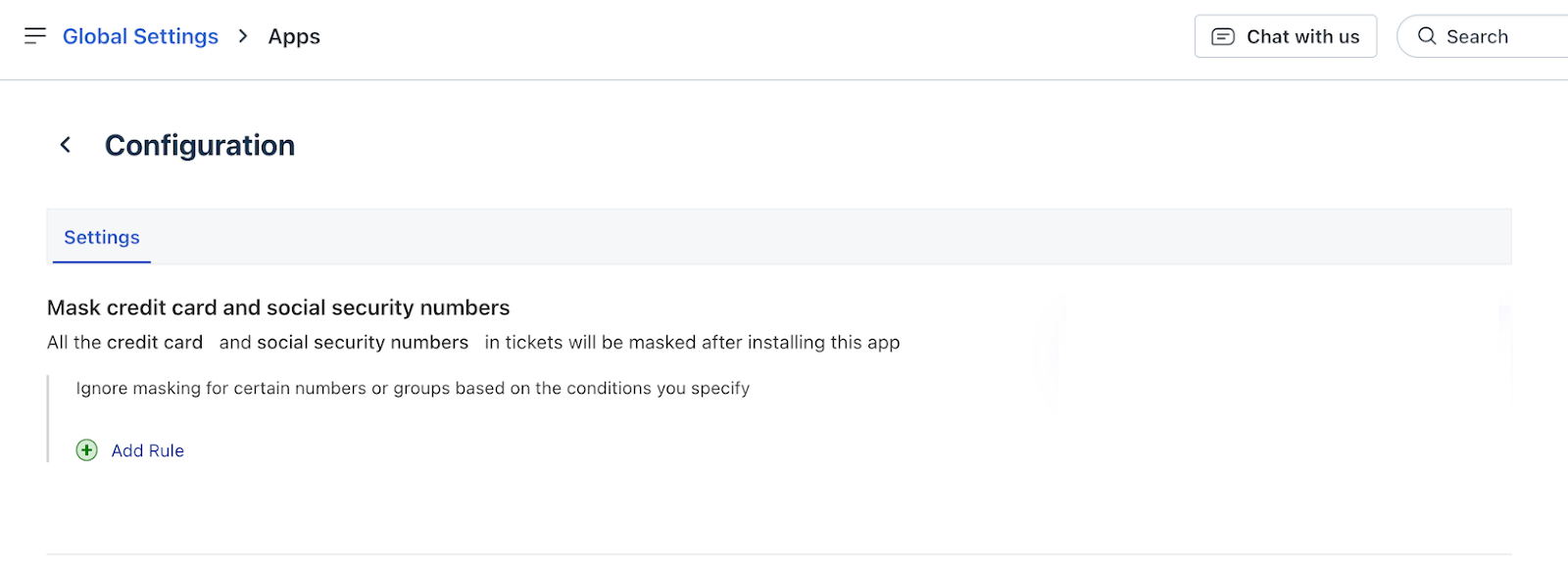
7. Click Add Rule. The Workspace is field is shown.
8. Select the workspace for which you want to add rules (for example, IT).
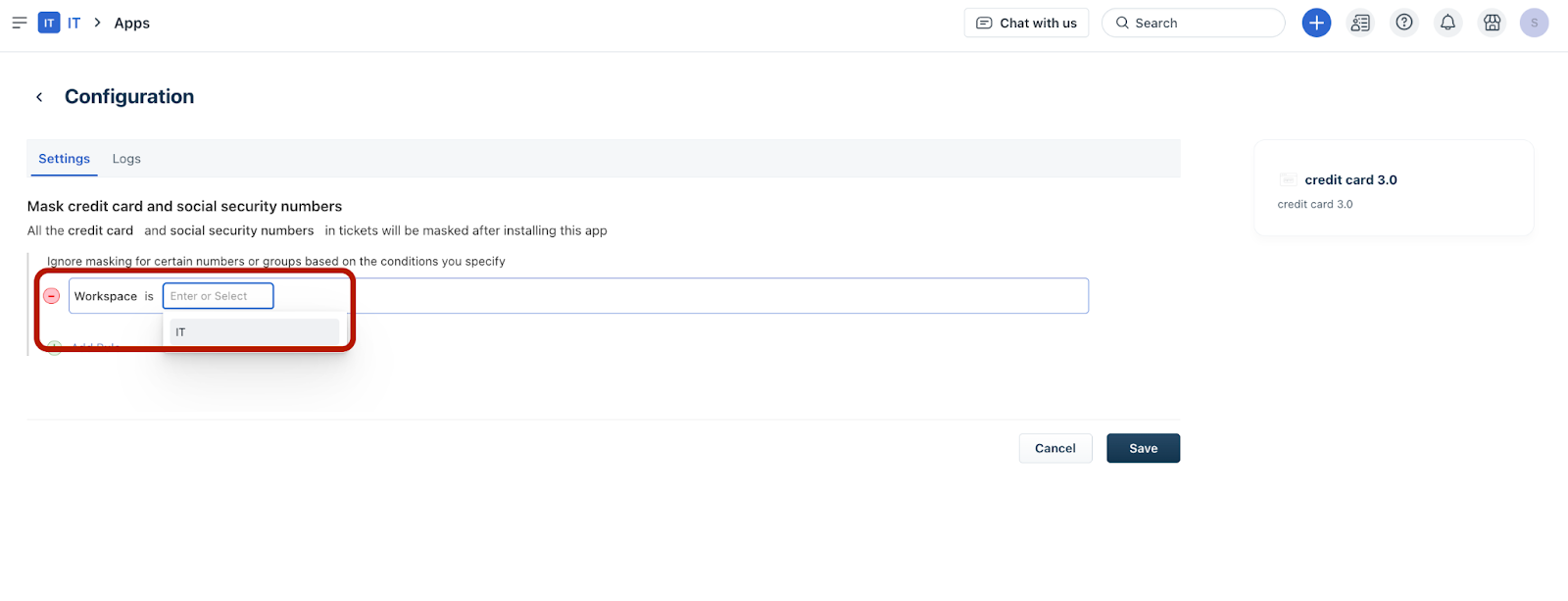
_Note:_ _After you select a workspace, an empty field is added below the Workspace is__field._
9. Click the empty field to view the available options.
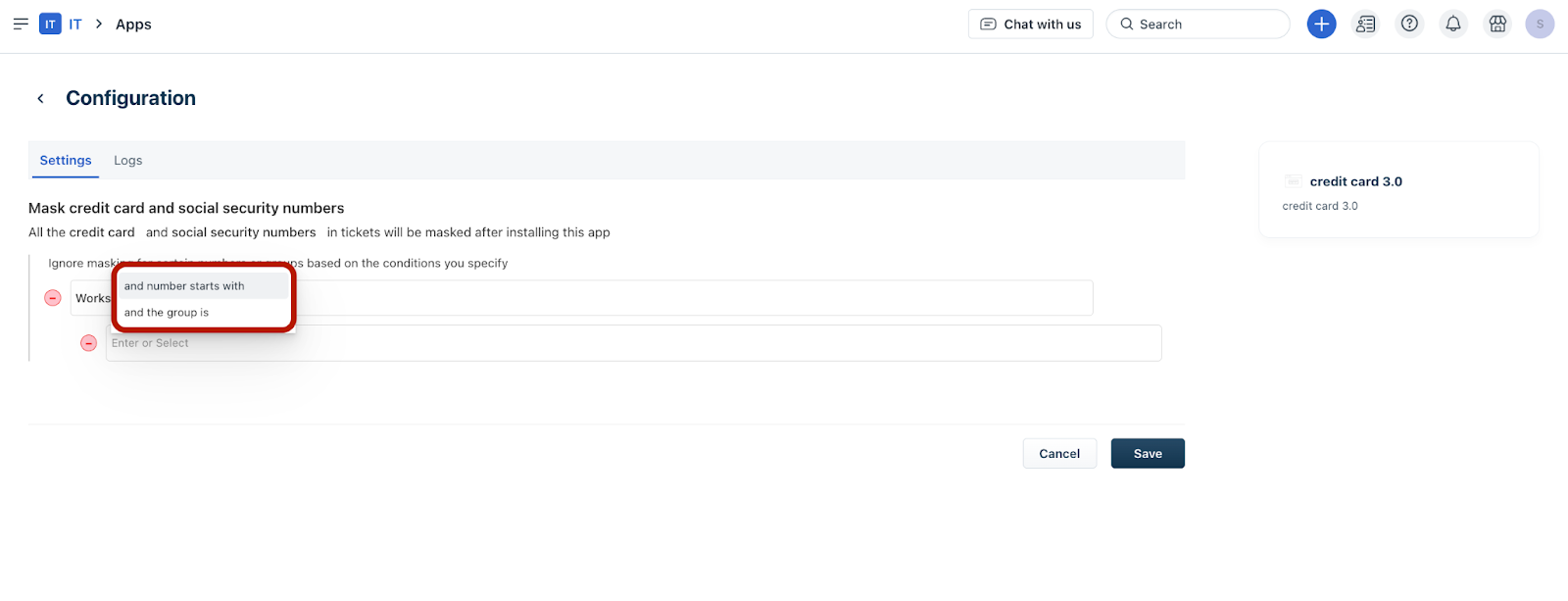
10. Then, select a relevant option (for example, and number starts with).
11. Enter the first four digits of credit card or social security numbers, which you want to exclude for masking. For example, if you’ve entered 1234 in this field, then all the credit card or social security numbers starting with 1234 will be excluded for masking.
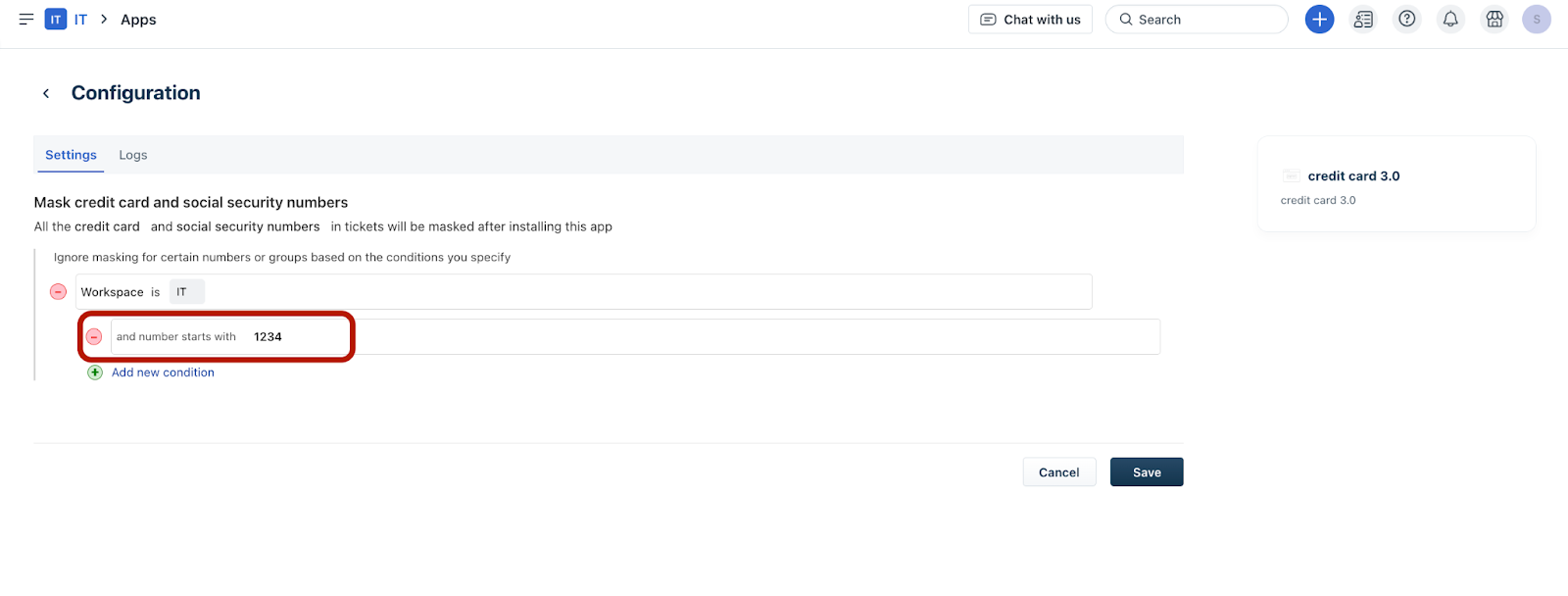
12. Click Add new condition if you want to add another condition.
13. Then, select a relevant option (for example, and the group is).
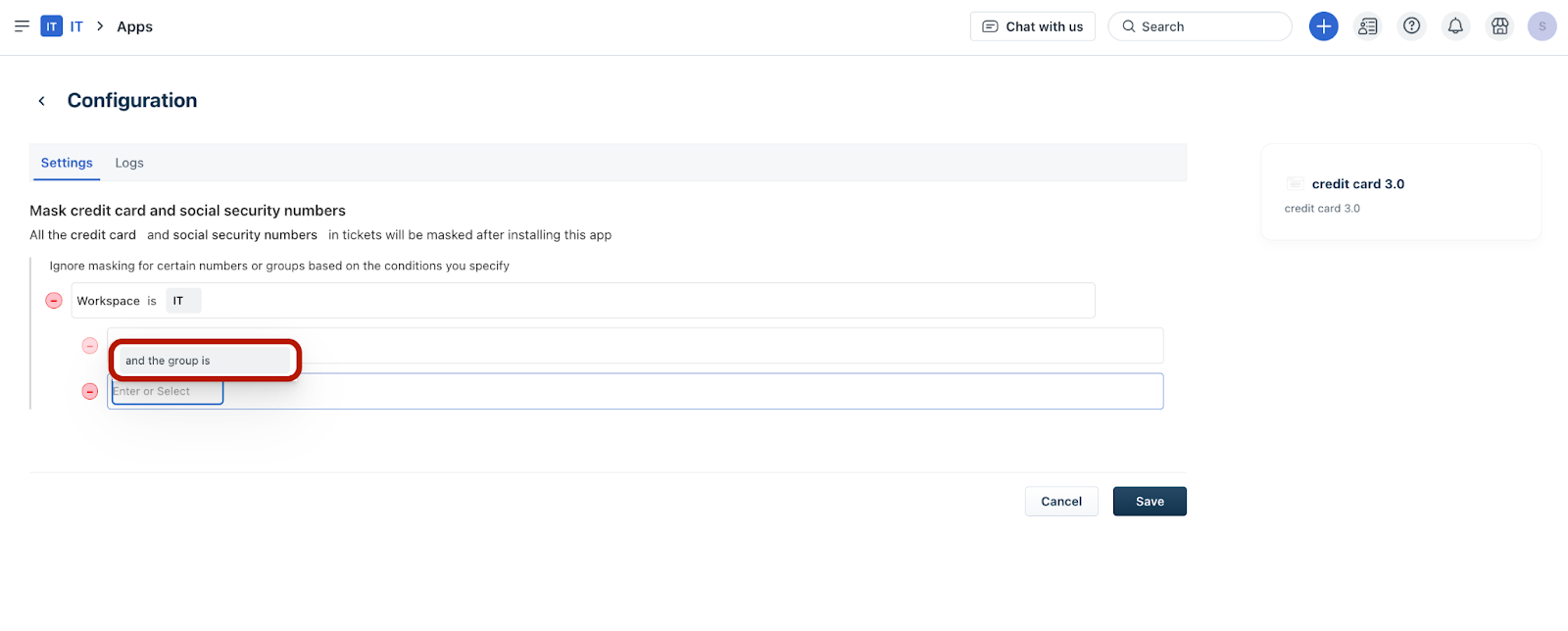
14. Select the relevant group for which you want to set this rule (for example, Capacity Management Team).
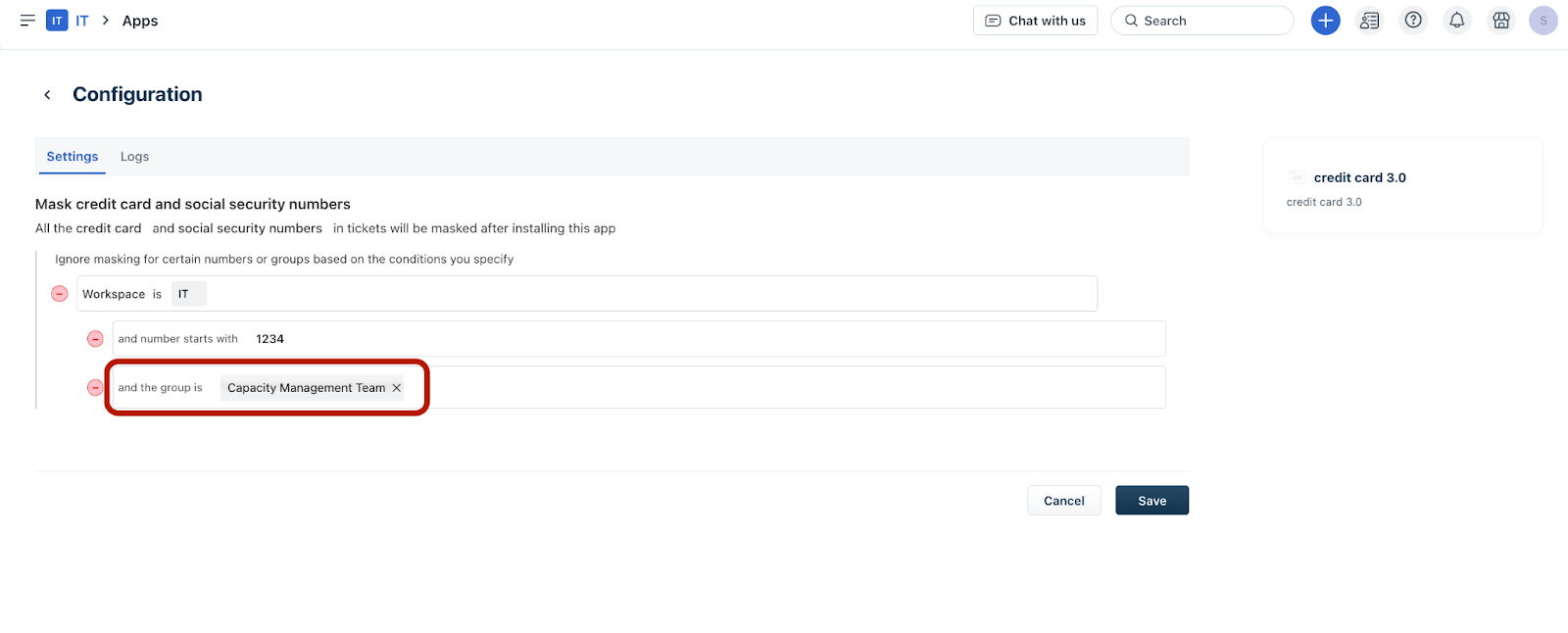
15. Click Save.
Based on the above configuration example, credit card or social security numbers starting with 1234 will not be masked in the subject, description, and private/public notes of tickets associated with the IT workspace and capacity management team.
Example: Ticket with masked data
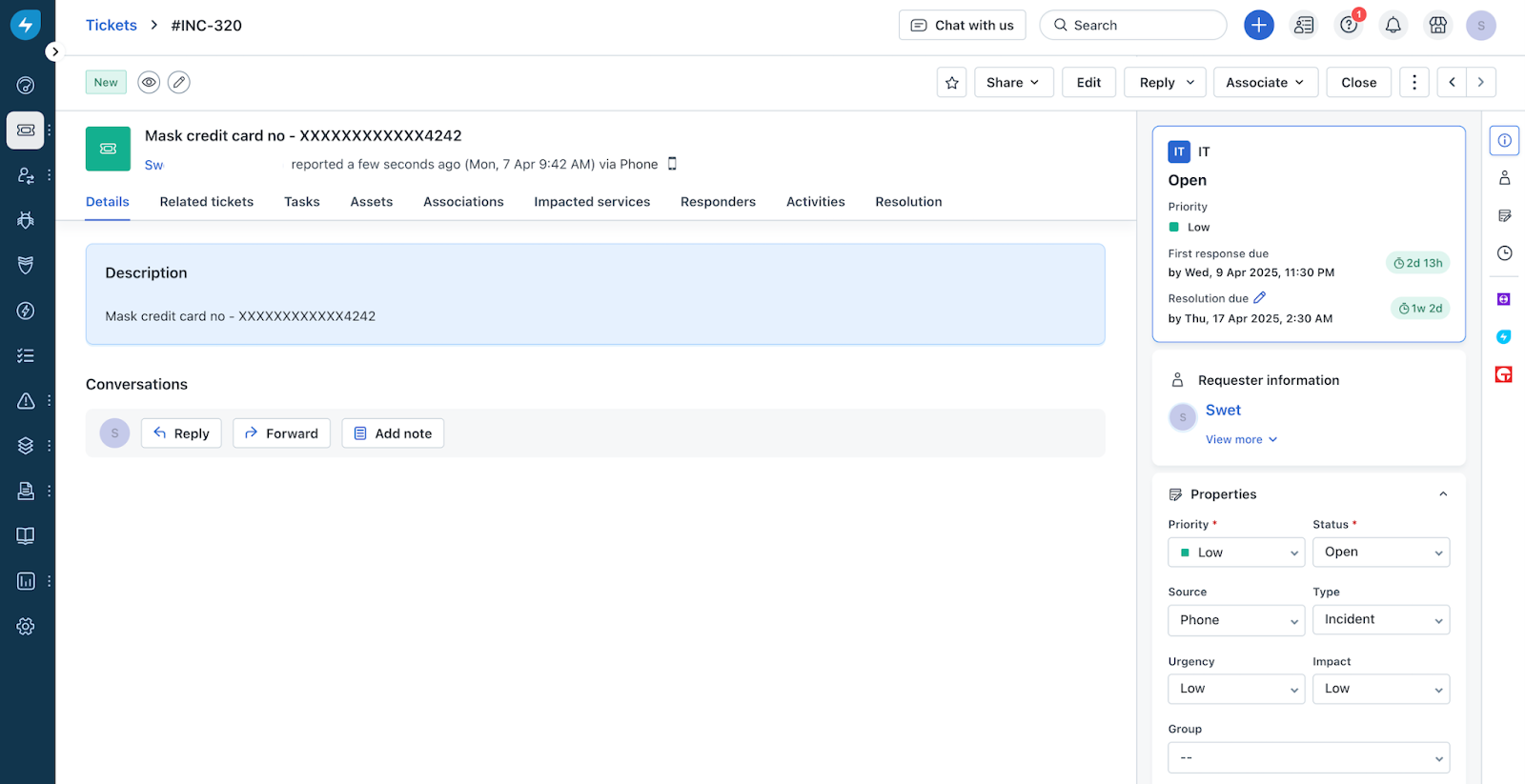
The following figure depicts a ticket details page, which has the credit card number masked in the subject and description.
Data masking: Supported formats and logic
To ensure the security of sensitive information, the app automatically identifies and masks Credit Card numbers and Social Security Numbers (SSN) within your tickets. This process replaces sensitive digits with an X, leaving only the last four digits visible for reference.
Supported card types
The app can detect and mask the following card providers:
Supported input formats
The app is designed to recognize various formatting styles, whether you use spaces, dashes, or dots as separators.
_Important Note:__For accurate masking across different card lengths and types, enter credit card numbers exactly as outlined in the table below. This includes adhering to the required separators (spaces, dots, dashes, or none) and the specific digit groupings: 4-4-4-4 for 16-digit cards, 4-6-5 for 15-digit cards, and 4-6-4 for 14-digit cards._
Credit card length, type, and input
| Card length | Separator type | Example input | Masked output |
| 16-Digit | None | 4111111111111111 | XXXXXXXXXXXX1111 |
| Spaces | 4111 1111 1111 1111 | XXXXXXXXXXXX1111 | |
| Dashes | 4111-1111-1111-1111 | XXXXXXXXXXXX1111 | |
| Dots | 4111.1111.1111.1111 | XXXXXXXXXXXX1111 | |
| 15-Digit | None | 378282246310005 | XXXXXXXXXXX0005 |
| Spaces | 3782 822463 10005 | XXXXXXXXXXX0005 | |
| Dashes | 3782-822463-10005 | XXXXXXXXXXX0005 | |
| Dots | 3782.822463.10005 | XXXXXXXXXXX0005 | |
| 14-Digit | None | 30569309025904 | XXXXXXXXXX5904 |
| Spaces | 3056 930902 5904 | XXXXXXXXXX5904 | |
| Dashes | 3056-930902-5904 | XXXXXXXXXX5904 | |
| Dots | 3056.930902.5904 | XXXXXXXXXX5904 |
Social security numbers (SSN) type and input
| Separator type | Example input | Masked output |
| No Separator | 123456789 | XXXXX6789 |
| Spaces | 123 45 6789 | XXXXX6789 |
| Dashes | 123-45-6789 | XXXXX6789 |
| Dots | 123.45.6789 | XXXXX6789 |
When masking occurs
Masking happens automatically in real-time for:
Limitations and exclusions
To prevent accidental masking of non-sensitive data (like phone numbers or internal IDs), the following will NOT be masked:
- 078-05-1120
- 219-09-9999
- 457-55-5462
- 000-12-1234
_Note:__If you notice a sensitive number was not masked, ensure it fits one of the supported formats and digit counts listed above._