Last updated: 2025-04-17
Freshservice integration with IBM MaaS360 streamlines device and endpoint management processes by syncing IT assets and inventory data from the IBM MaaS360 platform to Freshservice. This enables IT service management teams to manage their assets more efficiently.
This article contains the following topics:
Prerequisites for integration
Ensure you have the following, as part of the prerequisites for integration:
Supported asset types
As part of this integration, asset syncing for the following asset types is supported.
| IBM MaaS360 Asset Type | Freshservice Asset Type |
| Smartphone | Mobile |
| Laptop | Laptop |
| Tablet | Tablet |
| Desktop | Desktop |
| Hardware | Others |
Install the app
To install the app:
1. Go to Admin > Automation & Productivity > Extensibility > Apps.
2. Select IBM MaaS360 from the Apps list.
3. Click Install. The Configuration page opens.
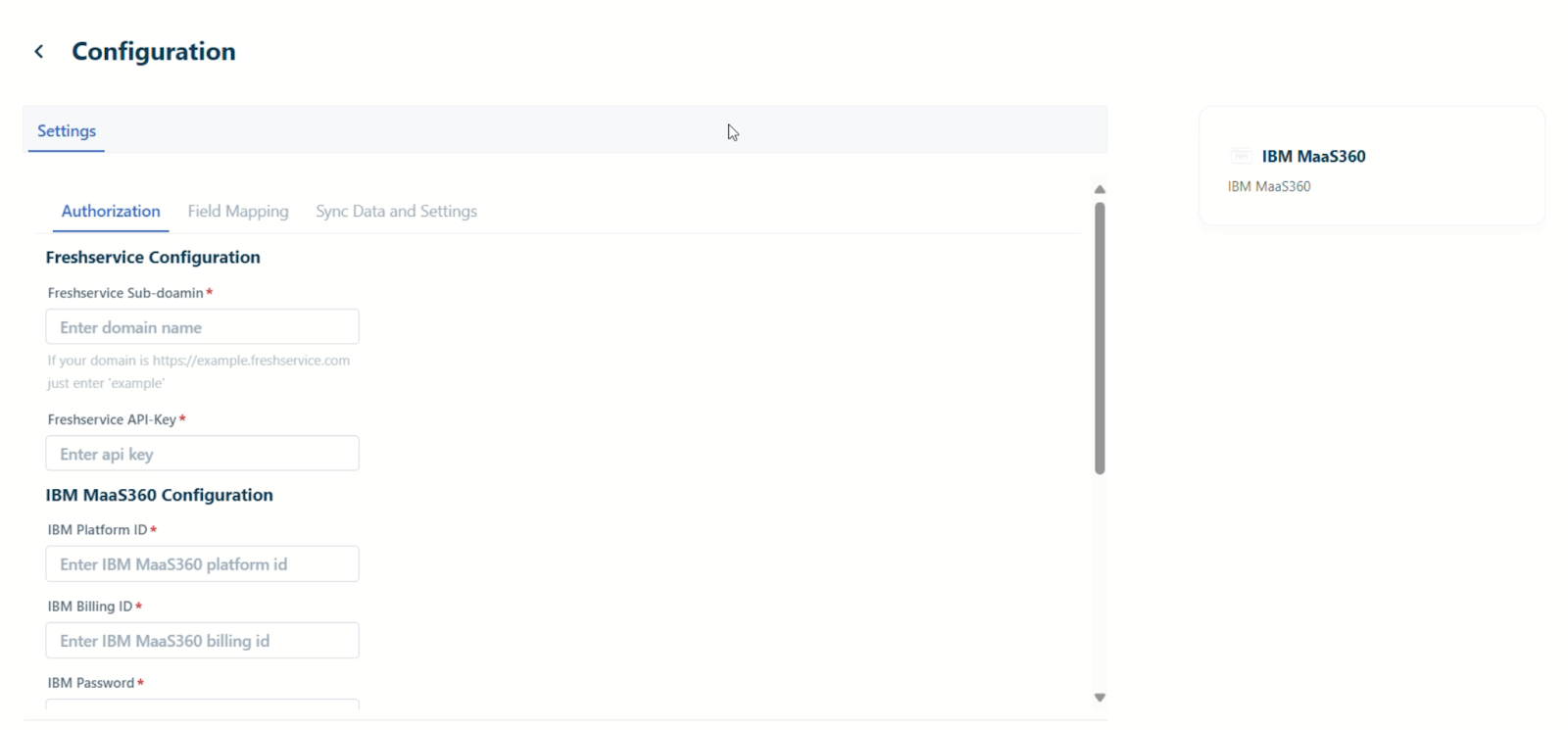
4. On the Authorization tab, enter the following Freshservice and IBM MaaS360 configuration details:
5. Click Validate.
6. (After the authorization details are validated) On the Field Mapping tab, map the Freshservice and IBM MaaS360 fields for the supported asset types. For each asset type, you can map various fields available under the following categories:
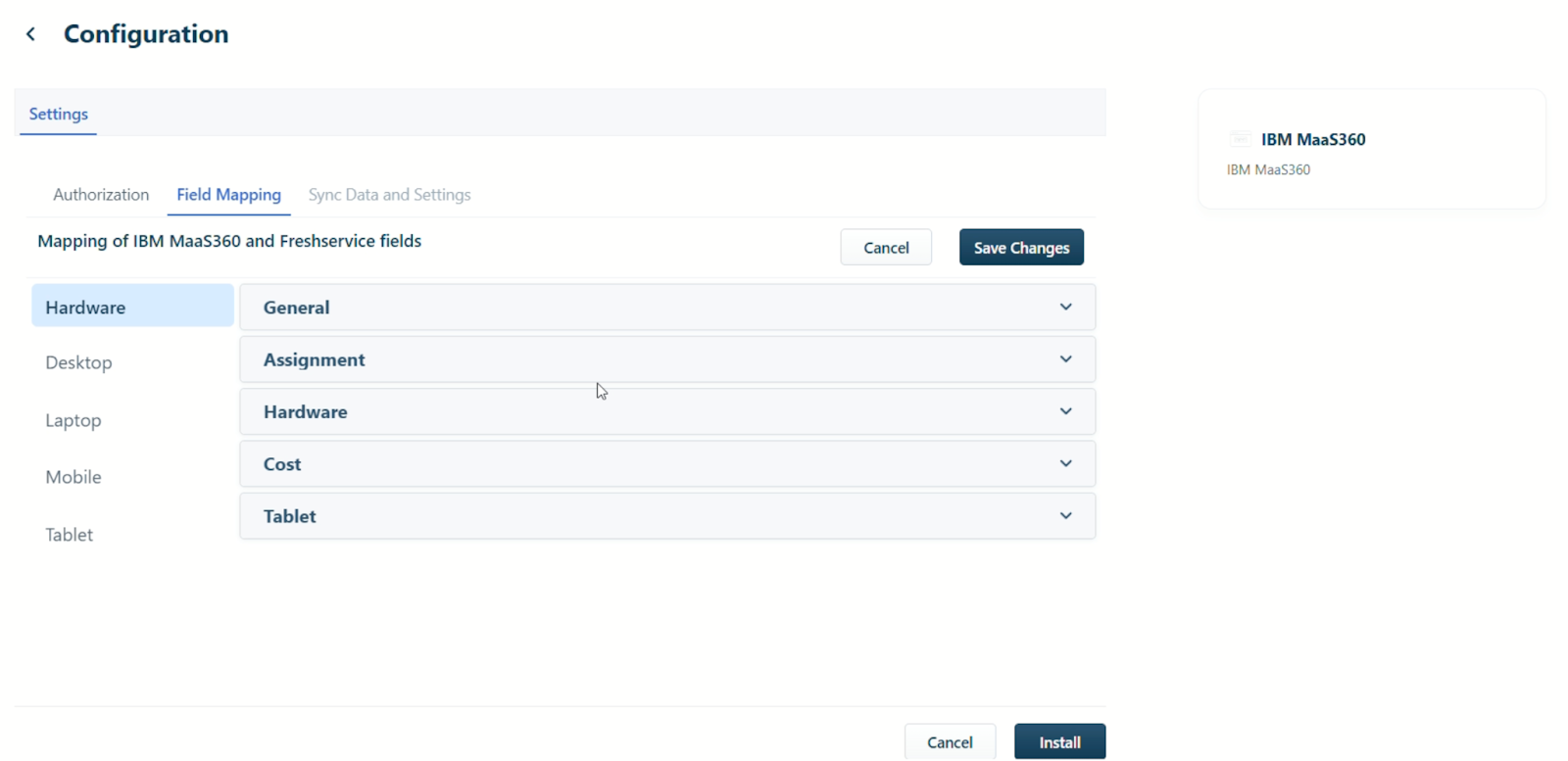
7. Click Save Changes after mapping the required fields under all categories for each asset type.
8. Then, click Install.
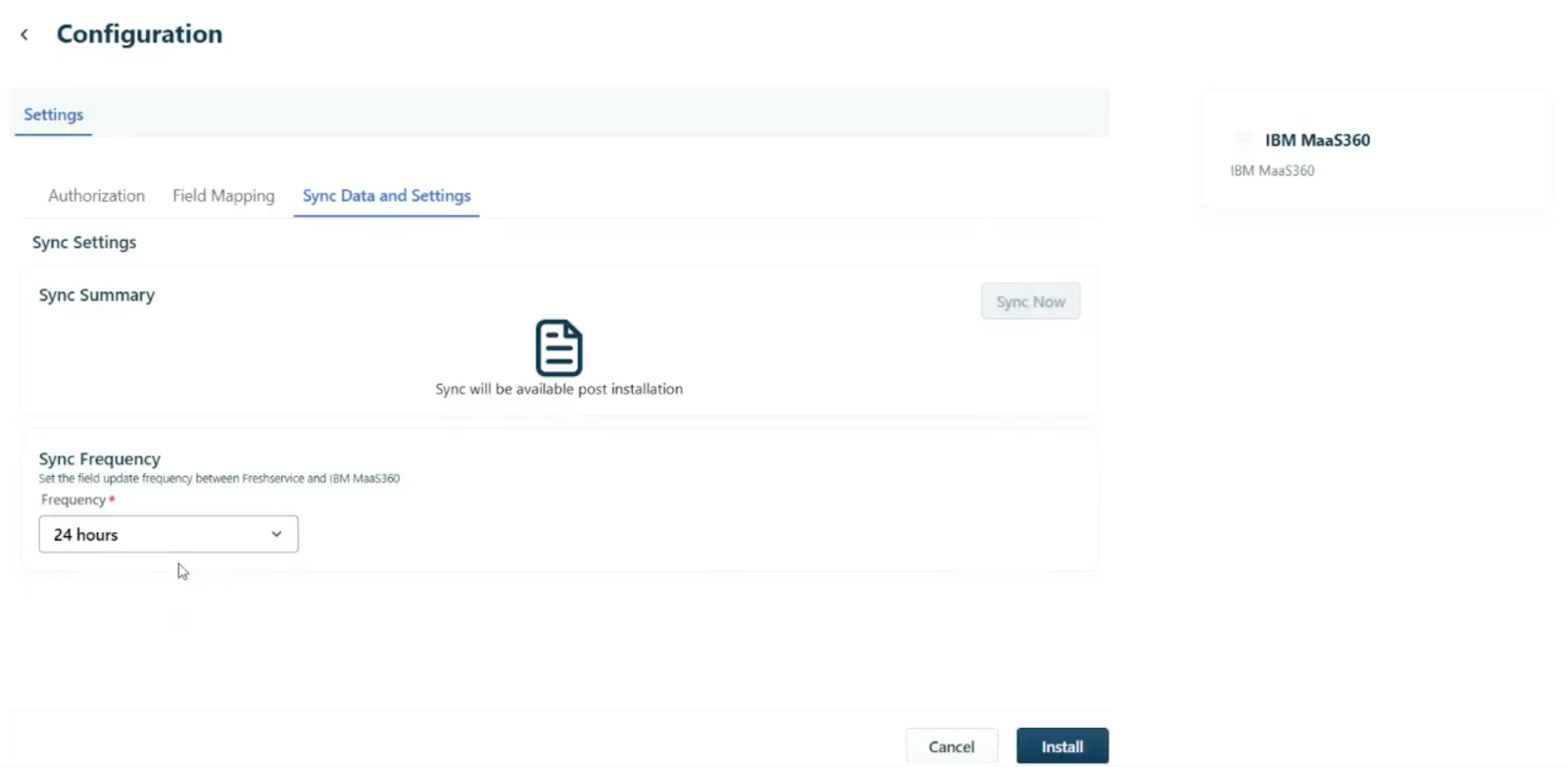
Note: The option to sync data is available only post installation.
9. (After the app is successfully installed) On the Sync Data and Settings tab, you can set the sync frequency, initiate data sync, and view the sync summary and failed logs.
1. To initiate sync, click Sync Now.
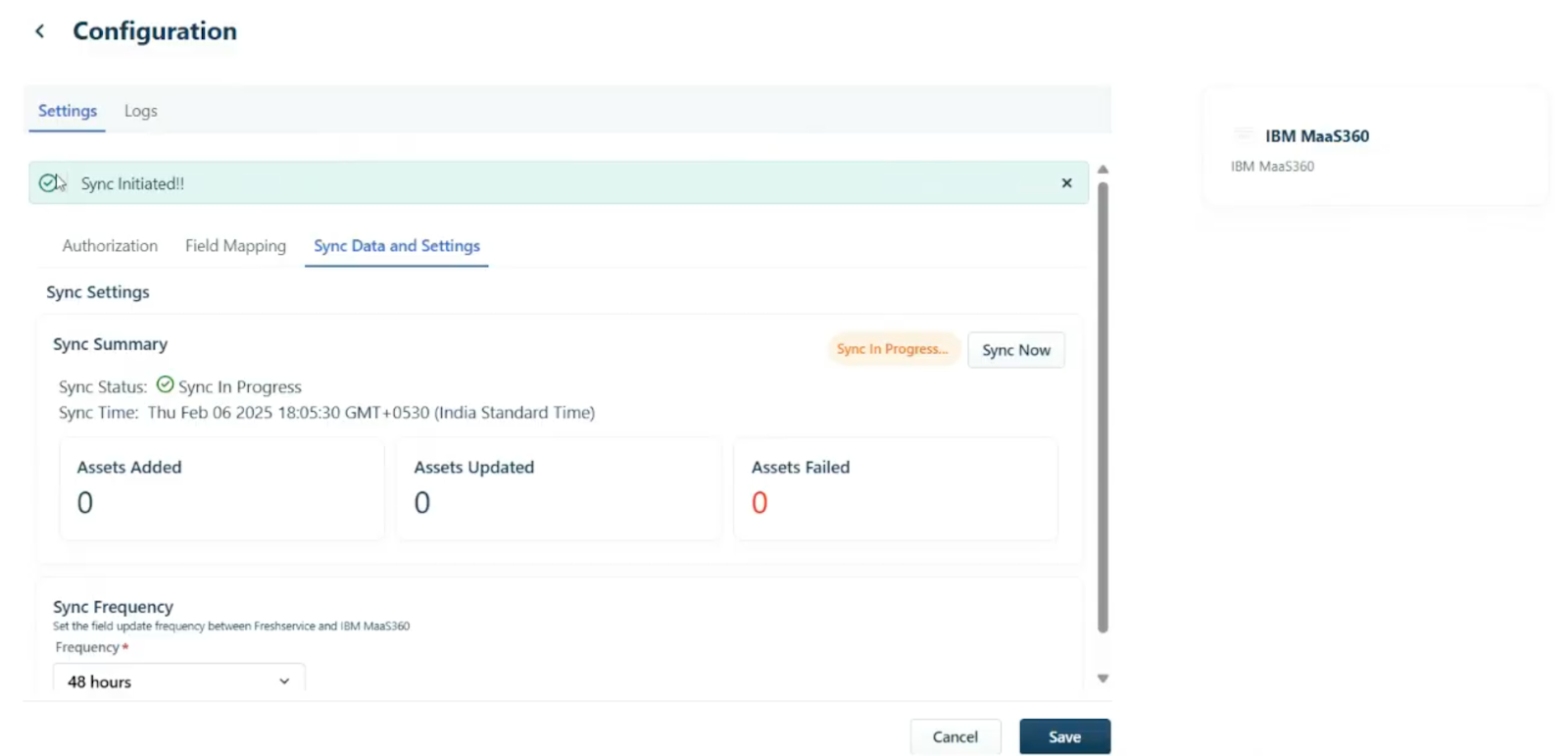
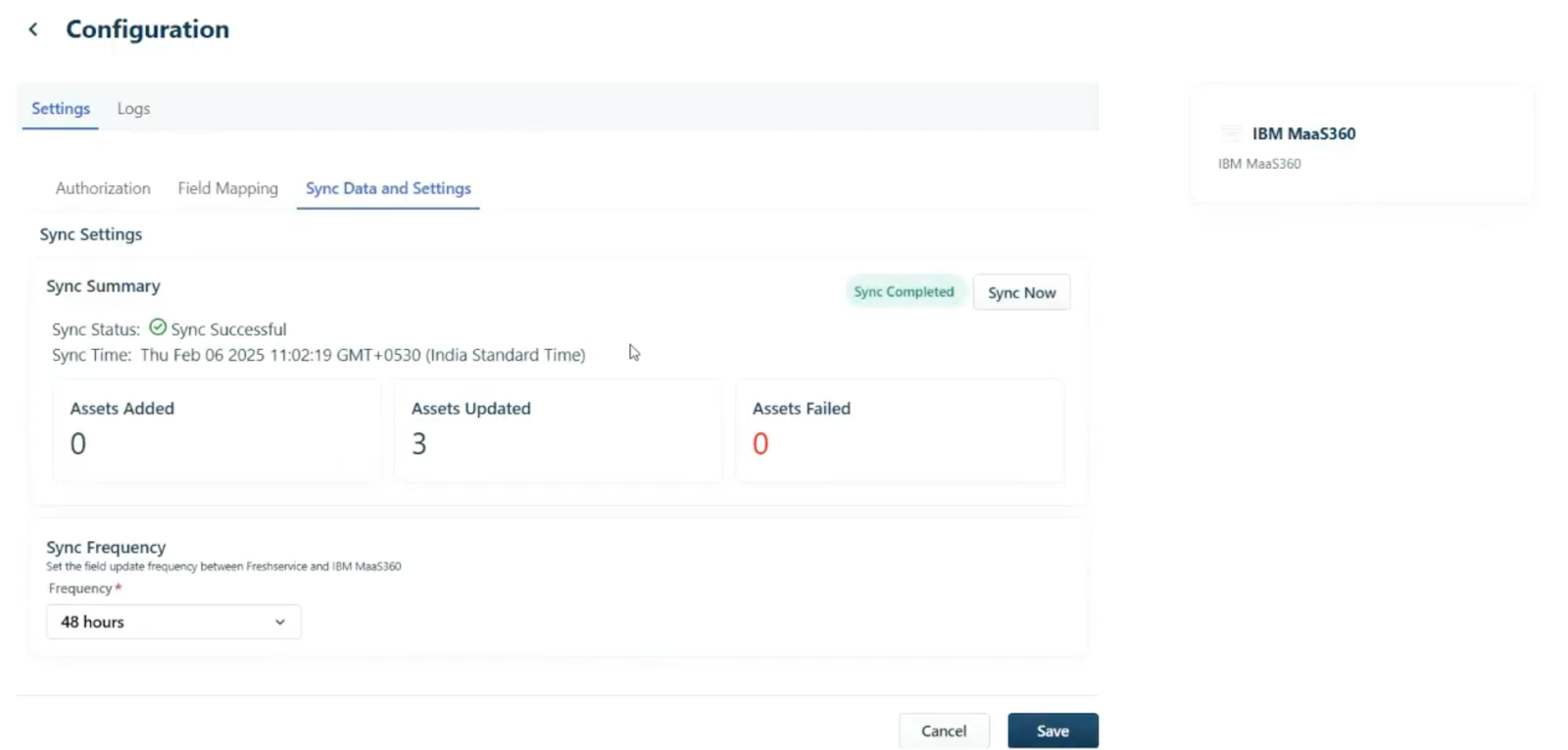
2. View the Sync Status, Sync Time, Assets Added, Assets Updated, and Assets Failed details in the Sync Summary section.
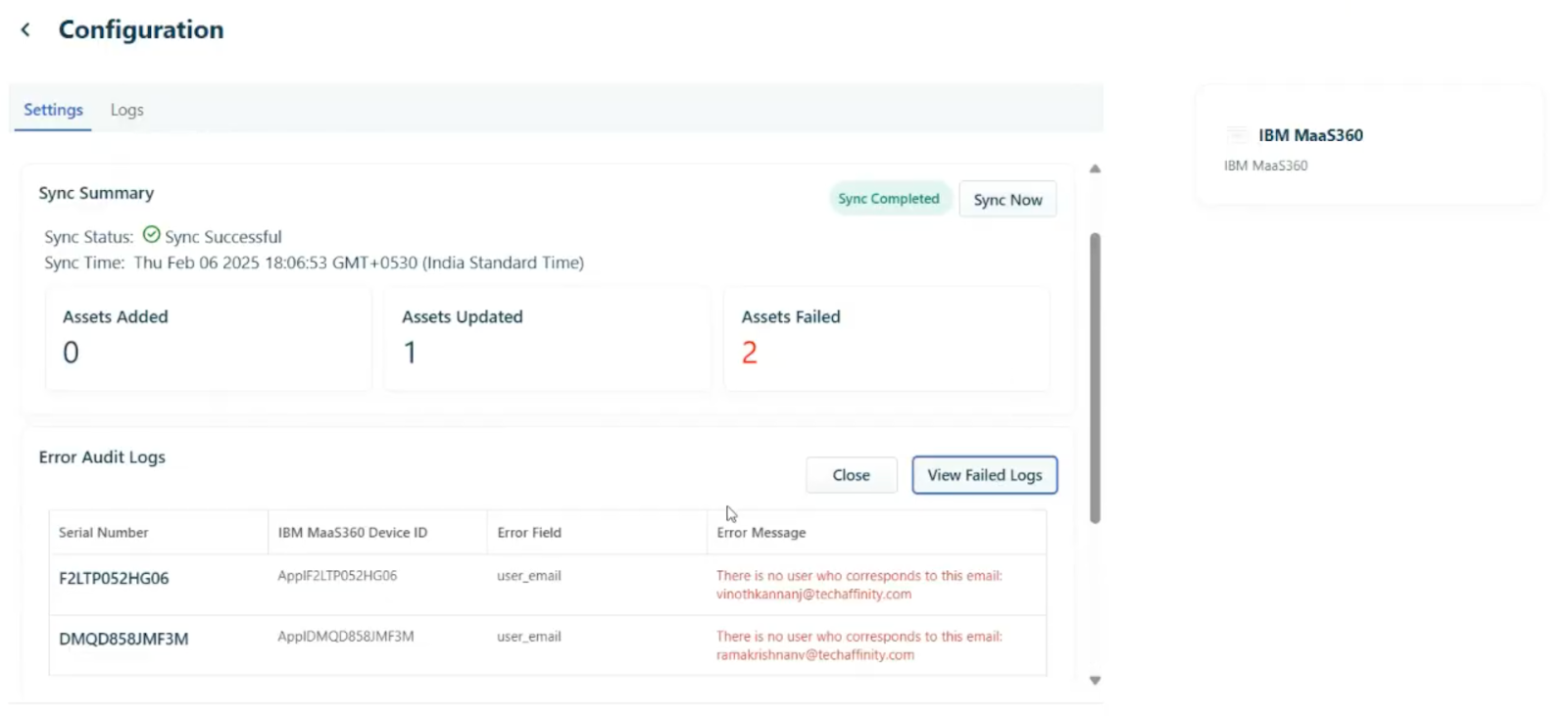
3. To view sync errors, click View Failed Logs in the Error Audit Logs section.
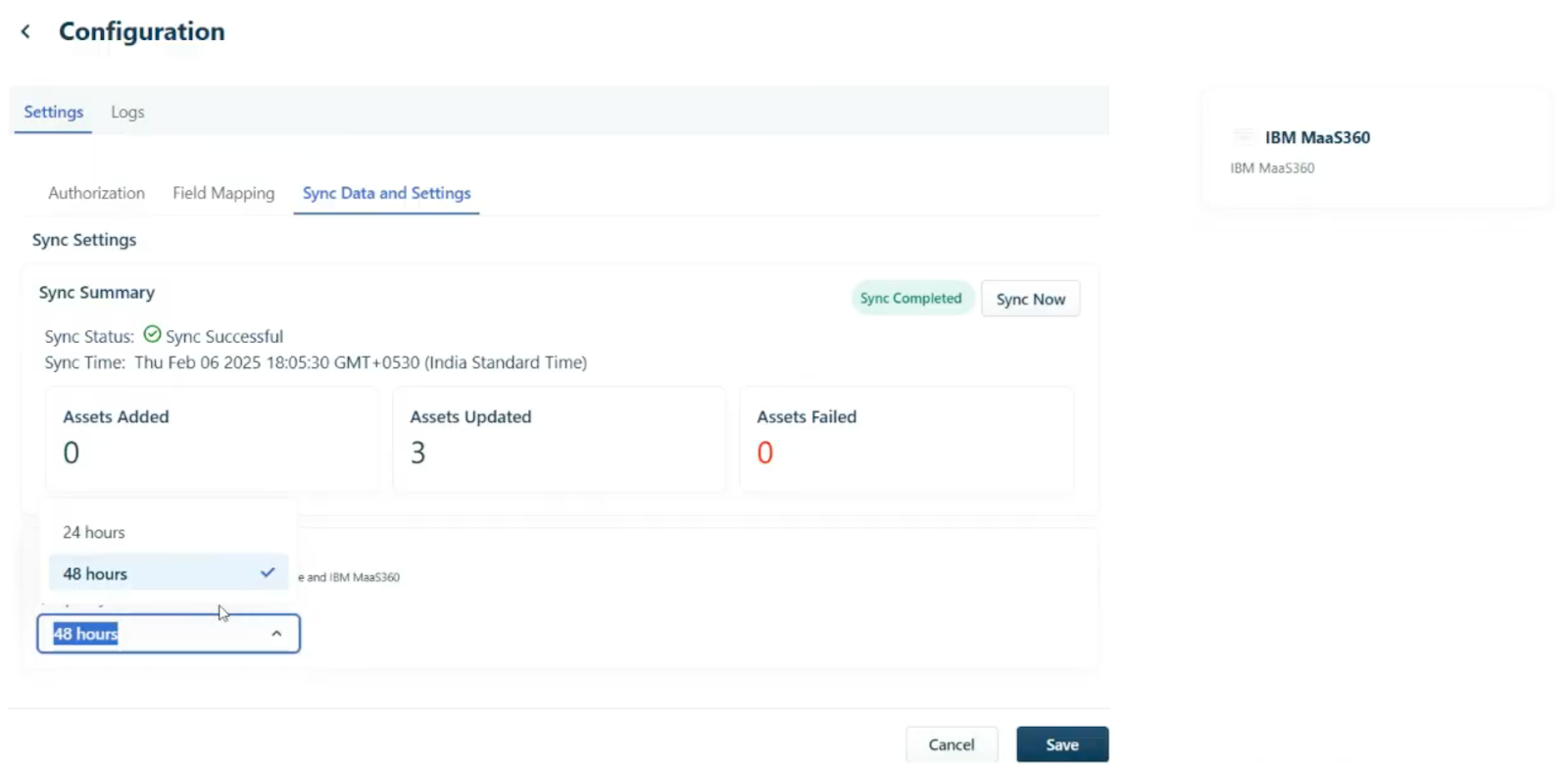
4. To set the sync frequency, select the required option from the Frequency dropdown.
View synced asset records
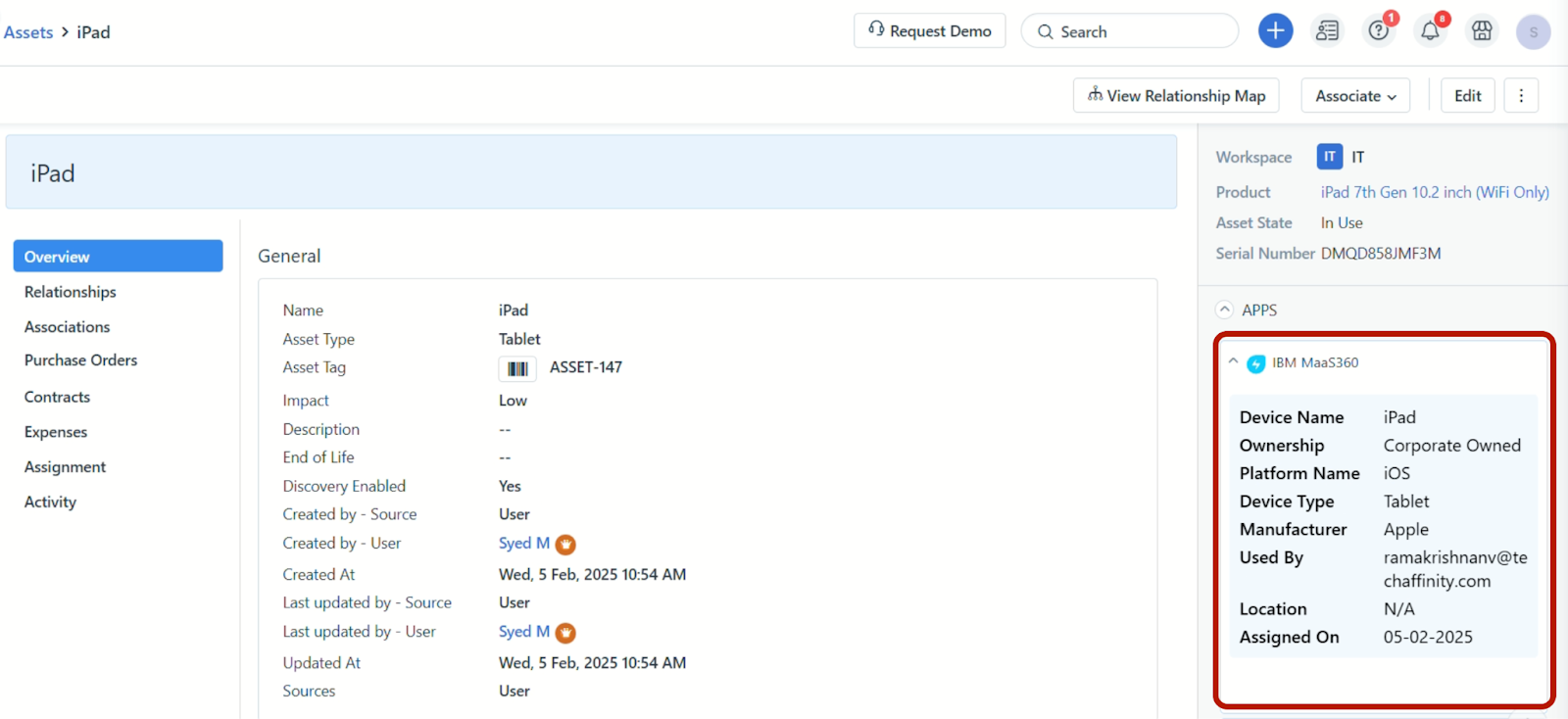
After the Freshservice-IBM MaaS360 integration is complete, you can view the most recent and updated record of each asset synced from IBM MaaS360.
1. Go to Assets > Inventory.
2. Click on any asset name.
If the asset is synced from IBM MaaS360, you can view details of the synced asset in the IBM MaaS360 widget.