Last updated: 2025-03-21
Freshservice public APIs are primarily intended for integration purposes, and not recommended for large-volume API transactions (see Freshservice API documentation).
Due to the complexities in differentiating normal API transactions vs. migrations, data migration partners experience the following challenges.
This article describes the process to migrate data via public APIs for Freshservice’s data migration partners.
Submit the data migration request
As part of the migration process, Freshservice data migration partners are required to submit a request.
To submit a data migration request:
1. Login to your Freshservice account.
2. Go to https://fsdevops.Freshservice.com/support/catalog/items/142.
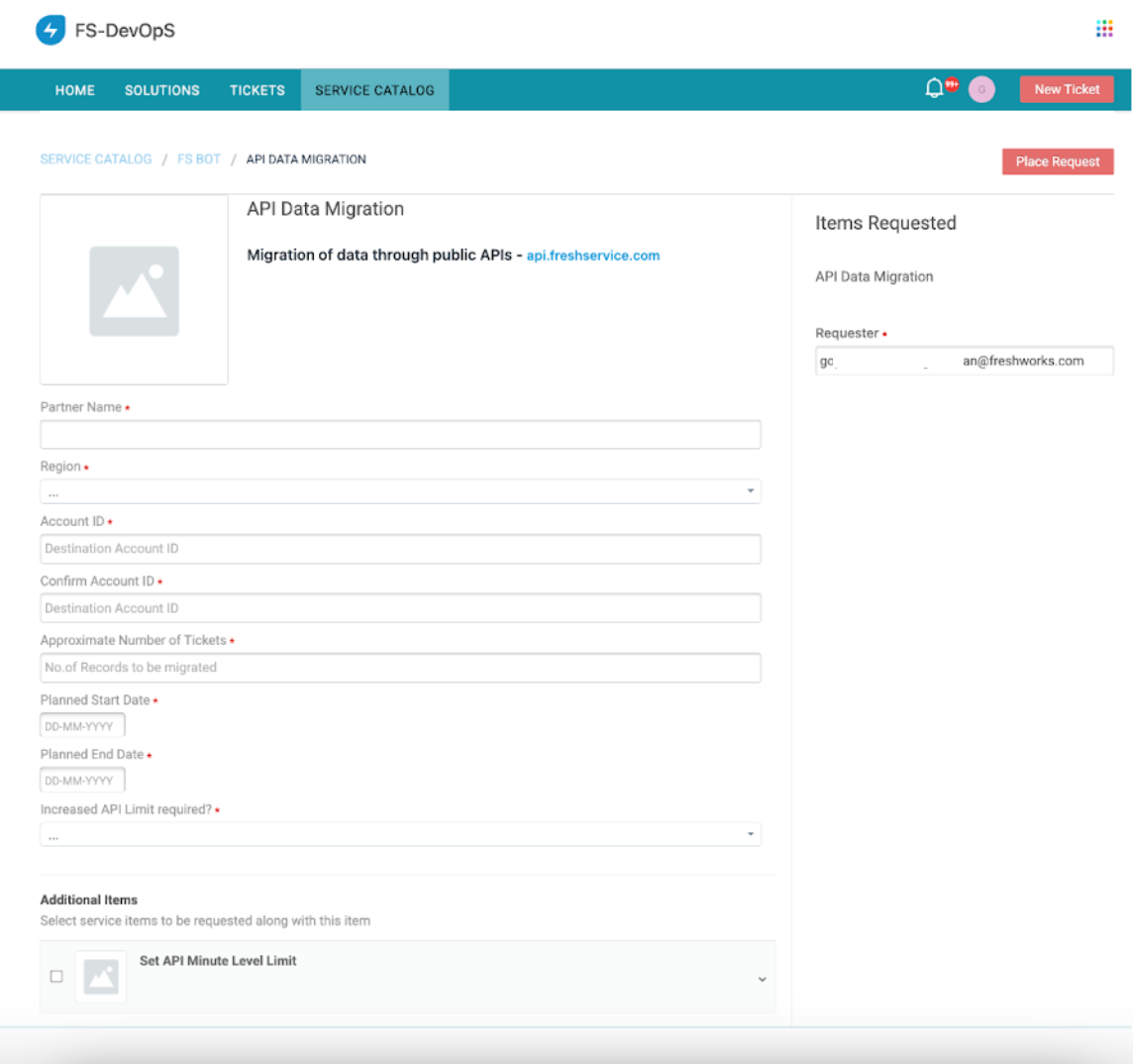
3. Enter the data migration partner name in the Partner Name field.
4. Select the relevant region from the Region dropdown. For example, EU.
5. Enter your account ID details in the Account ID and Confirm Account ID fields.
6. Enter the approximate number of tickets that are expected to be migrated in the Approximate Number of Tickets field.
7. Select the relevant migration initiation date from the Planned Start Date option.
8. Select the relevant migration completion date from the Planned End Date option.
Note: Ensure that the planned start and end dates are selected for a future time-period (not current/present).
9. Select the relevant option from the Increased API Limit required? dropdown.
10. Click Place Request.
Submit additional items
For increasing the minute-level API limit or evaluating API pack add-ons, you need to provide additional details, and then submit the data migration request.
1. Expand the Additional items section on the form request page.
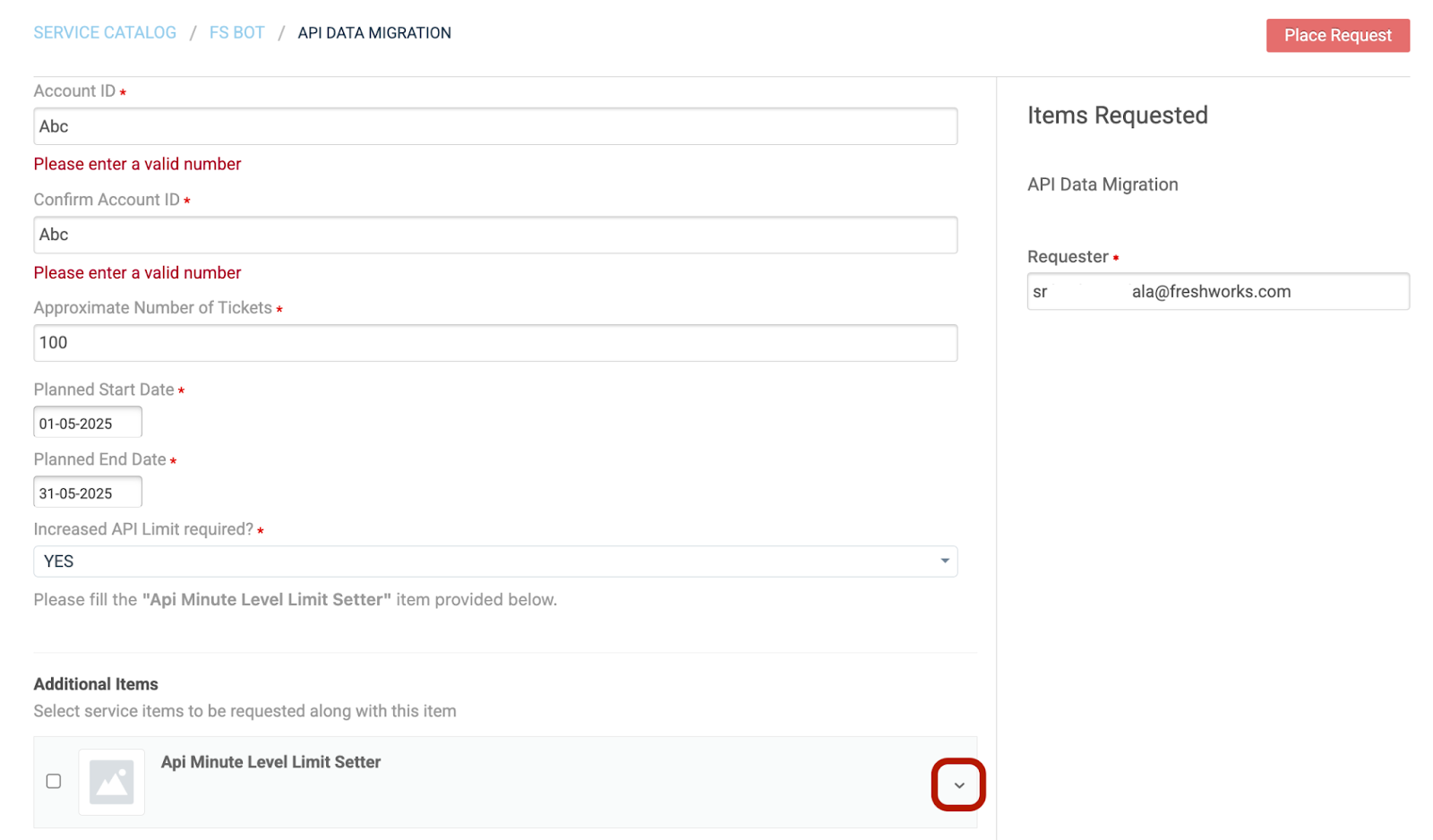
2. Select the Api Minute Level Limit Setter checkbox.
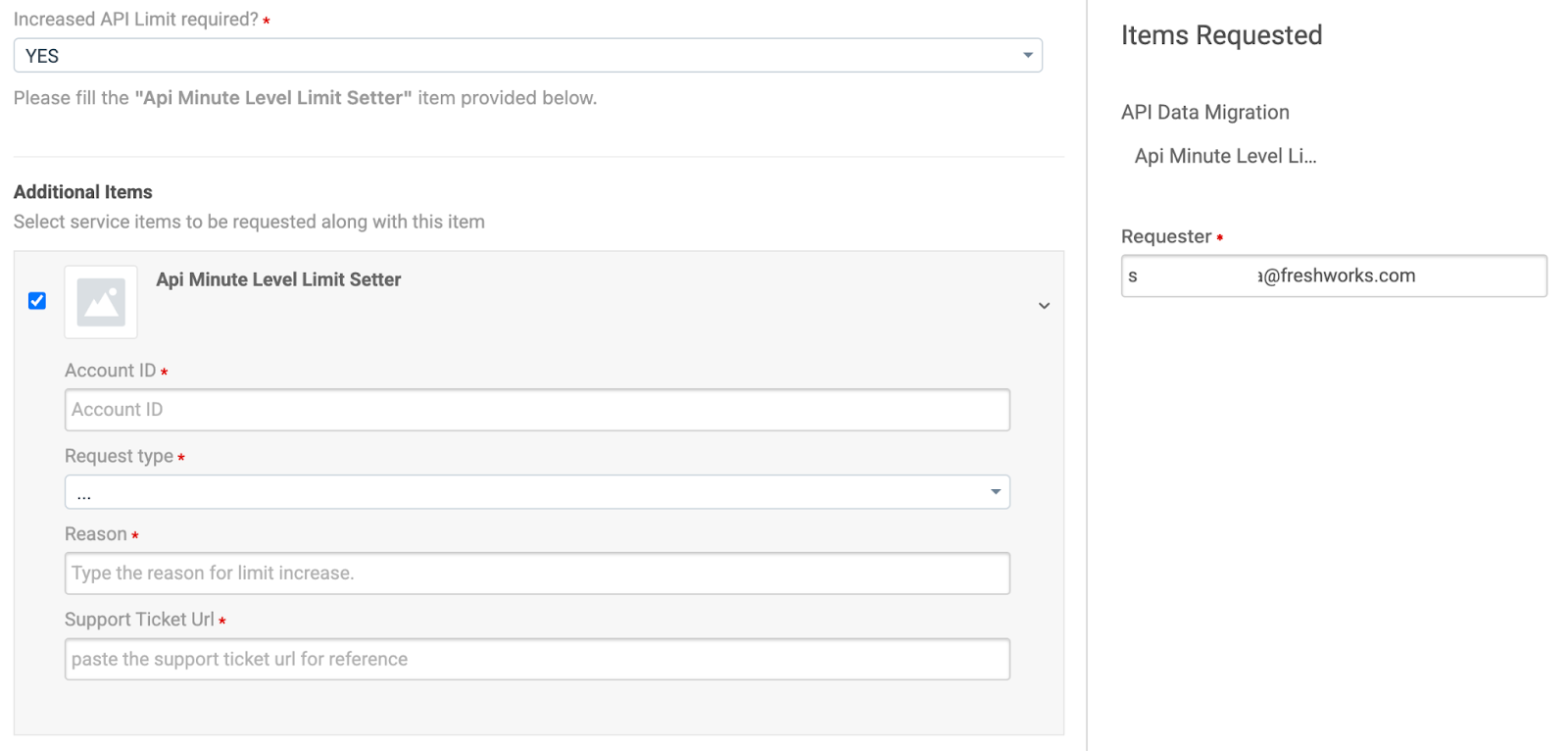
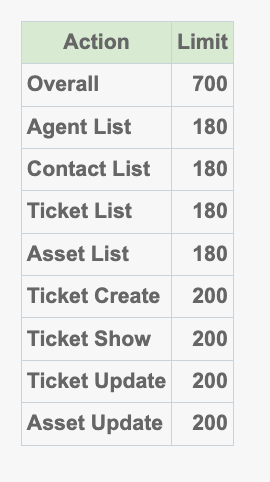
Note: Review the limits under Migration Purpose and API Packs (Pack 1 and Pack 2).
3. Enter your account ID details in the Account ID field.
4. Select the relevant request type from the Request type dropdown.
5. Enter a relevant reason in the Reason field.
6. Enter the relevant URL in the Support Ticket URL field.
7. Submit the request.
After you submit the data migration request, it is sent for approval to the Freshservice team.
After the request is approved:

Important:
Add token details to your API Platform
After the token is generated, you need to add the token details to the API Platform you use for managing APIs (for example, Postman).
1. On the Postman app, go to the collection where Freshservice Public APIs are stored, such as Tickets, Changes, or Service Items.
2. In the Headers section of the Public API used for migration, add the token in the following key-value pair format:
For example, for the Tickets API, the Header would be similar to the key-value pair highlighted in the following figure:
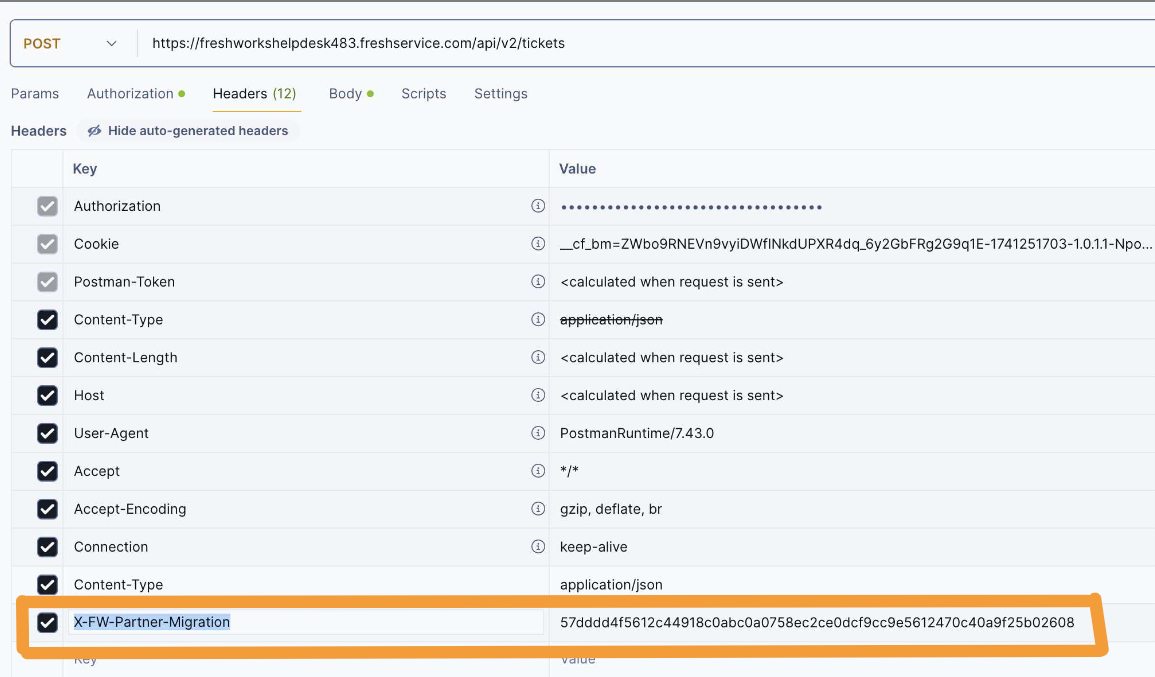
(Only for the duration of the migration) Passing this Header along with the usual API payload will result in the following:
Future enhancements to API Data Migration
The following enhancements related to API Data Migration are planned to be included, as part of the future roadmap: