This guide explains how to generate QR codes for use with Buddy.
QR codes and Buddy
QR codes are scanned by Buddy users to load the website in their browser. Alternatively, users can also follow a link to the Buddy website.
QR codes can lead to a certain workflow, such as takeaway, ordering via table number, and so on.
To complete this step, your MyTrivec username must be registered as Owner. To request a change, please contact Trivec Support.
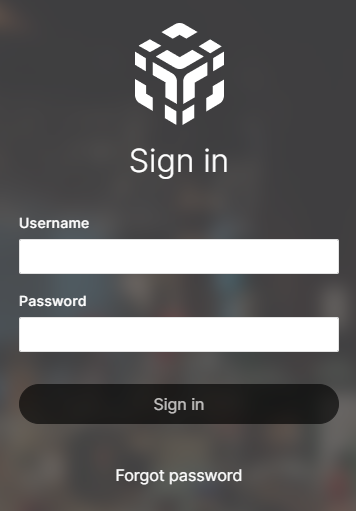
- Navigate to https://mytrivec.com/login .
- Enter your email address as your Username and your Password .
Generate QR codes
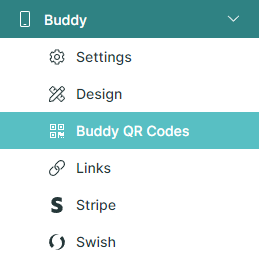
- In the left menu, select Buddy and Buddy QR codes :
Workflow settings
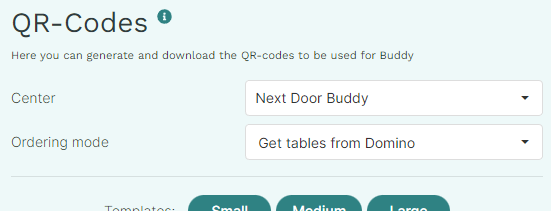
- Select the workflow and center you want to create QR codes for:
- Center/Department : Determines which center the QR codes will be linked to. Select the ones used for Buddy.
- Order status :
- Table selection : QR code that prompts the guest to enter the table number when ordering.
- Table Number : QR code for an individual table number. Configure Table Number to generate.
- Table Range : Separate QR codes for a range of table numbers. Configure the From (start) and To (end) table numbers to generate.
- Get tables from Domino : Separate QR codes for each table available in Domino.
- Take away : QR code that displays a take away page that prompts the guest to enter an email address and pickup time.
- Digital menu : QR code that displays a digital menu page (without cash register function).
Graphic settings
- Configure the design of the QR codes:
- Templates (Small/Medium/Large): Configures the size of the QR code. Larger templates have a higher level of error correction , making the QR codes more resistant to scratches and dirt. Be sure to increase the Dimensions to match the larger templates, otherwise the details on a QR code may be too small for the camera to scan correctly.
- Dimensions : Configures the size of the QR code.
- Background Color : Configures the color of the background (try to maintain a high contrast).
- Color : Configures the color of the QR code (try to maintain a high contrast).
- Error Correction : Configures how often the information is repeated in the QR code, increasing its resistance to scratches and dirt. Note that small size and a higher error correction may cause the details on a QR code to be too small for the camera to scan correctly.
- My version : Set to 1 (Configures the QR code version).
- Quiet Zone : Set to 2 (Configures the margin around the QR code and improves the readability of the QR code).
- Rounded Corners : Smooths out the details on a QR code. A high setting can have a negative impact on readability.

Overlay
- Overlay is text or an image that appears in the center of the QR code. The following overlay settings can be configured:
- None : No overlay is displayed.
- Logo : Configures the visible logo as an overlay . Upload the desired logo image file.

- Text : Configures the visible text. Text, text color, size, and position X and Y can be configured.
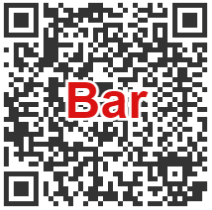
- Table number : Displays the table number as an overlay . Text color, size, and position X and Y can be configured.
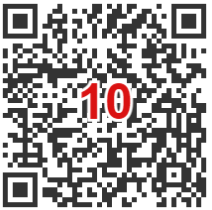
Export QR codes
- When you are happy with the settings and are ready to generate the QR codes, select Export Table QR Codes in the upper right corner:
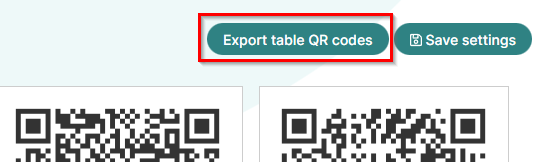
- The QR codes will be downloaded as a .zip file to your local downloads folder :

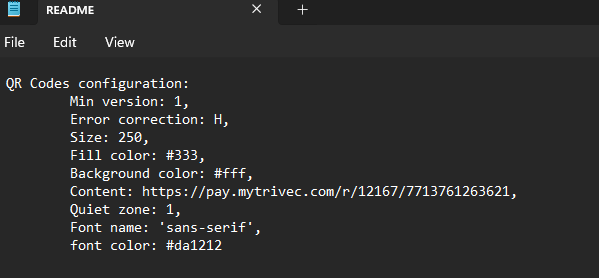
- The zip file contains a README file with the settings used to generate the QR codes:
Var artikeln till hjälp?
Toppen!
Tack för din feedback
Vi beklagar att det inte var till hjälp
Tack för din feedback
Feddback skickat
Vi uppskattar din feedback och uppdaterar artikeln vid behov