Last updated: 2026-03-19
ControlUp Integration for Freshservice
Overview
Freshservice integration with ControlUp enables proactive digital experience management by integrating real-time endpoint and application performance insights directly into Freshservice.
The integration allows IT teams to detect, investigate, and remediate device and application issues from within Freshservice, reducing mean-time-to-resolution (MTTR) and improving employee productivity.
About the integration
This section provides an overview on the key benefits, focus areas, and scope of integration.
Key benefits
The ControlUp Integration for Freshservice app enables:
Focus areas
The ControlUp and Freshservice integration is built for proactive IT service management, which ensures endpoint issues are automatically captured and addressed focusing on:
Scope of integration
The scope of incident management and reporting limits to integration with the following operating systems.
Prerequisites for integration
Ensure you have the following, as part of the prerequisites for integration:
How to install the app
For this integration, install the ControlUp app on your Freshservice instance.
To install the ControlUp app, follow these steps:
1. Log in to your Freshservice account.
2. Go to Admin > Automation & Productivity > Extensibility > Apps.
3. Or, click the Marketplace Apps icon on the top-right corner, and select Marketplace Apps.
4. Search and select the ControlUp Integration for Freshservice app using the Search apps option.
5. Click Install on the installation page.
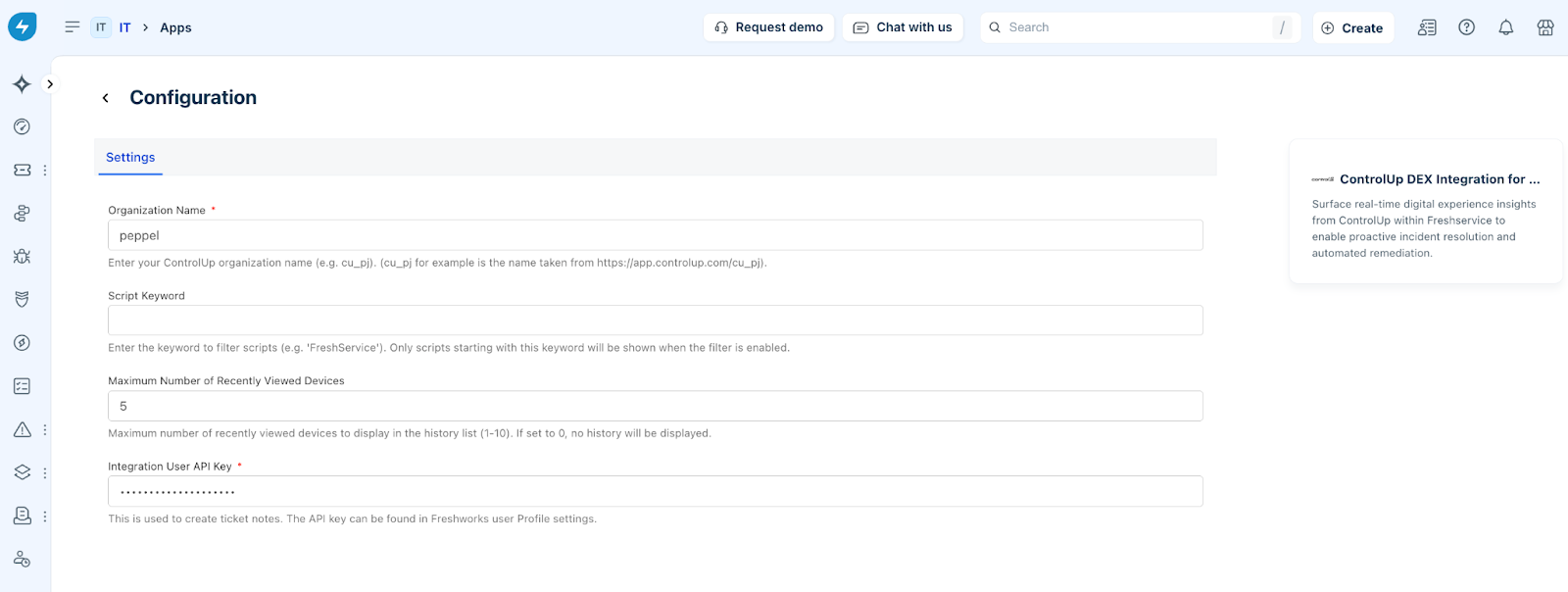
6. On the Configuration page, enter the ControlUp organization name as it appears in your ControlUp URL in the Organization Name field. For example, if your ControlUp URL is ‘ https://app.controlup.com/acme/employee’, then you should enter ‘acme’.
7. Enter the Freshservice API key in the Integration User API Key field.
_Note:_ _The Script Keyword and Maximum Number of Recently Viewed Devices__fields are optional._
8. Click Install.
Metrics and health data available through the integration
Device information and actions
The following table describes all the device details (metrics and health) available through the ControlUp integration, and device actions that can be performed.
_Note:__Online devices display a green dot as an indication that the device is online, whereas offline devices display a red dot. Any action (such as, running scripts or remote control) cannot be performed on offline devices._
| Tab | Section or Action | Description |
| Overview | Script | Run system scripts (such as CPU check or Disk Cleanup), or user scripts (such as Internet Speedtest or Clear Application Cache) for remediation. |
| Remote Control | Start a remote control session with a device (allows you to take complete control of the remote device). | |
| Remote Shadow | Start a remote shadow session with a device (allows you to only view the remote device). | |
| Remote Shell | Start a remote shell session with a device (allows you to execute commands on the remote device using the command-line interface). | |
| General | Shows the general information for a device (such as Uptime, ISP, Remote IP Address). | |
| OS and Hardware | Shows the OS and hardware information for a device (such as Version, CPU, RAM). | |
| Device score | Shows the device score in a graphical representation (for the last 2 hours). You can hover over the graph to view the device score at a specific time. | |
| Top Processes | Shows the top processes running on a device (CPU and RAM). | |
| Top Active Applications | Shows the top active applications running on a device. | |
| Device Performance | CPU Usage (%) | Shows the CPU usage % for a device (for the last 3 hours). You can hover over the graph to view the usage at a specific time. |
| CPU Queue length | Shows the CPU queue length for a device (for the last 3 hours). You can hover over the graph to view the queue length at a specific time. | |
| Memory usage (GB) | Shows the memory usage (in gigabytes) for a device (for the last 3 hours). You can hover over the graph to view the memory usage (In Use vs. Available) at a specific time. | |
| Total Disk Queue Length (All disks) | Shows the total disk queue length (for all disks) for a device (for the last 3 hours). You can hover over the graph to view the total disk queue length at a specific time. | |
| Network Usage (Mb/s) | Shows the network usage (in megabytes per second) for a device (for the last 3 hours). You can hover over the graph to view the network usage (Sent vs. Received) at a specific time. | |
| Hourly Network Usage (MB) | Shows the hourly network usage (in megabytes) for a device (for the last 3 hours). You can hover over the graph to view the network usage (Sent vs. Received) at a specific time. | |
| Wi-Fi Signal | Shows the Wi-Fi Signal % for a device (for the last 3 hours). You can hover over the graph to view the signal % at a specific time. | |
| Peak User Input Delay (secs) | Shows the peak user input delay (in seconds) for a device (for the last 3 hours). You can hover over the graph to view the user input delay at a specific time. | |
| Network | Network Interfaces | Shows the network interfaces information for a device (such as Type of interface, Status, MAC Address). |
| Network Usage (Mb/s) | Shows the network usage (in megabytes per second) for a device (for the last 3 hours). You can hover over the graph to view the network usage (Sent vs. Received) at a specific time. | |
| Hourly Network Usage (MB) | Shows the hourly network usage (in megabytes) for a device (for the last 3 hours). You can hover over the graph to view the network usage (Sent vs. Received) at a specific time. | |
| Wi-Fi Signal | Shows the Wi-Fi Signal % for a device (for the last 3 hours). You can hover over the graph to view the signal % at a specific time. | |
| Latency | Shows network latency related information. | |
| Disks | Hard drive | Shows the internal hard drive information (such as Format, Total Size, Free Space) for a device. For example, C:\ drive. |
| Other storage medium | Shows information for other storage mediums (such as Format, Total Size, Free Space) for a device. For example, CD ROM. | |
| Event Logs | - | Shows event logs information for a device. |
| Device Events | - | Shows information on specific device events with details on the severity, device type, event title, description, time stamp, and local ID. You can select any event to view more details. |
| Application Crashes | - | Shows information on application crashes for a device. |
| BSOD Events | - | Shows BSOD (blue-screen-of-death) events for a device. |
Sample illustrations
The following figures highlight the scope of device information captured through the integration in separate tabs: Overview, Device Performance, Network, Disks, Event Logs, Device Events, Application Crashes, and BSOD Events.
| Figure 1: Overview | 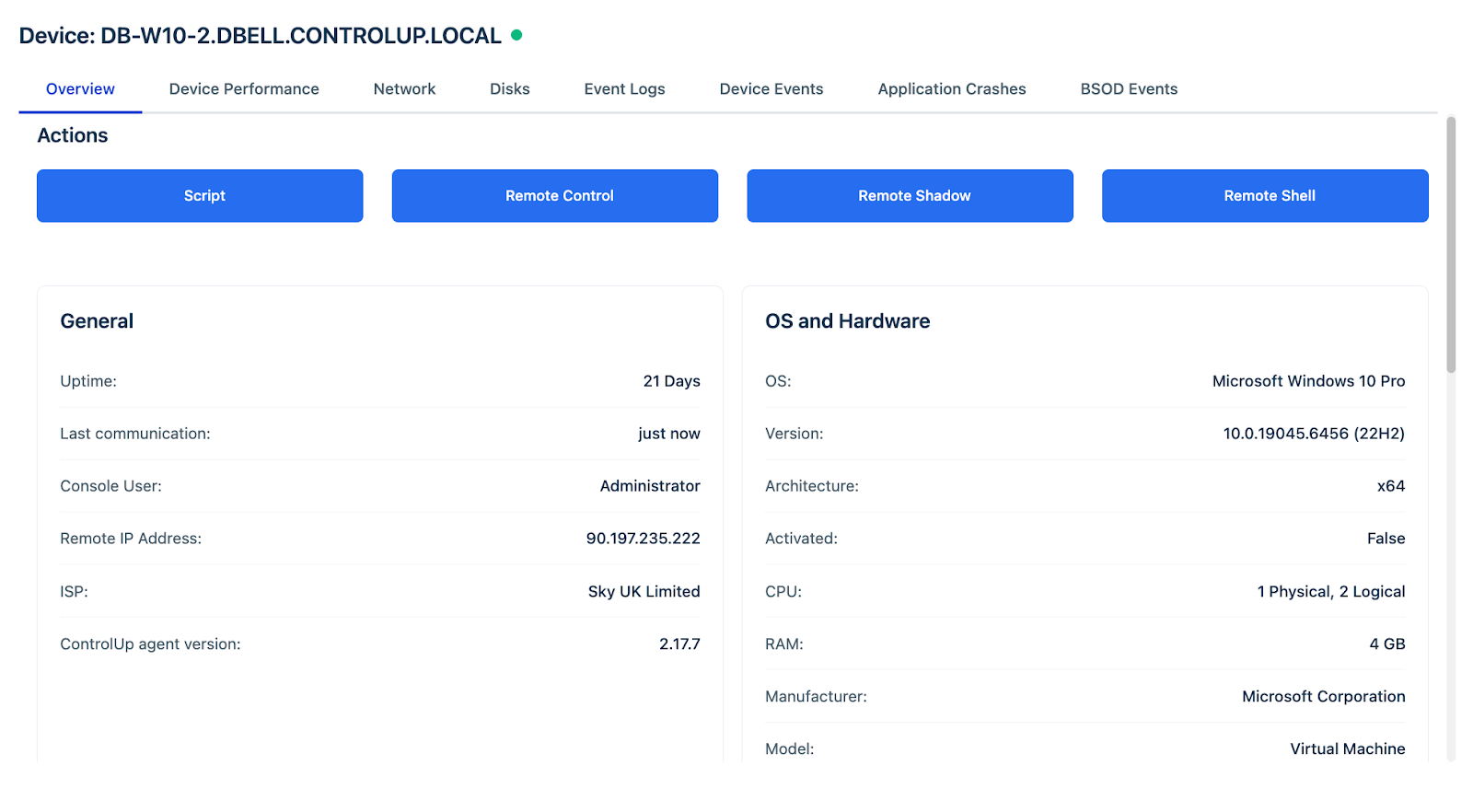 |
| Figure 2: Device Performance | 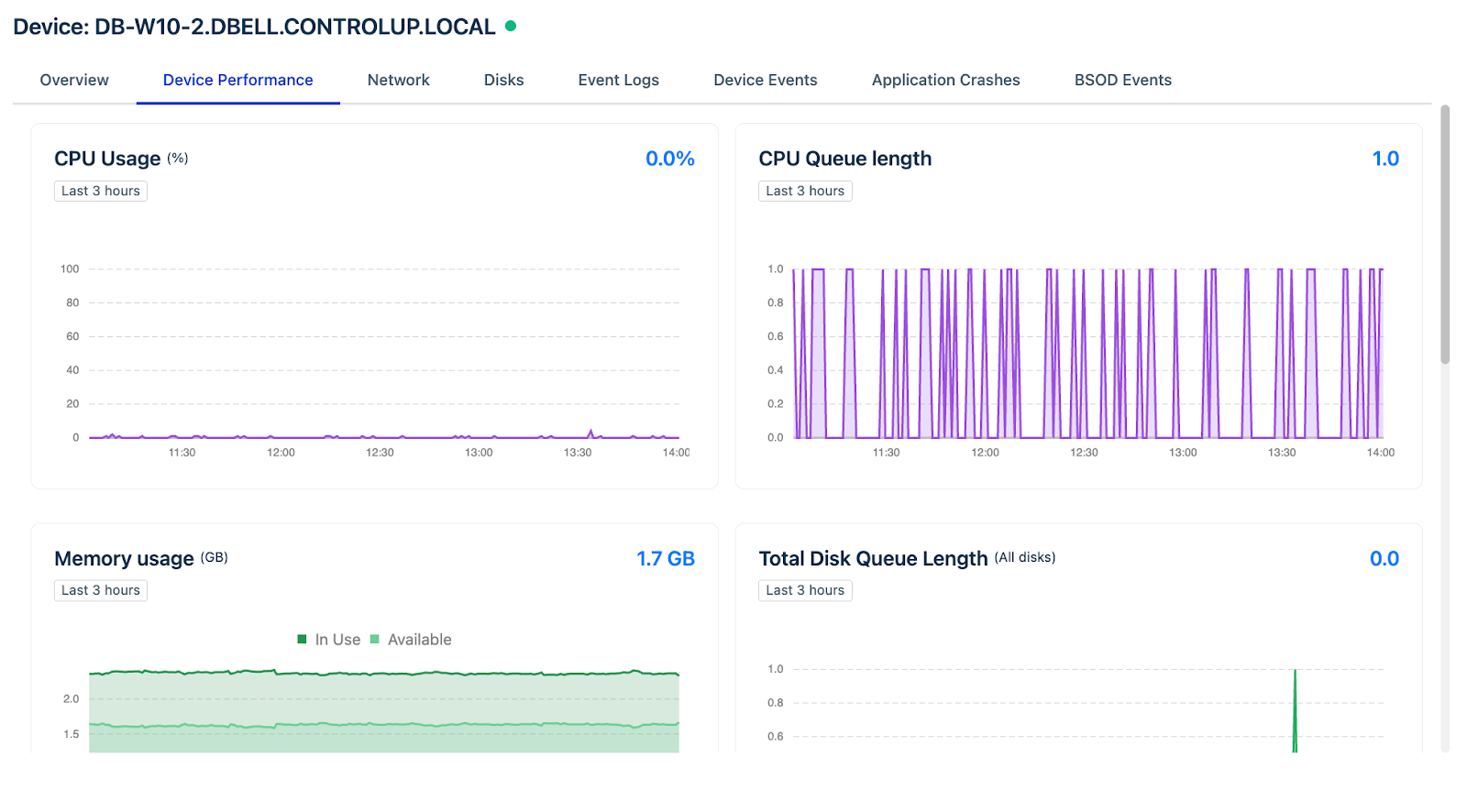 |
| Figure 3: Network | 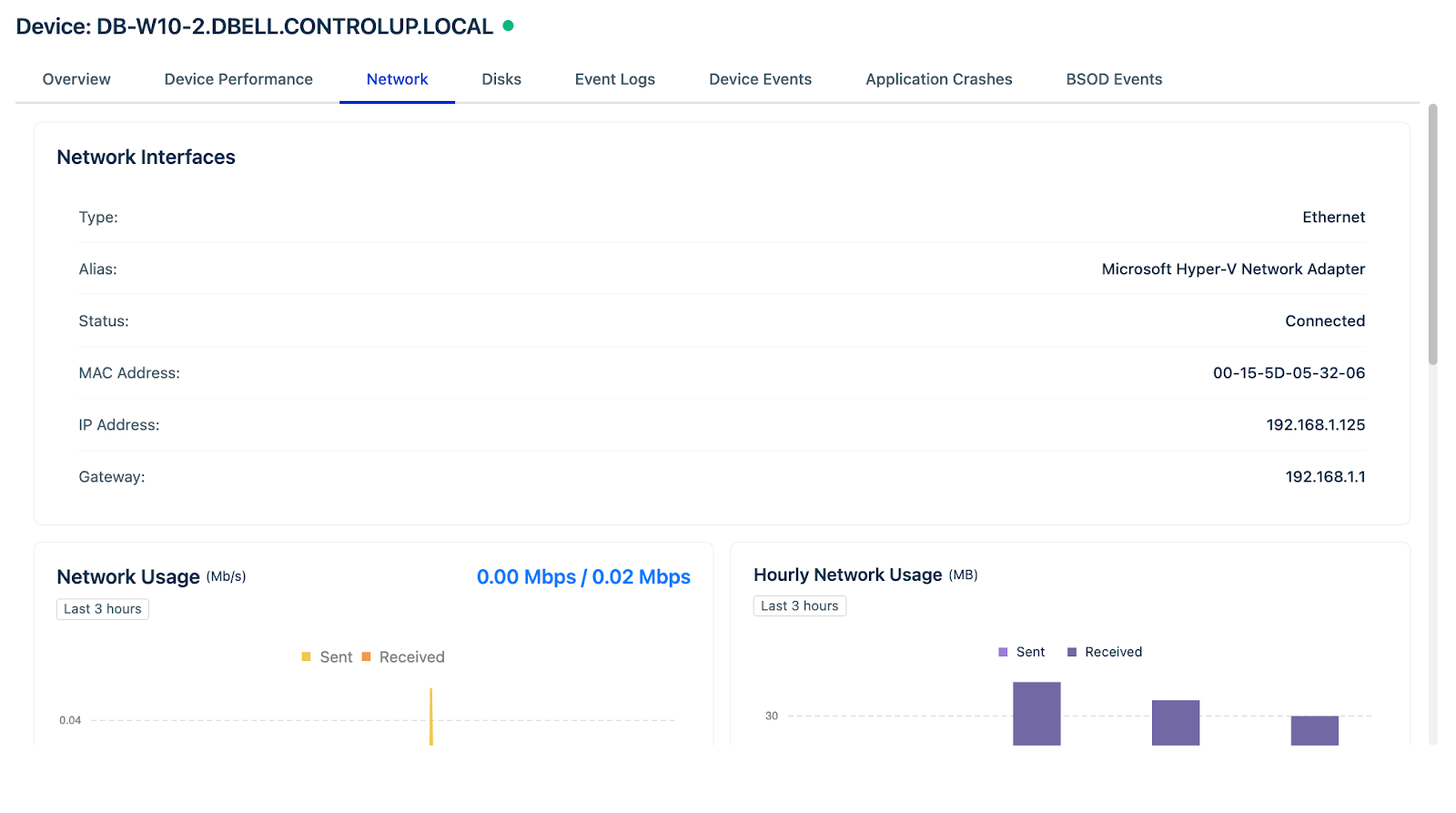 |
| Figure 4: Disks | 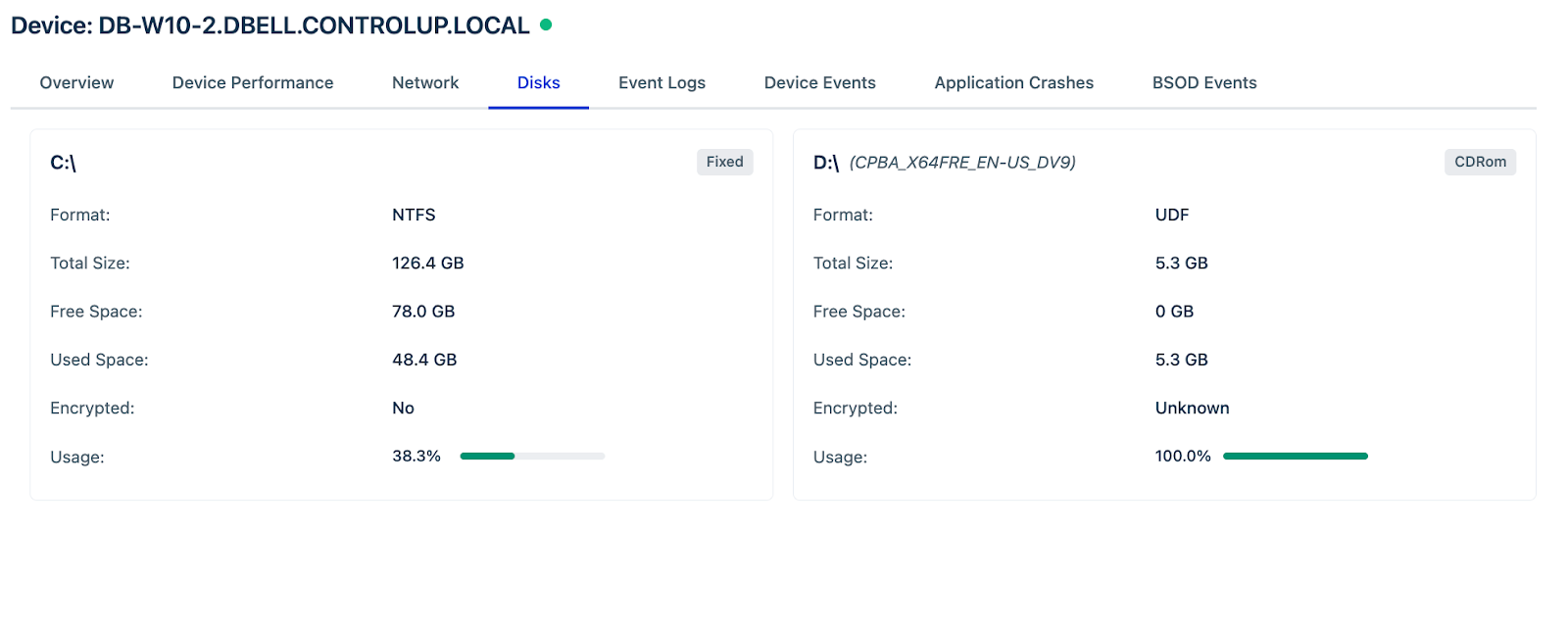 |
| Figure 5: Event Logs | 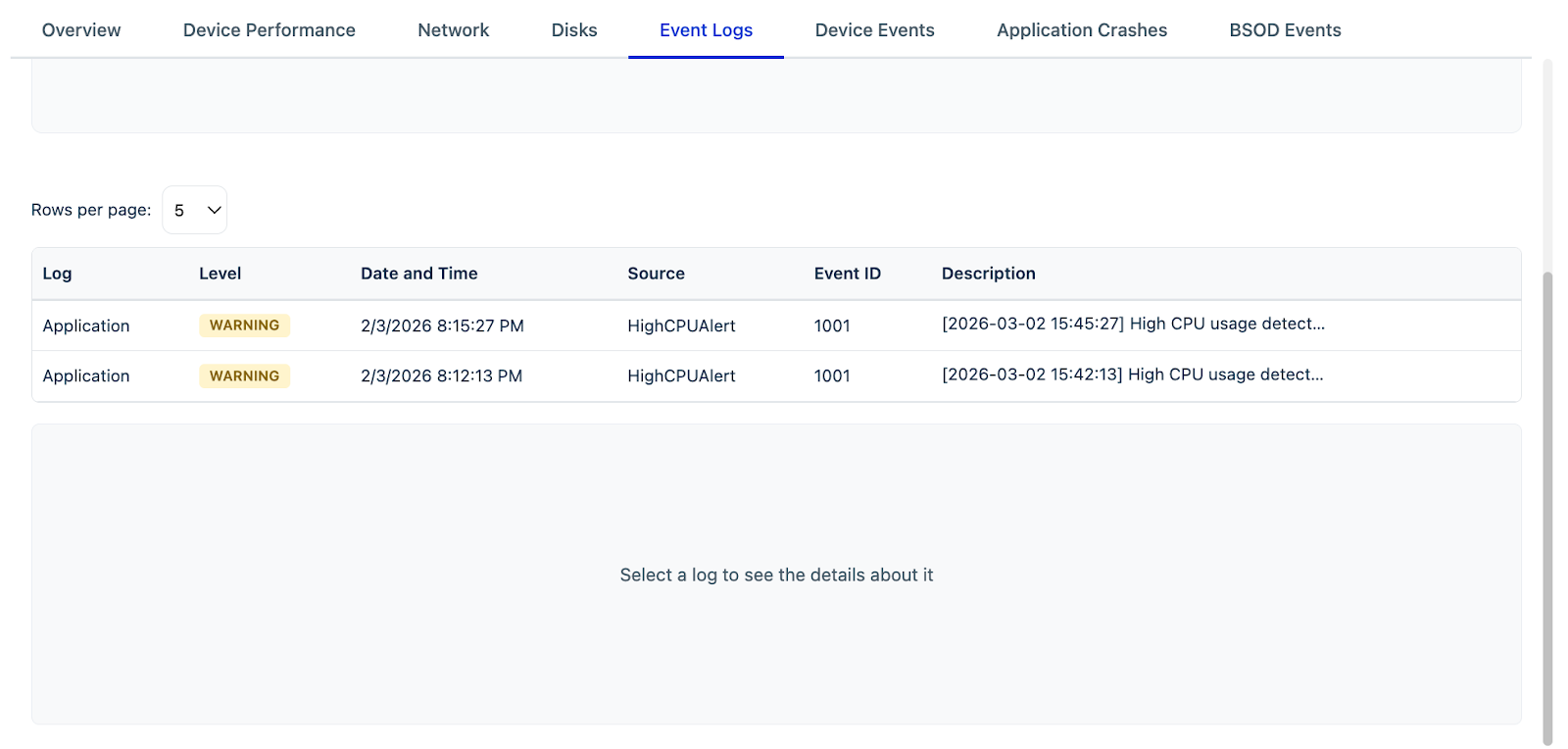 |
| Figure 6: Device Events | 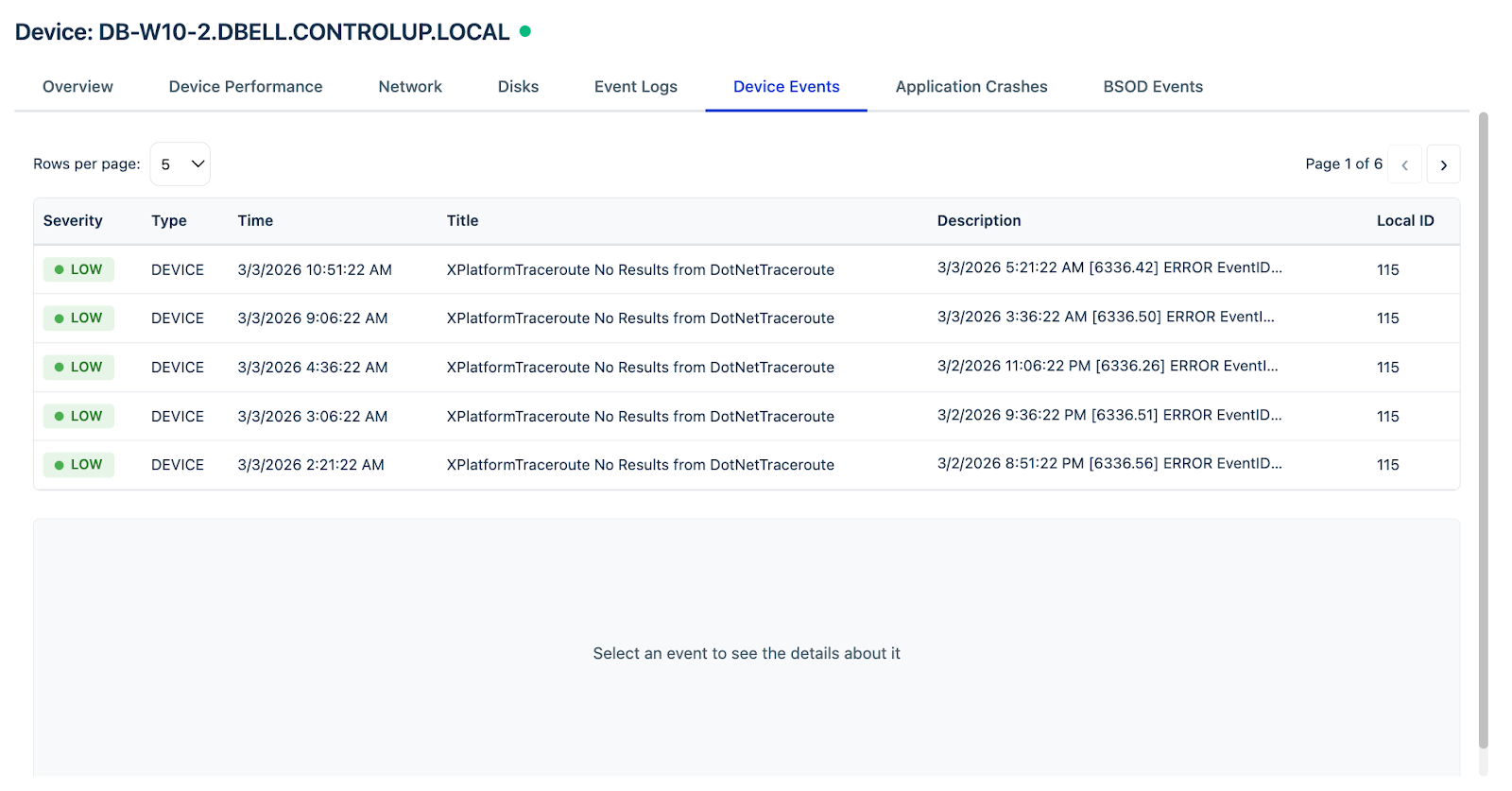 |
| Figure 7: Application Crashes | 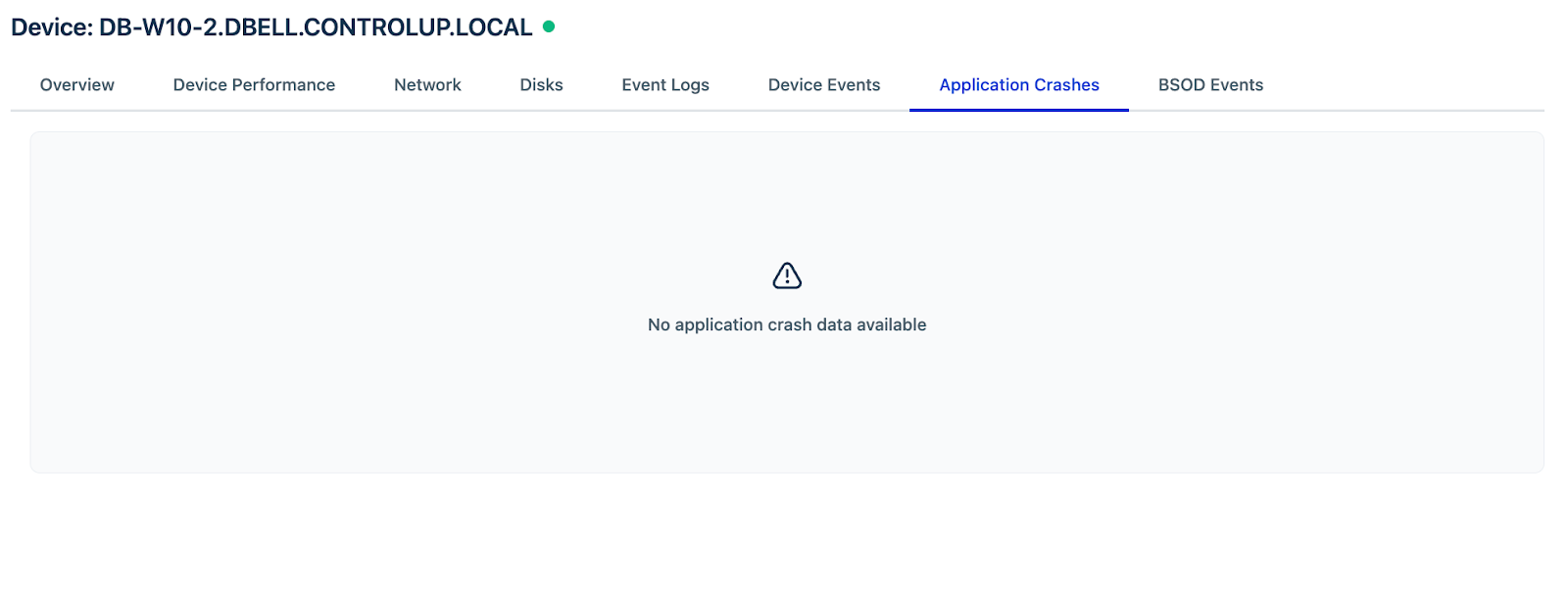 |
| Figure 8: BSOD Events | 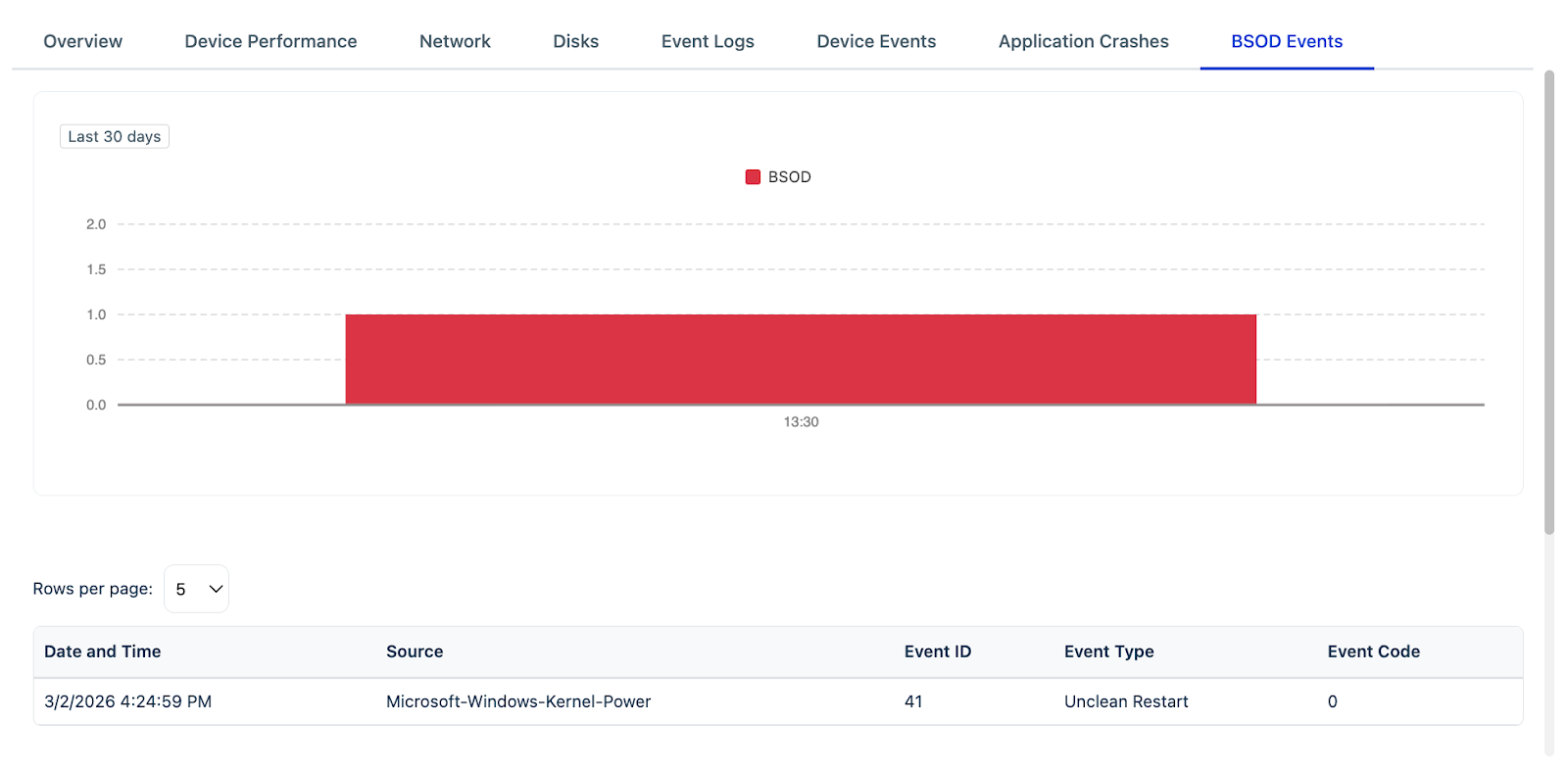 |
How to add device and run remediations
To add device to a service desk ticket and run remediations, follow these steps:
1. Log in to your Freshservice account.
2. Go to Tickets > List.
3. Click any ticket Subject to open the ticket Details page.
_Note:__The ControlUp Integration for Freshservice app is displayed as a widget on the right side of the ticket details page._
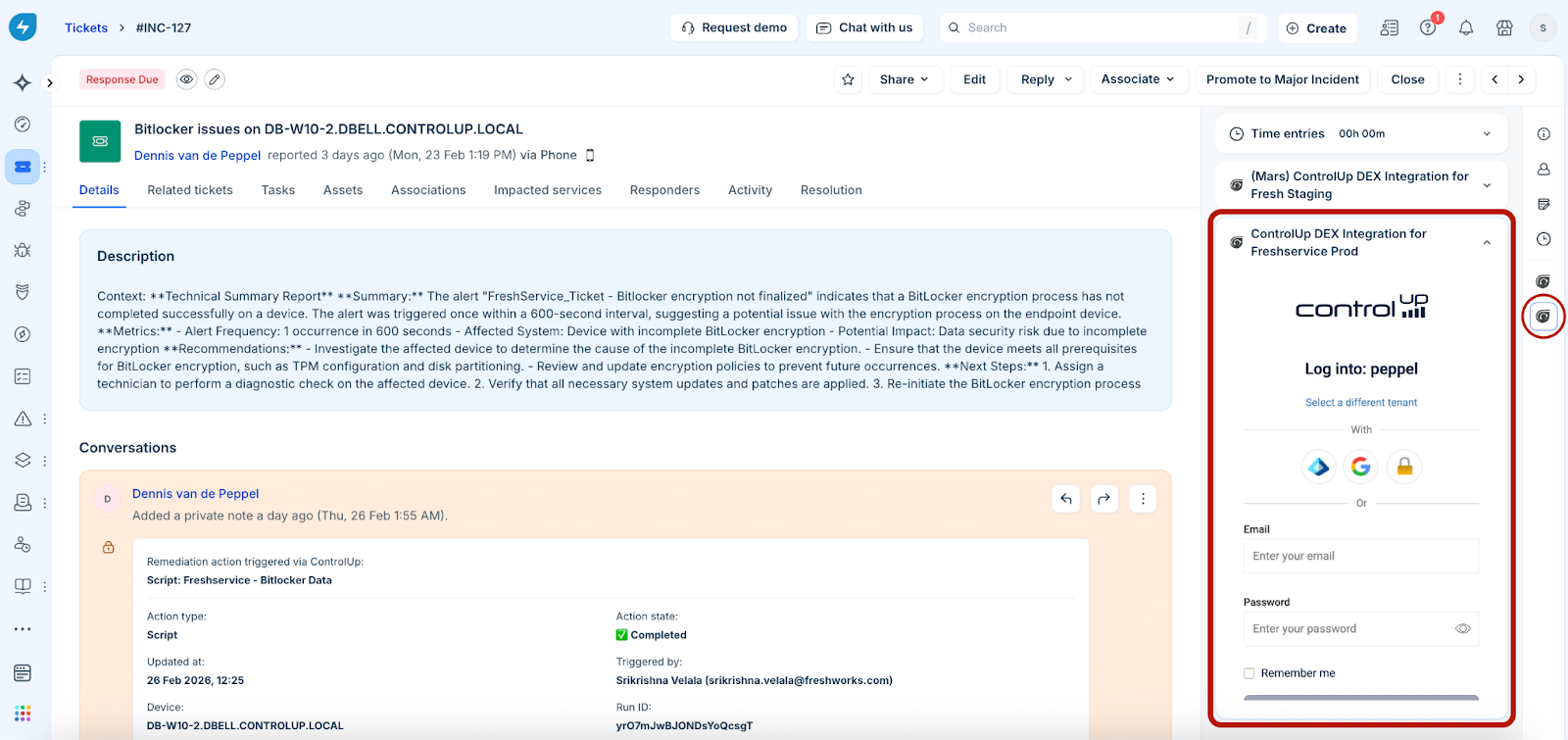
4. Log in to the ControlUp tenant/Organization Name you used to configure the app during installation (see ‘How to install the app’ section for tenant/Organization Name details).
_Note:_
5. Search a device with the Device Name, or click a device under the Device Found option (if available).
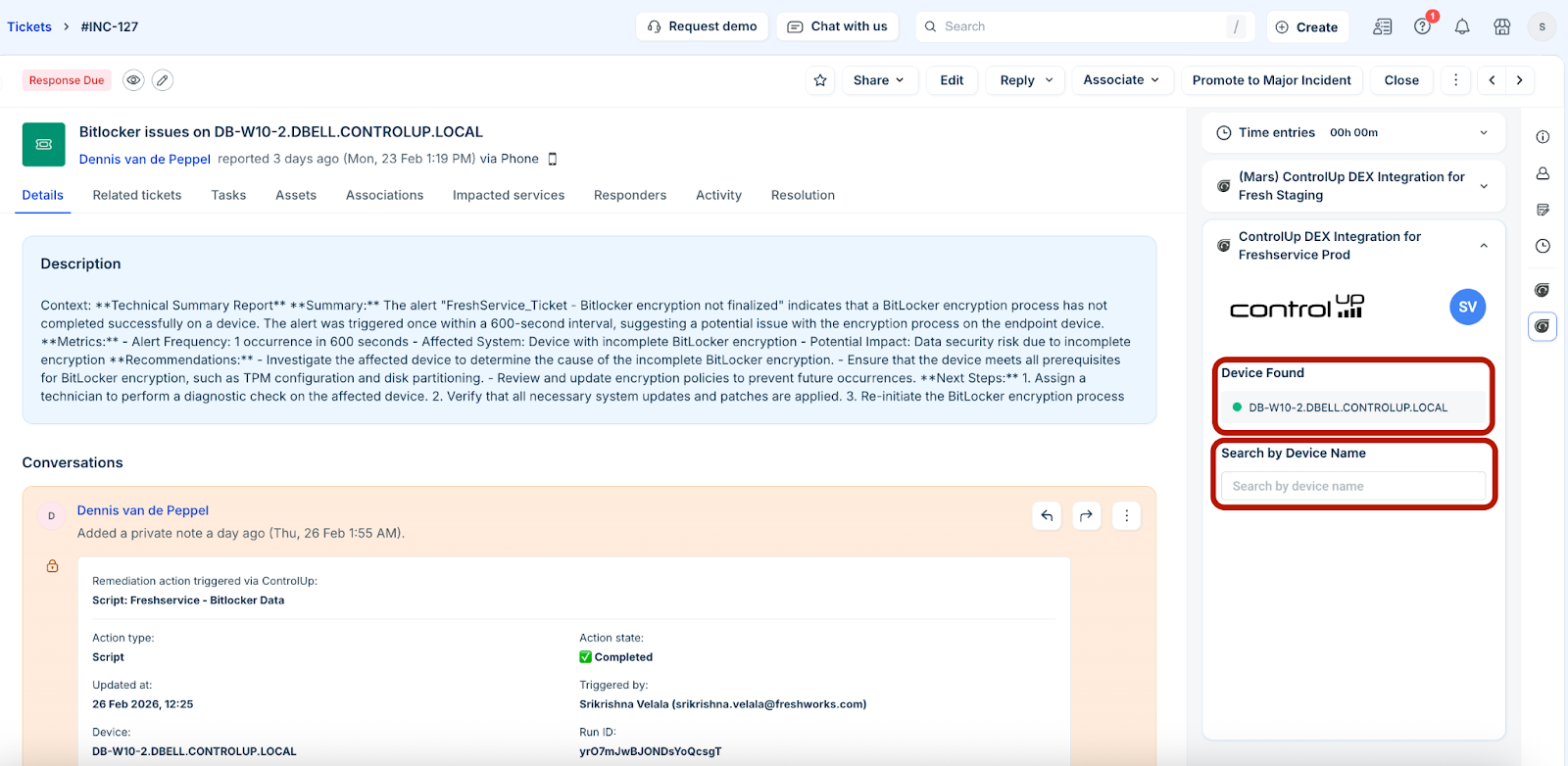
_Note:__Online devices display a green dot as an indication that the device is online, whereas offline devices display a red dot. Any action (such as, running scripts or remote control) cannot be performed on offline devices._
6. (To manually associate assets) Go to the Assets tab and click Associate assets.
7. In the Associate assets slider, select All assets from the dropdown.
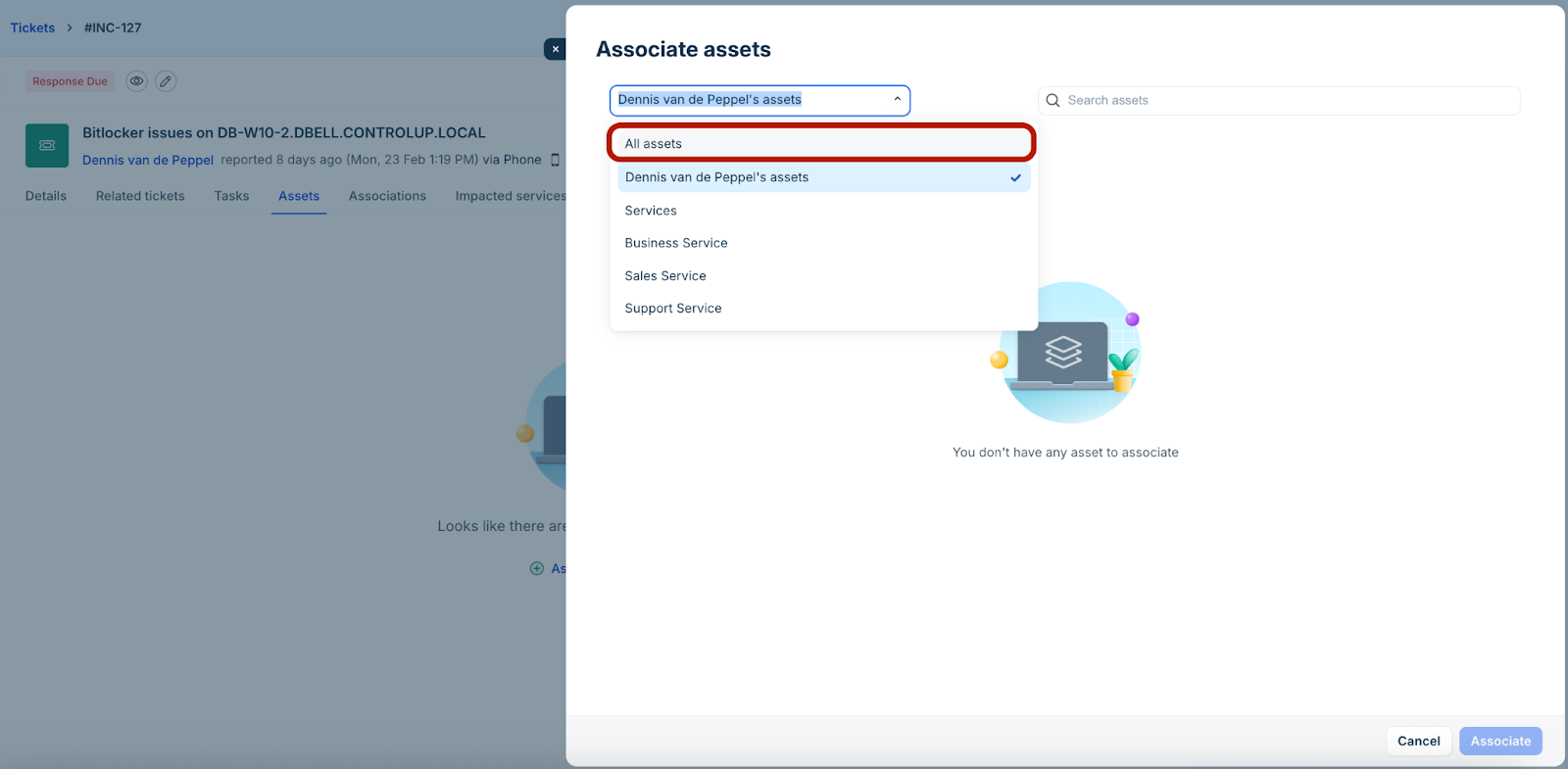
8. Select an asset, and click Associate.
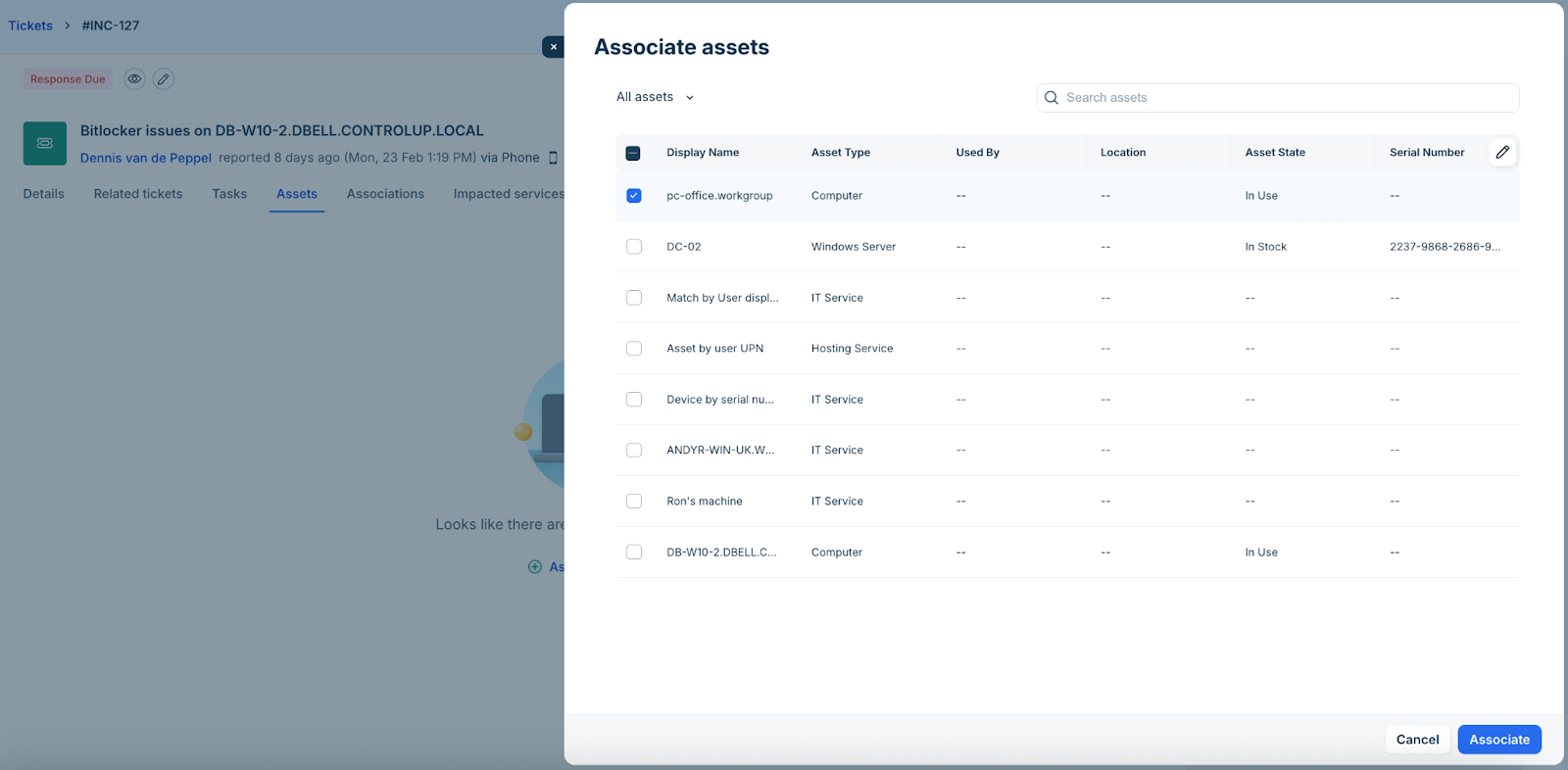
The associated asset is added to the Devices list.
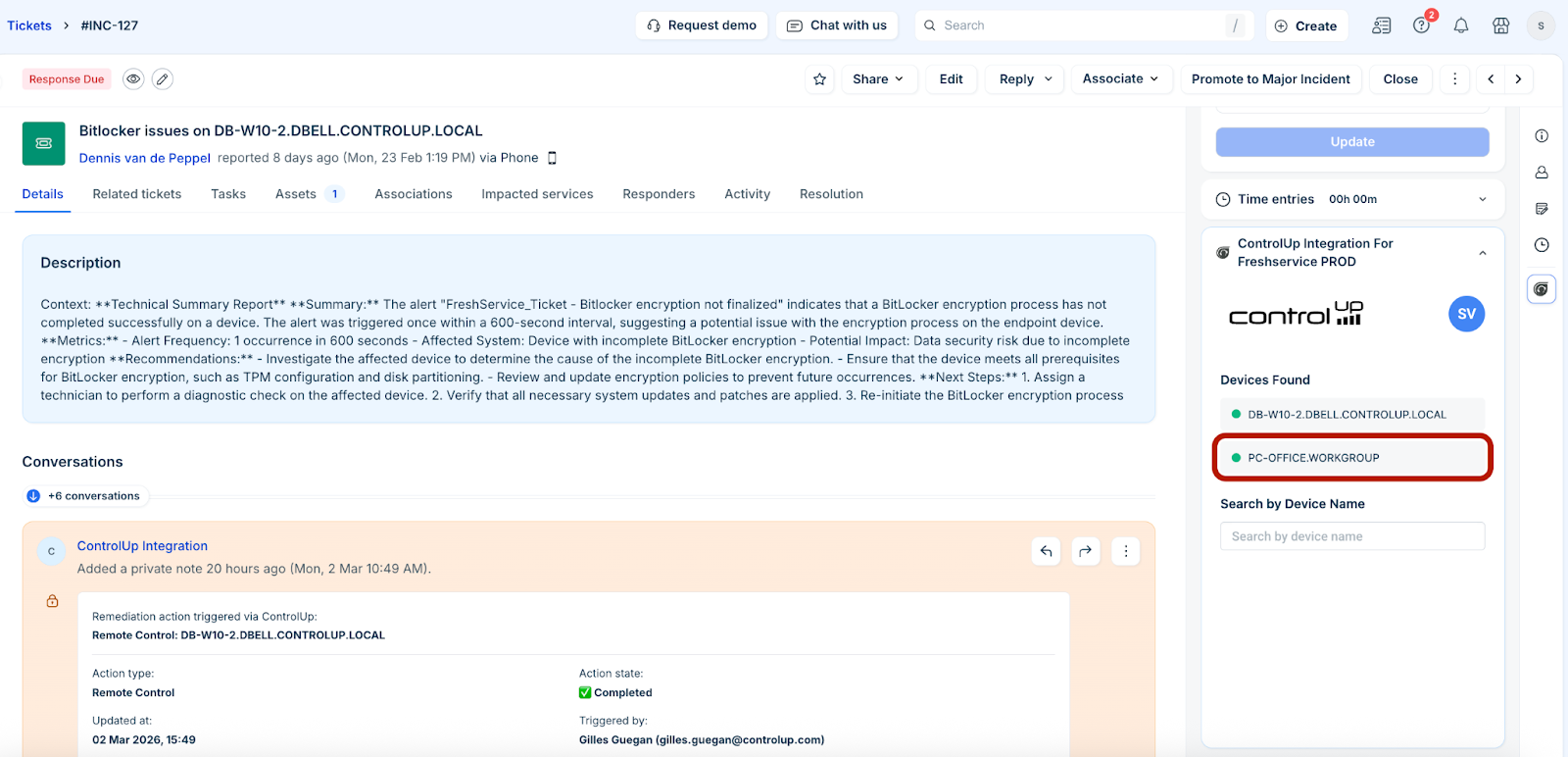
_Note:__You can associate multiple devices to a ticket._
9. Click any device in the ControlUp widget to view device information or run remediations.
10. In the ControlUp Connector/ControlUp Integration slider, you can view all the device details in the following tabs: Overview, Device Performance, Network, Disks, Event Logs, Device Events, Application Crashes, and BSOD Events. See ‘Metrics and health data available through the integration’ section for more information on the device details available in each tab.
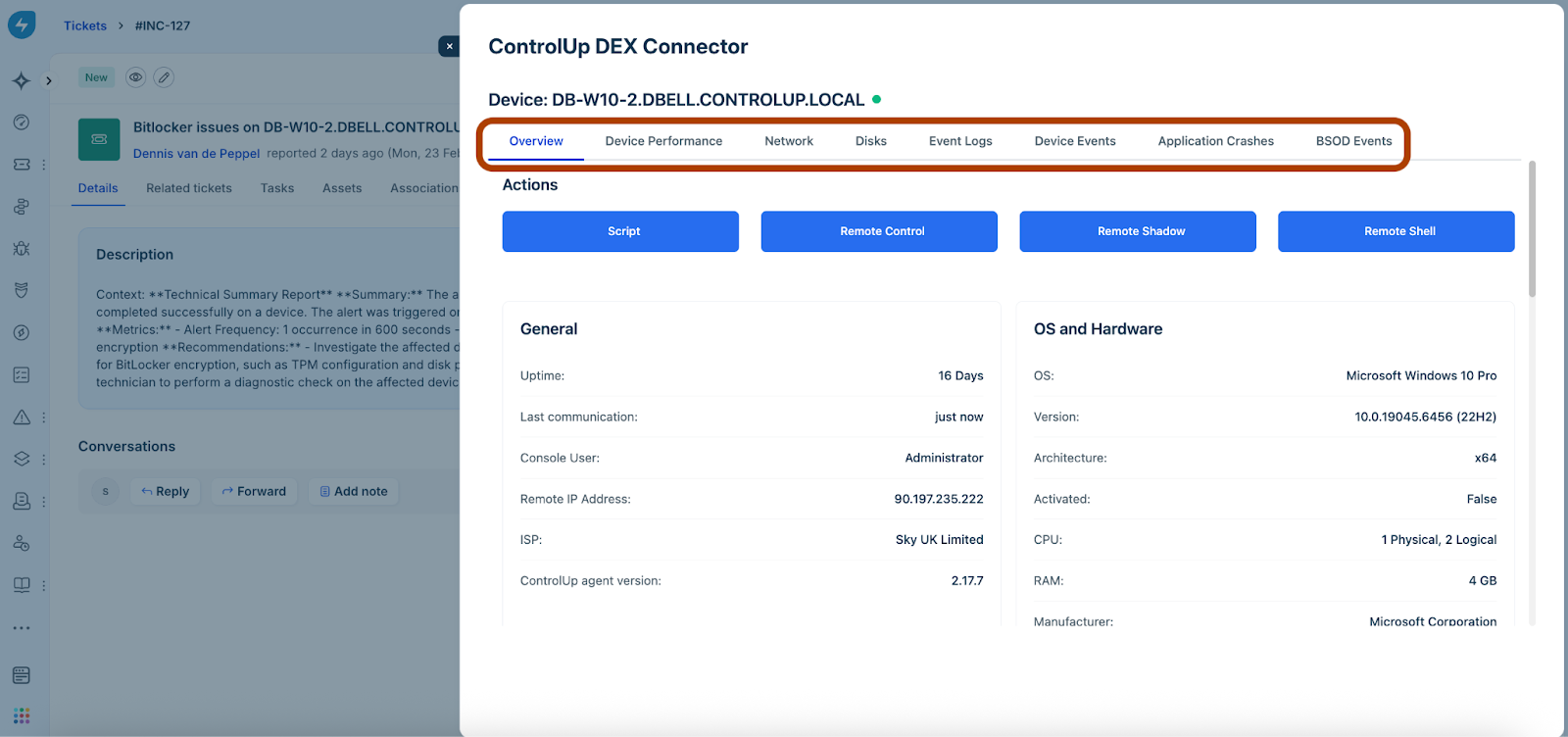
11. In the Overview tab:
1. Click Script to run any system or user scripts to perform remediations (such as CPU check or Internet Speedtest).
2. Click Remote Control to start a remote control session with a device.
3. Click Remote Shadow to start a remote shadow session with a device.
4. Click Remote Shell to execute commands on a remote device using the command-line interface.
5. Or, view various details of a device, such as general information, OS and hardware, device score, top processes, and top active applications.
_Note:_ _Whenever you run any remediation action in the Overview__tab, a conversation is added to the ticket with details, such as ‘Action type’, ‘Action state’, ‘Updated at’, ‘Triggered by’._
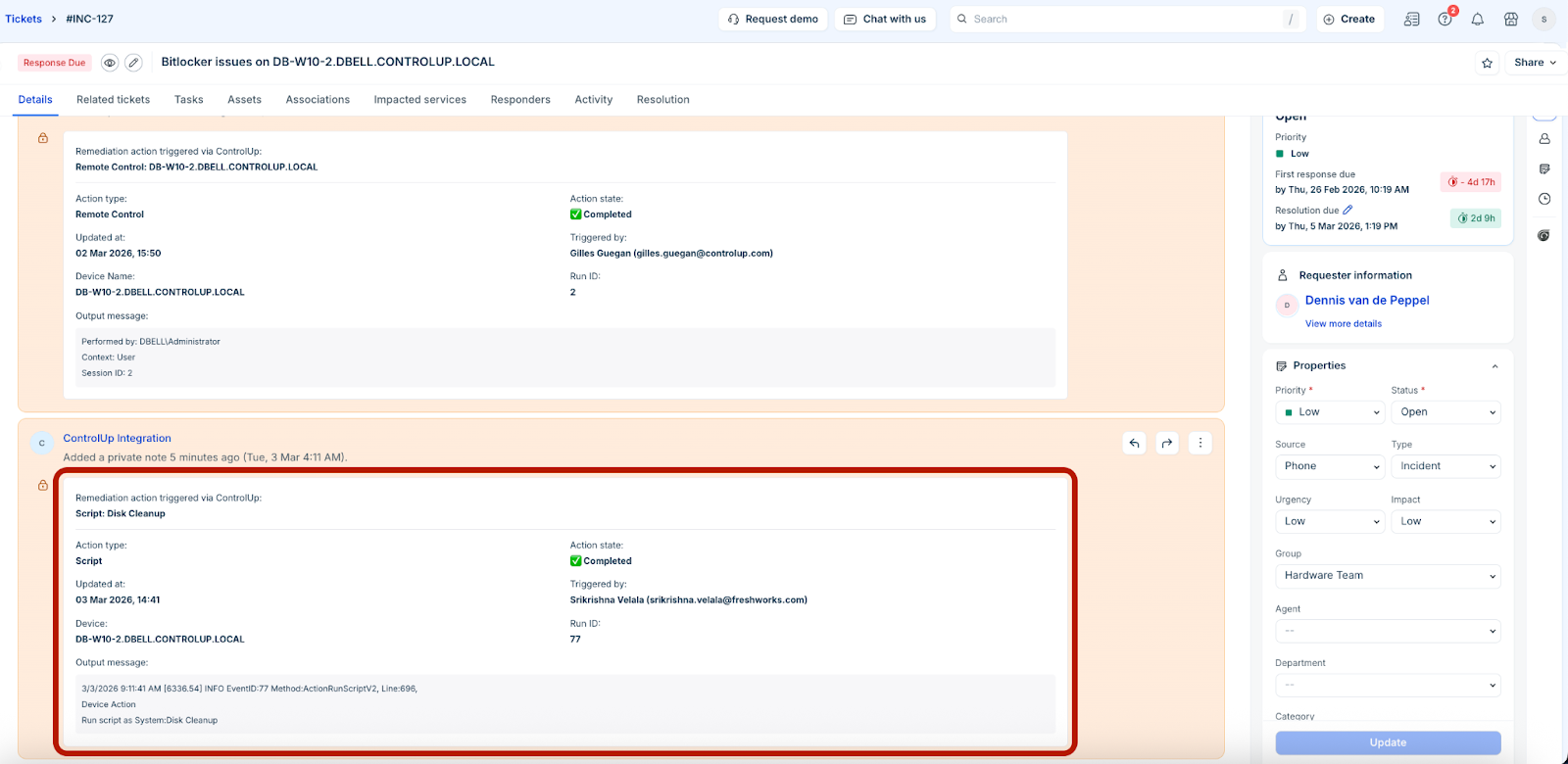
12. In the Device Performance tab, view the device performance related information, such as CPU usage percentage, memory usage, Wi-Fi signal, and so on.
13. In the Network tab, view the network related information, such as network interfaces, network usage, latency, and so on.
14. In the Disks tab, view the disks related information, such as hard drive or other storage medium.
15. In the Event Logs tab, view all the event logs for the device.
16. In the Device Events tab, view all the device events for the device.
17. In the Application Crashes tab, view information of all the application crashes related to the device.
18. In the BSOD Events tab, view information of all the BSOD events related to the device.
Remediation examples
Some of the remediation examples related to IT applications, endpoints, or security incidents identified and flagged by the ControlUp-Freshservice integration are as follows: