Last updated: 2026-02-06
Freshservice integration with Docusign - Orch and eSign enables you to streamline both e-signature workflows and document orchestration within the service desk and workflow automator.
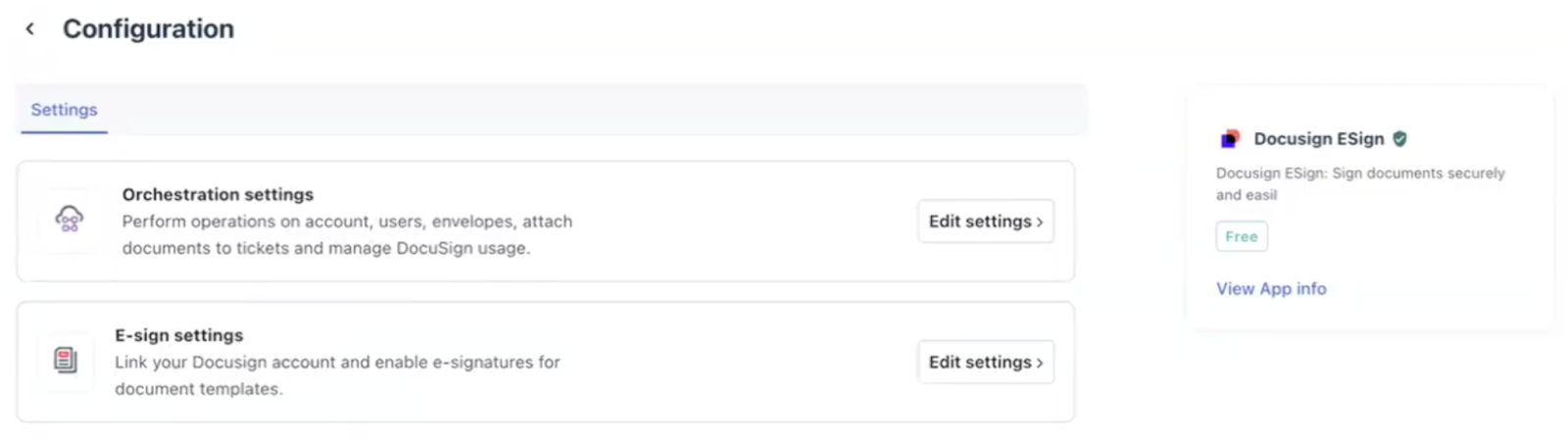
You can select one of the following settings based on your requirement:
Prerequisites for integration
Ensure you have the following, as part of the prerequisites for integration:
Install the app in your Freshservice Account
To install the app, follow these steps:
Step 1: Log in to your Freshservice account
1. Go to HR Workspace > Service request management > Document and signature templates > E-signsettings > Other e-sign providers \> select Docusign - Orch and eSign.
2. Or, click the Marketplace Apps icon on the top-right corner, and select Marketplace Apps. Search and select the Docusign - Orch and eSign.
3. Click Install on the installation page. The Configuration page opens.
4. Select E-sign settings. For more information about configuring Docusign e-signatures in documents, refer to Using Docusign for E-signatures in documents.
Step 2: Update Configuration settings in Freshservice
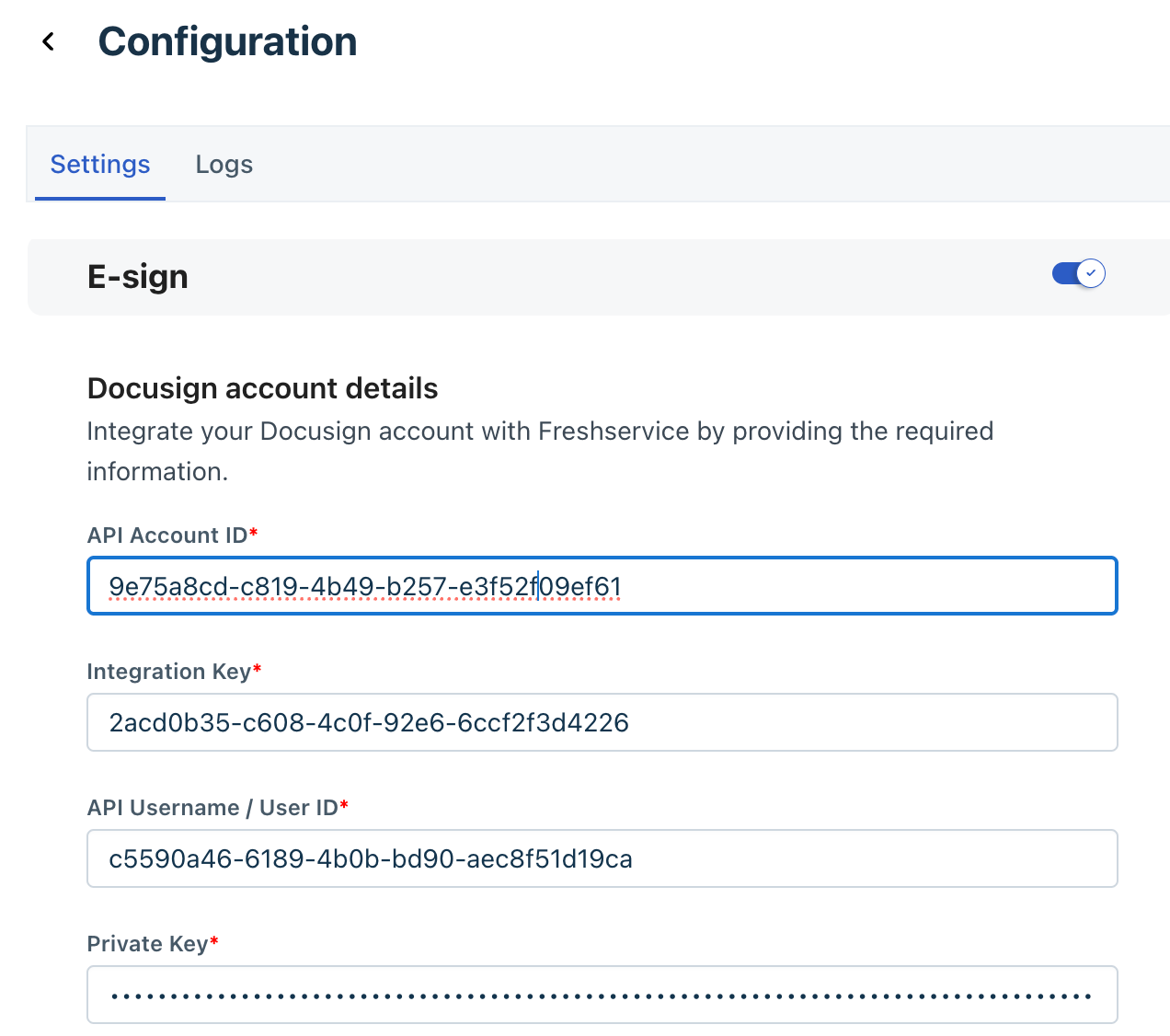
1. Enter the following details that you have obtained from the Docusign apps: - Public and Private Keys - enter an URL in the Redirect URL field
- API Account ID
Note: The Account ID can be changed; however, doing so will trigger an error message. We recommended not to change the Account ID, as this may disrupt ongoing signature processes.
- Integration Key
- API Username / User ID
- Private Key 2. Select True or False in the Is Production Account? field,based on which account you are using sandbox or production.
3. The following fields are automatically pre-filled:
- Freshservice Domain
- Freshservice API Key 4. Click Save.
Step 3: Authorize Docusign Integration Key:
For more information on how to use the app to initiate signatures, send reminders and track status in real-time within Freshservice, refer to Embed eSignatures in Documents.
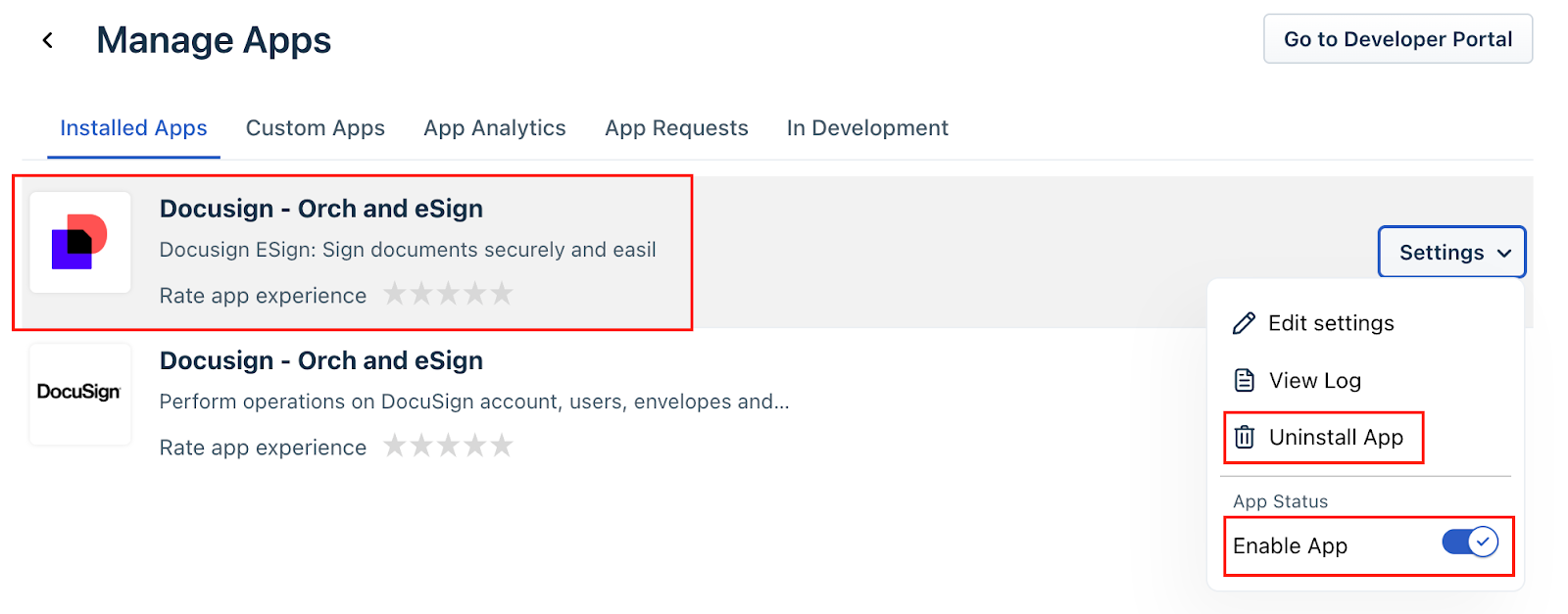
How to disable or uninstall the app
To disable or uninstall the Docusign – Orch and eSign app in Freshservice, follow these steps:
1. Log in to your Freshservice account.
2. Go to the E-sign configuration page.
3. To disable the app, click the Enable App toggle.
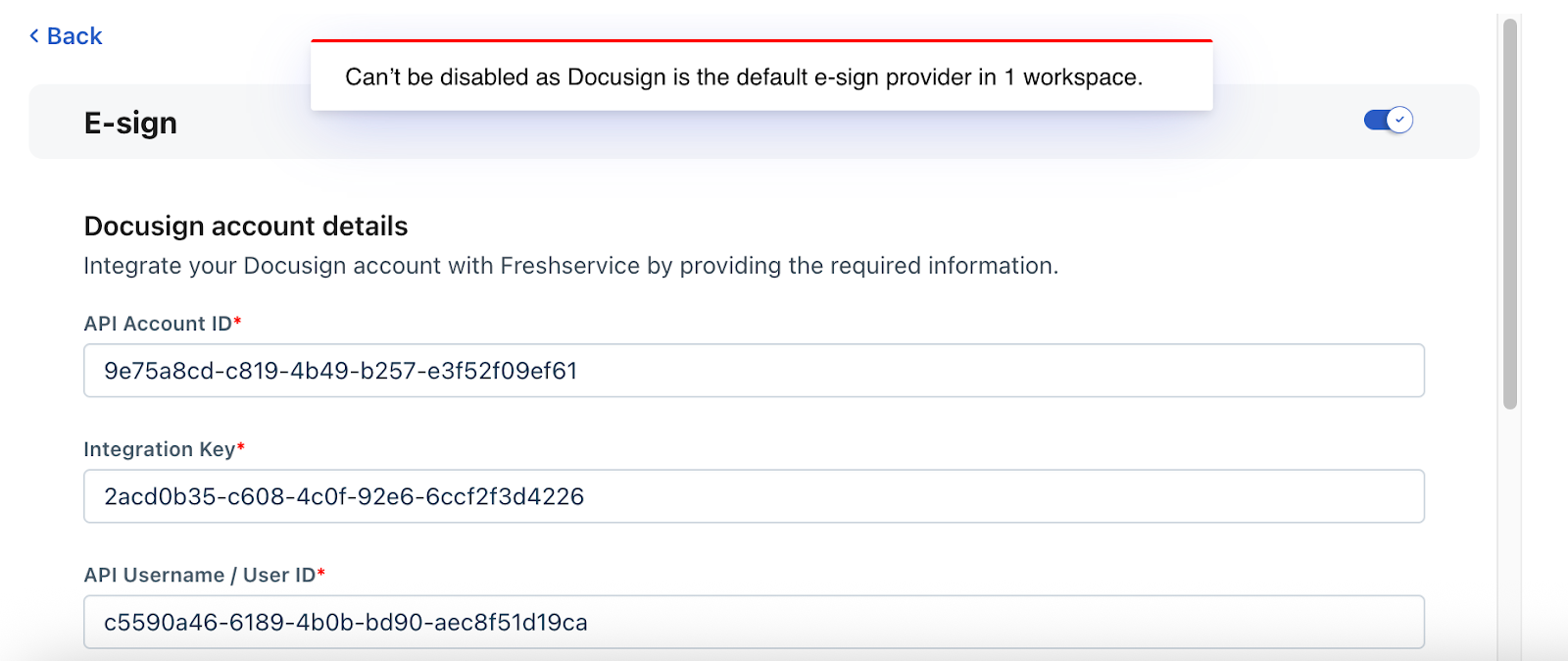
Note: The e-sign toggle cannot be turned off if DocuSign is the workspace default, and will display a warning if there are document templates associated with the app.
4. To remove the app completely, click Uninstall App.