Last updated: 2026-02-23
Overview
Move Form-related conditions and actions enable admins to control how fields on the move form behave when a ticket, problem, or change is transferred between workspaces. With this capability, admins can:
When agents move tickets, problems, or changes, the configured rules are automatically applied, ensuring that only the relevant fields and options for the target workspace are displayed. While you can move tickets between both IT and non-IT workspaces, you can only move problems and changes between two IT workspaces.
Availability
This capability is available for all plans that support business rules in Freshservice. It applies only to multi-workspace environments where business rules are enabled.
Not supported in the following scenarios:
Note: If you switch from multi-workspace mode to single-workspace service desk mode, the system automatically disables move permissions.
Supported modules
Global business rules
Global business rules support the Move Form’s Workspace field in condition blocks, and the Workspace, Group, and Agent fields in action blocks, enabling greater flexibility when configuring automation across workspaces.
Configure Conditions in Ticket, Problem, and Change
When creating or editing a rule:
1. Select Agent for Applies to and Edit form for Execute on.
2. Depending on the module, the respective Move Ticket (Form), Move Problem (Form), or Move Change (Form) appears as an available conditional form.
3. Within the specific Move form, you can define the following conditions:
- Field: Workspace (target workspace for the move)
- Operators: Includes, Does not include
- Condition syntax:
Syntax: <Form Name>.<Field Name> <Operator> <Value>
Example: Move problem.Workspace Equals "IT Support"
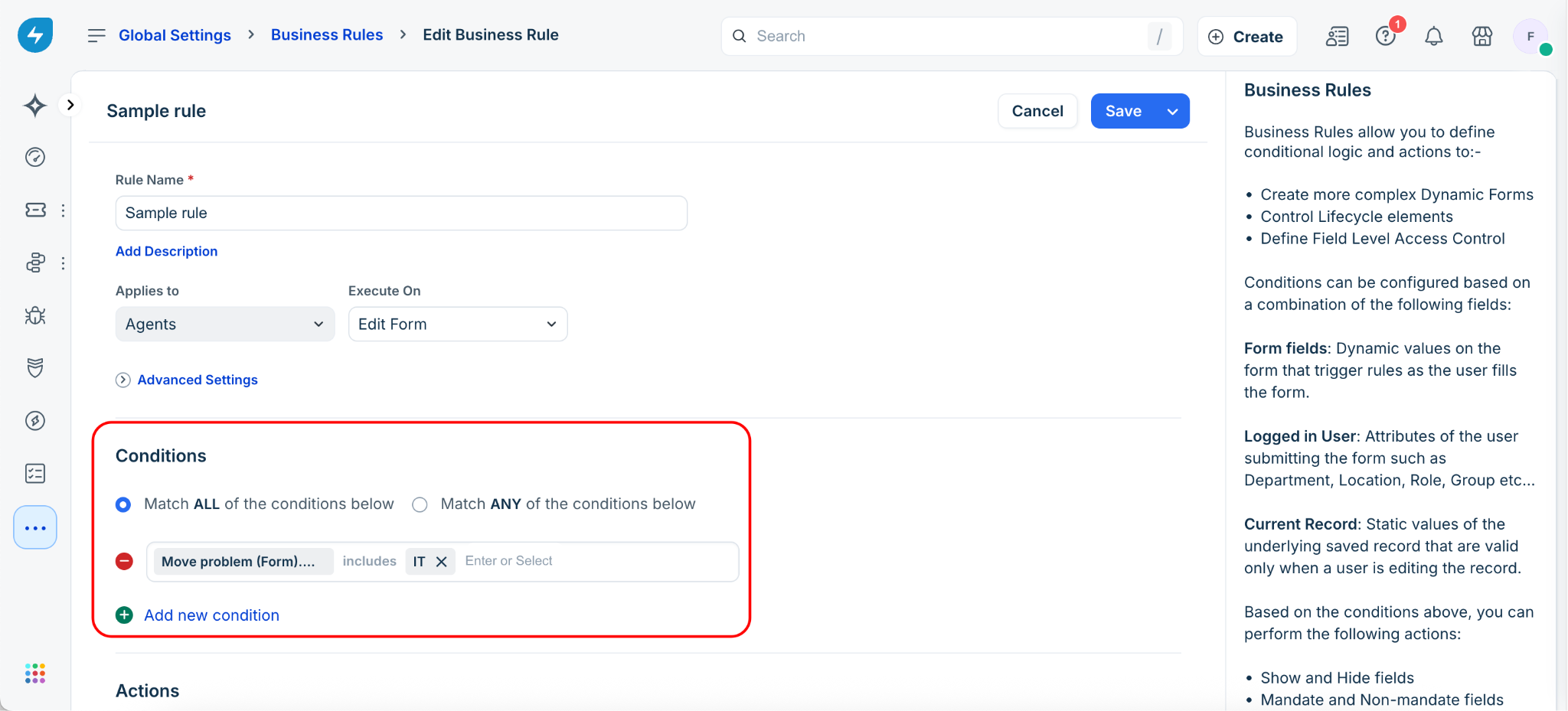
Note: You can select both in-setup and published workspaces when configuring Move form conditions.
Configure Actions in Ticket, Problem, and Change
Configure conditions such as Hide, Show, Enable, Disable, Mandate, Non-mandate, Set Options, and Remove Options. You can configure these actions for the Move form as well as the Ticket, Problem, or Change forms.
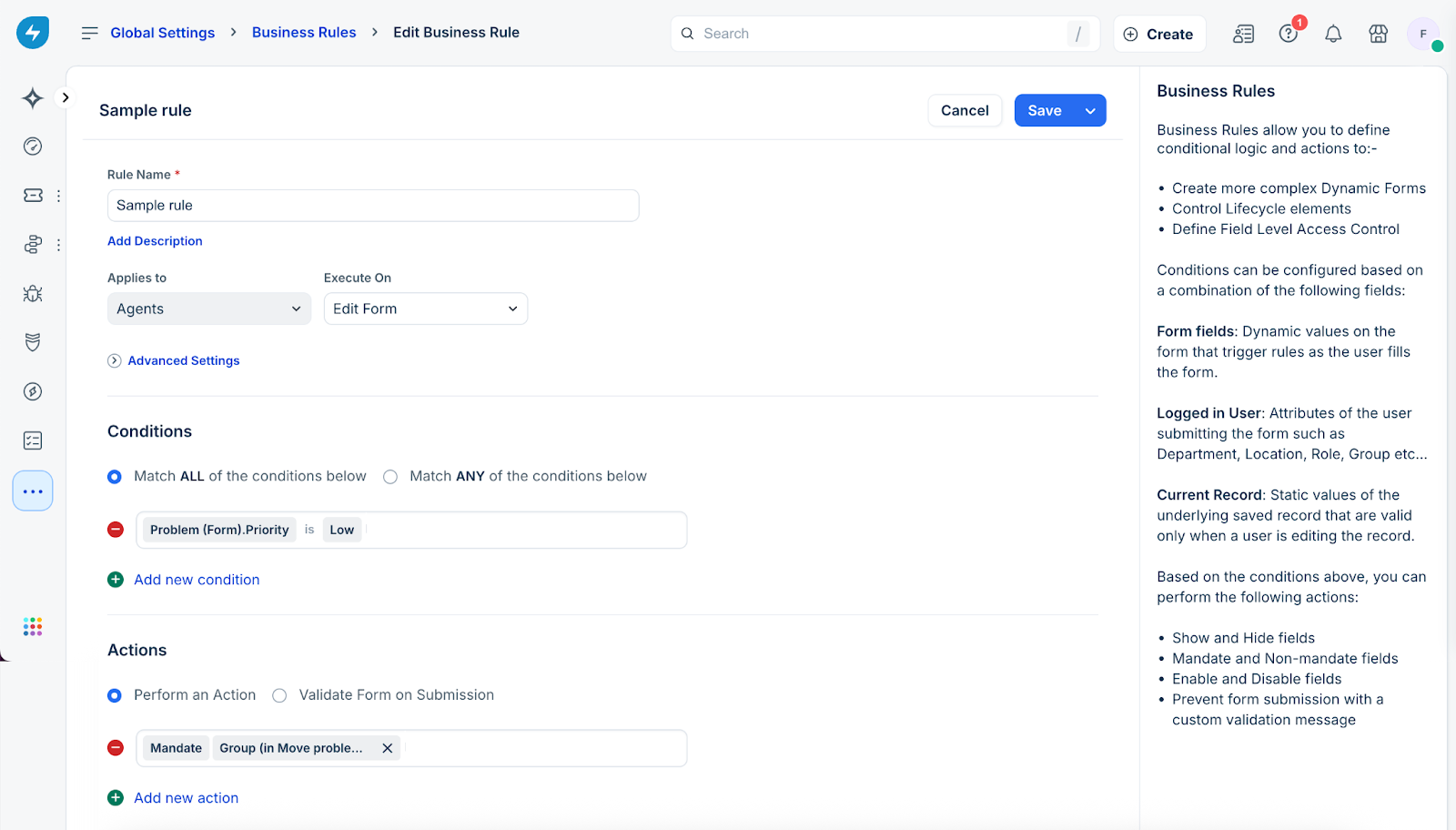
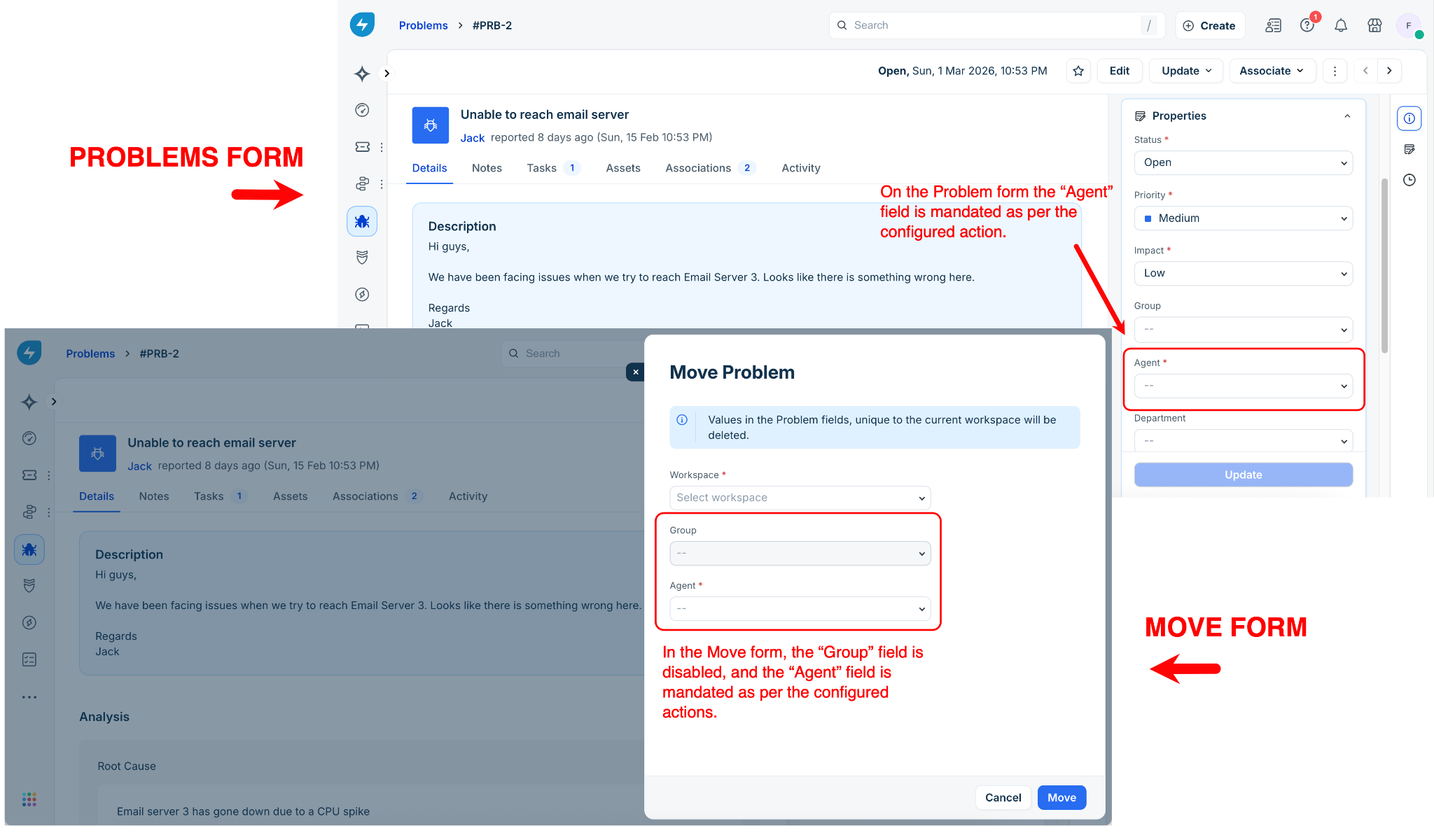
To understand this better, let’s look at an example using Problems. Suppose you want to disable the Groups field on the Move form and mandate the Agent field on both the Move and Problem forms. In this case, you can configure the actions as shown below.
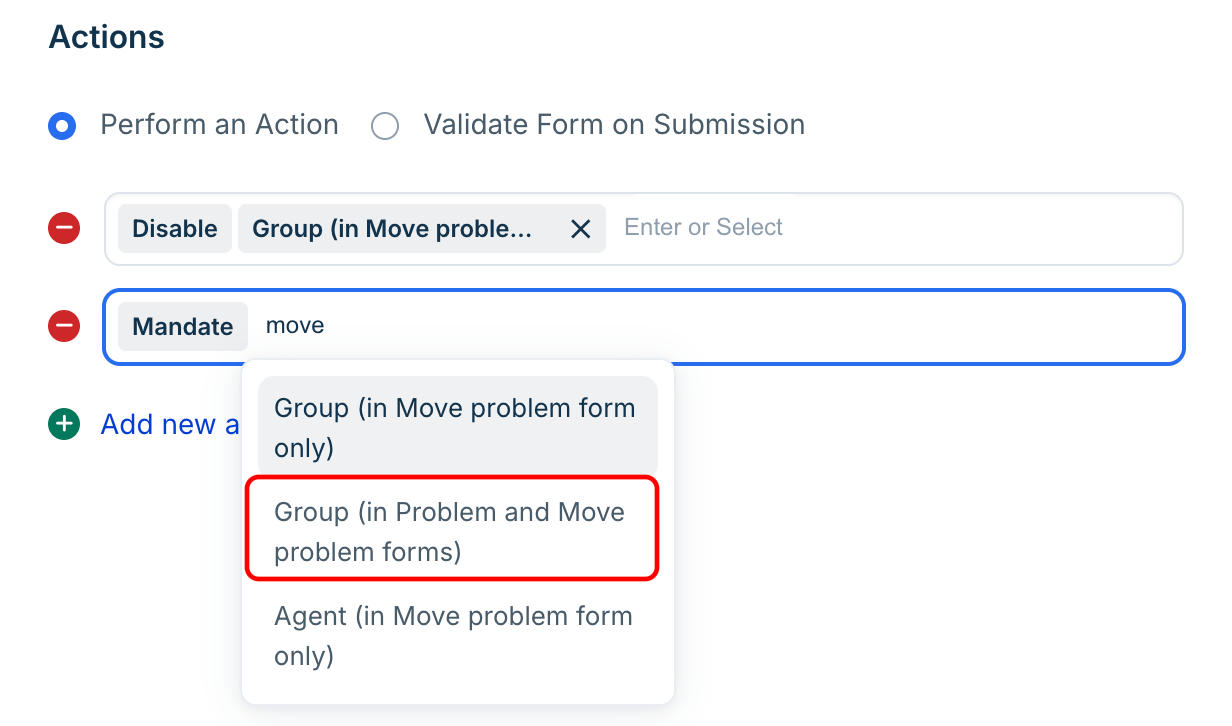
Once you save and activate this action, you will notice that the Group field is disabled when you try to move a problem and the Agent field is mandated on the Problems form as shown below.
Options available
The Group, Agent, and Workspace actions now include additional options for Move ticket/problem/change form scenarios:
| Field | Split Options |
| Group | Tickets, Problems, or Changes Form only / Move Form only / Both |
| Agent | Tickets, Problems, or Changes Form only / Move Form only / Both |
| Workspace | Tickets, Problems, or Changes Form only / Move Form only / Both |
These appear in the same position as existing action fields. You can choose the option that suits your requirement.
Actions supported
| Field | Supported Actions |
| Group, Agent | Show, Hide, Mandate, Non-Mandate, Set Options For, Remove Options For |
| Workspace | Set Options For, Remove Options For |
Form applicability
| Action Type | Valid forms for business rules |
| Group/Agent (in Ticket, Problem, or Change Form only) | All forms |
| Group/Agent (in Move Form only) | Only for the Edit Form:<br>- Agent on Edit Form<br> <br>- Requester on Edit Form (not applicable to problems)<br> <br>- Agent + Requester on Edit Form (not applicable to problems) |
| Group/Agent (in Ticket, Problem, or Change Form and Move Form) | Only for the Edit form and the New+Edit form <br>- Agent on Edit Form<br> <br>- Agent on New and Edit Form<br> <br>- Agent + Requester on Edit Form (not applicable to problems)<br> <br>- Agent + Requester on New + Edit Form (not applicable to problems)<br> <br>- Requester on Edit Form (not applicable to problems)<br> <br>- Requester on New and Edit Form (not applicable to problems) |
Note:
Business rule execution logic
1. ### When all conditions must match
| Scenario | Behavior |
| Conditions = Mix of move ticket form and standard ticket form conditions OR only move ticket form conditions<br>Actions = Mix of move ticket form and standard ticket form actions | Actions apply only to the Move Ticket form when all conditions are met. Standard (non-move) actions do not execute because the move form must be opened, and a workspace option must be selected for the move condition to be satisfied.<br>Exception: Move form workspace condition uses the “Does not include” operator. In this case, standard actions still execute because no workspace is selected by default. |
| Conditions = Only standard ticket form conditions<br>Actions = Mix of move ticket form and standard ticket form actions | As long as the conditions are satisfied, actions apply to both forms regardless of the selected workspace. |
2. ### When any condition can match
| Scenario | Behavior |
| Conditions = Mix of move ticket form and standard ticket form conditions<br>Actions = Mix of move ticket form and standard ticket form actions | Move Ticket actions execute if any condition matches; Standard actions execute if any standard ticket form condition matches. |
| Conditions = Only move ticket form conditions<br>Actions = Mix of move ticket form and standard ticket form actions | Move Ticket actions execute; Standard ticket form actions do not. |
| Conditions = Only standard ticket form conditions<br>Actions = Mix of move ticket form and standard ticket form actions | As long as the conditions are satisfied, actions apply to both forms regardless of the selected workspace. |
How local BRs work during a move
When a ticket is moved from one workspace to another (for example, from IT → HR):
1. The HR workspace’s Local Business Rule executes on the Move Ticket (form) inside the IT workspace.
2. All conditions in the HR BR are evaluated:
- Global ticket fields/User fields: Pass (since they’re available in the source workspace too, that is, in the IT workspace)
- Local fields (specific to HR): Fail (as they are not available in the IT workspace) 3. Actions related to the Move Ticket form (such as group/agent actions) apply to the Move form.
4. Standard actions on the source ticket in IT do not get applied.
The feature allows teams to define rules for how incoming tickets are received, ensuring they arrive in the format and structure they prefer. It’s recommended to communicate and align these rules with other teams before applying them.
``` Workspace Business Rules related to Group or Agent fields in the Move Ticket form are executed only when the same workspace is selected in the Move dropdown.
In typical scenarios, items are not moved to the same workspace, so workspace admins should not expect to see the results of their local Move Form Business Rules when selecting other workspaces in the Move form. However, they can test and validate that the Business Rule works as expected by selecting their own workspace in the Move form. ```
Workspace business rules
Workspace Business Rules behave similarly but have a few key differences:
When an action involves the Move Ticket (form), a banner appears under the ‘Actions’ section to explain how it applies.
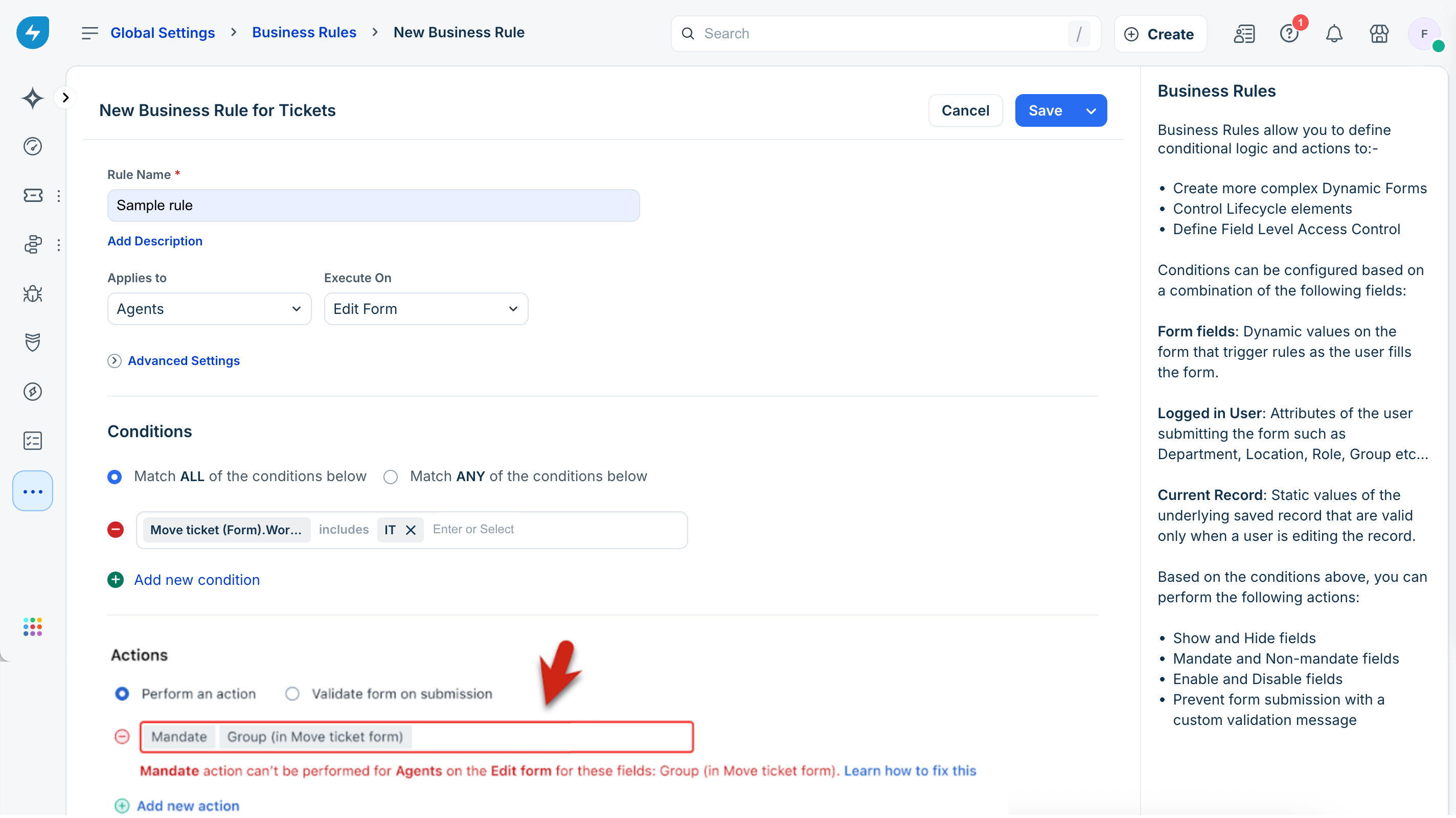
Error handling for invalid applicability
If an admin configures an action for the wrong user type or form type, the system validates it before saving.
Agent experience
When an agent uses the Move form:
When an agent uses the BulkMove form:
Impact on existing customers
If you notice any of the new Move Form-related conditions or actions already present in your account, please note that this is intentional. In the earlier setup, certain Group and Agent actions were automatically applied to the Move Form as well.
To ensure your current experience remains unchanged, we’ve adjusted your account settings accordingly. In some cases, we’ve updated your Group/Agent action to Group/Agent on Ticket + Move Form to maintain consistency in behavior.