Last updated: 2024-11-04
Integrate Salesforce CRM with Freshservice to track license usage based on user logins. Here’s a list of what the salesforce integration offers:
``` Prerequisites for setting up the integration How to set up the integration between Freshservice and Salesforce CRM? Configuring Salesforce CRM Profile in Freshservice Features Capabilities offered by the Freshservice-Salesforce integration Contract Utilization Metrics License Plan Metrics License Usage Monitoring User Actions ```
Prerequisites for setting up the integration
The Salesforce account used for the integration requires the following user access permissions.
How to set up the integration between Freshservice and Salesforce CRM?
``` To integrate Salesforce with Freshservice using a REST-based API, create a connected app in Salesforce. Salesforce Role Required— Admin access in Salesforce. ```
1. Log in to your Salesforce account using your admin credentials. 2. (Optional) After logging in, switch to Salesforce Classic mode for easier navigation. 3. Click Setup. This opens the setup page. 4. Scroll down to Build on the left panel and go to Create > Apps. 5. Scroll down to the Connected Apps section and click on New to create a new app. 6. Fill in the Connected App Fields: 1. Connected App Name: Name of your application. 2. API Name: This field is automatically populated. 3. Contact Email: The email address that you want to associate with the application. 4. Enable OAuth Setting: Select Option to enable OAuth settings. 5. Callback URL: Enter https://instance.freshservice.com/, where <instance> is the name of your Freshservice instance. 6. Selected OAuth Scopes: OAuth scopes that determine the amount of access that is granted to an access token. The following values are required: 1. Full access (full) 2. Perform requests at any time (refresh\_token, offline\_access) 7. Custom Connected App Handler: Run As a user with pre-requisite permissions 8. Enable Client Credentials Flow: Select the checkbox 9. Click Save to finalize your connected app configuration. 7. Once saved, Salesforce will generate a Consumer Key (client ID) and Consumer Secret (client secret). Copy these credentials for use in configuring the Salesforce integration in Freshservice.
Configuring Salesforce CRM Profile in Freshservice
1. Log in to your Freshservice as an admin. 2. Go to Global Settings > SaaS Management 3. Scroll down and select Salesforce-Orch from the list of available integrations 4. Install the Salesforce App and configure: Use the Consumer Key and Consumer Secret from the connected app you created in Salesforce.
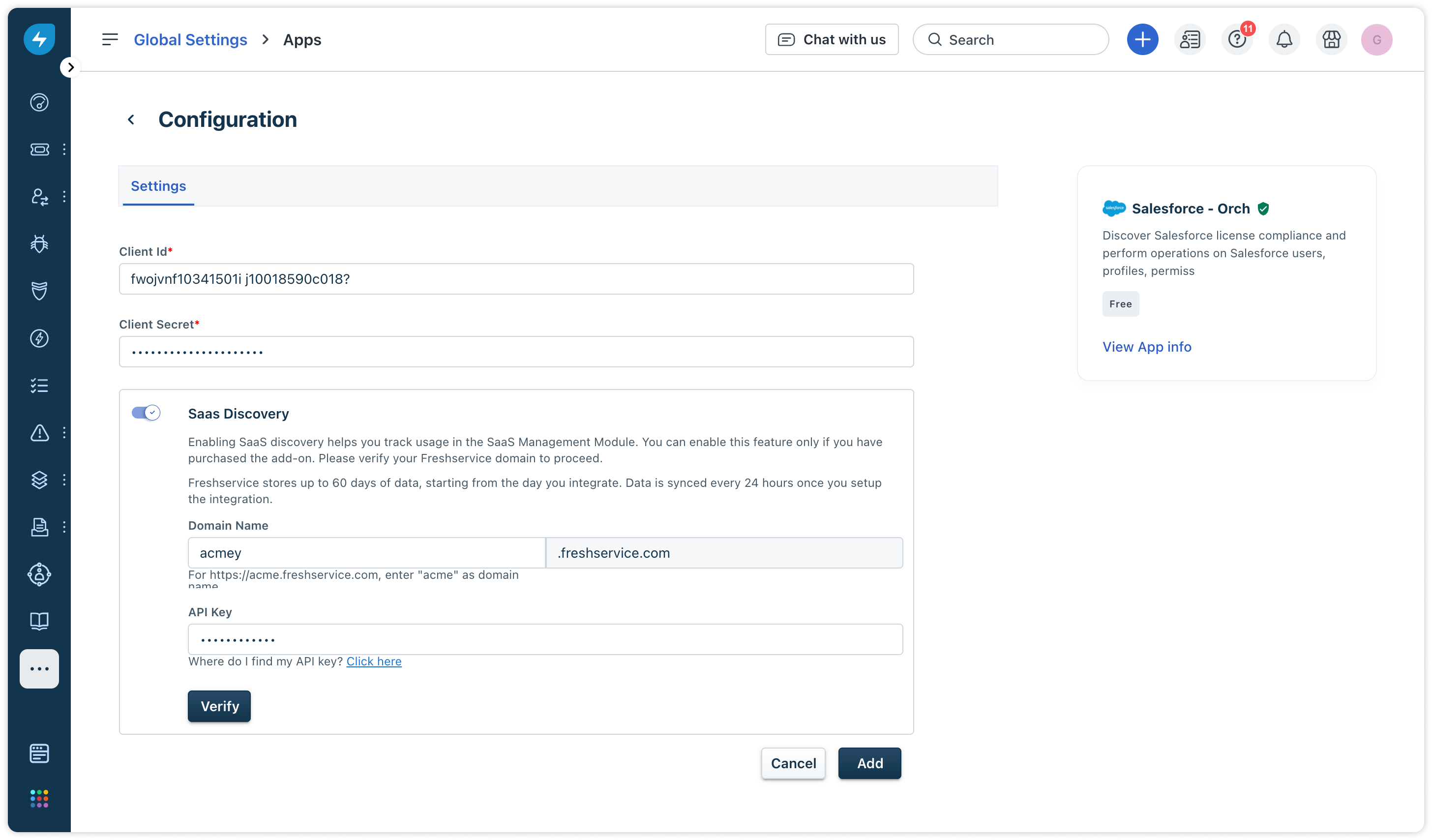 5. Turn on the SaaS discovery toggle to bring in details of license usage. 6. Fill in your Freshservice domain name, verify the account with the API key, and Add the account. 7. This sets up an integration between Salesforce CRM and Freshservice and fetches usage metrics from Salesforce.
Capabilities offered by the Freshservice-Salesforce integration
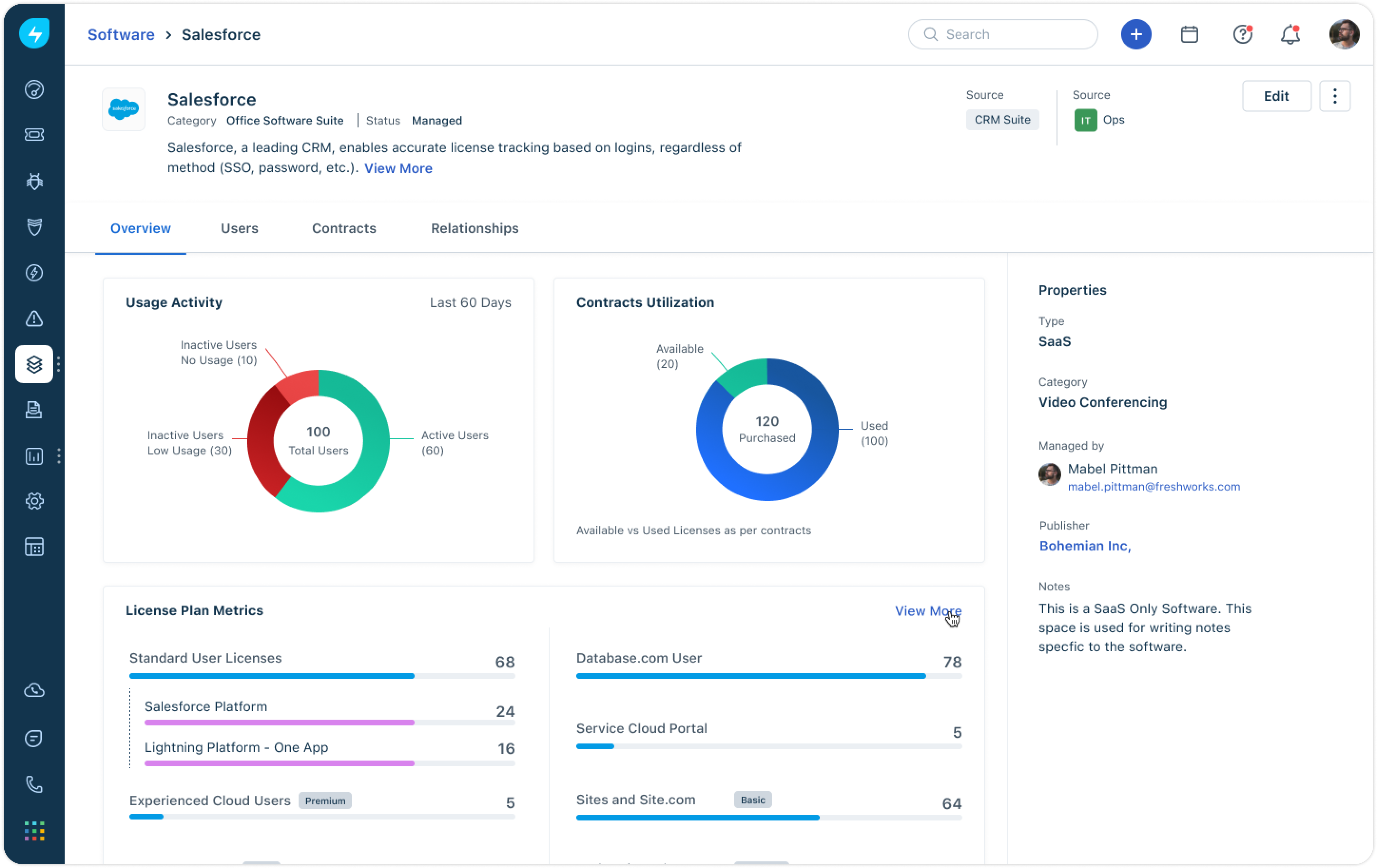
Contract Utilization Metrics
Understand the usage of your Salesforce organization licenses and keep track of the total number of licenses bought versus the ones used and the ones still available for assignment.
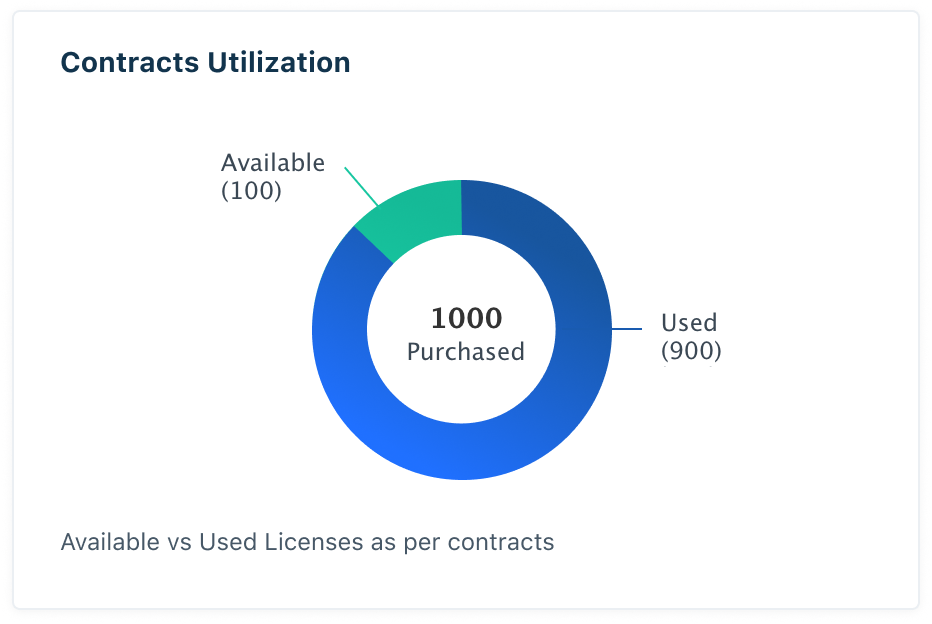
License Plan Metrics
Track the usage of all your Salesforce organization licenses and check the type of licenses that are under consumption versus the ones still available for assignment.
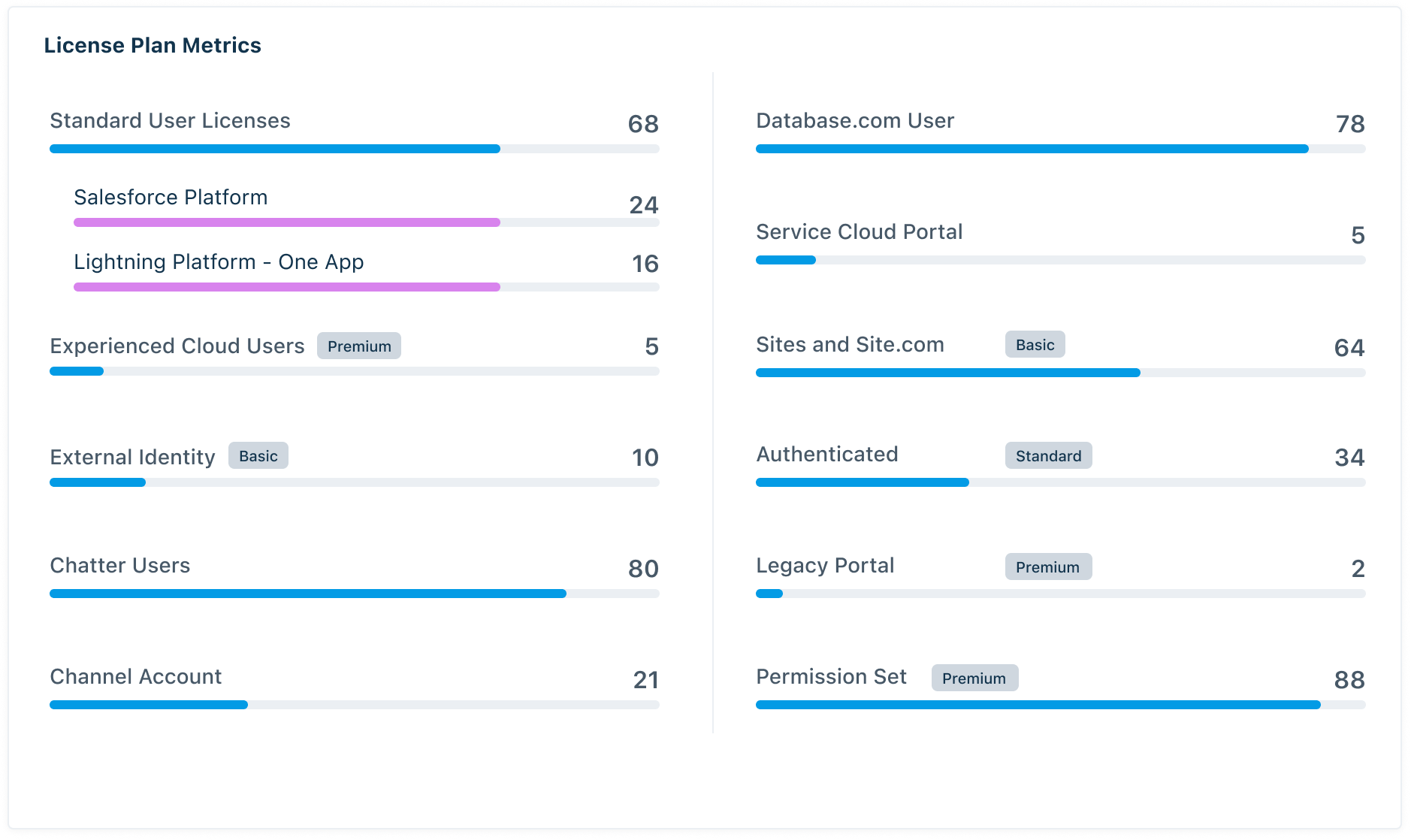
License Usage Monitoring
Understand the usage pattern of your Salesforce organization licenses and obtain a split of users based on their usage pattern— active, low usage, and no usage. Click the piechart sections to drill down, identify users with low or no usage, and free up licenses.
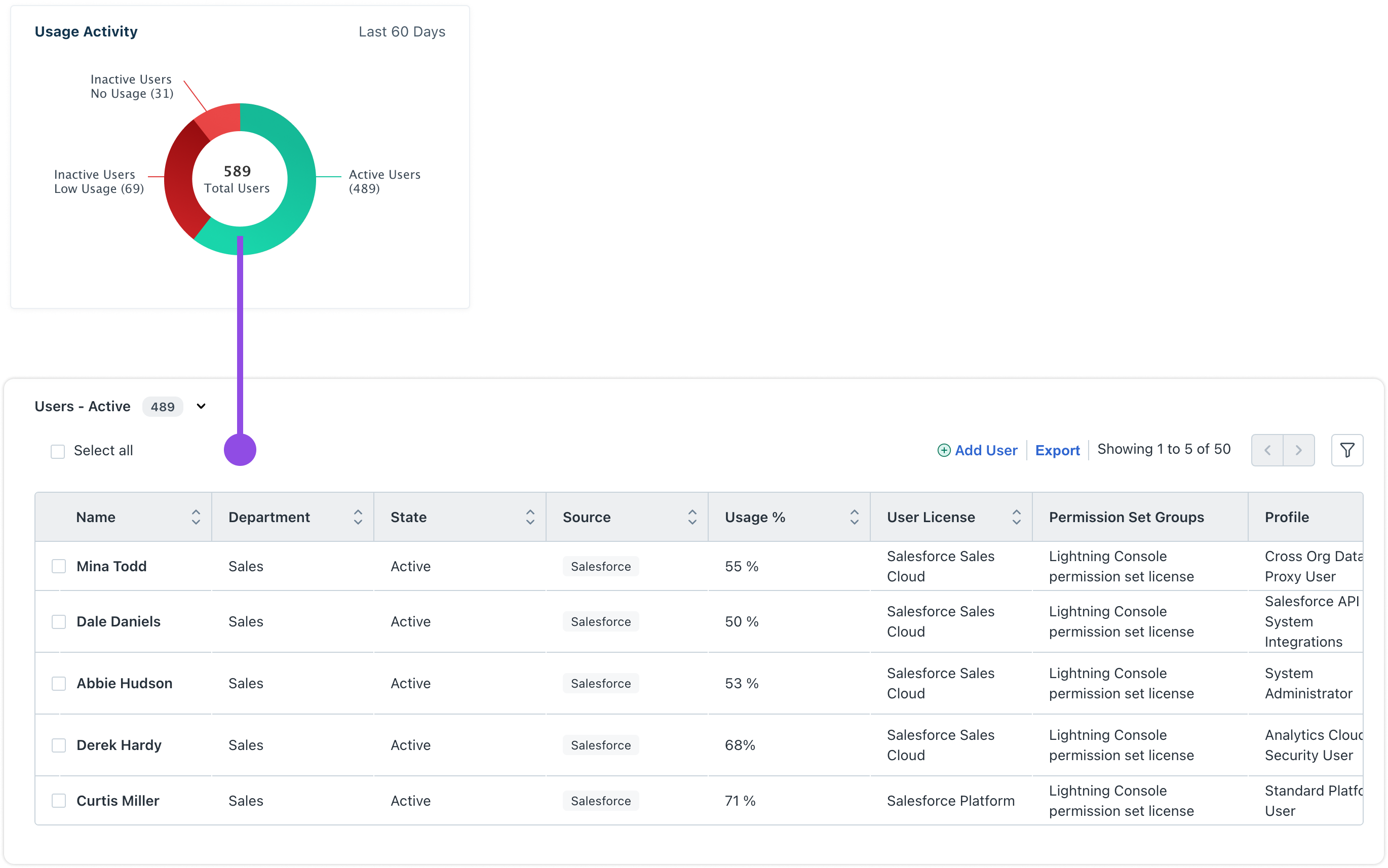
User Actions
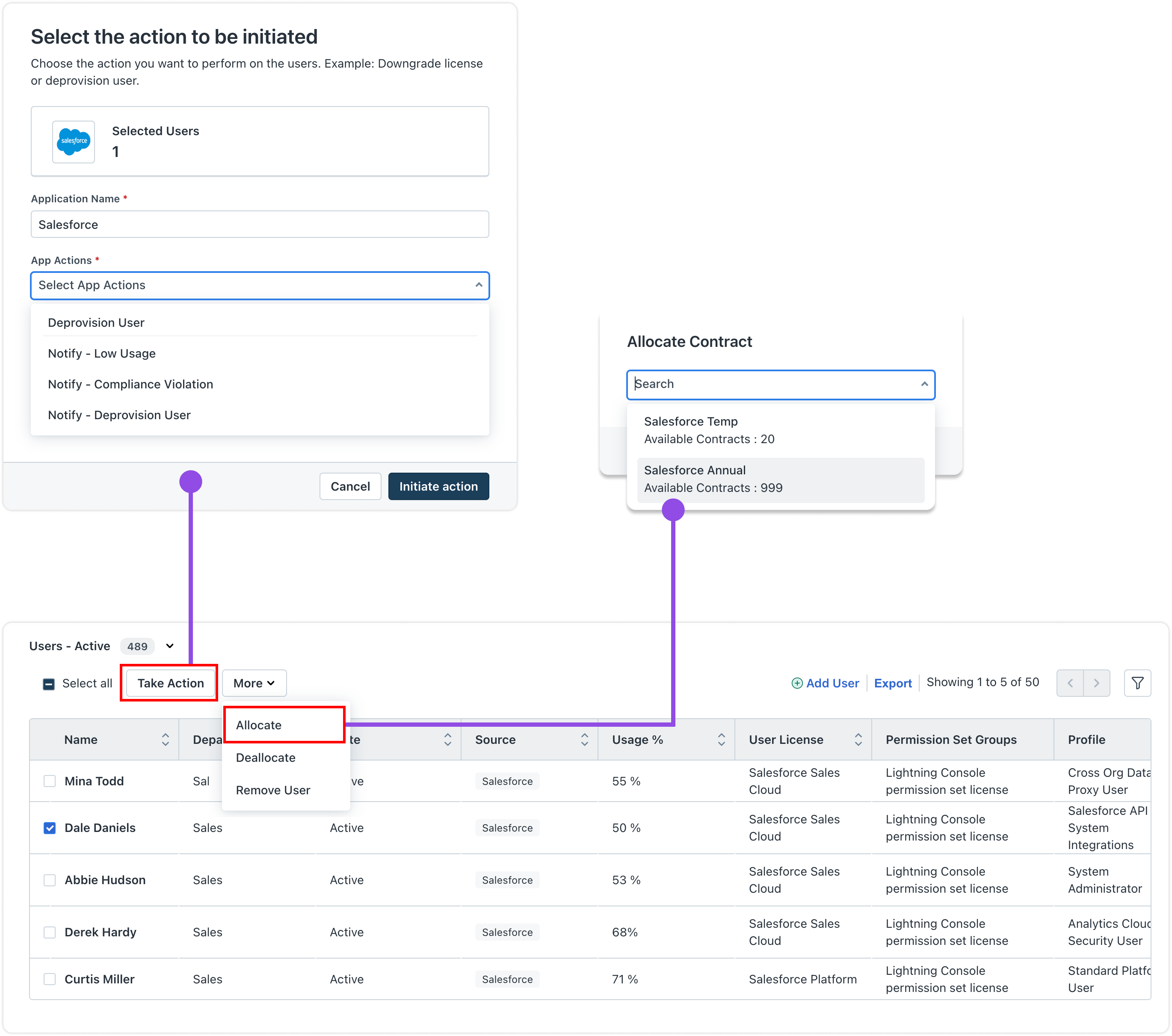
Take action on users based on usage statistics. Once drilled down into usage statistics, click Take Action to take actions on a user. Here’s the list of actions you can apply:
``` Additional Information For more details on authorization and OAuth 2.0, refer to Salesforce documentation. API Request Limits: Salesforce limits API requests, so be mindful of the limits allocated to your organization. Salesforce's "Permission Set Group" feature for downgrading/upgrading users is currently in Beta. Use of this feature is subject to Salesforce’s Beta Service Terms. ```