Last updated: 2026-01-29
Integrate Automox with Freshservice workflow automation to manage devices, policies, and device groups seamlessly. This integration helps automate routine device management and policy actions directly from Freshservice.
Prerequisites
Before configuring the Automox Orchestration App, you need to generate anAPI keyin Automox. This key serves as the credential for connecting Freshservice to Automox.
Orchestration Capabilities
Orchestration apps helps to automate complex tasks across connected systems.
With the Automox Orchestration App, you can perform the following operations through workflow actions:
Device Operations
Policy Management
Device Group Management
Vulnerability Sync
Steps to Generate an API Key in Automox
Step 1: Log in to Automox
1. Go to https://console.automox.com
2. Sign in with your admin credentials
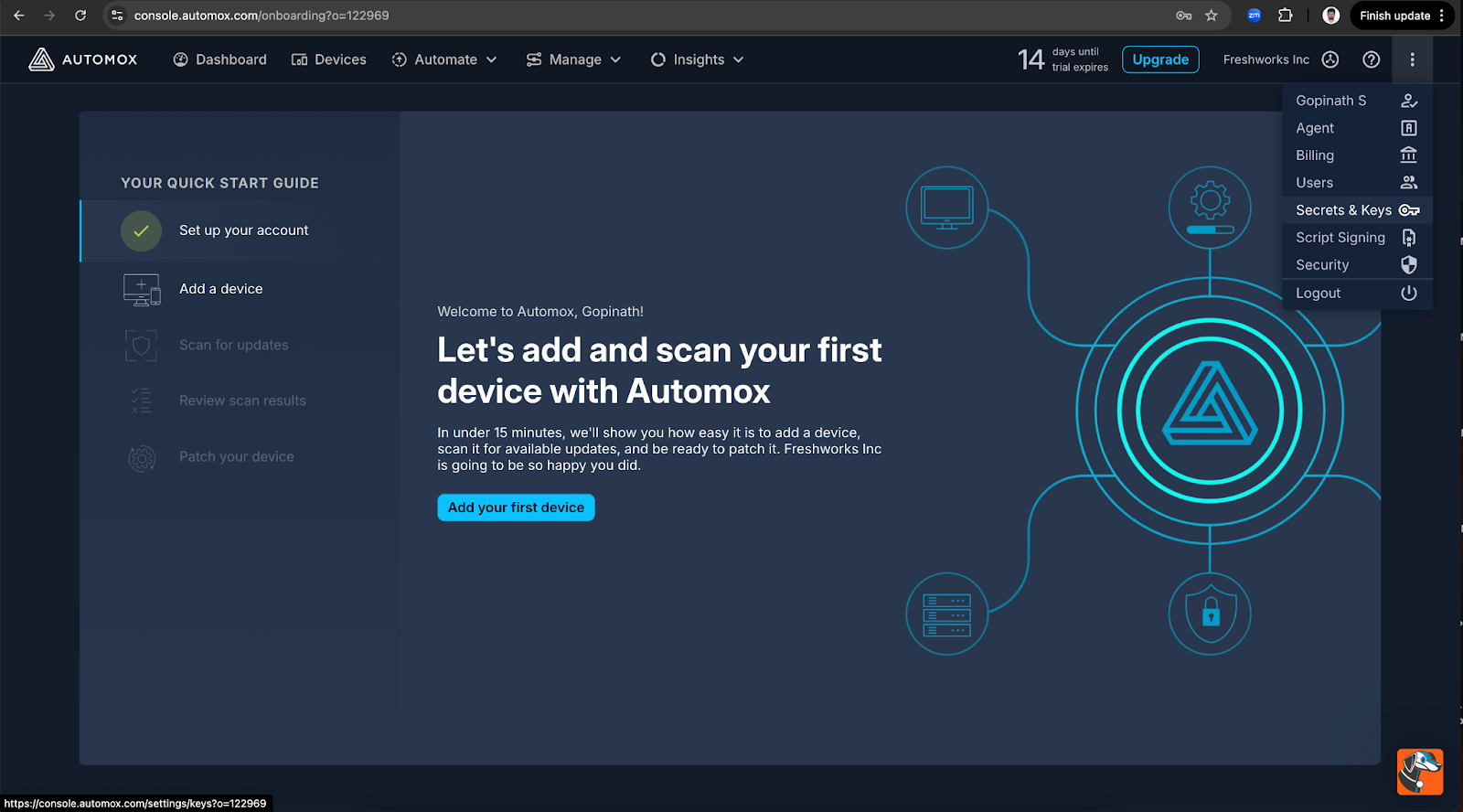
Step 2: Open account menu
1. Click your profile icon(top-right corner).
2. Select User Settings > Secrets & Keys.
Step 3: Create an API key
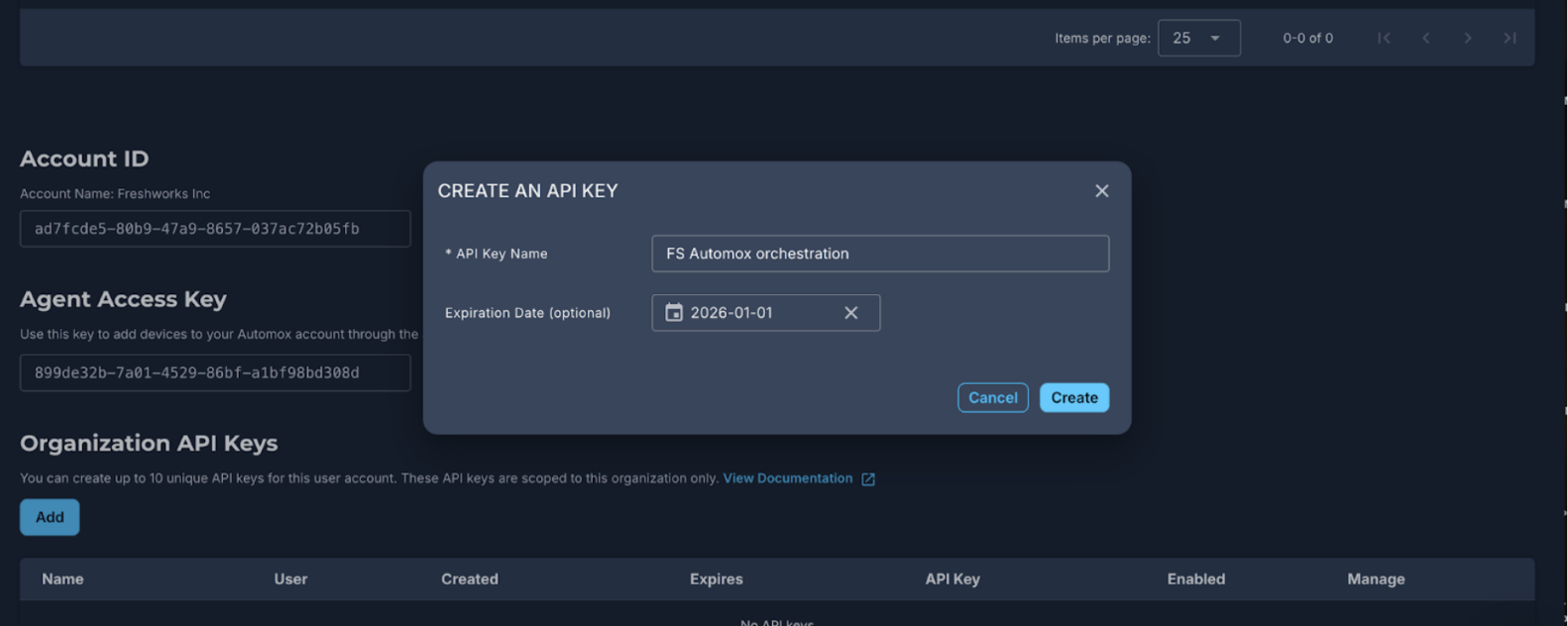
1. Click Add.
2. Enter a name for the API Key (e.g., _FS Automox Orchestration_).
3. Click Create.
Step 4: Copy and store the key
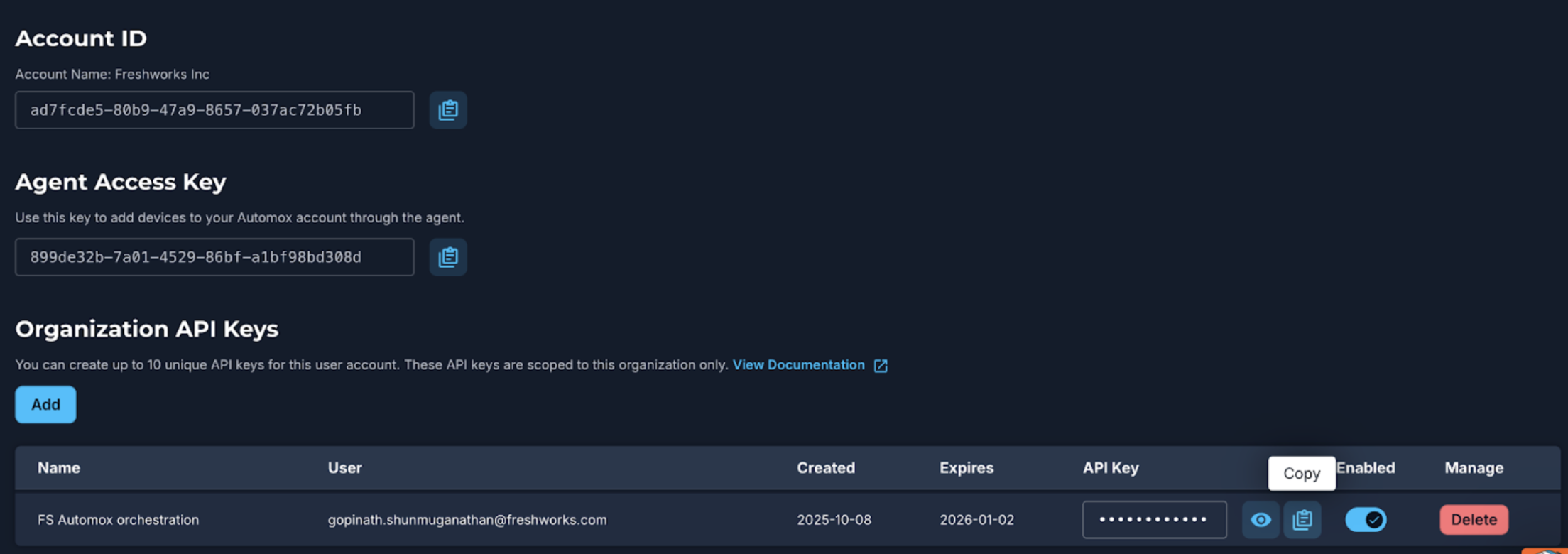
1. View and copy the generated key.
2. Store it securely for later use.
Configure Automox in Freshservice
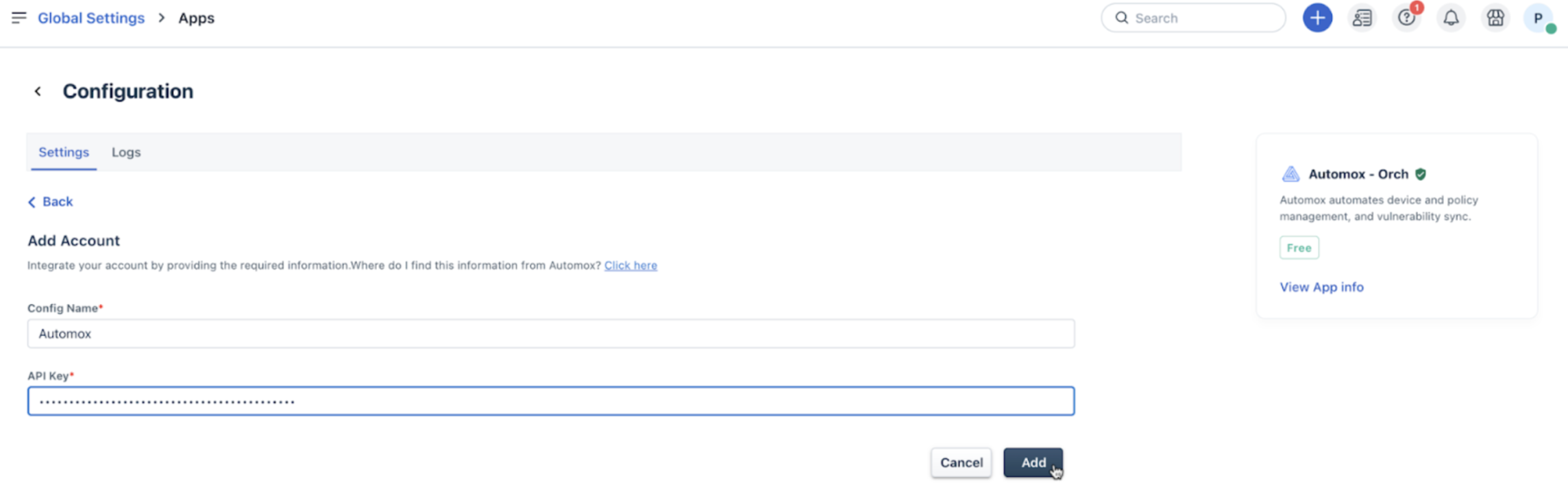
1. Go to Orchestration Center > Automox > App Configuration
2. Paste the API key you created in Automox.
3. Save the configuration.
Once configured, the Automox app can be used in Workflows > App Actions > Automox - Orch to automate device and policy management activities.
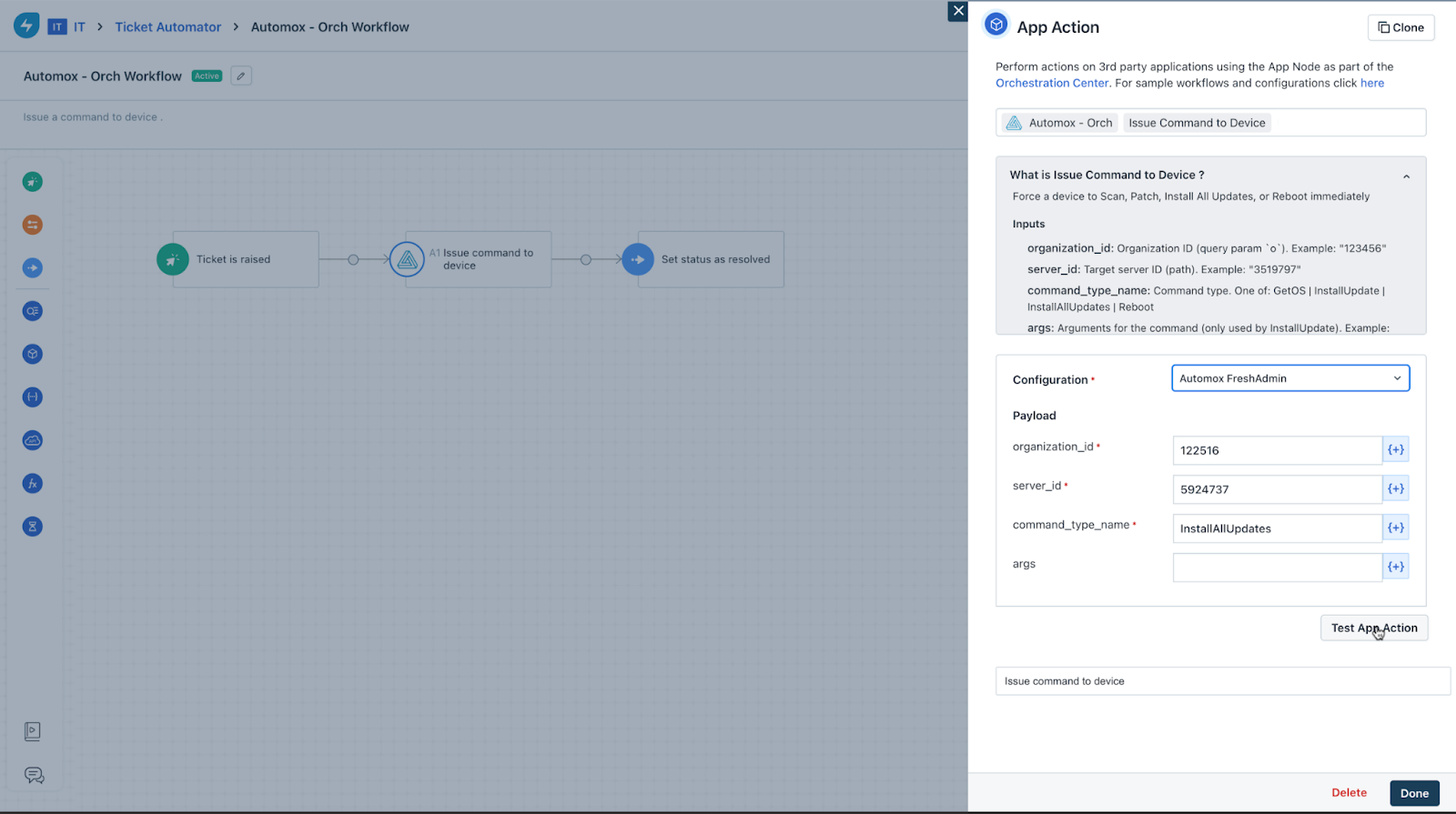
Known limitations in the Automox API behavior
The following limitations are based on current behavior observed in the Automox APIs. These limitations may differ from the official Automox API documentation and can impact certain policy-related operations.
Issue
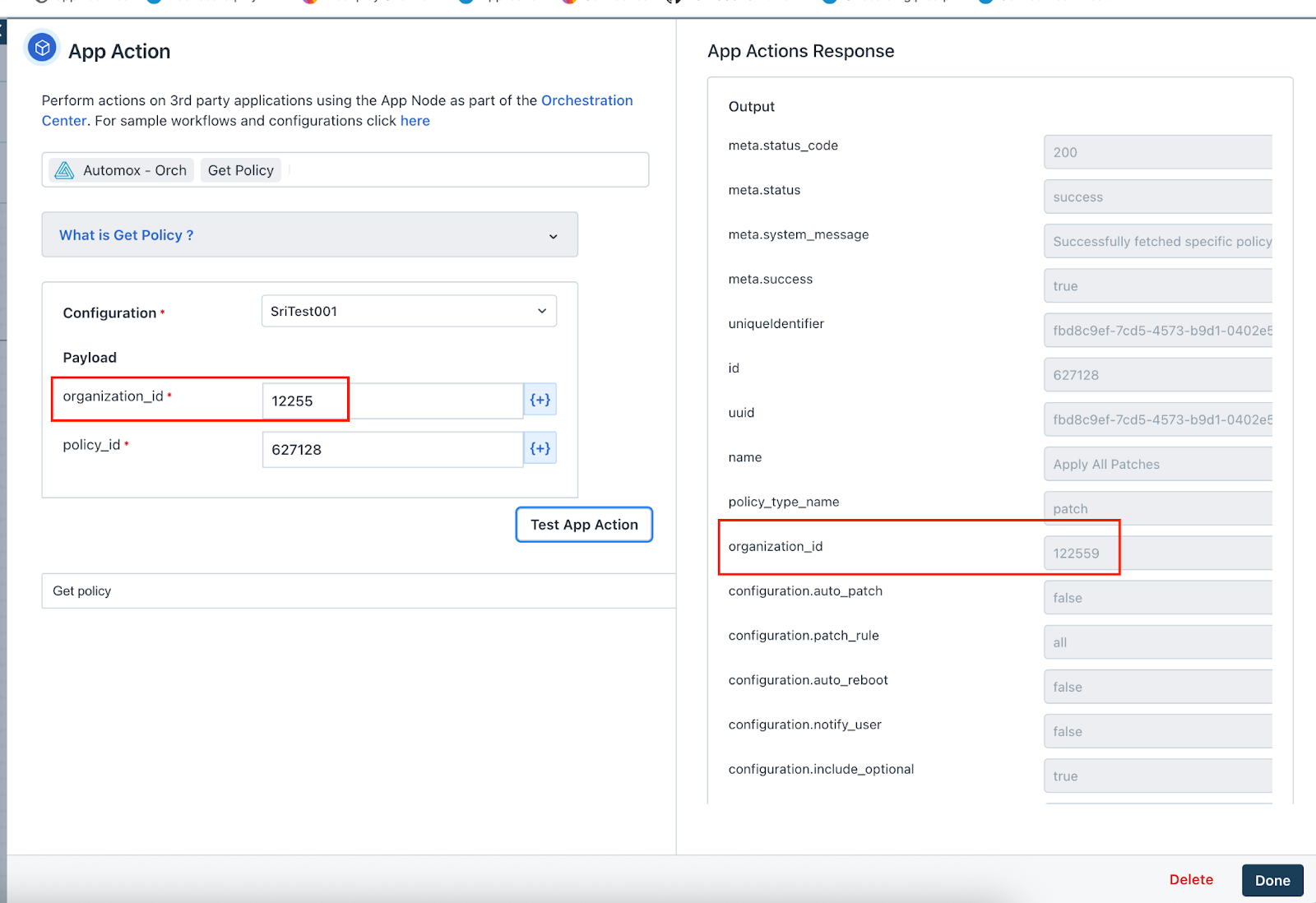
The Automox API documentation states that both Policy ID and Organization ID are required to retrieve a policy. However, the API processes the request using only the Policy ID.
Workaround
Provide the PolicyID in the request. The Organization ID is not required for successful execution.
Issue
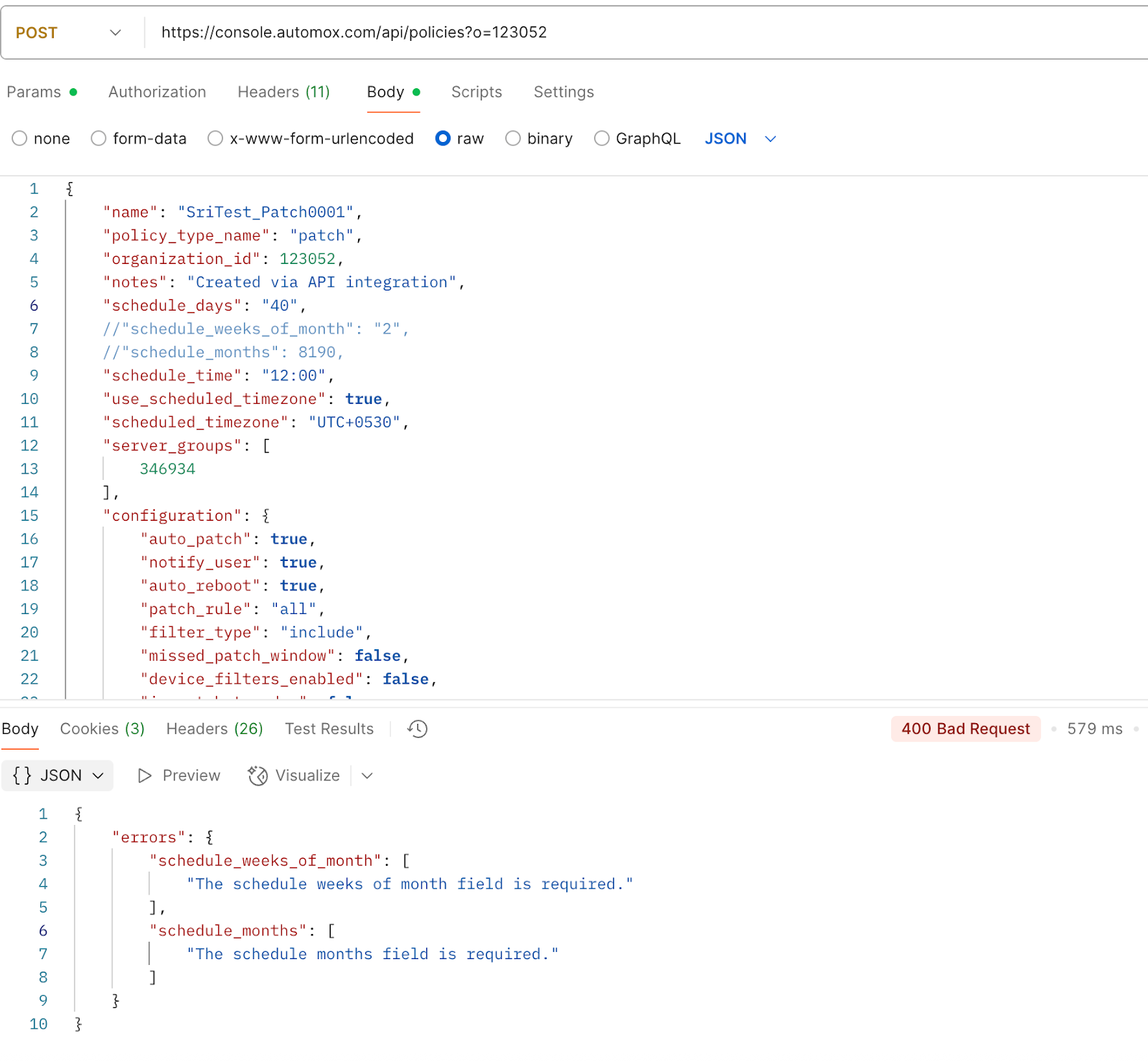
The API documentation marks scheduled days and scheduled months as optional, these fields are mandatory for the update operation during execution.
Workaround
Include scheduled days and scheduled months in the update policy payload, even when they are not required per the documentation.
Issue
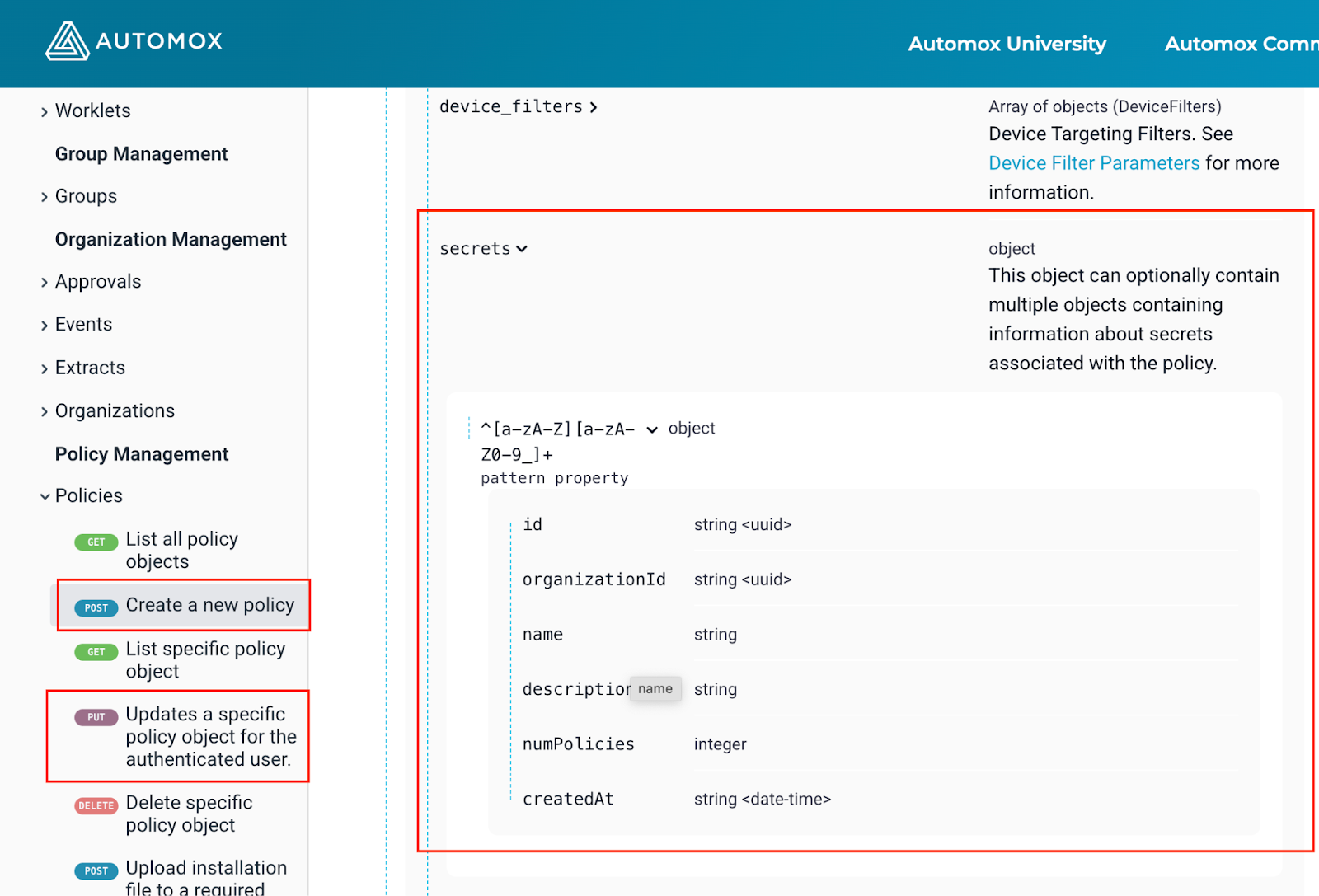
Creating or updating a patch policy with payload values under Configuration > Secrets results in a policy that cannot be accessed in Automox and an error occurs while accessing.
Workaround
Avoid including Configuration > Secrets payload data when creating or updating patch policies until this issue is resolved.
Issue
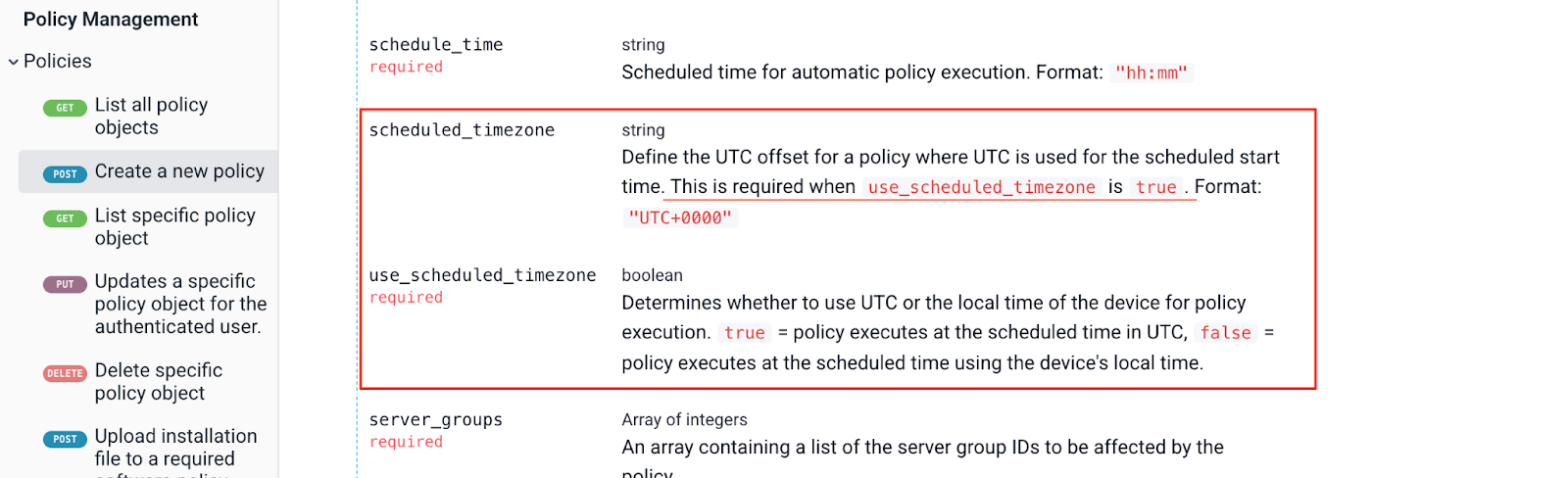
The API documentation specifies that scheduled\_timezone is required when use\_scheduled\_timezone is set to true.
Workaround
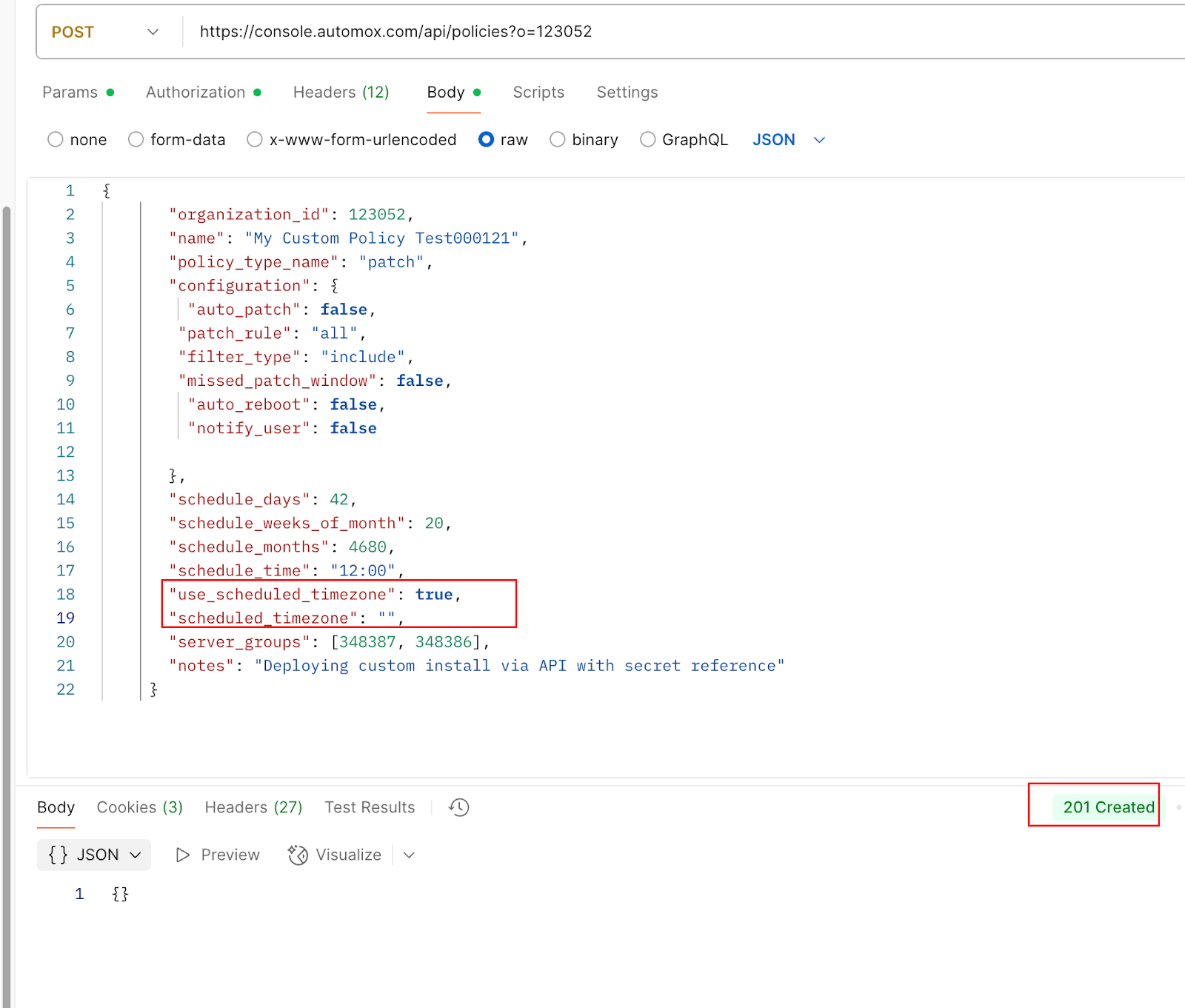
In the API Post request, Scheduled\_timezone can be null even if we set the value as true for use\_scheduled\_timezone.
Issue
For boolean fields such as include\_server\_events and exclude\_policy\_status, the API response does not change based on whether the input value is 0 or 1.
Workaround
Do not rely on API response values to validate these boolean settings. Track input values at the request level if validation is required.
Issue
When an invalid API key is used, the API returns the message Unauthorized instead of the documented error Access token is missing or invalid.
Workaround
Treat the Unauthorized response as an indication of an invalid or missing API key and verify the credentials used in the request.