Last updated: 2024-12-16
This article describes how to set up SaaS discovery and orchestration for the Jira software via direct integration in Freshservice. Further, this article also explores how to use the Jira software in Freshservice post set up.
Here's a list of what this article covers.
CONTENTS
Overview
Orchestration and discovery apps let you automate repeatable tasks and actions that span across a diverse set of systems and applications using workflows.
The Jira software/app enables you to manage specific operations or actions related to Jira users, associated groups, and issues via the _Workflow Automator_.
Prerequisites for setting up the Jira app
Before installing the Jira software in Freshservice, you must have an API token created from your Atlassian account.
To create an API token from your Atlassian account:
1\. Log in to https://id.atlassian.com/manage/api-tokens.
2\. Click Create API token.
3\. In the Create an API token dialog that appears, enter a Label for your token, and click Create.
4\. In the Your new API token dialog, click Copy. Then, paste the token to a script or file, and save it for future reference.

``` Note:
```
Installing or updating the Jira app
You must install (for new users) or update (for existing users) the Jira app in Freshservice.
To install or update the Jira app:
1\. Go to Admin \> Automation & Productivity \> Extensibility \> Apps. Or, you can also find all SaaS discovery integrations at Admin\> SaaS Management > SaaS Integrations.
2\. Search and select Jira - Orch.
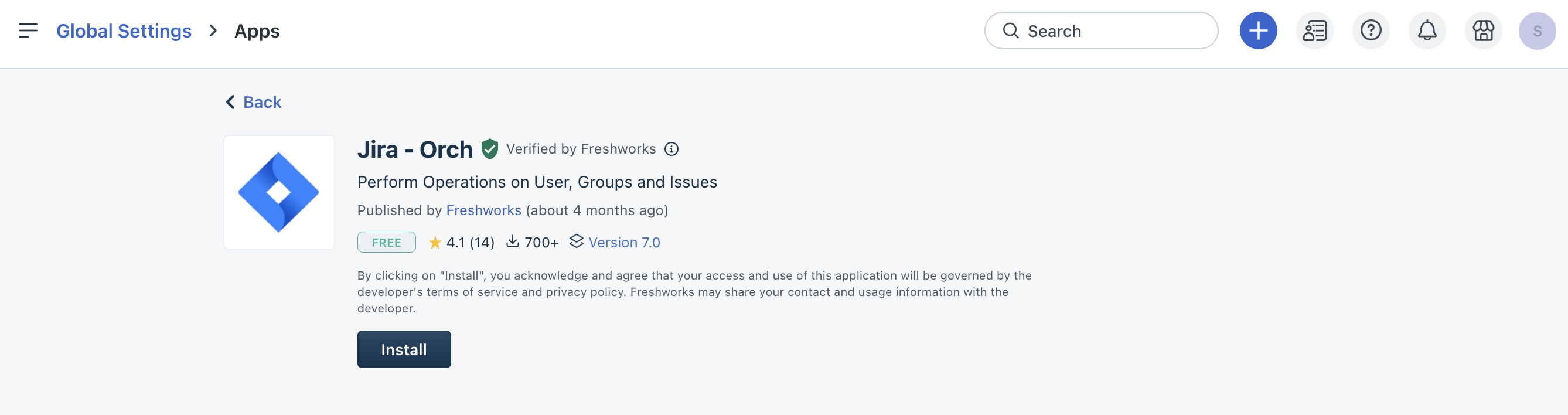
3\. Click Install or Edit settings. The Configuration page opens.
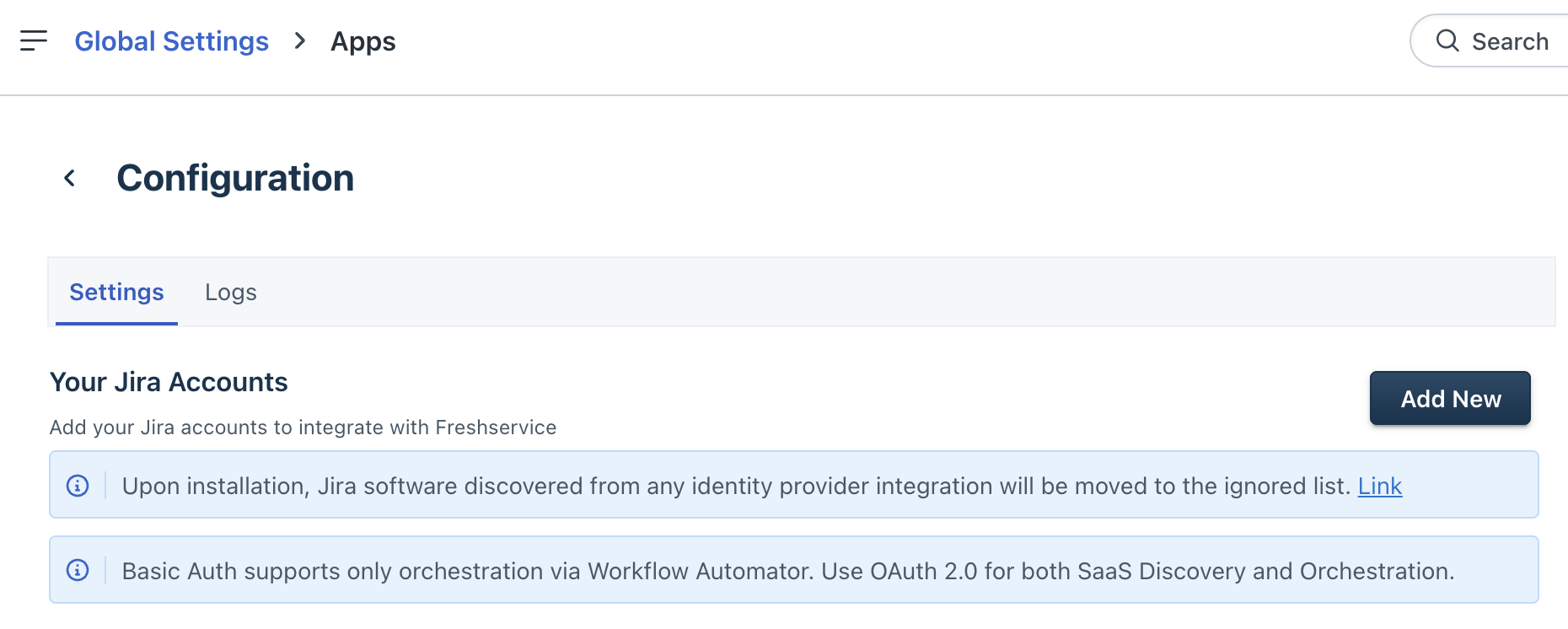
4\. Click Add New. The Add Account page opens.
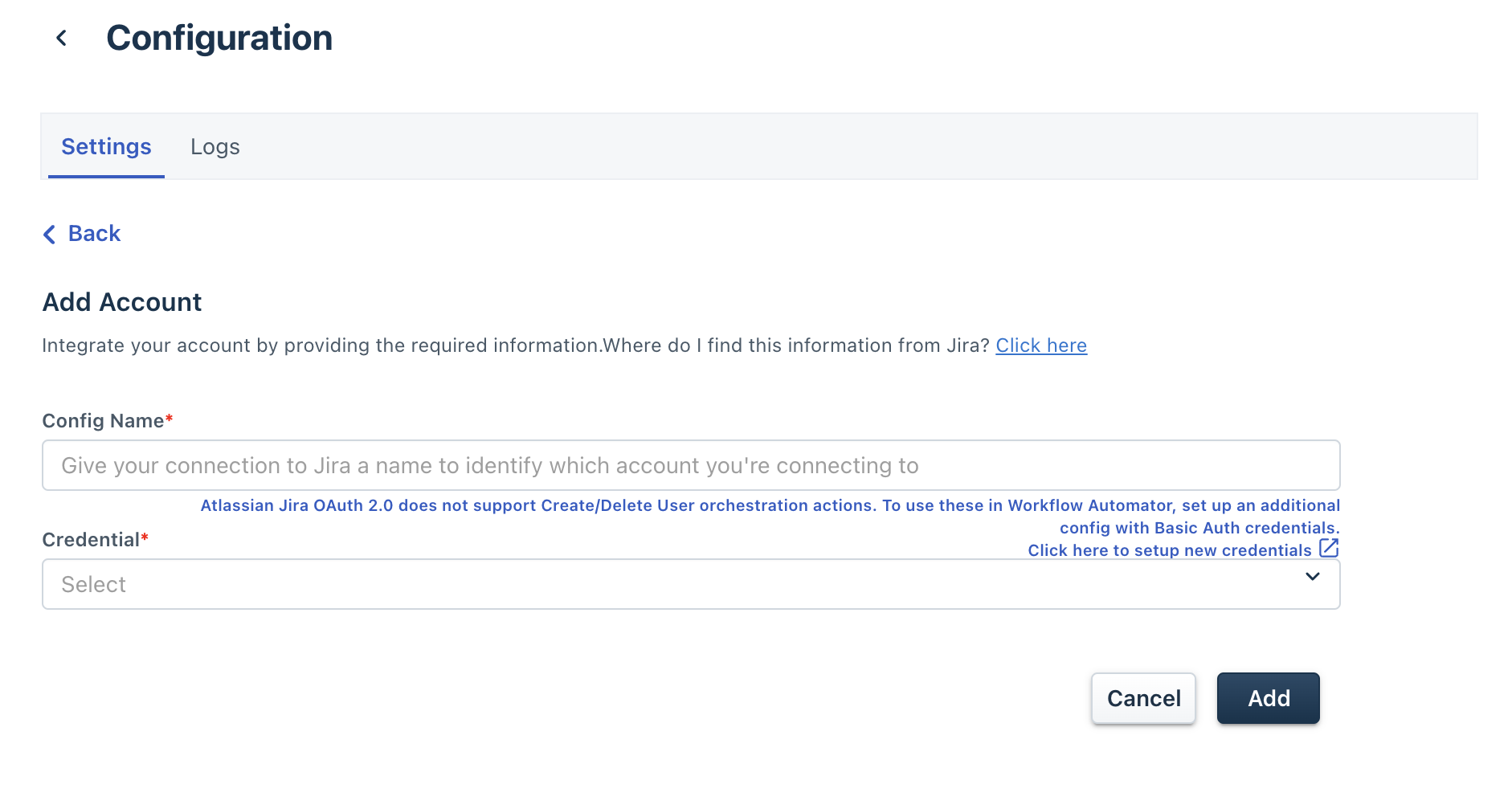
5\. Enter a name in the Config Name box.
6\. Select the required credential type from the Credential dropdown.
1. Enter the Jira admin account URL in the Jira Account URL box (Example: demo.atlassian.net). 2. Enter the Jira admin account email in the Email box. 3. Enter the API token you obtained from Atlassian account in the API Token box. 4. Enter your Freshservice tenant domain in the Freshservice Domain box (Example: demo.freshservice.com). 5. Enter your Freshservice tenant API key in the Freshservice API Key box.
``` Note: Inline Credentials is a basic authentication mechanism that only supports orchestration actions via the Workflow Automator. If you want to enable SaaS discovery, you need to add an additional configuration using OAuth 2.0. ```
1. Enter your Freshservice tenant domain and API key in the respective boxes. 2. Click the Enable SaaS Discovery toggle button to enable SaaS discovery.
``` Note: OAuth 2.0 supports SaaS discovery as well as orchestration actions (except 'Create user' and 'Delete user' actions). If you want to create and delete users via workflows, you need to add an additional configuration using Inline Credentials. This is a limitation imposed by Atlassian Jira APIs. ```
7\. Click Add.
You are now ready to use the Jira app in Freshservice.
Using the Jira app post set up
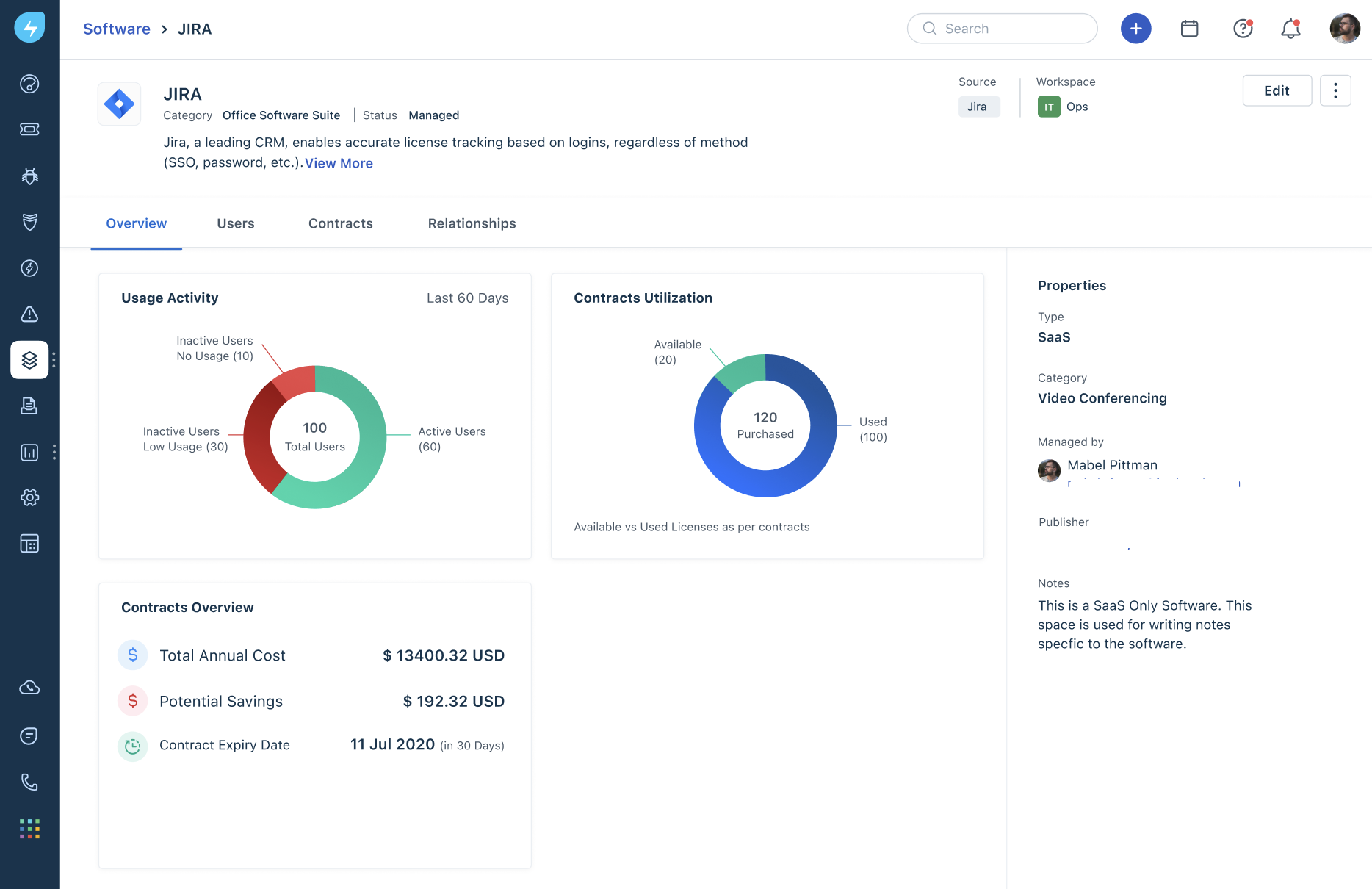
The Jira app in Freshservice allows you to discover user information, manage contracts and relationships, and provides you with an overview of usage activity, contracts utilization, and so on.
Supported operations/actions
Some of the key actions supported in the Jira app include:
| Management type | Action type (s) |
|---|---|
| User management | - Create user<br>- Get user<br>- Delete user |
| Group management | - Create group<br>- Remove group<br>- Add user to group<br>- Remove user from group<br>- Add multiple users to group<br>- Remove multiple users from group |
| Issue management | - Create issue<br>- Update issue<br>- Get issue<br>- Delete issue<br>- Assign issue<br>- Get issue types<br>- Add comment<br>- Add ticket attachment to Jira |
To use the Jira app in Freshservice:
1\. Go to Assets \> Software. Search and select Jira. The Overview tab opens.
2\. On the Overview tab, you can:
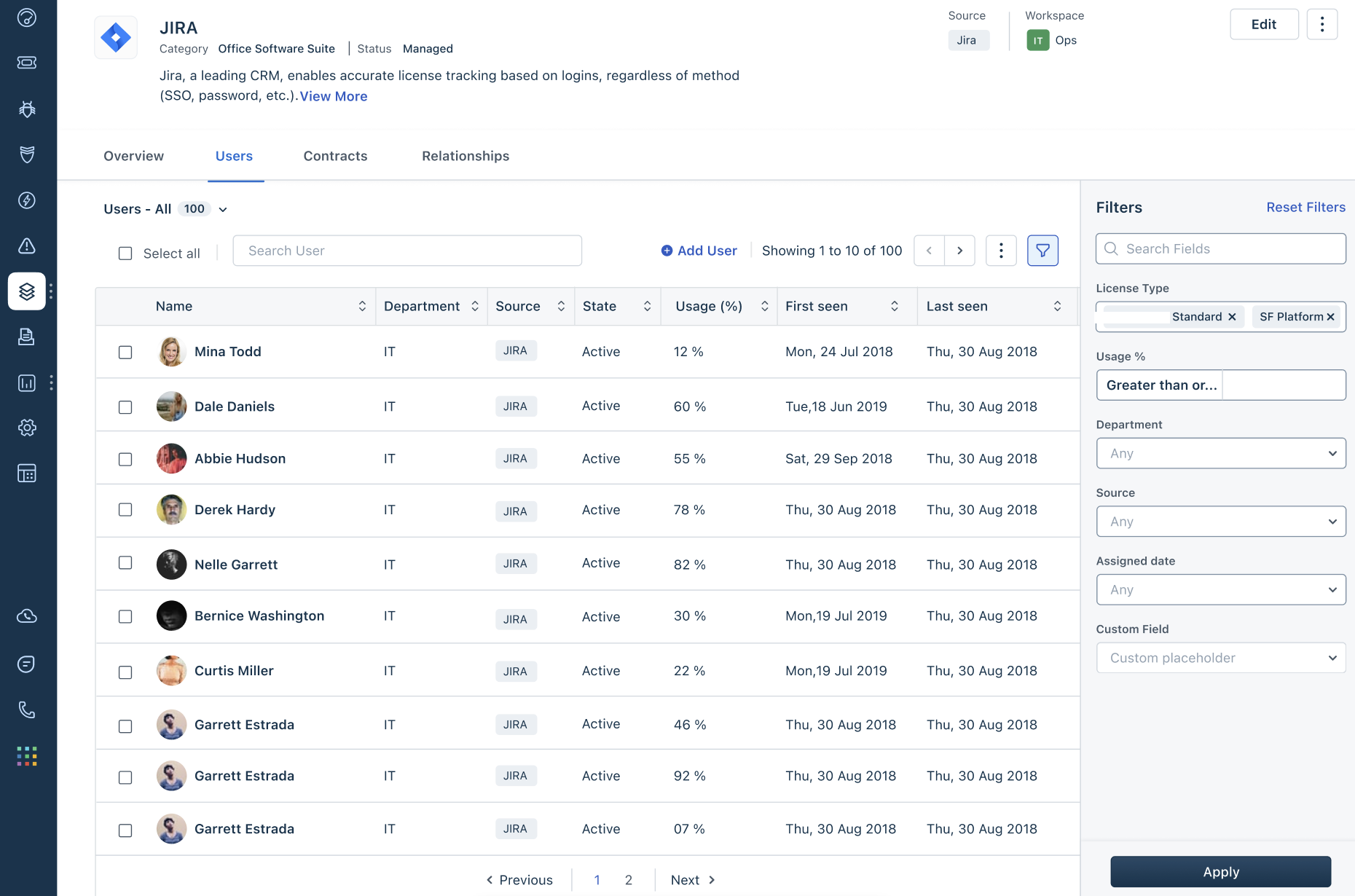
3\. Click the Users tab to view all the user information, such as name, department, source, status, usage %, and so on. You can also add/delete users, add users to groups or remove, and apply filters to view the required data.
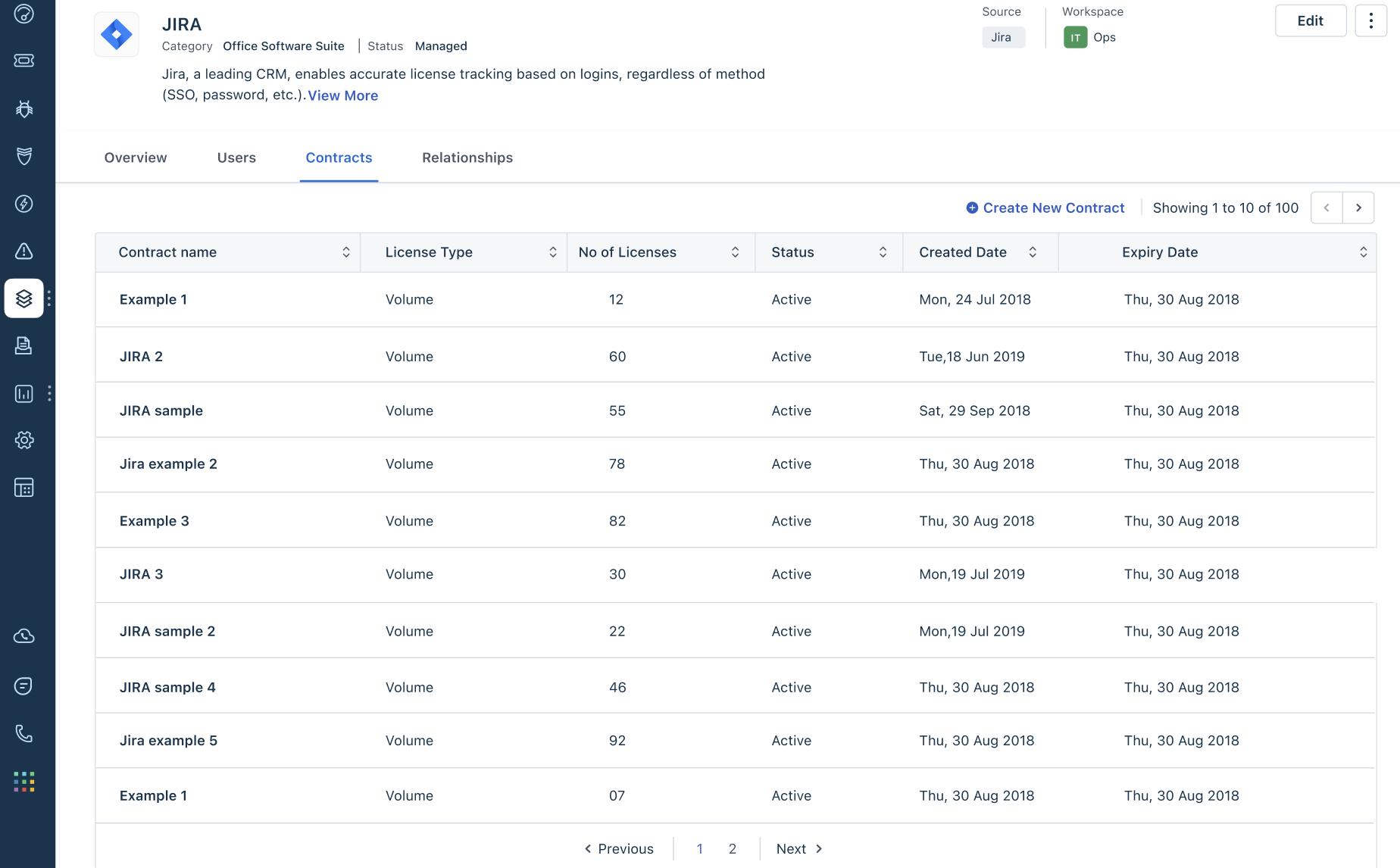
4\. Click the Contracts tab to view all the contract information, such as name, license type, number of licenses, status, created date, and so on. You can also create or delete contracts.
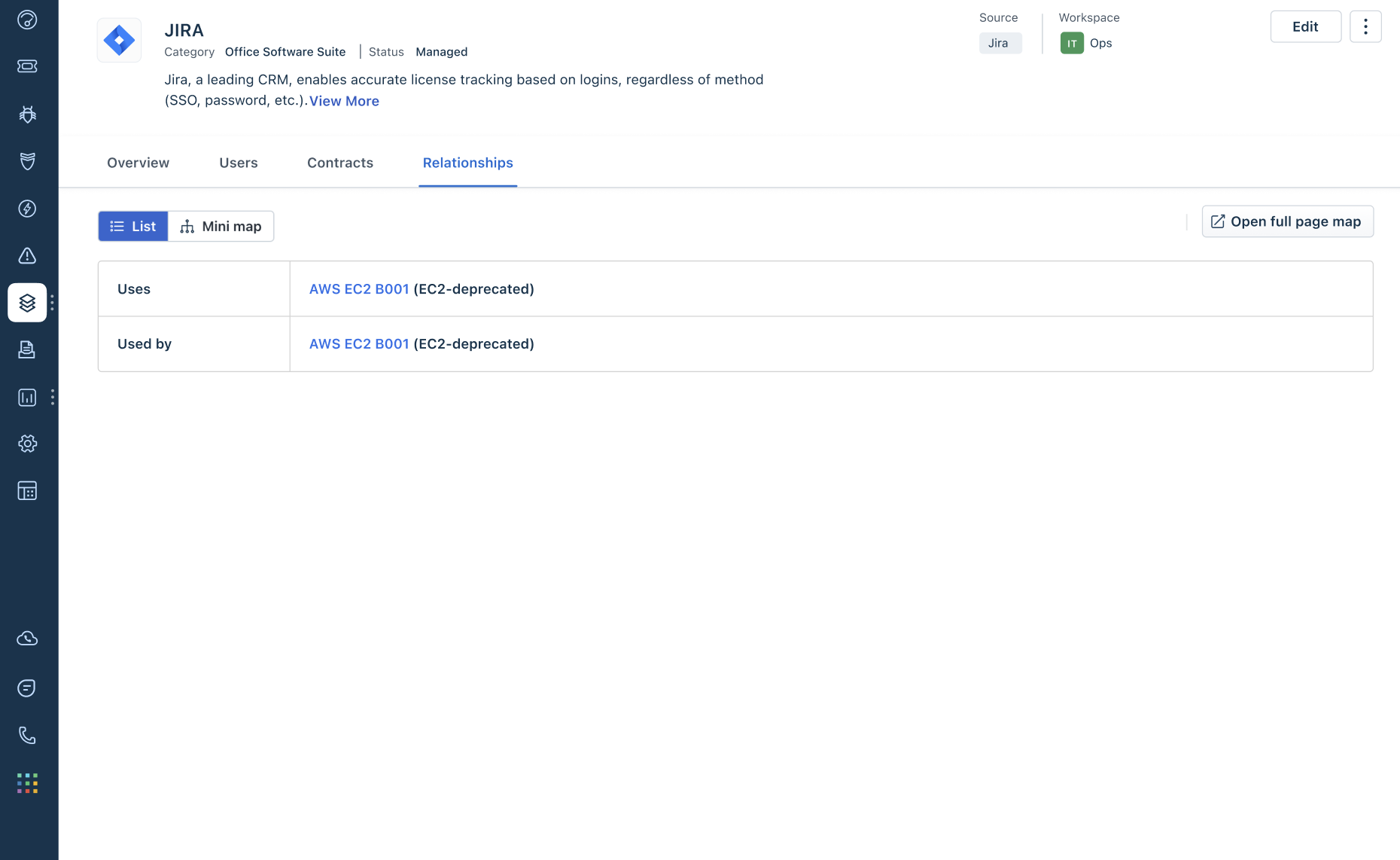
5\. Click the Relationships tab to view all the relationship information with users and other apps in a list view or mini map view. You can also add or delete relationships.
Sample use case
After you've successfully installed the Jira - Orch app, see thesample use casebelow to learn how the app can be used efficiently.