Last updated: 2025-07-10
How to create and assign approvals in Freshservice?
Automate raising and receiving approval requests from stakeholders for service requests and changes in Freshservice. Create workflows to automate the process of raising approval requests across hierarchies. This helps maintain compliance and hierarchies for approvals across the organization.
``` How approvals are processed Raising Approvals Manually Workflows
Editing or cancelling an existing approval group Accepting/Rejecting an existing approvalTicket Email Slack Microsoft Teams
Enabling the feature for agents
Non-blocking workflow execution for approvalsAction required: Preparing your workflows
Impact of multiple send approval actions in sequential workflows
Using Parallel Approvals feature
Use case
Customizable Approval Emails ```
How approvals are processed
Before raising approvals, it is important to understand how Approvals work in Freshservice. Approvals in Freshservice consist of the following components:
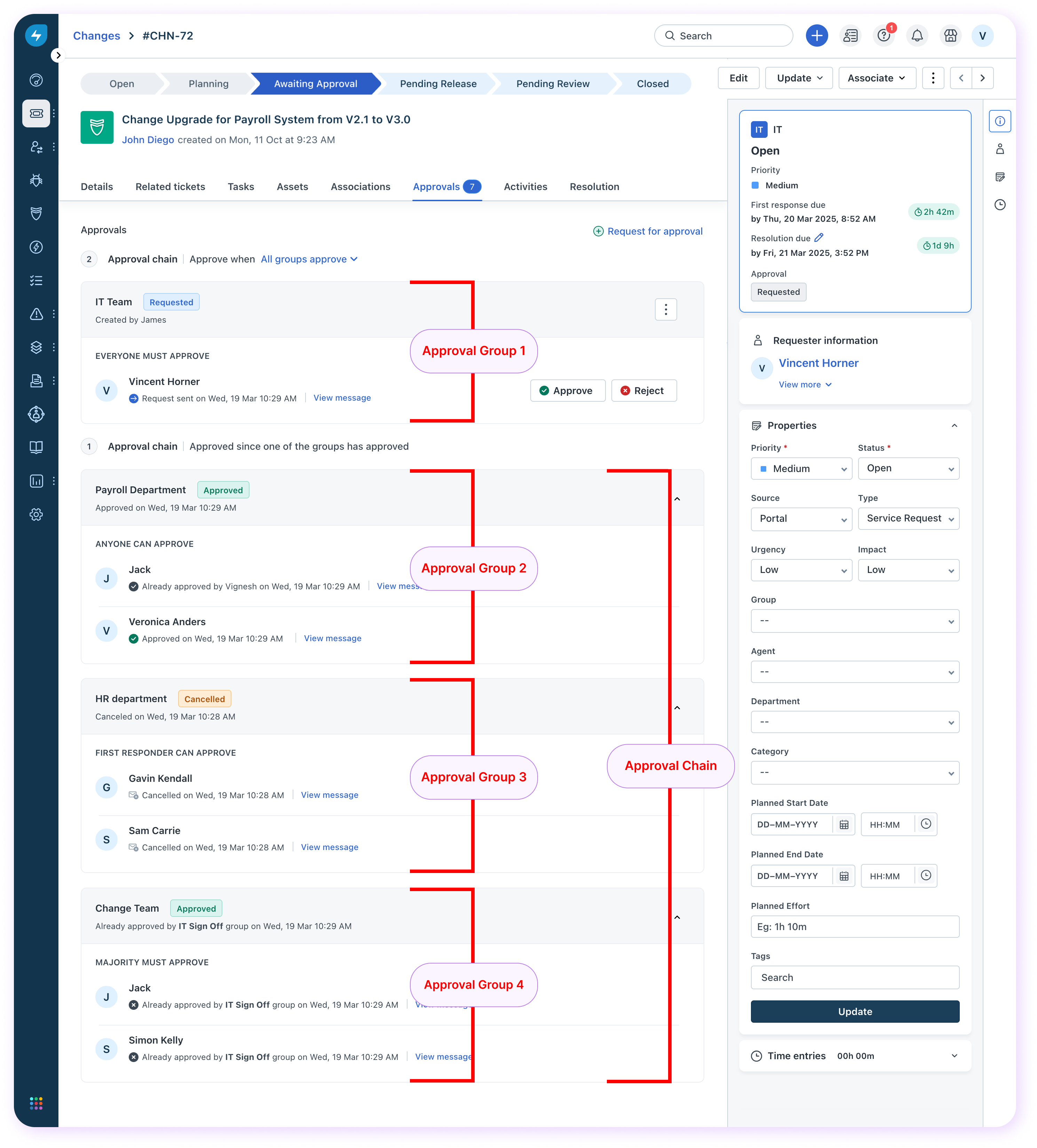
``` Note: The ticket or change approval status changes only when the chain is approved, rejected, or canceled. At any point, only one chain can be active. A new chain is automatically created once the ticket status is approved/rejected. ```
With approval groups, approvals can be sent to distinct groups of approvers with rules governing each approval.
Raising Approvals
Approval requests can be raised in one of the following ways:
Manually
To manually raise an approval from within a ticket,
1. Click  . This brings up the Request for approval slider.
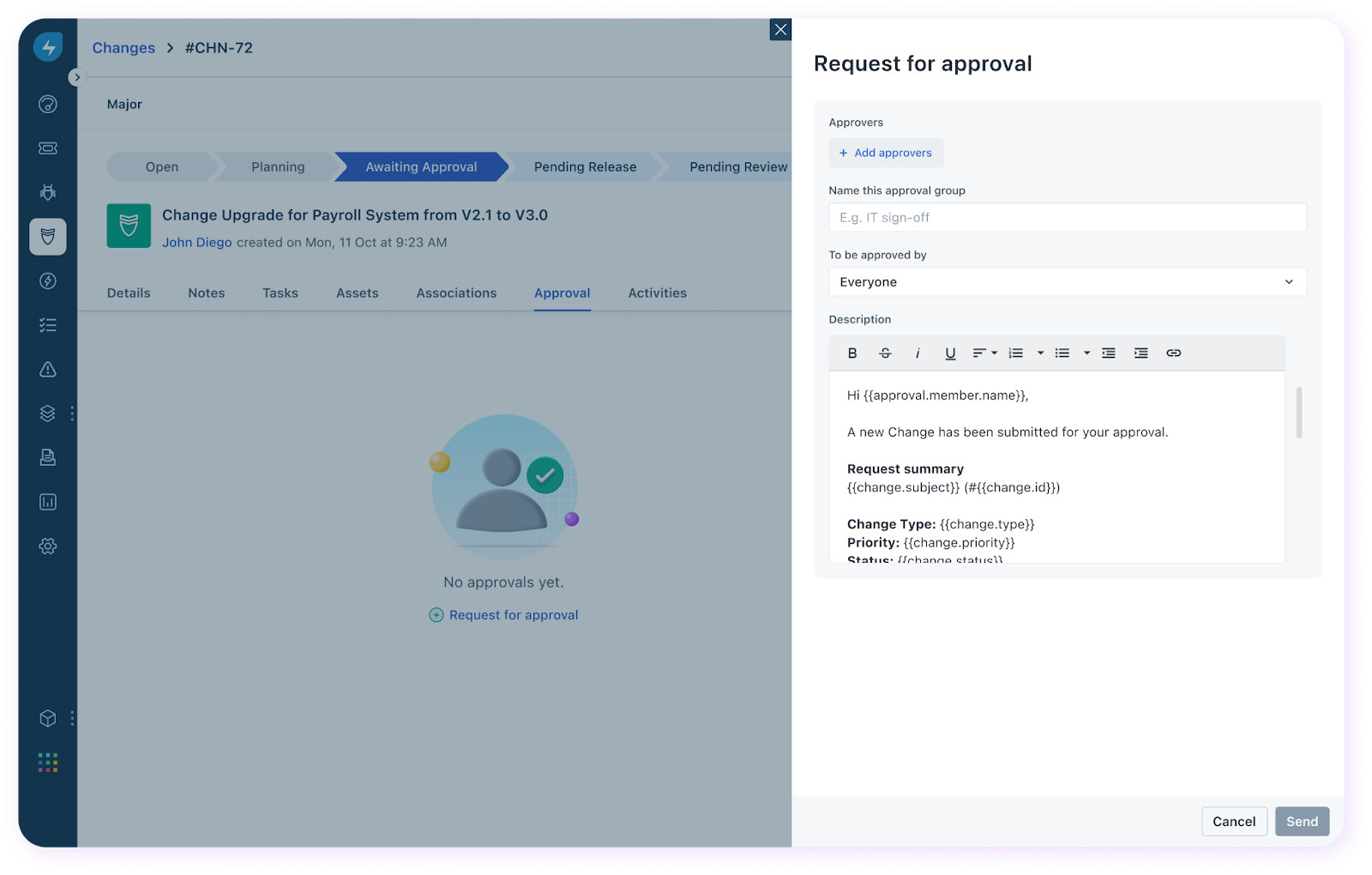
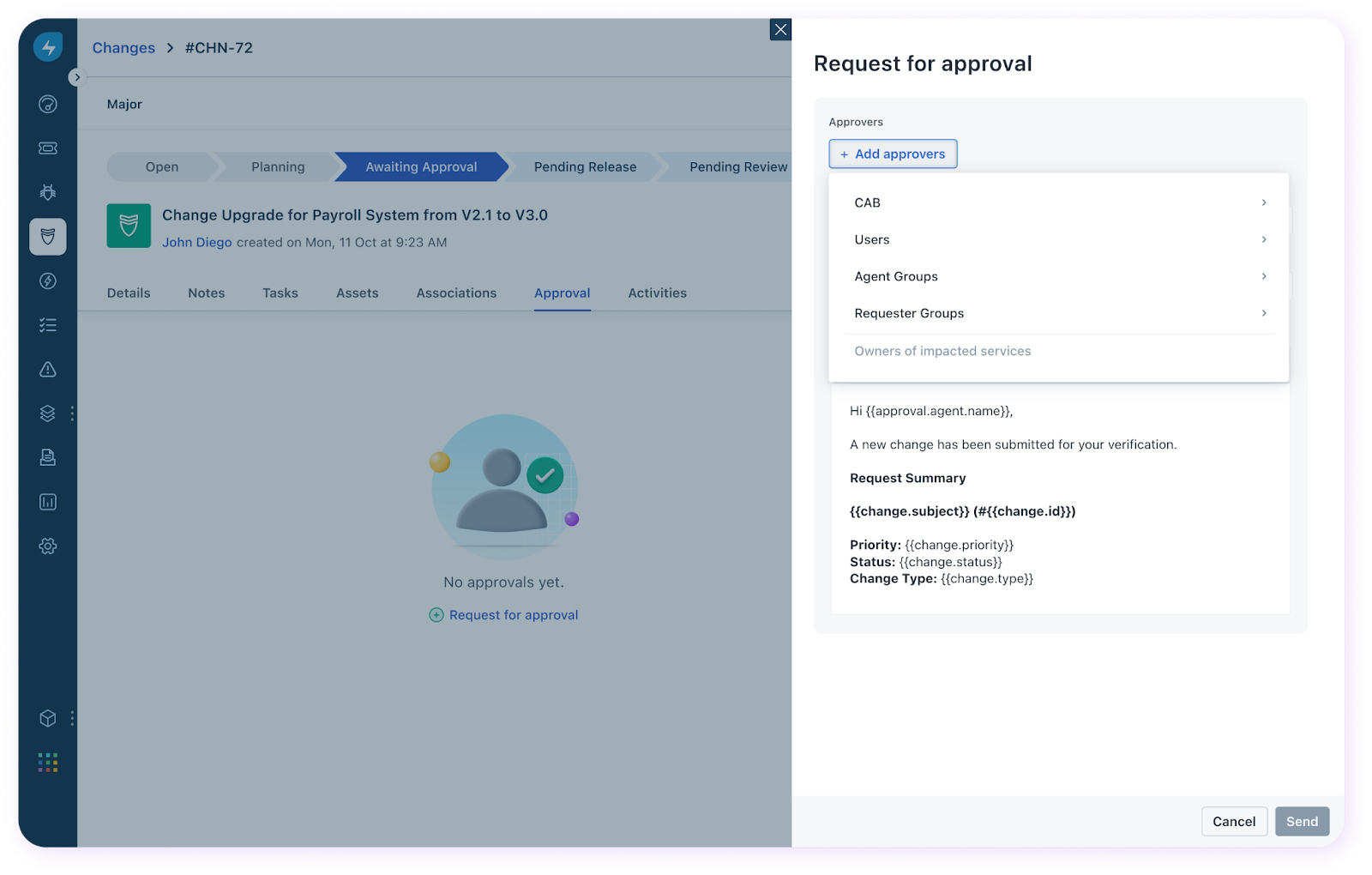
2. Add approvers to oversee your request and grant authorization. You can select individual users or teams.
3. Name the approval group, define the approval rule(Everyone, Anyone, Majority, or First Responder).
4. Create a description for the approval email. Use placeholders to fill in relevant information.
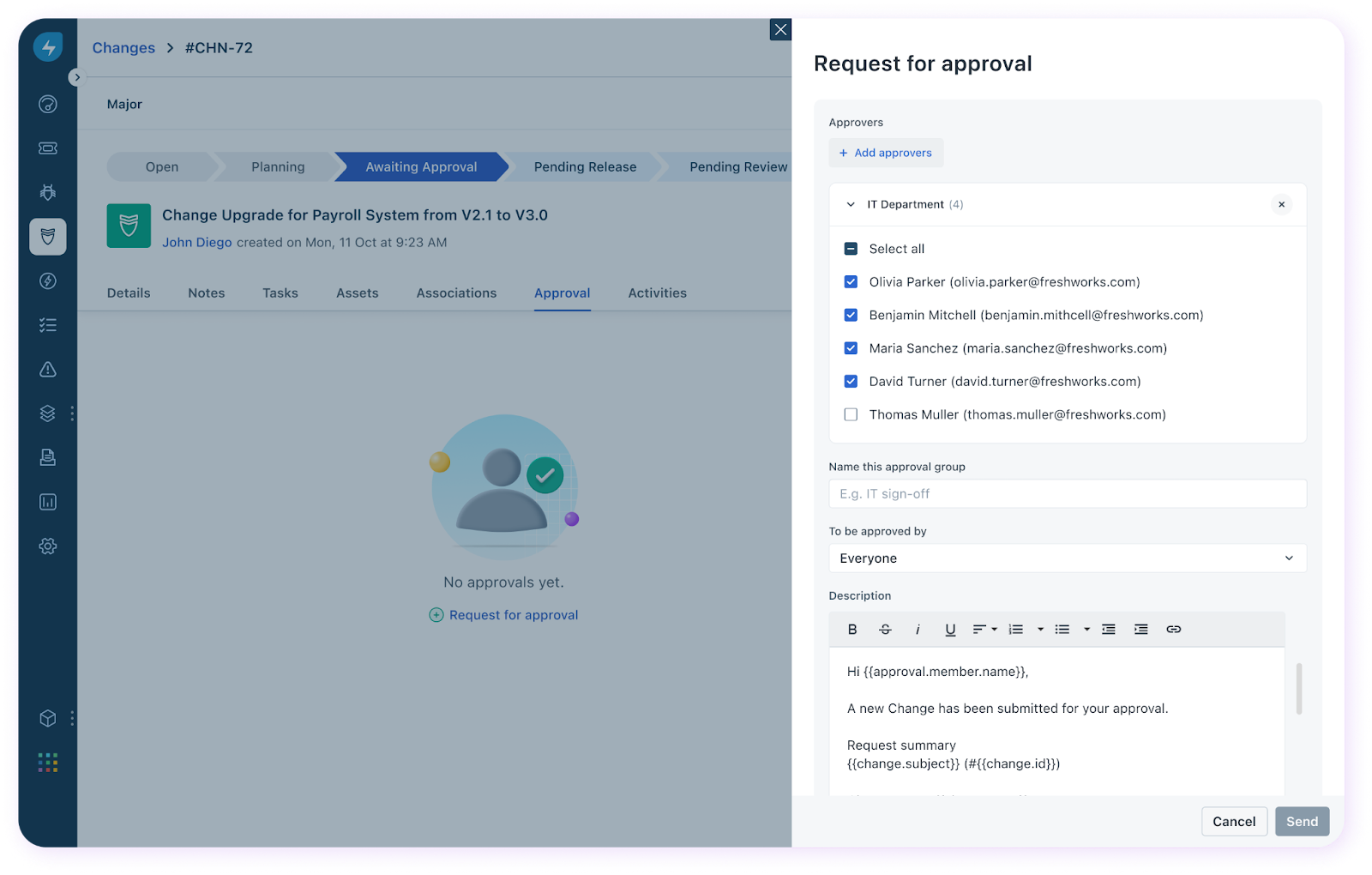
5. Add another approval group if you want the approval to execute in parallel without any dependency on the previously added approval group. Click Add approvers, add users, and define the rule for the approval group.
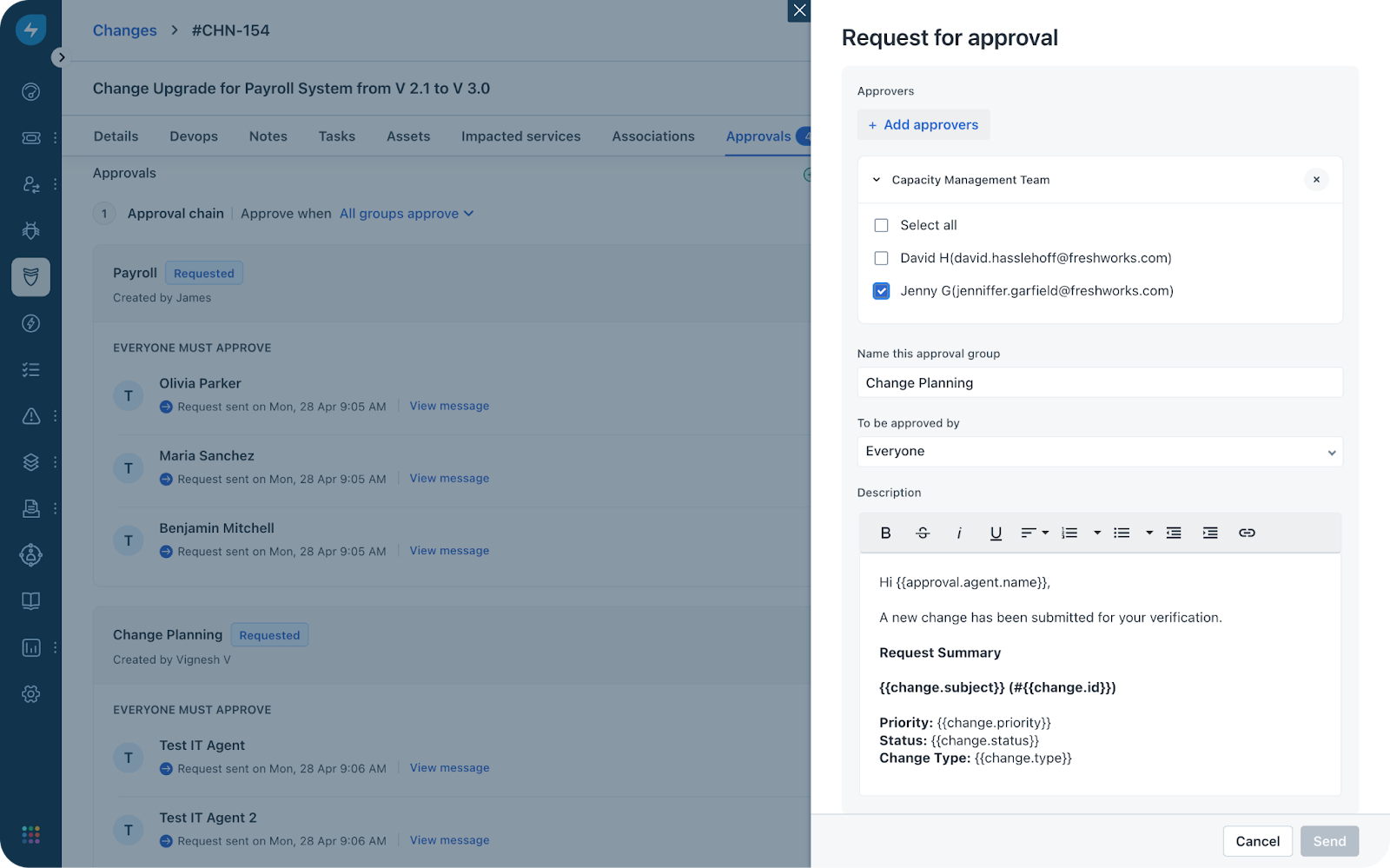
6. Click Send.
This sends the approval email to all added approvers. Approval rules both at the group level and at the chain level determine whether the ticket will be approved or rejected. The following rules are offered at the group level and the chain level:
Approval Groups:
Approval Chains:
At any given time, only one chain remains active. Only when the chain is closed, can the next chain be created.
Workflows
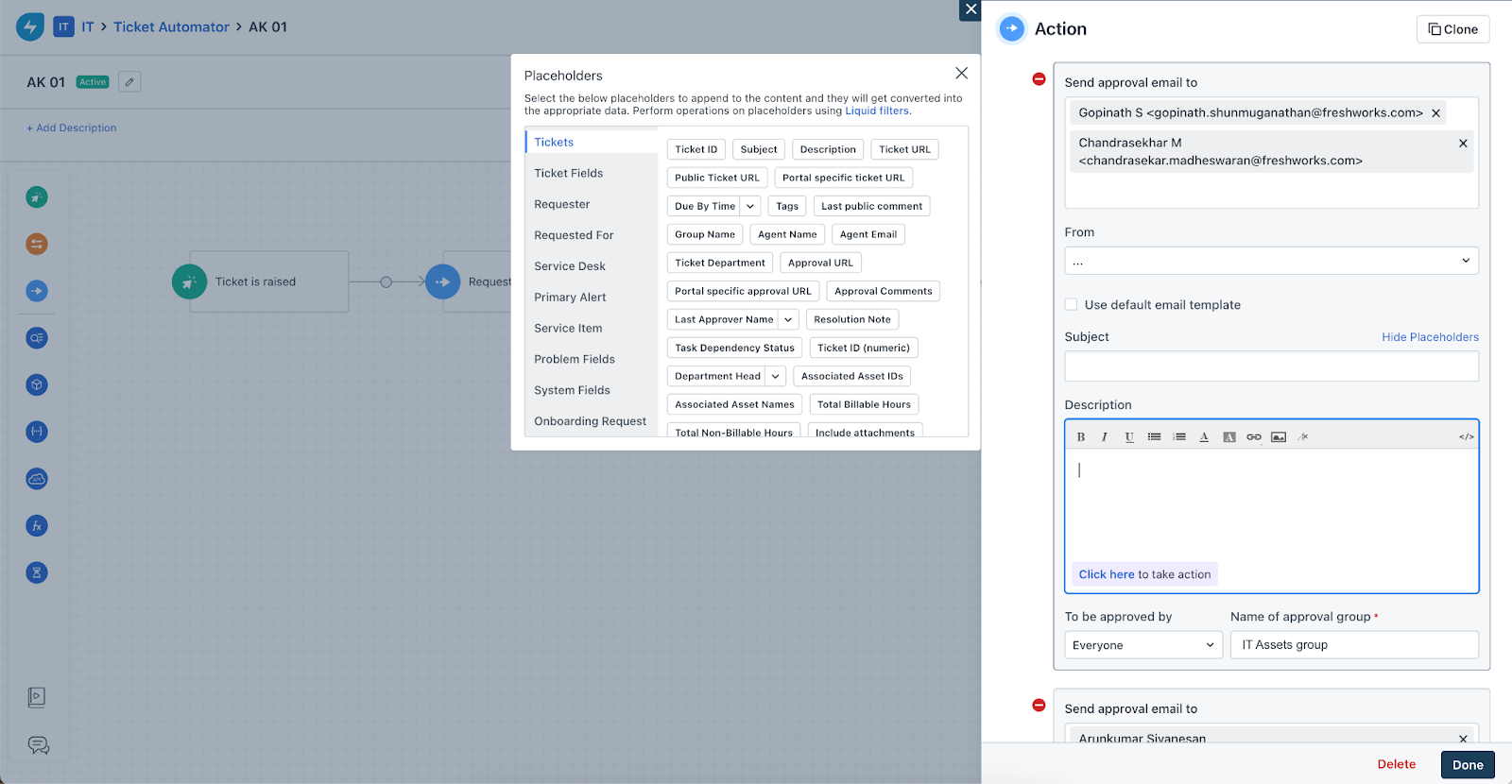
Approval requests can be configured as part of a workflow where the approval mail is sent to users or teams when the criteria matching the workflow action is met. Here’s how you can configure an approval as part of the workflow.
1. Open a workflow of your choice.
2. Add the action node.
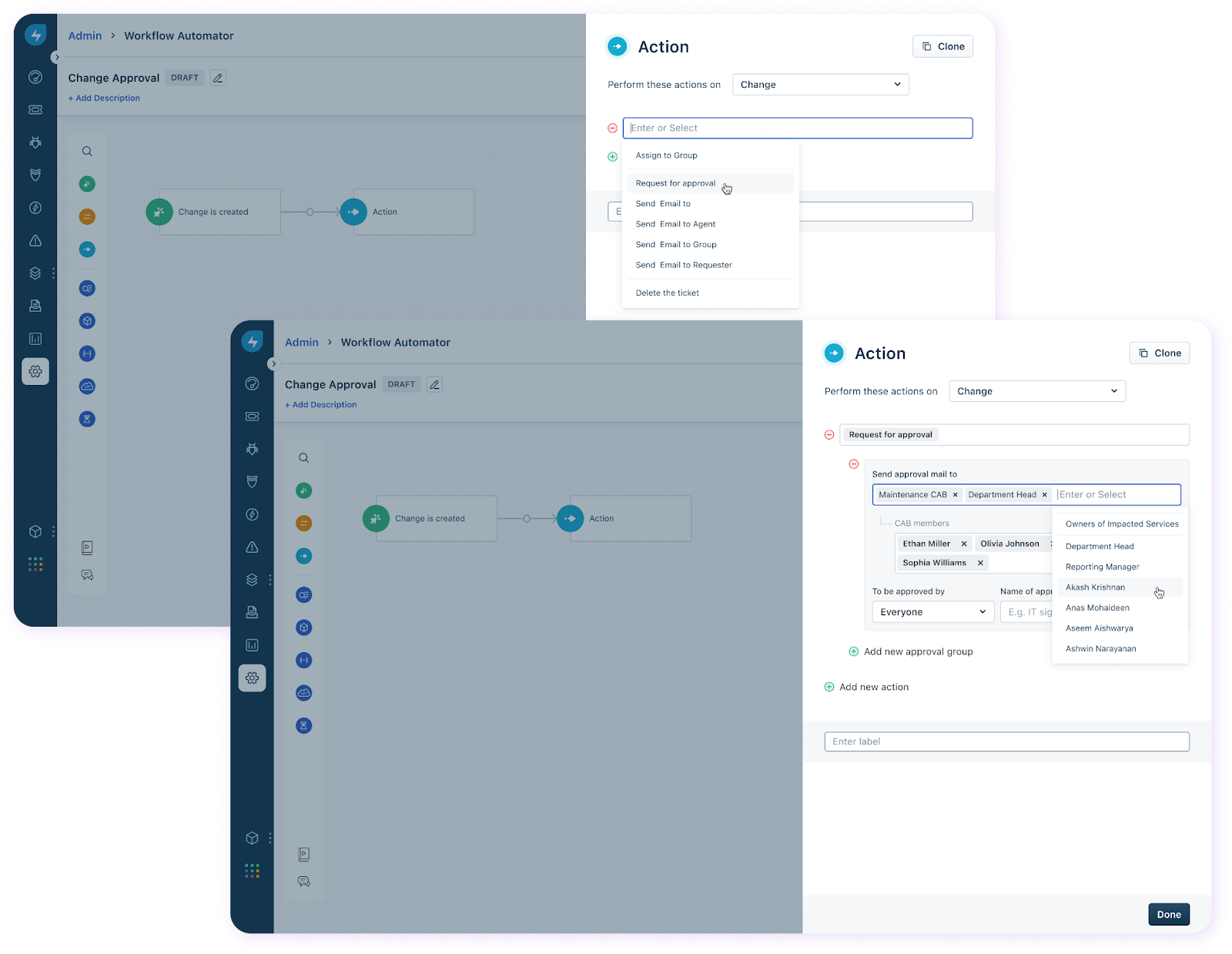
3. Select the module on which you want the action to be executed. Approvals are available for Tickets(Service Requests) and Changes.
4. Select ‘Request for Approval’ from the dropdown and define the users/teams to whom the approval email will be sent. Assign the approval rule and add a name to the approver group. You can select between 4 approval rules: Everyone, Anyone, Majority, or First Responder.
5. Add another approval group if you want the approval to execute in parallel without any dependency on the previously added approval group. Assign approval rules that apply to this group.
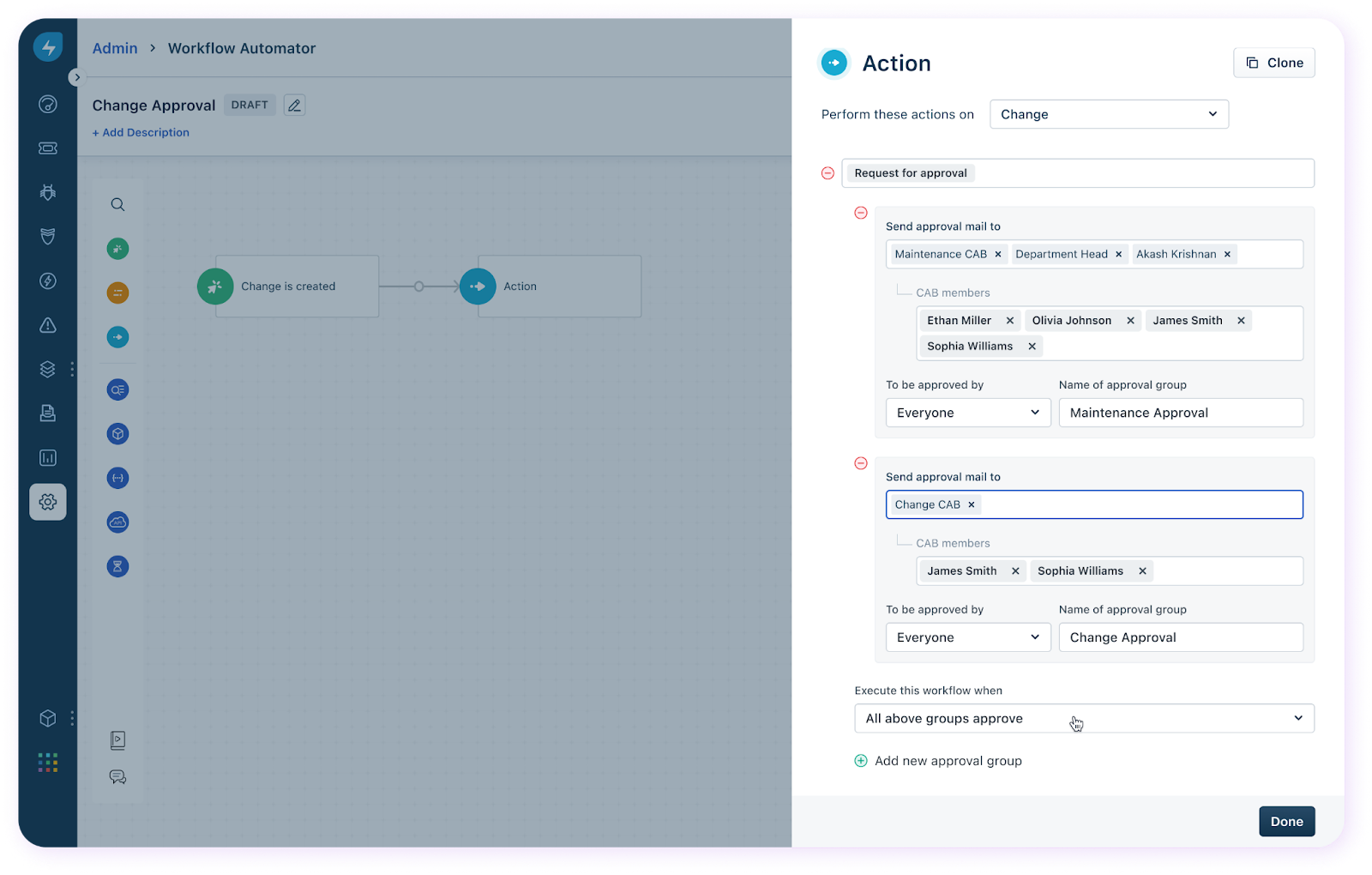
6. Assign a rule for the entire approval chain.
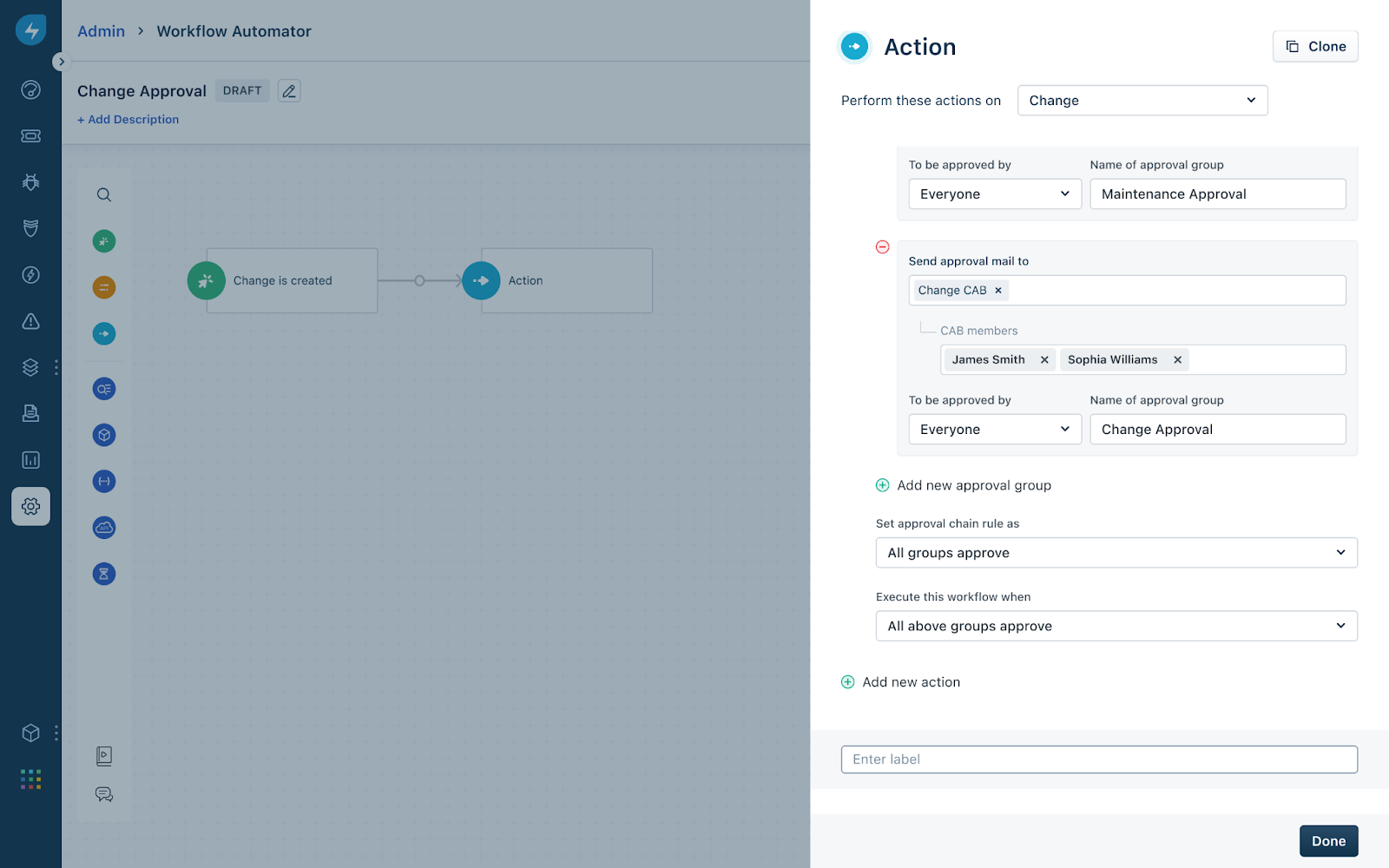
1. Set approval chain rule as: chain rule found on the approvals page.
2. Execute workflow when: This is for moving the workflow forward. 7. Click Done.
This saves the workflow. Whenever the criteria set by the workflow are met, the approval request is sent to the relevant approvers.
Editing or cancelling an existing approval group
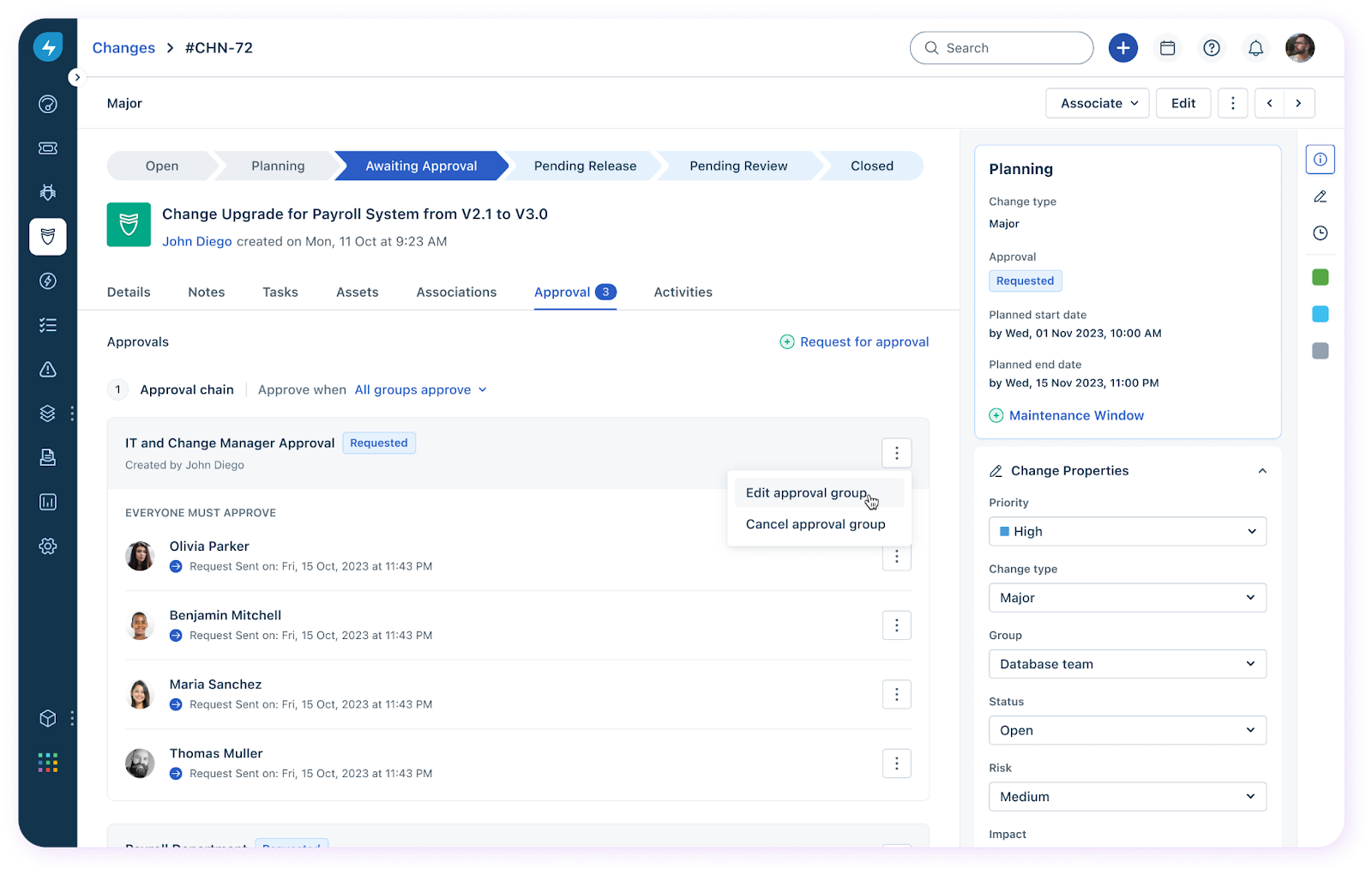
Approval groups can be edited to add or remove approvers or cancelled entirely. To modify an approval group, click the 3-dot icon and click Edit approval group. This allows you to add or remove approvers from the approval group. Edits made to the approval group impact only the approval group. It does not affect the overall approval chain. If changes are made at the chain level, it impacts the overall chain.
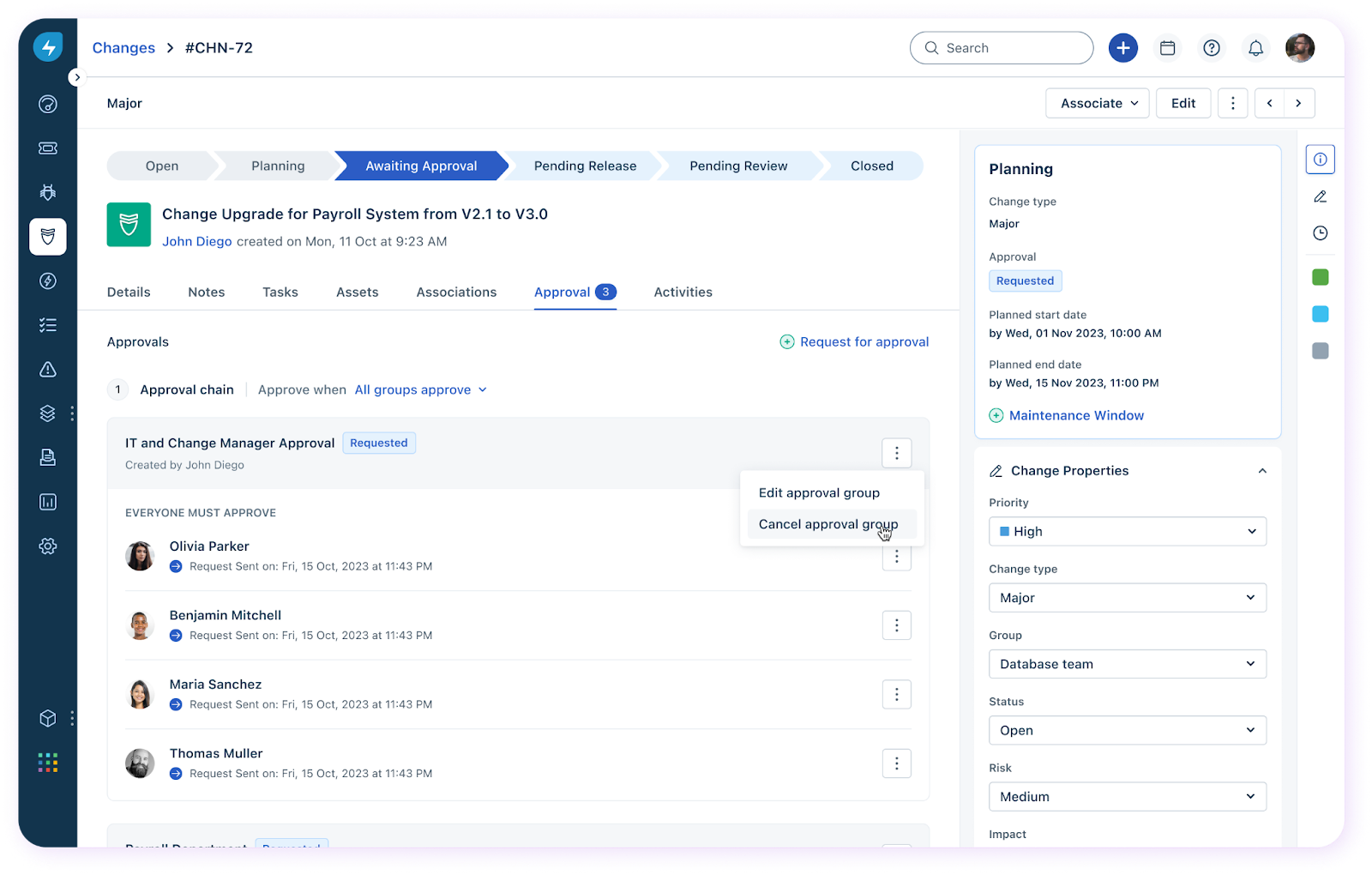
Click Cancel the approval group if you wish to cancel it entirely. This cancels the approval group. This action is irreversible.
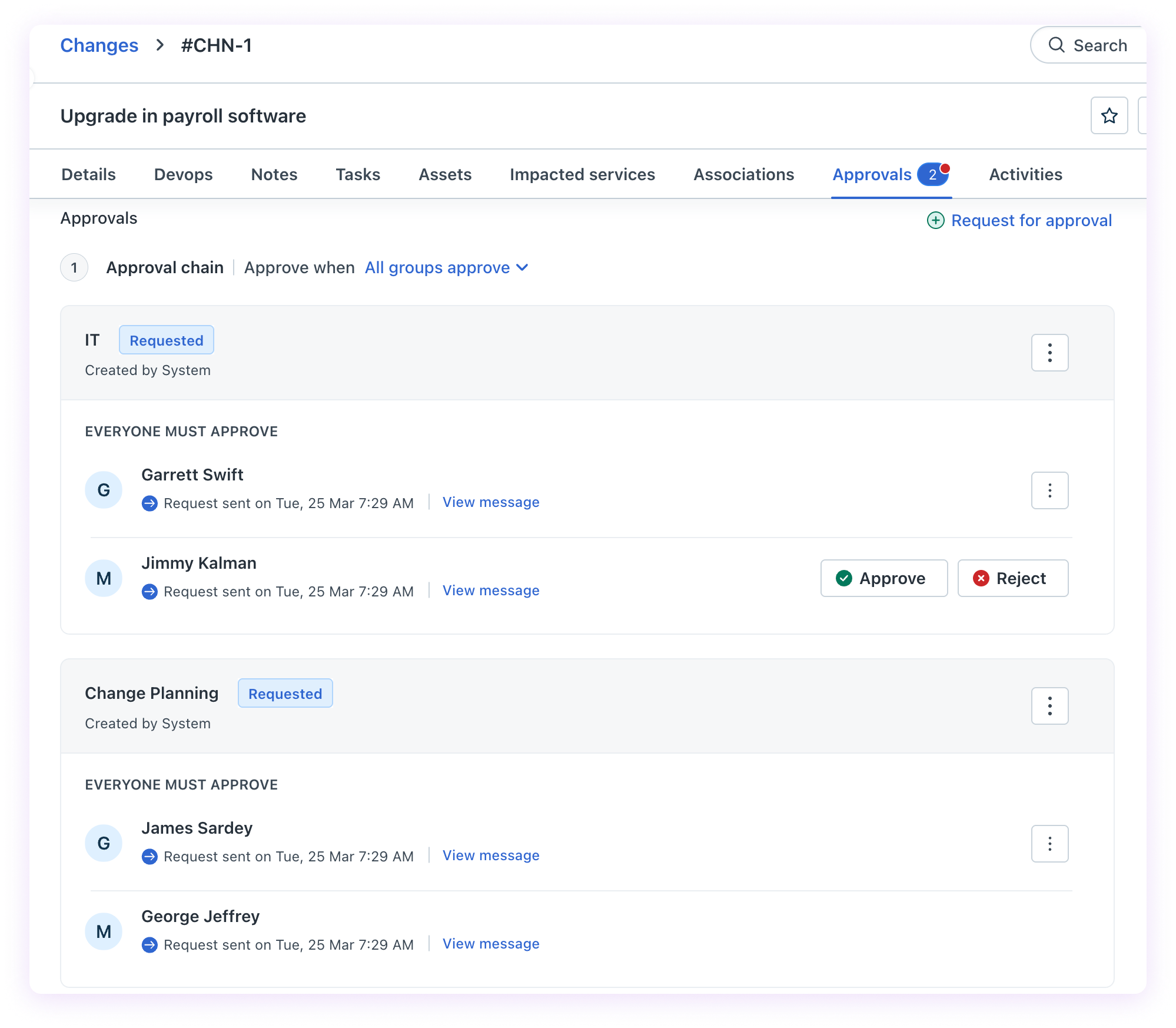
Accepting/Rejecting an existing approval
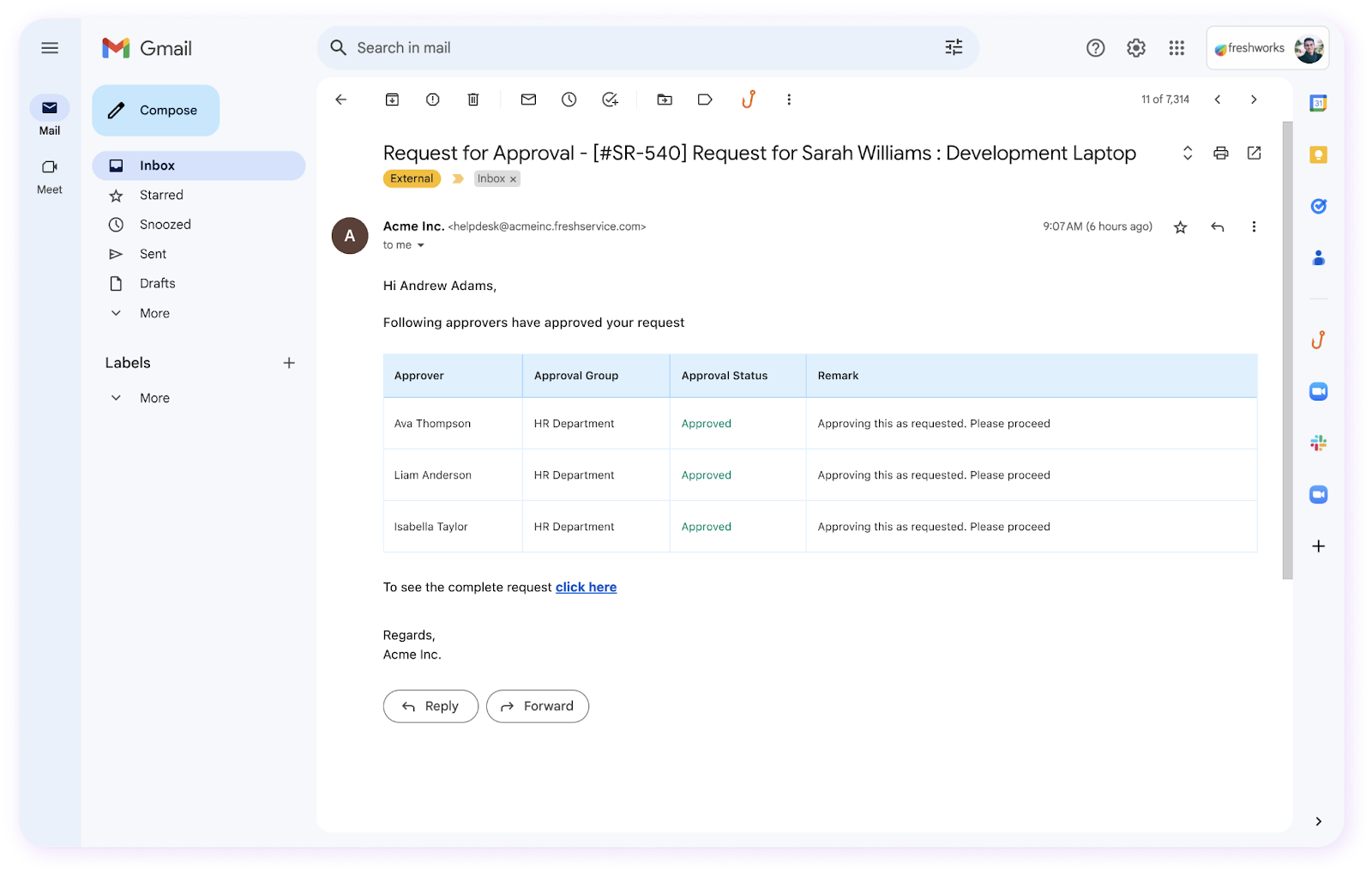
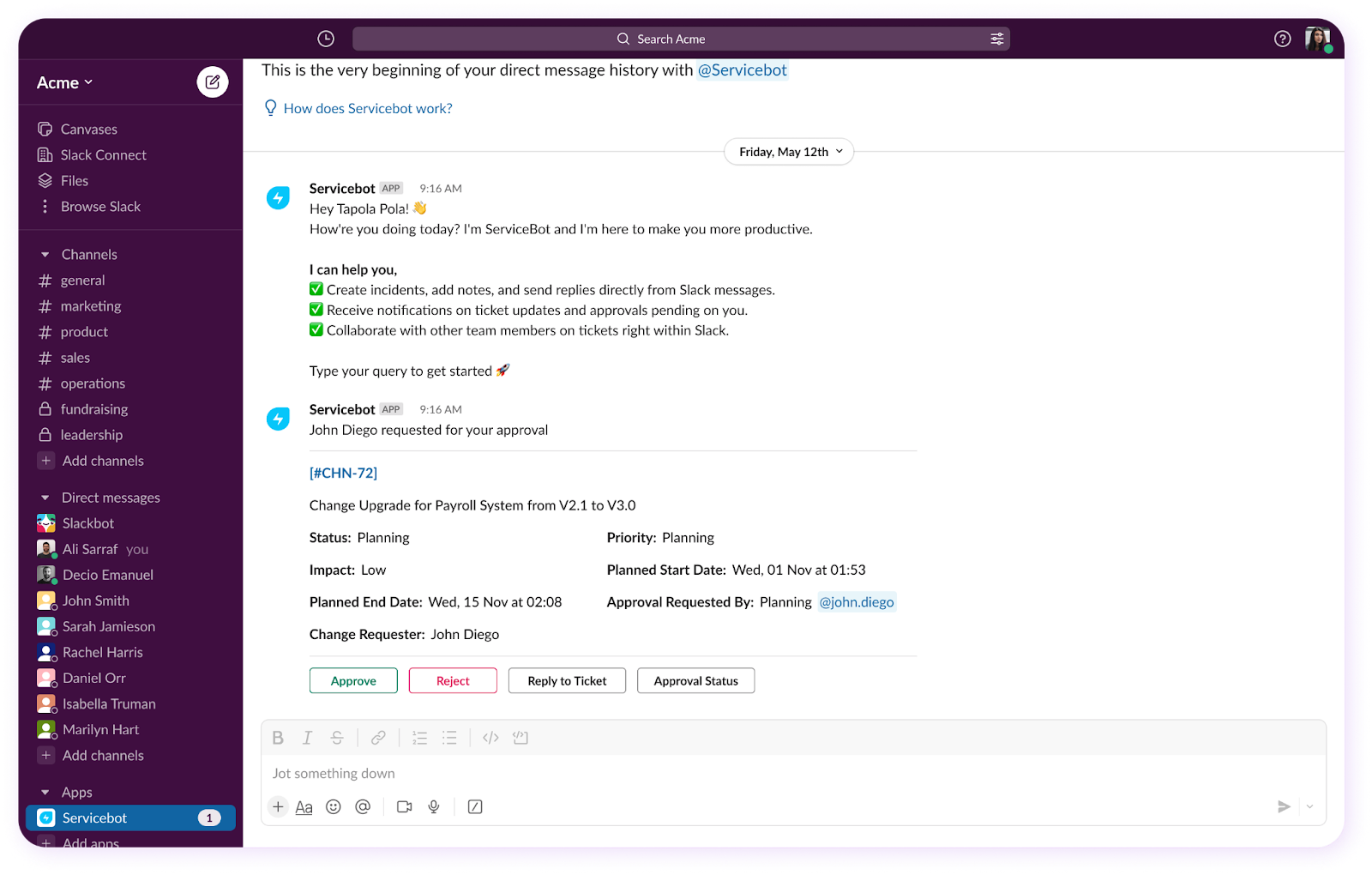
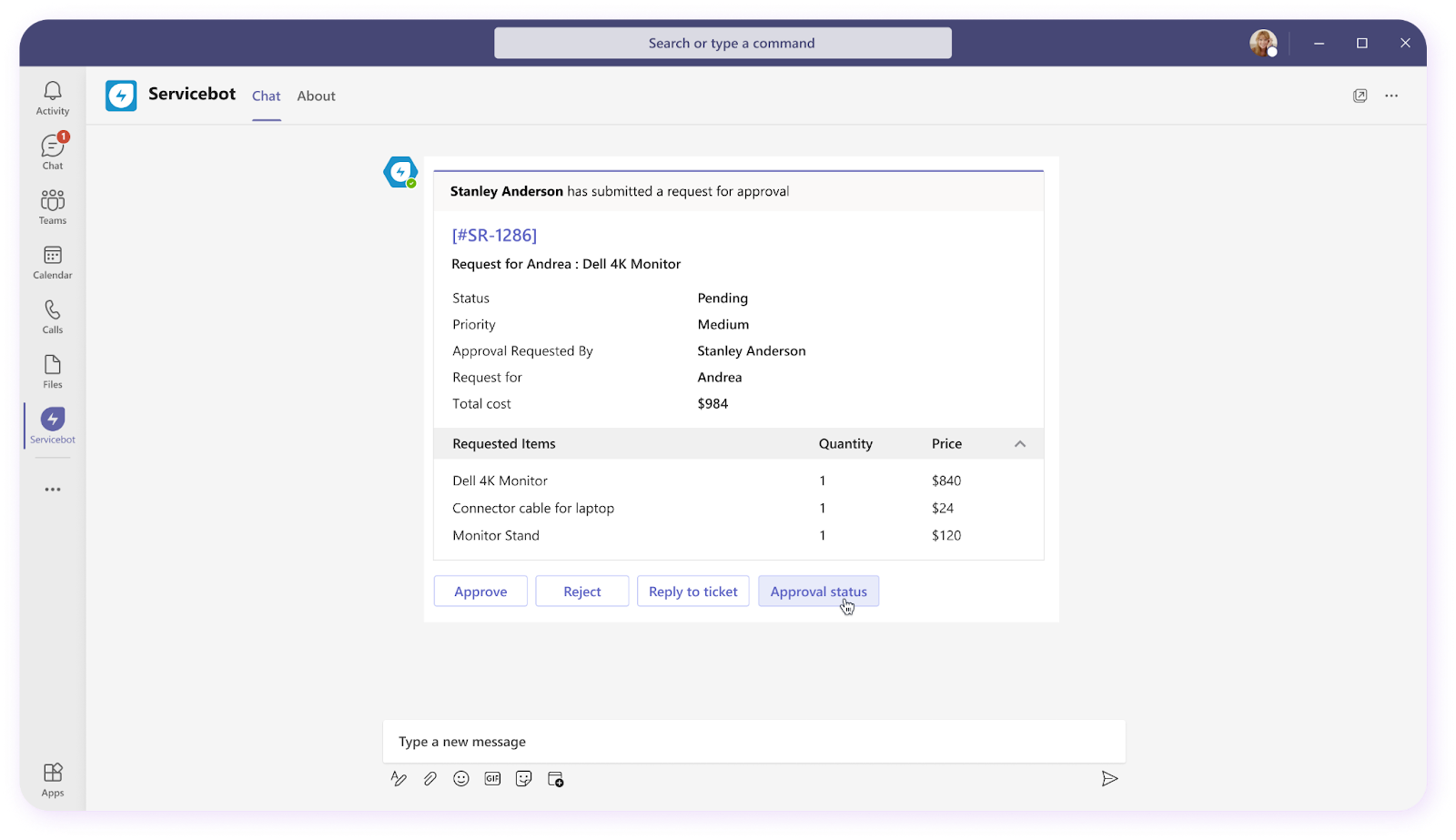
Approval Requests can be accessed by approvers in one of the following channels:
Enabling the feature for agents
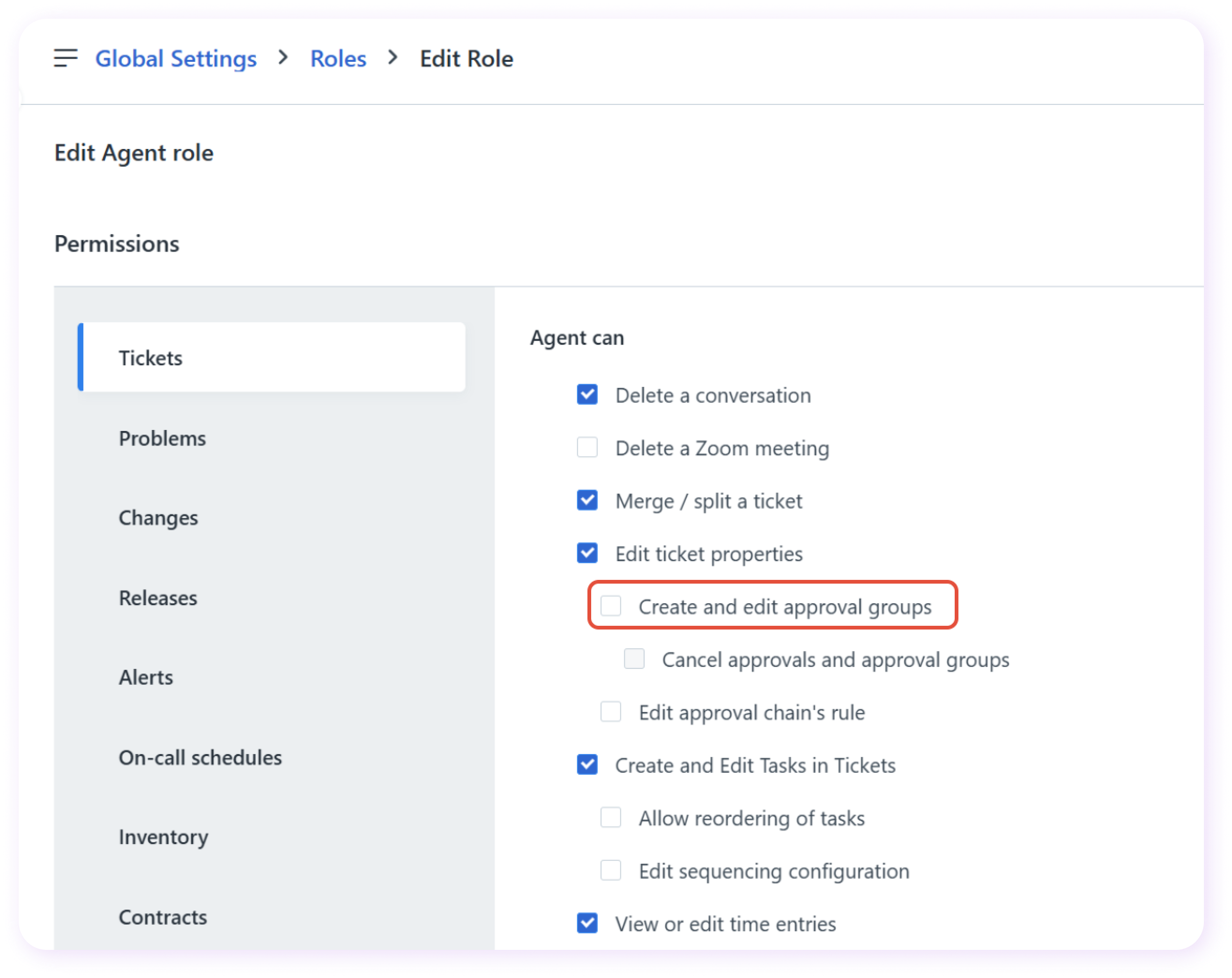
Agents can be granted or revoked permissions to create and edit approval groups. The permissions for the same can be found under Admin Settings > Roles. Admins can also define if agents have permission to cancel approval groups they have created. Similarly, the permission to modify the chain rule can also be found here.
Non-blocking workflow execution for approvals
This article describes how workflows involving approvals operate within Freshservice.
``` Note: For existing users: Non-blocking workflow execution is currently available for early access. To enable this feature, please contact the Freshservice support team.
For new users: This non-blocking behavior will be the default setting from the May ERM (Enterprise Release Milestone). ```
Previously, when a workflow triggered an approval, subsequent workflows or actions that matched the same event and conditions would be blocked.
The non-blocking execution feature changes this behavior. Once an approval email is sent from an initial workflow, any subsequent workflows that match the defined event and conditions will commence execution immediately, without awaiting the outcome of the preceding approval.
Enabling the feature (for Early access users):
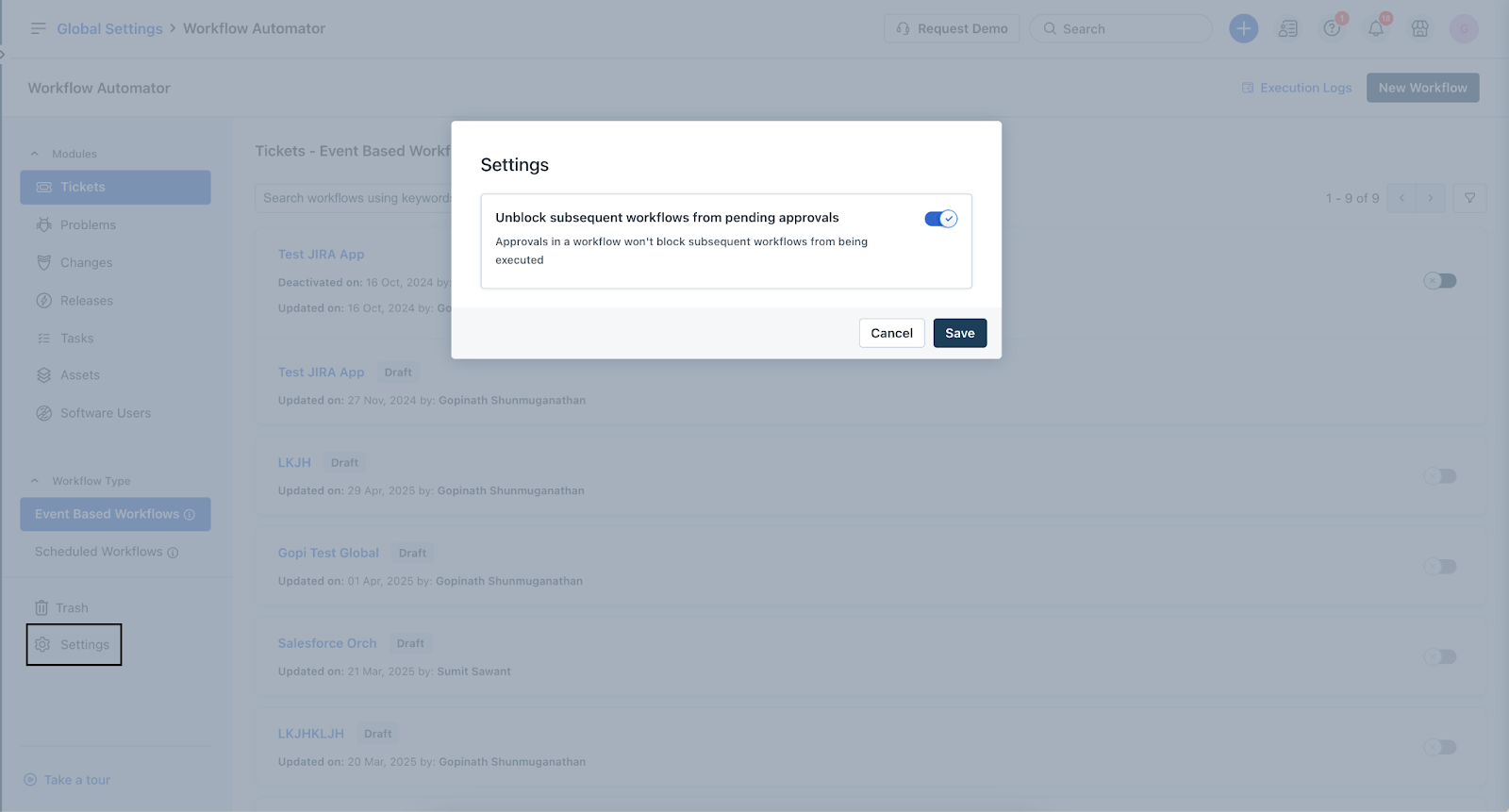
1. Navigate to Settings within the workflows section.
2. Enable the Approvals node won’t block workflows toggle to activate non-blocking behavior for all event-based workflows.
``` Note: This setting must be enabled separately in your sandbox and production environments. The Sandbox sync functionality will not transfer this specific configuration. ```
Action required: Preparing your workflows
Before enabling the non-blocking feature, it is crucial to review and adjust your existing workflows:
Impact of multiple send approval actions in sequential workflows
Consider a scenario where you have multiple workflows (e.g., Workflow 1, Workflow 2, Workflow 3) triggered by the same event, and each contains a "Send approval" action.
The following behaviour will be changed if you are using the Parallel approval feature:
Using Parallel Approvals feature
If you are using the Parallel Approvals feature, the behavior is different:
Use case
For example, Scenario (Merged Approvals): If multiple workflows have triggered approval emails that have been merged into a single approval group, a key question arises: which workflow will proceed once an approval decision is made?
Recommendation for Intentional Blocking configurations
For customers who have intentionally configured approval nodes to block the execution of subsequent workflows, it is highly recommended to:
Customizable Approval Emails
You can customize approval email content for each approval group directly within the workflow configuration. This enhancement improves clarity in approval communication, helping approvers make faster and better-informed decisions.
You can do the following:
Use dynamic placeholders to automatically insert contextual details, such as:
- Ticket fields (e.g., Subject, Priority)
- Requester information
- Associated asset details
This ensures each approval email is informative, actionable, and relevant to the recipient.