Last updated: 2025-12-12
Source: https://support.freshdesk.com/support/solutions/articles/50000011516-agent-experience-on-instagram
Agent Experience on Instagram
This article explains how agents work with Instagram Messages, Comments, and Stories inside Freshdesk.
Identifying Instagram Tickets in the Inbox
Instagram tickets appear in the inbox with the Instagram icon and the name of the connected Instagram page.
Ticket type indicators include:
Additional context shown includes:
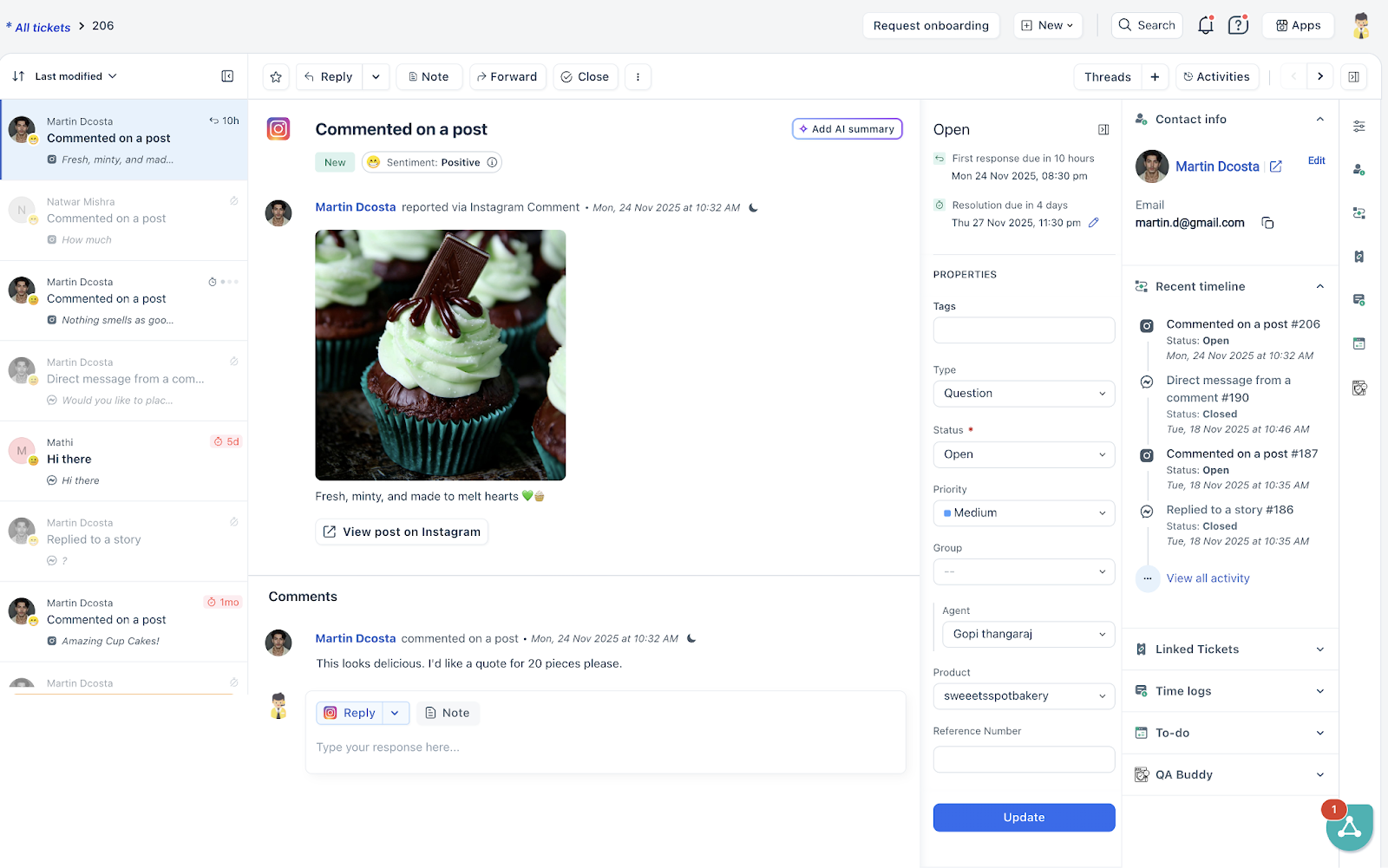
Unread Instagram tickets appear bold, and hovering over the subject shows the full title.
How Instagram Ticket Subjects & Source Info Work in Freshdesk
When a ticket is created from Instagram, Freshdesk automatically fills in two fields: Subject and Source/Source Info to help agents instantly understand the type of interaction that occurred and its origin.
Ticket Subject – Shows what kind of Instagram interaction occurred
Direct Messages (DMs):
Story Interactions:
Comments:
DM created from a comment (agent-initiated):
This allows agents to understand the context immediately, without having to open the ticket.
Source & Source Info – Shows where the ticket originated
Source
Indicates whether the ticket came from:
(DMs + story replies + story mentions)
(comments on organic posts, sponsored posts, and nested threads)
Source Info
Shows the Instagram handle’s configured name.
How it appears inside ticket propertie s:
If the admin sets the Source Info as India Support, it will appear as:
(Freshdesk automatically prefixes the channel + source type to keep it unique across analytics, SLAs, routing, and automations.)
Working with Instagram Direct Messages
Agents can handle direct messages, story replies, story mentions, and reactions sent to the connected Instagram page.
Agent actions for Instagram DMs
Agents can:
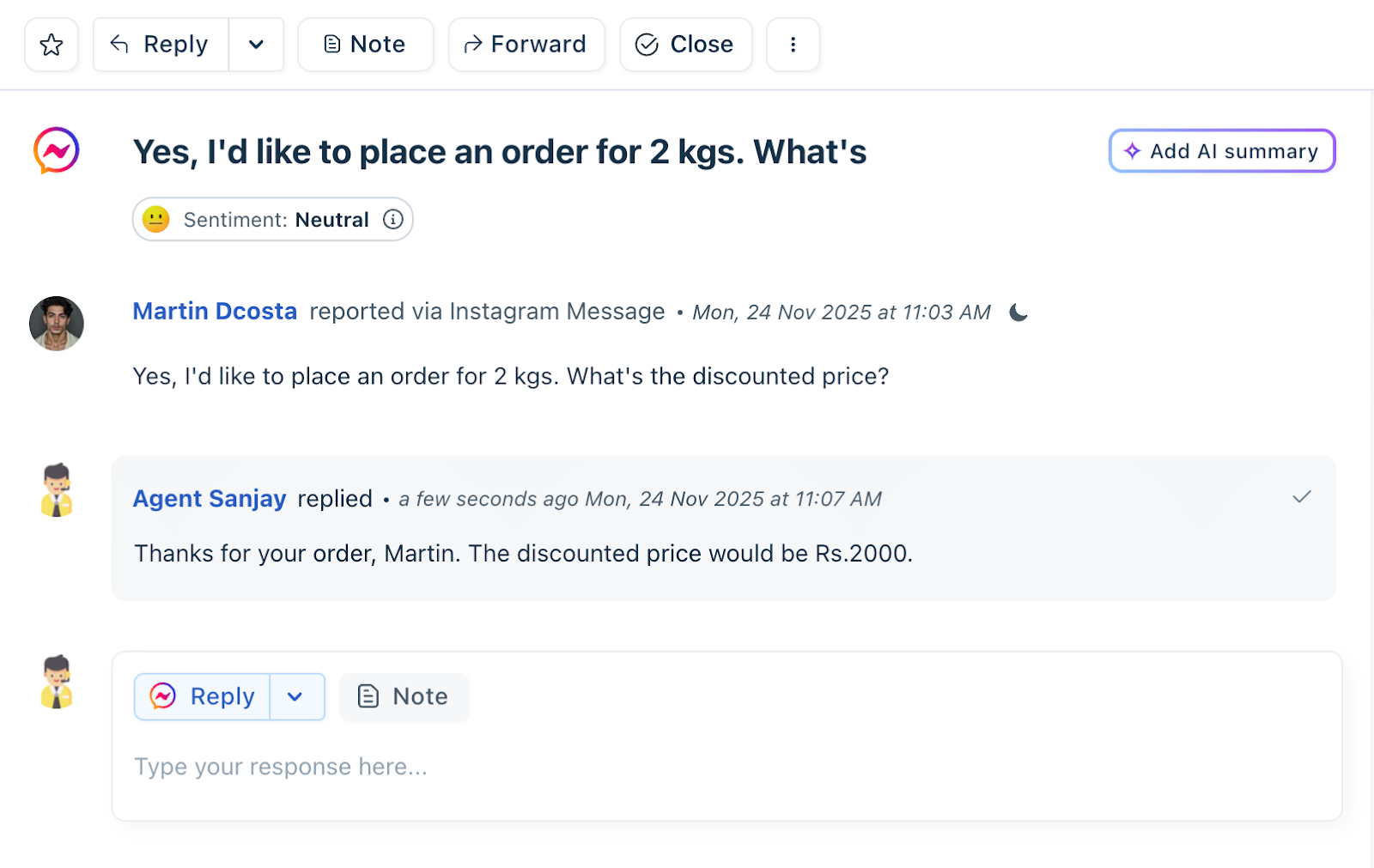
Agent actions on Instagram Story interactions
Story replies, mentions, and reactions all appear as part of Instagram Messages.
If the customer message is older than Instagram’s 7-day window, agents see a message indicating that DM replies are disabled and can respond only after the end user responds.
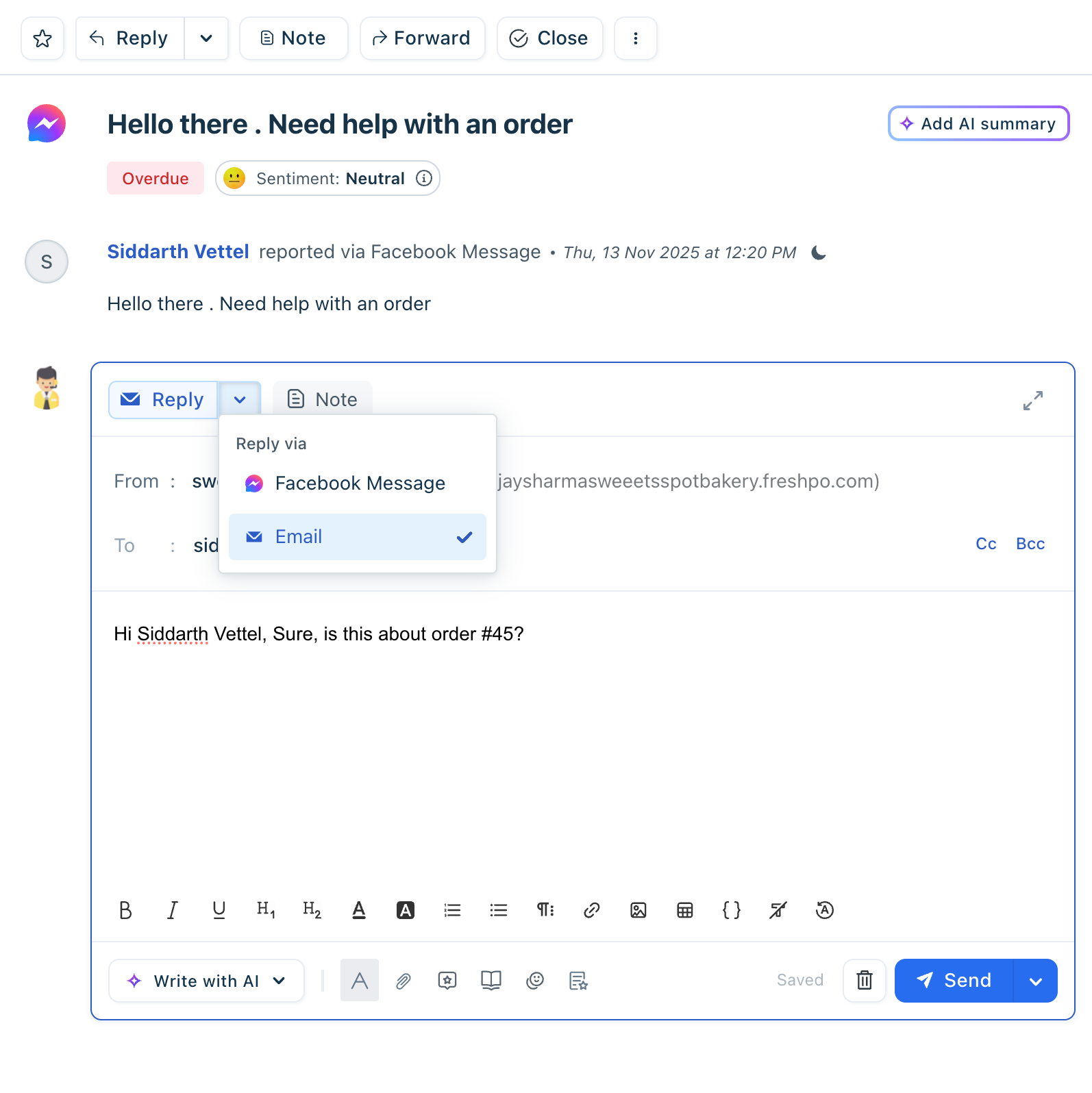
If the contact has an email, the Agent can switch the channel to email and respond.
Managing Comments
Agents can respond to comments on Instagram posts once the admin has enabled Convert comments into tickets.
Individual Comments
If comments are set to be converted individually:
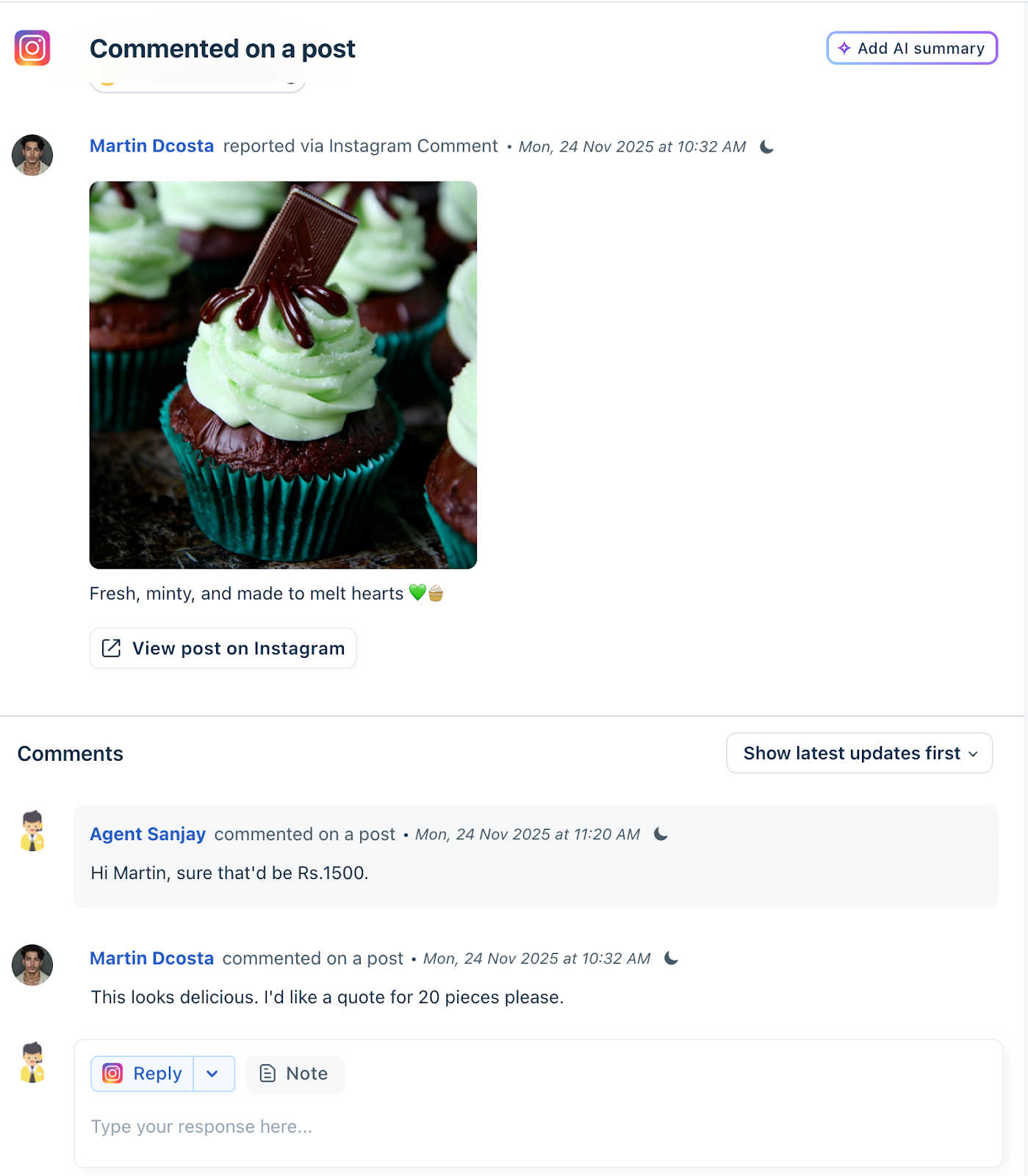
Here is what the sponsored post looks like when an end user adds a comment.
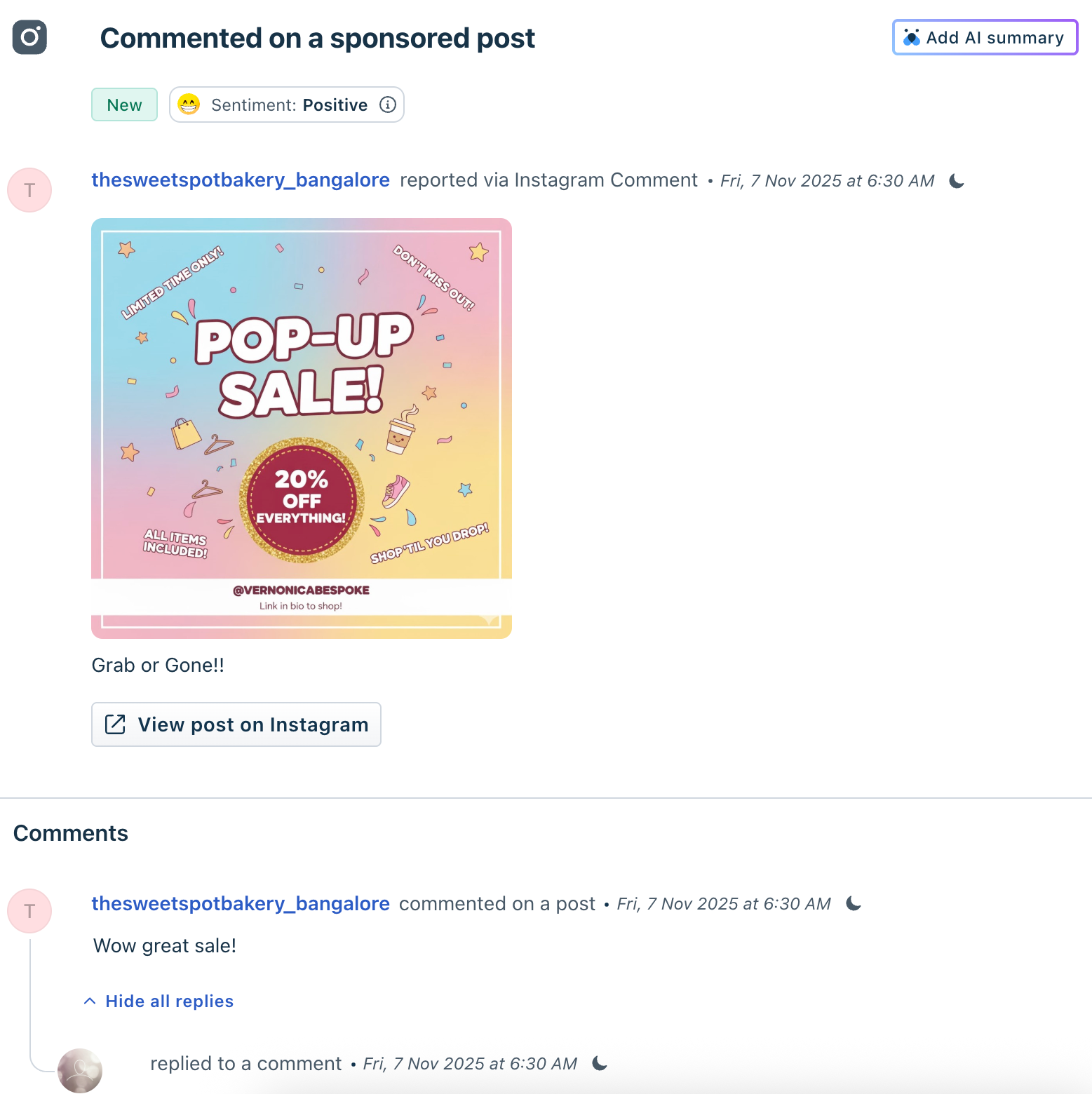
When replying using “Reply,” the editor auto-tags the end user’s handle. The agent may remove the tag, but Instagram will still post the reply properly under that comment thread.
Grouped Comments (Threaded Ticketing)
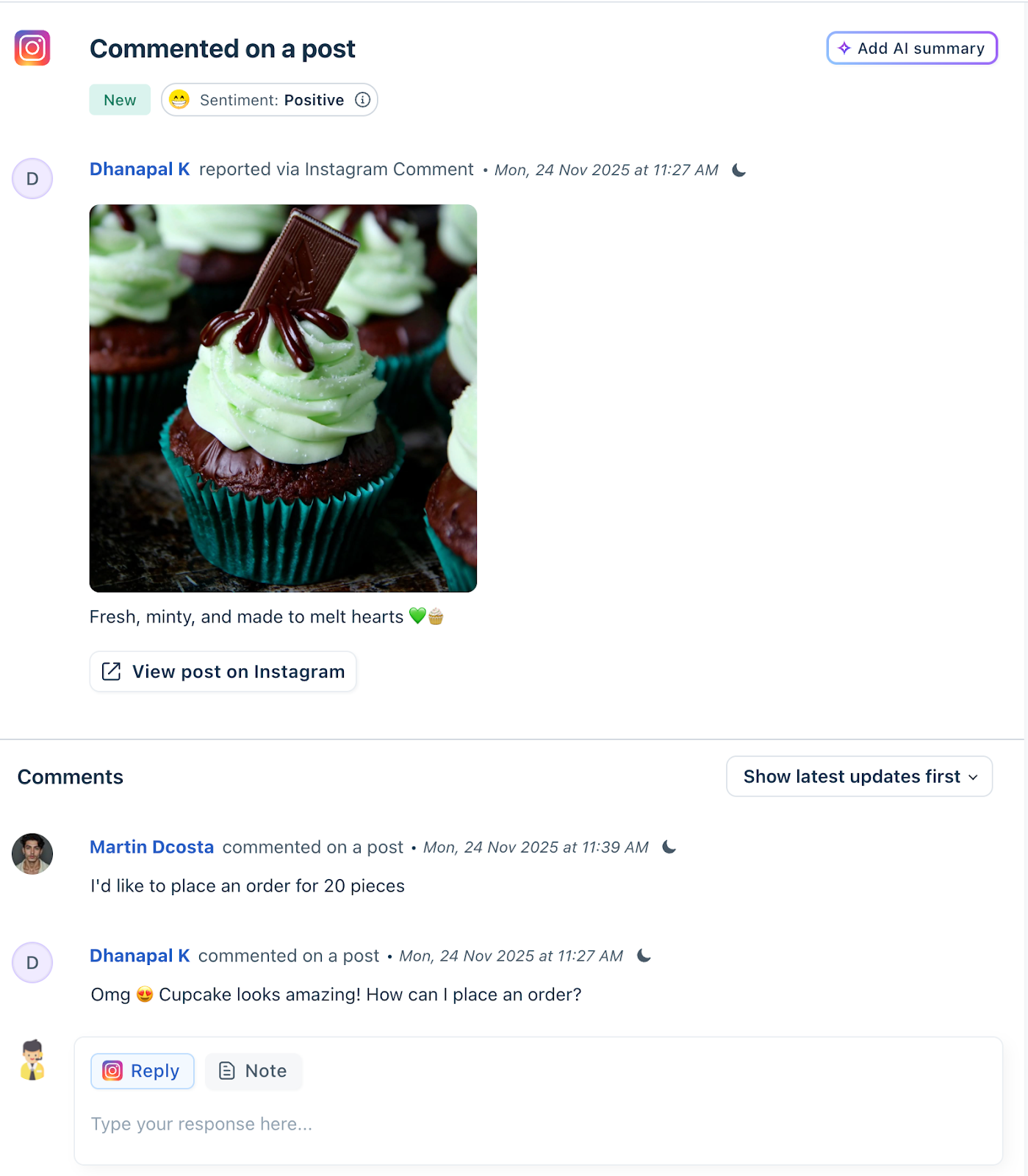
If admins choose to Thread all comments into a single ticket:
- Comment list - Sender names - Thread sequence
- Reply to the post (general comment) - Reply to specific user comments using the Social Comment Editor - Forward a specific comment - Add private notes
Sorting Comments
Agents can sort comments using:
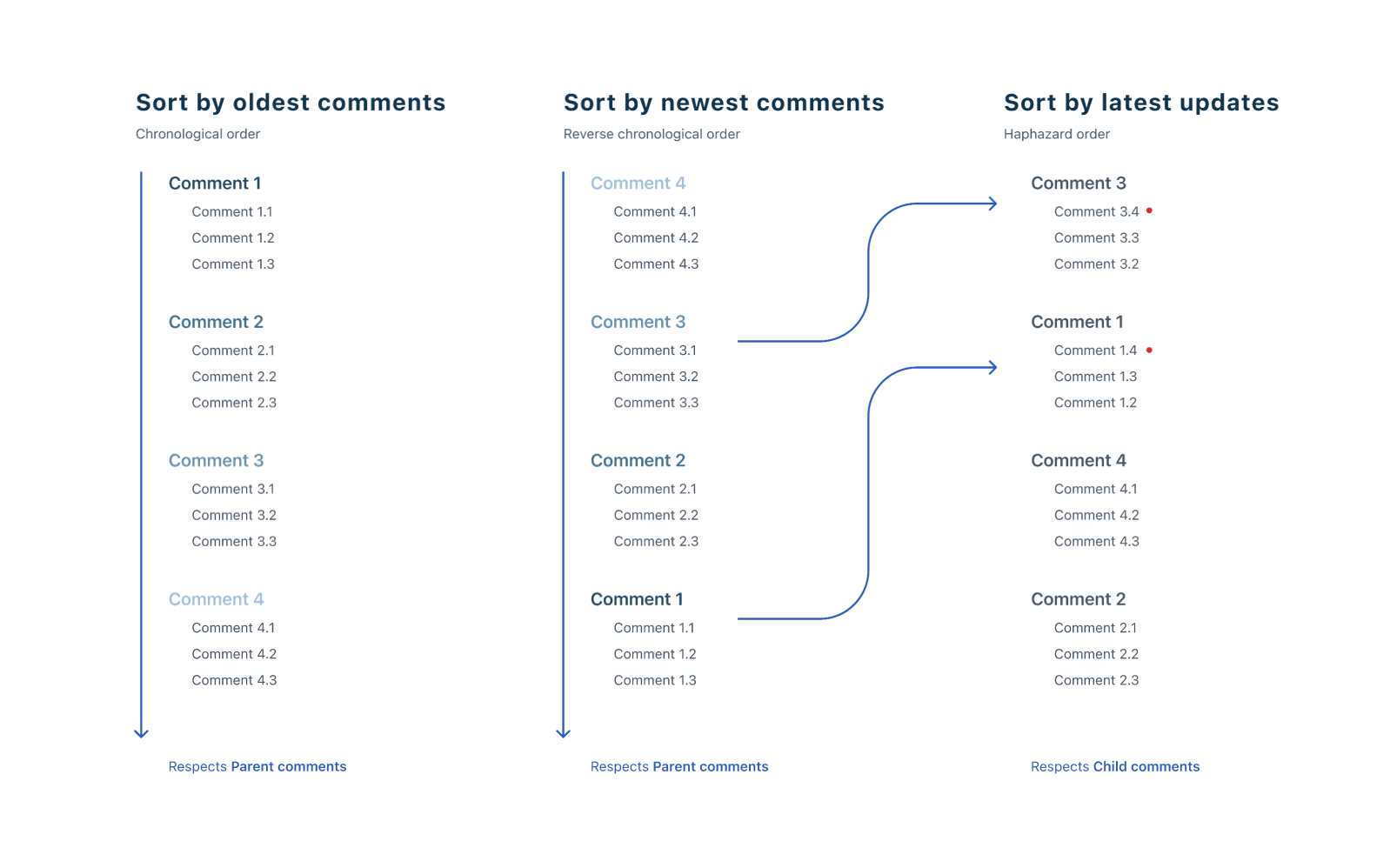
- Oldest and Newest options apply only to parent comments within a post. - Latest Updates First applies to both parent and comment tickets.
- At any given time, a maximum of 3 comments (parent or child) are shown. - If a parent comment has fewer than 3 child comments, all child comments will be displayed alongside it (based on the search context). - Sorting is also applied to child tickets when relevant.
- Clicking View Replies expands and displays all child replies for the selected parent comment. - Clicking +Conversations expands to show all comments in the post. Upon this action, all child comments will be collapsed to reduce clutter.
Replying to Comments
Agents can use the Reply Editor, and their comments will be added directly as parent comments to the post.
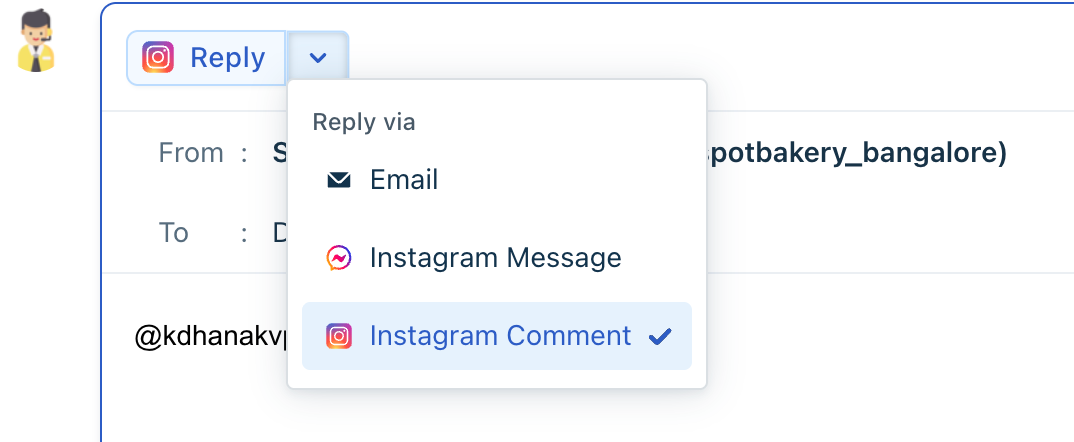
Agents can also respond to an end-user’s comment by clicking on Reply (on hover) near a parent or a child comment. Here, they can see three options:
1. Reply via Email 2. Reply via Instagram Message 3. Reply via Instagram Comment
Reply to Comment via Email
Agents can choose to reply to an Instagram comment through email when a contact has a valid email address. Use the drop-down near Reply in the rich text editor to choose this option.
Acceptance Criteria
Reply as Instagram Comment
- The reply still posts as a child comment, and - Instagram retains mapping for the conversation.
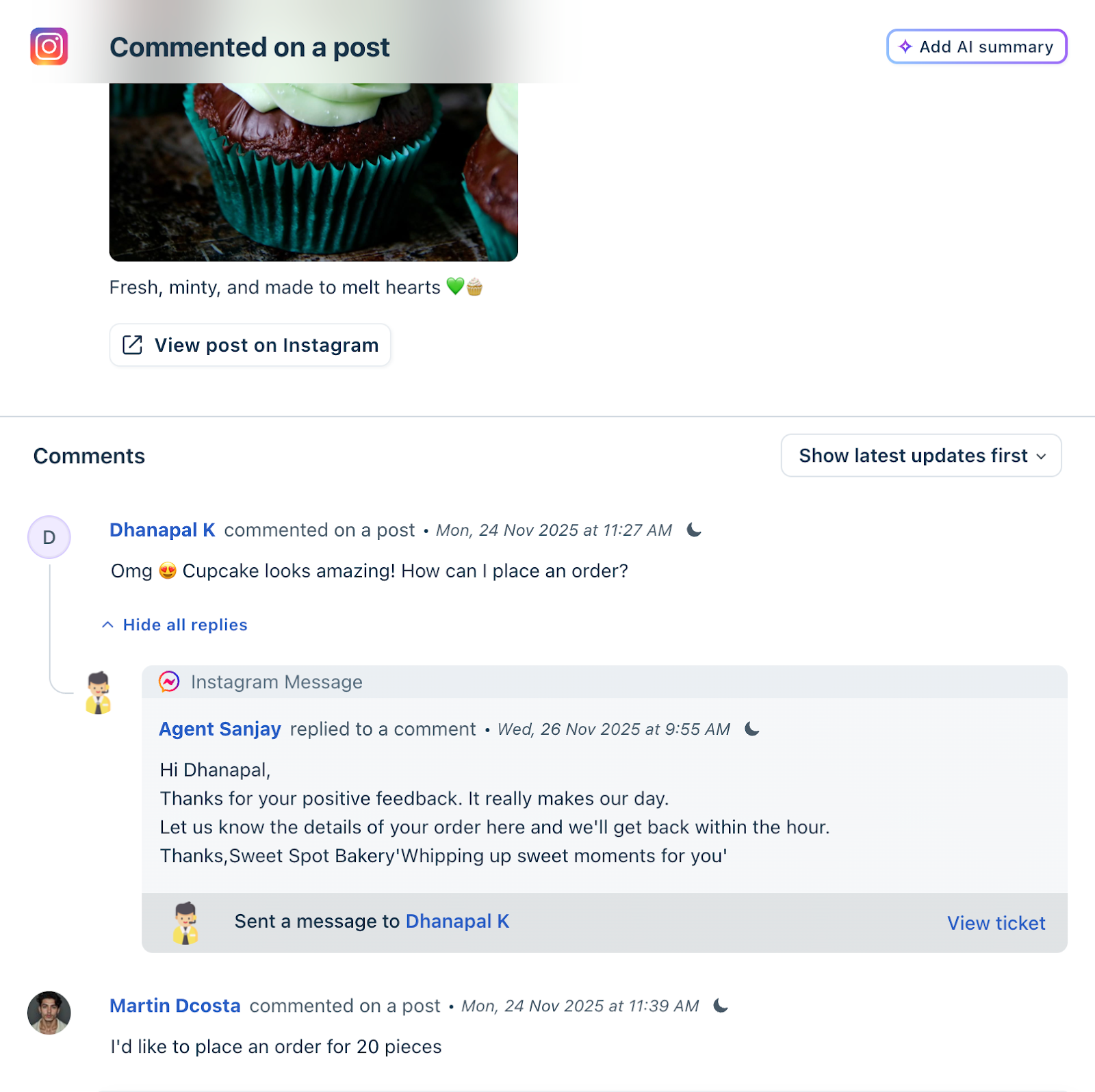
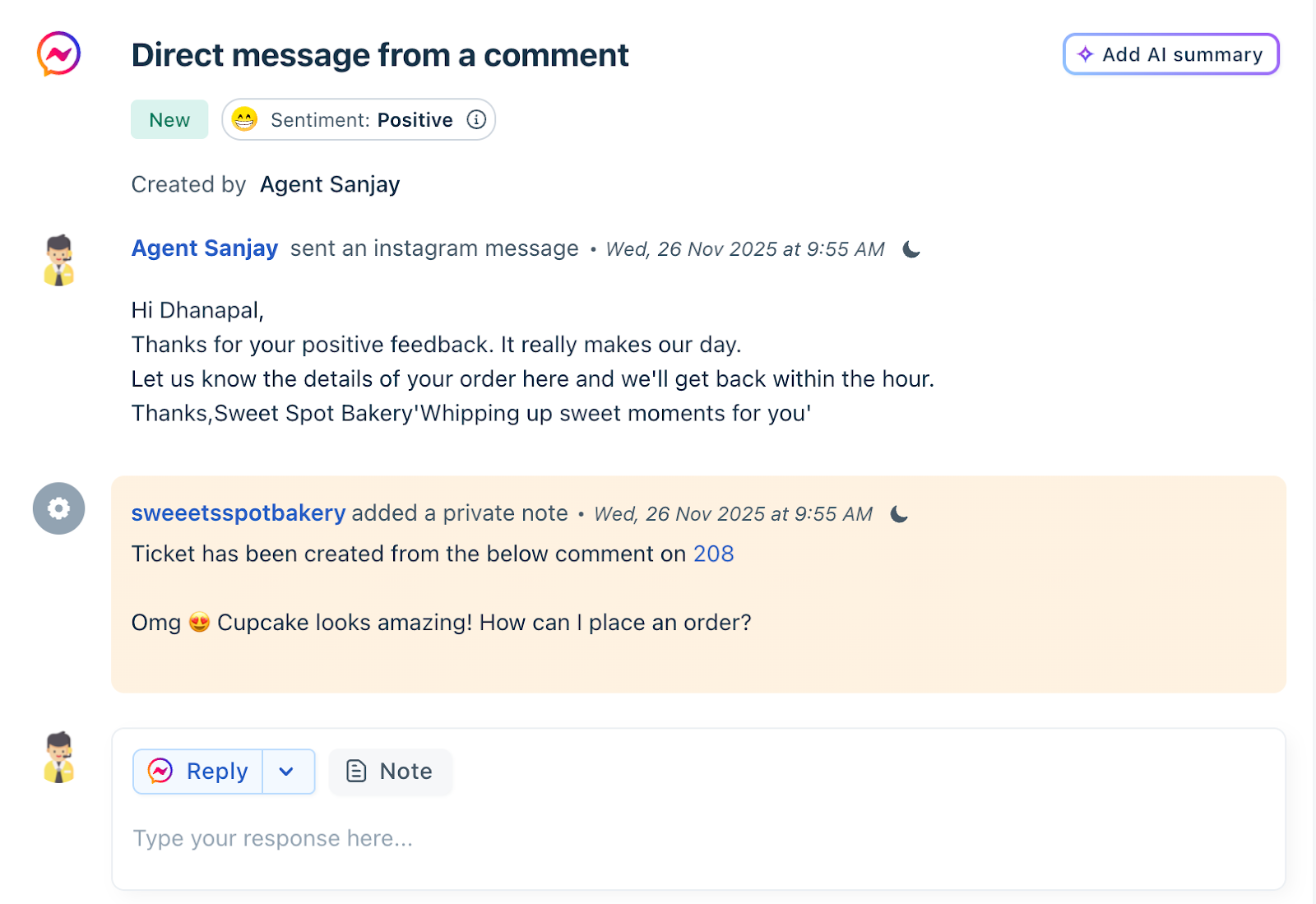
Reply to Comment via Direct Message (DM)
Agents can convert a Facebook comment into a private Messenger conversation when the user prefers or requires a one-to-one interaction. Use the drop-down near Reply in the rich text editor to choose this option.
Splitting Comments into Tickets
Viewing Instagram Handle on a Contact
``` Note: 1) Instagram DM and Comment tickets can be forwarded via email, and all forwarded messages (including replies) appear as notes on the same ticket. No new ticket is created. 2) Instagram-origin tickets cannot be merged. The merge option is hidden for Facebook Messages and Comments, and these tickets will not appear in merge lists from other channels. 3) The character limit for an agent response in Instagram DMs is 1,000 characters, while responses to Instagram comments can go up to 2,200 characters. ```
Supported Files
Check out the list of message types supported on Instagram:
| Media Type | Direction | Direct Messages (Story actions included) | Comments |
| Text | User to agent | Yes | Yes |
| Agent to user | Yes | Yes | |
| Image | User to agent | Yes | NA |
| Agent to user | Yes | NA | |
| Video | User to agent | Yes | NA |
| Agent to user | NA | NA | |
| Audio | User to agent | Yes | NA |
| Agent to user | No | NA | |
| File | User to agent | NA | NA |
| Agent to user | NA | NA | |
| Emoji | User to agent | Yes | Yes |
| Agent to user | Yes | Yes | |
| GIFs | User to agent | Yes | Yes |
| Agent to user | No | No | |
| Stickers | User to agent | NA | NA |
| Agent to user | NA | NA | |
| Call | Audio Call | No | NA |
| Video Call | No | NA | |
| Consumer Profile | |||
| Handle Name | Yes | Yes | |
| Profile Picture | No | No | |
| Followers | No | No |
Related features
1. CSAT Agents can send or trigger CSAT surveys for Facebook messages Learn more about sending CSAT surveys for Facebook messages here.
2. Analytics - Facebook tickets appear under Omnichannel reports where you can see Ticket Volume, Response & Resolution metrics, Agent Performance. Learn more about Facebook tickets in Analytics here.
3. Automation (Rules & Quick Automations) - Facebook tickets support Workflow Automator rules, Event- or time-based actions, and Quick actions for bulk changes. Learn more about Automations here.
4. Business Hours - SLA timers follow the business hours set for Facebook (if channel-based hours are configured in Freshdesk Omni). Learn more about Business hours here.
5. Routing - Facebook DMs and comment tickets can be auto-assigned based on Keywords, Page name, Comment type, and Agent skills. Learn more about ticket routing here.
6. SLA Policies - Facebook tickets follow the SLA associated with their group or type. Learn more about SLA policies here.
7. Ticket Activities Page - Shows the complete Facebook activity log, including Comment added, Reply sent, DM received, and Post details.
8. Audit Logs - All Facebook ticket actions taken by agents are captured in audit logs (available with the Enterprise plan only). Learn more about Audit logs here.
